



Source codes allow you to track which outreach effort led a supporter to interact with your organization. You can create an unlimited number of them.
Learn how they help you track your efforts, determine how many codes you will need, and create a plan for how to use them.
Step 1: Navigate to Source Codes page
From the EveryAction Home page → Engagement → Tracking & Codes → Source Codes
If your menu looks different, use Search for a page to find Source Codes.
Step 2: Create a new Source Code
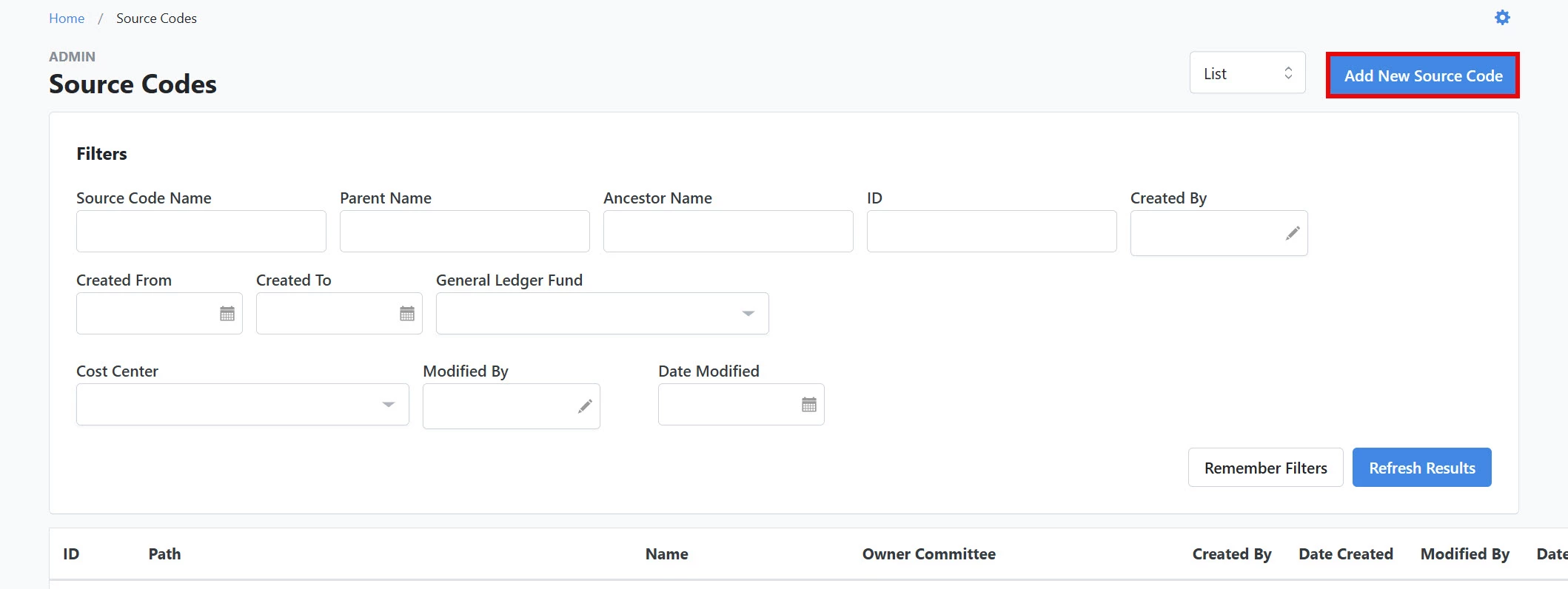
Click the 'Add New Source Code' button in the upper right corner of the page.
Step 3: Add your 'Source Code Details'
You will be prompted to enter 'Source Code Details' and can assign tags that allow you to track your efforts according to campaign, contact, and revenue type. 'Additional Settings' lets you link your code with a General Ledger Fund and Cost Center.
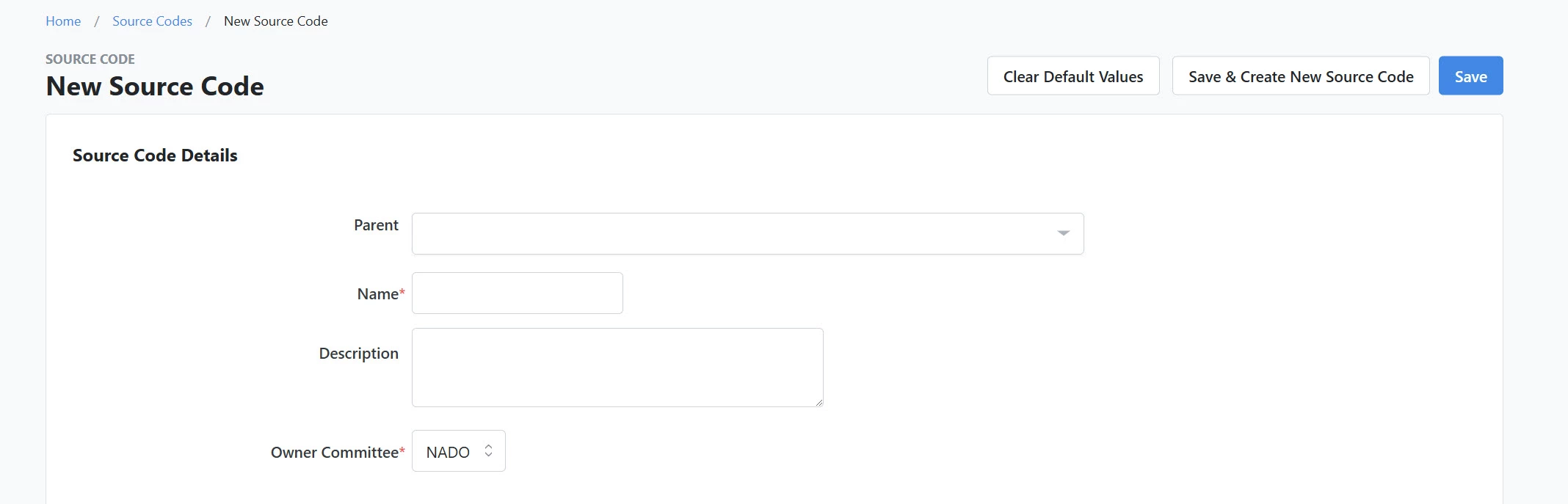
Choose a unique name for your source code. You are limited to 50 alphanumeric characters, including spaces, underscores, dashes, or colons. Angle brackets (< or >) and slashes (/ or \\) are not permitted.
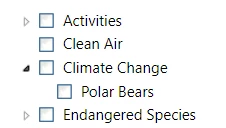
Since source codes are hierarchical elements, they can have parents. Selecting a 'Parent' for the source code will determine its place in the hierarchy. You can create up to 10 levels/sub-levels.
Example:
Step 4: Track your efforts
Associating your source code with a specific campaign, channel, and contact type allows you to use that code to track how your contact was made and on what campaign they took action. If your package lets you create 'Revenue Streams', you can also associate your source code with a particular stream.
Step 5: Customize 'Additional Settings'
Associating your code with a 'General Ledger Fund' and 'Cost Center' can help simplify reconciling contributions to your external accounting system. Add a 'Mail Merge Template' to create acknowledgments and thank-yous from your list or report.

Select which committees have permission to use this code if you have a multi-committee setup.
Example: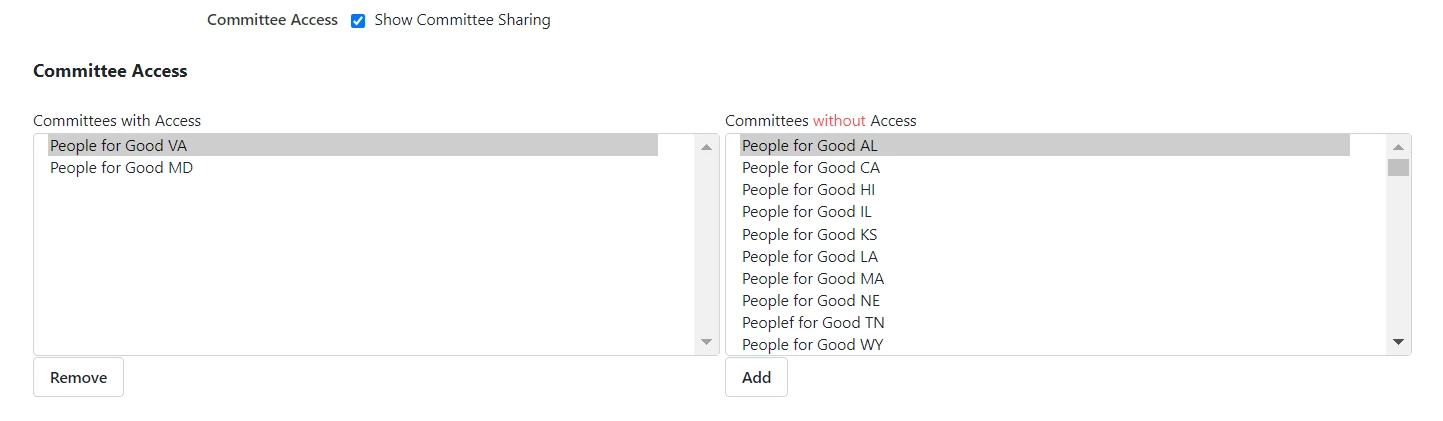
By default, the source code is available only to the committee you are logged into when it is created and will be considered the owner committee of the code. To share your code with multiple committees within your site, select 'Show Committee Sharing' and you can view a list of committees to which you can assign access.
Step 6: Set 'Availability'
Finally, you will need to select the 'Availability' status. Availability status determines how the code can be used and where it will appear on the site.
-
Applicable/Searchable: allows the source code to be freely applied and searchable in your records
-
Searchable: only allows previously applied data to be searchable, but not applicable to your records; this is usually used when you no longer want to use the code for new efforts but still want it to be searchable for reports or lists
Step 7: Save your work
When you are finished, you can scroll to the top or bottom of the page and click to 'Save' your work.

Creating source codes with query strings
Source codes can also be created whenever you link to your forms using query strings.
When you add source= in your query string, we will try to match your supporter’s form submission to one of your existing source codes.
If there is no matching source code (or if there are duplicates that match), the system will automatically create a new source code with that name under the parent source code 'Forms Autogenerated'. You can add more details to your code or move the code to another place in your hierarchy at any time.
Tip
| If you have partners or affiliates who forward your messages and use their source= as part of their outreach efforts, their codes may appear in your records. If you want to disable this default behavior in your committee, contact Support. |
Using Bulk Upload to Bulk Create Source Codes
The Bulk Upload Source Codes tool allows you to create new source codes while uploading or editing transaction data. Rather than manually creating individual source codes, you can upload a file with your new source codes to add to the system.
What else do you need help with?
- How do I apply Source Codes?
- How do I search and report on Source Codes?
- Understanding Extended Source Codes
Not quite what you were searching for?
Navigate back to the Feature Overview.
Looking for training?
Explore this feature at your own pace - join a live training session or watch a recorded webinar by clicking the link below.
How do I create source codes? | How does create source codes work in EveryAction? | Why can't I create source codes? | Where do I create source codes in EveryAction? | What is create source codes in EveryAction? | How to create source codes? | Can I create source codes in EveryAction?