

How do I use an Apricot Sandbox database?
Apricot Pro and Enterprise Administrators have access to a Sandbox site in addition to their live database.
What can a Sandbox be used for?
Without worrying about affecting users' daily work or the data in your site, Administrators can use a Sandbox to:
-
Test new form configurations
-
Get to know new features
-
Check for conflicts with current setup when building out new ideas
Please note: Your Sandbox cannot be copied onto your live site. Any changes made in your Sandbox will need to be built into your live site when you are ready to implement those changes.
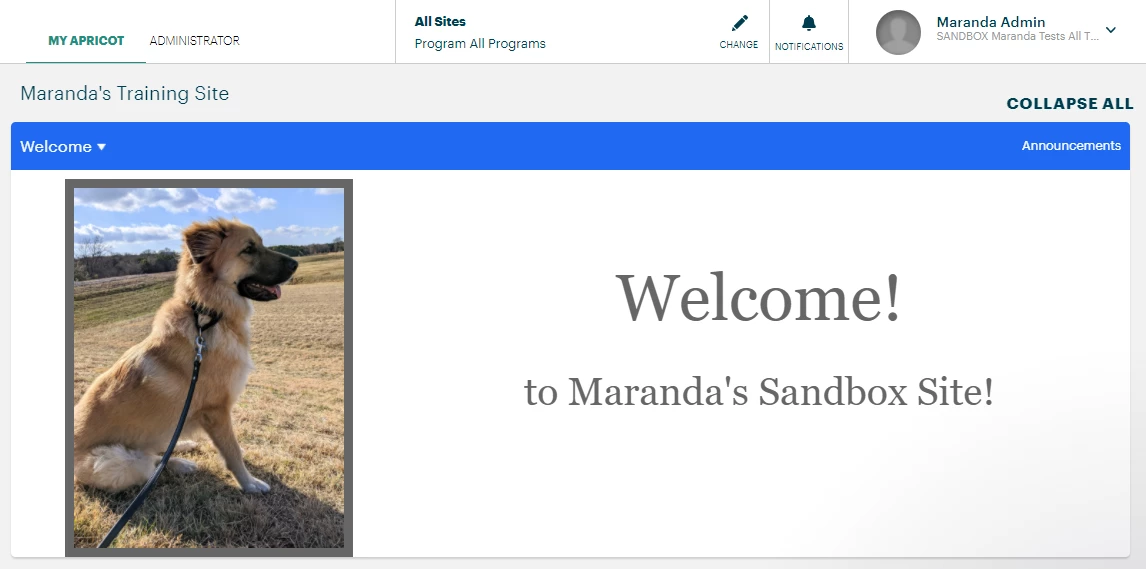
When a Sandbox is created, it will be reflective of your live site at that time and only Administrators will have access. Any standard users will be made inactive, and Administrators will need to manually activate them in order for them to be able to access the Sandbox. That being said, we do not recommend activating standard users within your Sandbox. There is the risk that a standard user could mistakenly log into the Sandbox and input data there instead of in your live site. If that happens, there is no way to copy the data that was input into your Sandbox into your live site. It will have to be manually input into your live site.
How do I get a Sandbox?
If you are unsure about whether you already have a Sandbox or would like to request a Sandbox, please Contact Support for assistance!
Logging into your Sandbox
When your Sandbox is created, all active Administrators will receive a welcome email to log in for the first time. Your username will be the same as the username for your live site.
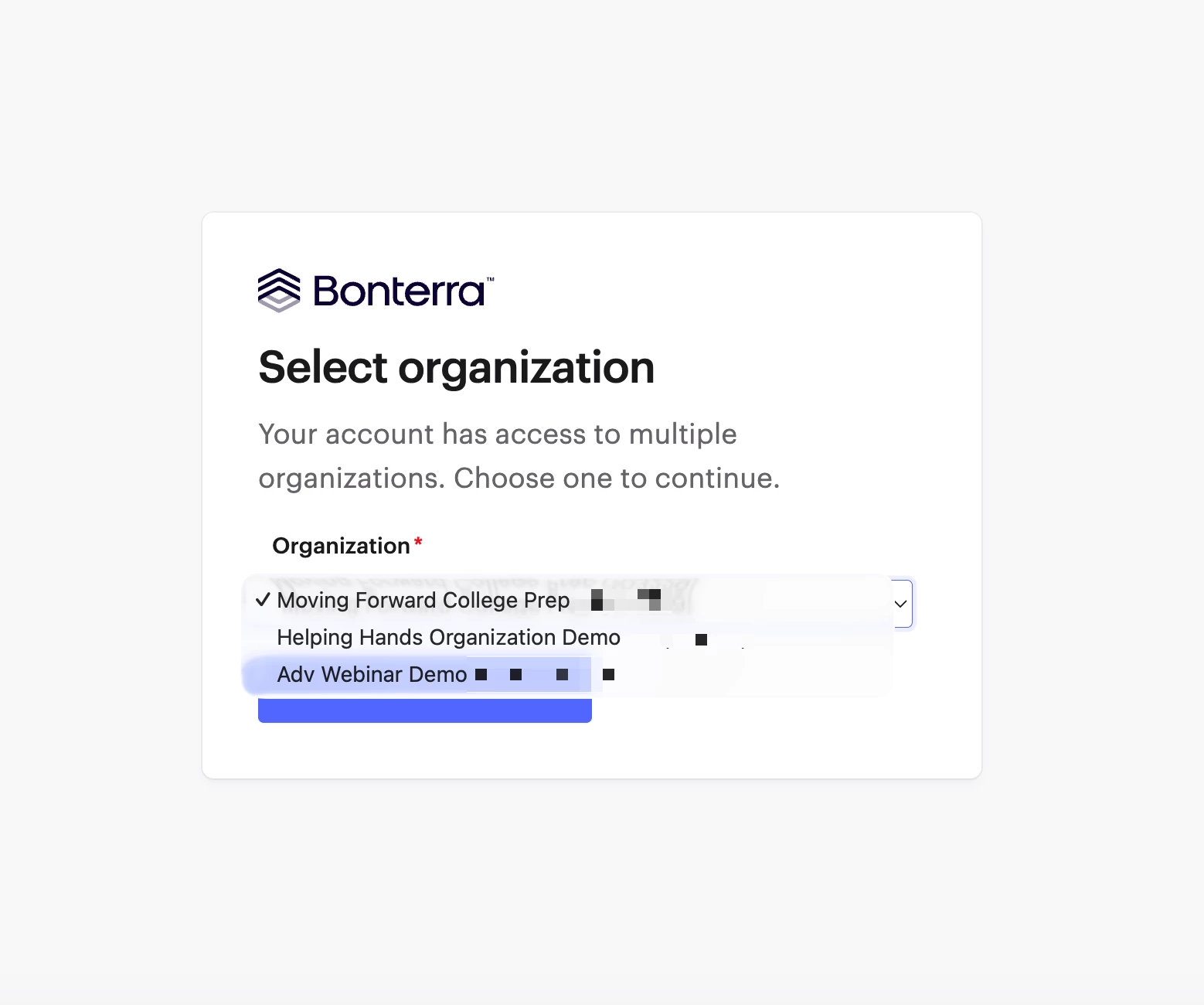
If your username is exactly the same for both your live and Sandbox sites, you will be able to choose which site to log into. For example, a user with a username of administrator@apricot.com for both sites will see a dropdown option upon logging in:
Resetting Passwords
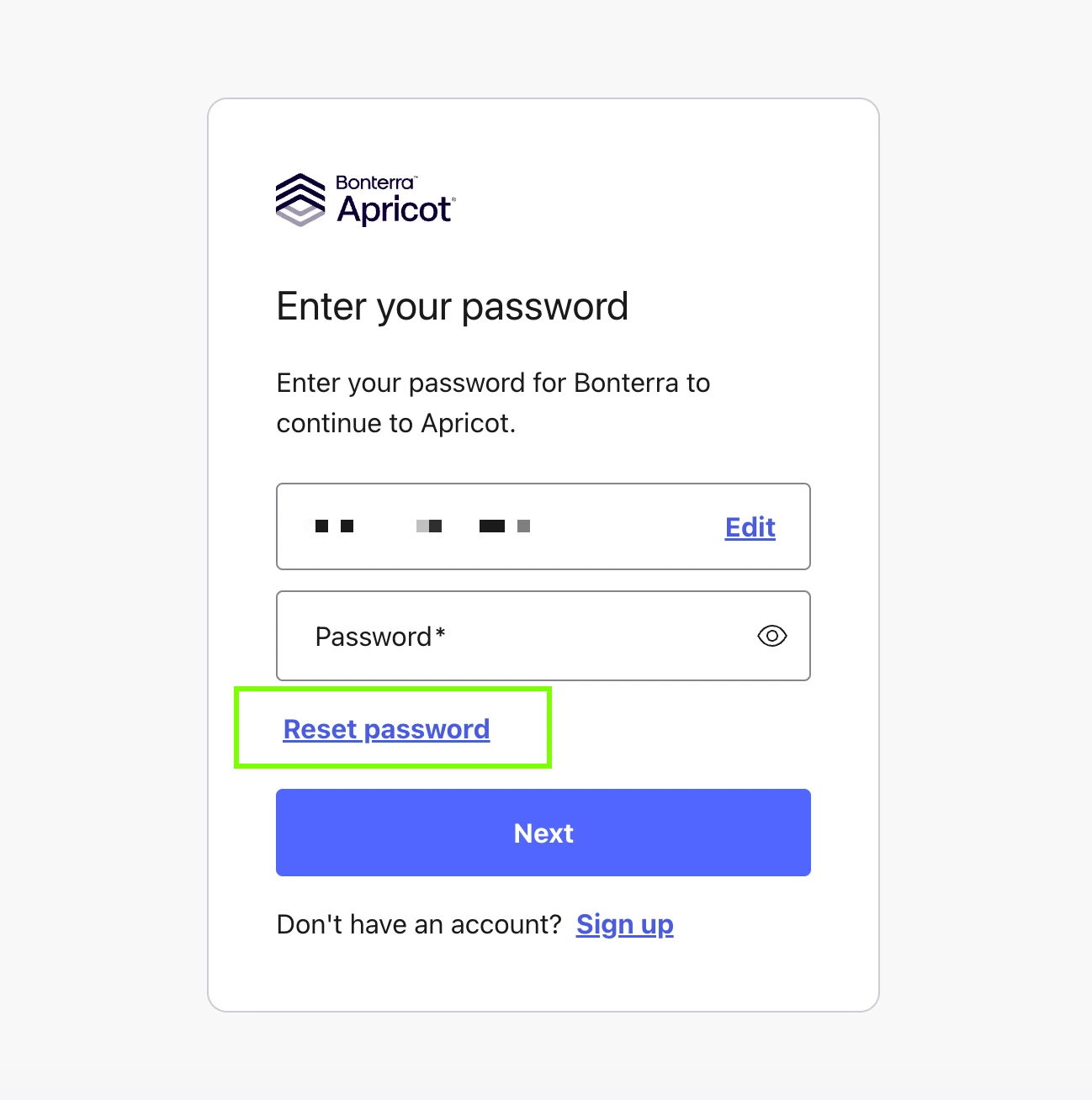
Administrators can no longer reset passwords on behalf of users. Users reset their own passwords directly from the Apricot login page by clicking Reset Password.
If a user's account becomes blocked after multiple failed login attempts, they will automatically receive an email at their registered address with instructions to unblock their account.
Note: Password reset emails are sent from noreply@bonterra.network. This address is used only for password-related emails. If a user doesn't see the email in their inbox, ask them to check their spam or junk folder.
Requesting a Sandbox Refresh
After making a large amount of changes in your live site, you may wish for those to be reflected in your Sandbox. Up to four Sandbox Refreshes can be run per calendar year.
Contact support to request a Sandbox Refresh and have the current version of your live site copied onto your Sandbox to reflect your most recent changes for testing purposes.
-
Any active standard users will be made inactive again upon a Sandbox refresh and will need to be manually reactivated by an administrator if they still need access.
-
Connect data will not transfer into Sandbox sites.
-
Attendance Tracker data entered under Classes & Terms will not transfer into Sandbox sites.
-
Your Apricot Results environment will not be copied to the Sandbox, and will essentially be a fresh environment connected to the Sandbox database.
YOU CANNOT BE LOGGED INTO YOUR LIVE SITE AND SANDBOX AT THE SAME TIME. YOU MUST LOG INTO ONE IN AN INCOGNITO WINDOW.
How do I use an Apricot sandbox database? | Where do I find my sandbox database in Apricot? | Why should I use a sandbox database in Apricot? | How do I copy data from production to sandbox? | How do I test changes safely in an Apricot sandbox? | How do I refresh or reset a sandbox database? | What permissions do I need to access an Apricot sandbox?