


How do I use Donor Stewardship in Que?
How do I use Donor Stewardship in Que?
Want to quickly understand donor relationships and know what to focus on next? Donor Stewardship with Que helps you review donor context and prepare for meaningful outreach by summarizing key details and recommending a clear next step. Multiple access options mean you don’t have to navigate multiple CRM screens. You can either launch Donor Stewardship from your Que conversation or directly from the contact record with the Analysis with Que button.
Step 1: Either Open Que or Launch from the Contact Record
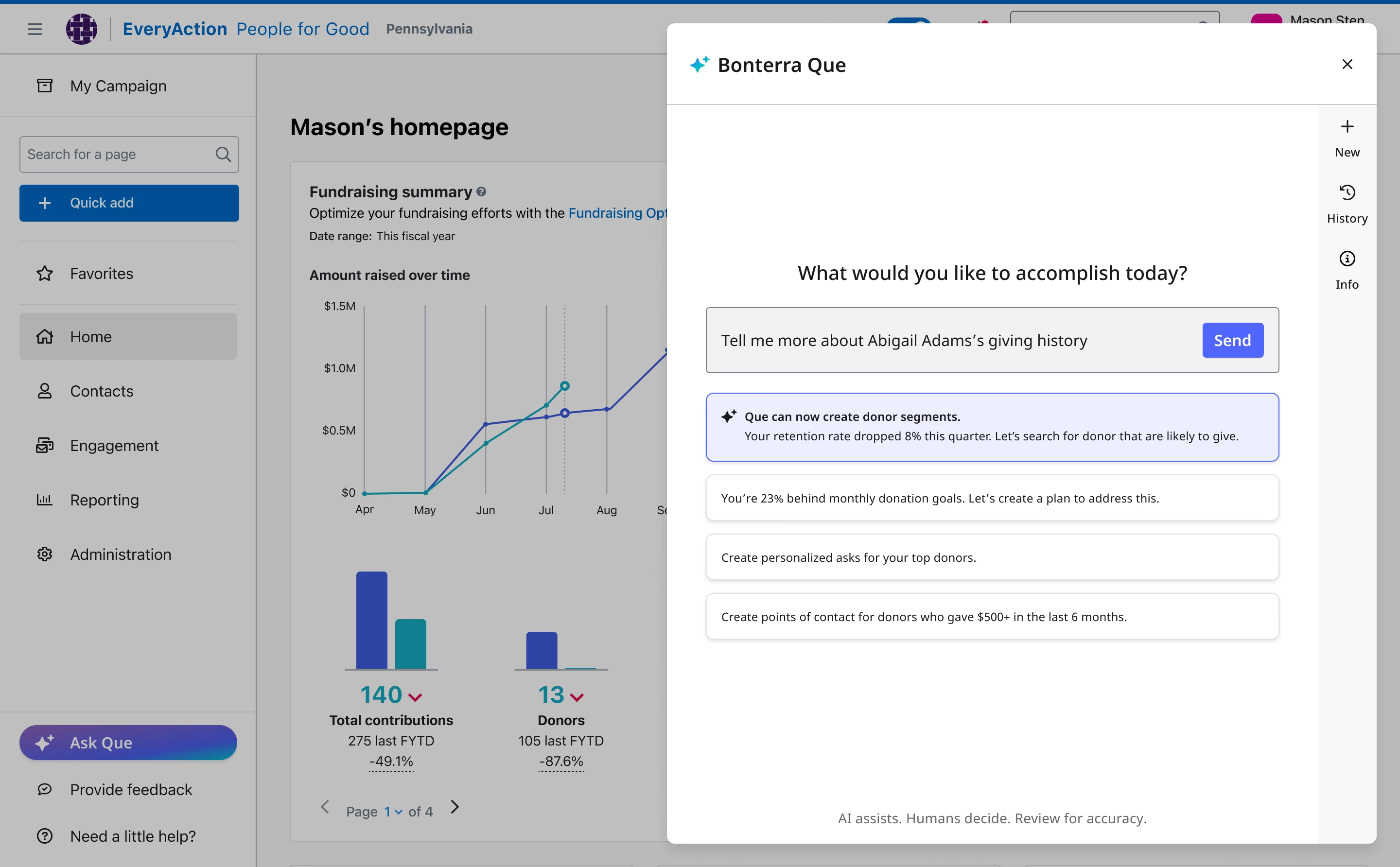
Either you can open Que from your EveryAction dashboard. This opens the assistant in a chat window.
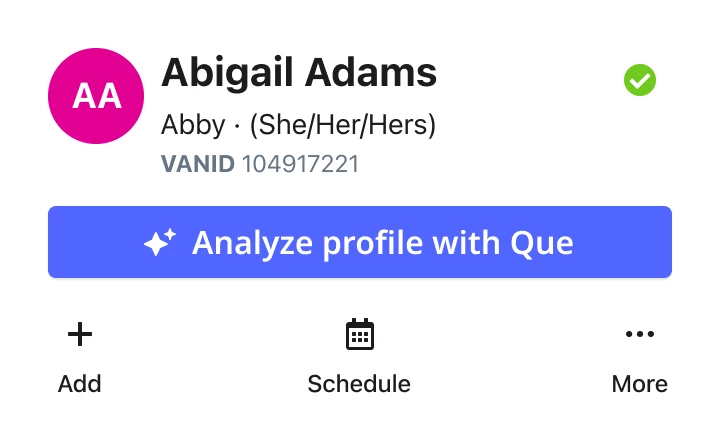
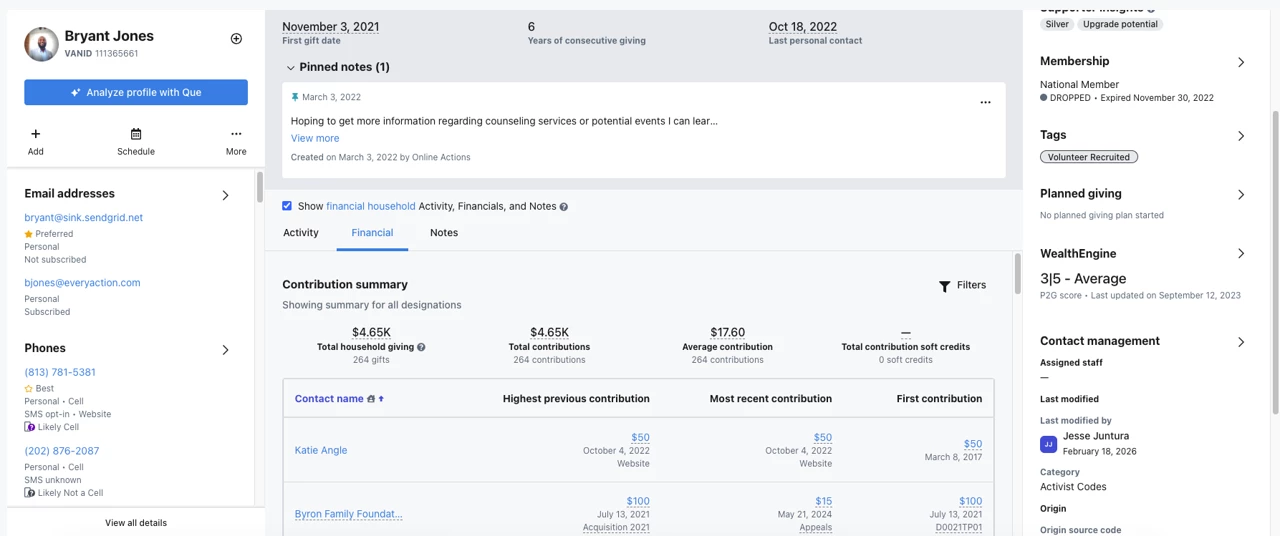
Or, you can access Que directly from the Contact Record by using the Analyze Profile with Que Button. This launches the Donor Stewardship skill from your workflow and executes against the exact donor you are looking at.
Step 2: Ask for Donor Stewardship Support
If you are accessing directly from the contact record using the Analyze Profile with Que Button you are already in the workflow for that donor and can skip to Step 3.
If you are accessing from Que, use natural language to ask Que about a specific donor. You can search using the following supported fields:
-
vanID (most exact match)
-
First name
-
Middle name
-
Last name
-
Nickname
-
Email address
-
Physical address
The more specific your search, the more precise the result. Searching by vanID will return the most exact match.
Try prompts like:
-
Tell me about vanID 123456
-
Tell me about Abigail Adams’s giving history
-
Tell me about abigail.adams@email.org
-
Summarize Abigail Adams’s relationship
-
What should I do next with vanID 123456?
If multiple potential matches are found, Que will ask you to confirm which contact you meant before providing a summary.
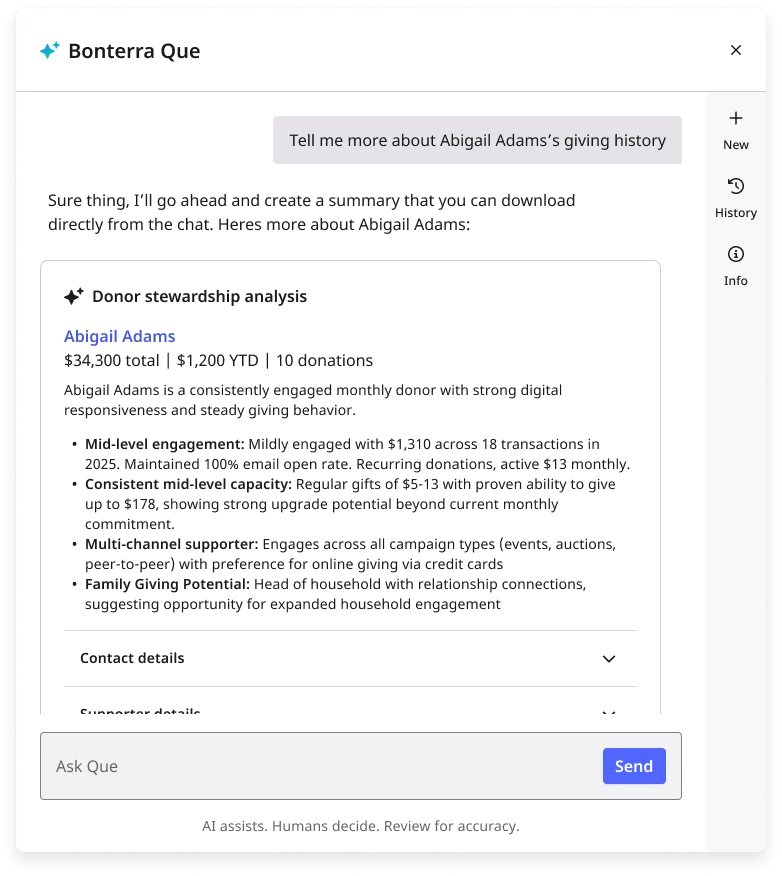
Once confirmed, Que returns a concise donor summary paired with a recommended next-best action to guide your preparation.
Step 3: Review Donor Insights
Each donor summary includes information such as:
-
A two-sentence overview of the donor’s relationship
-
Key giving and engagement context
-
A clear recommended next step informed by predictive insights
This gives you the context you need to quickly understand the donor’s current status and prepare for outreach or meetings.
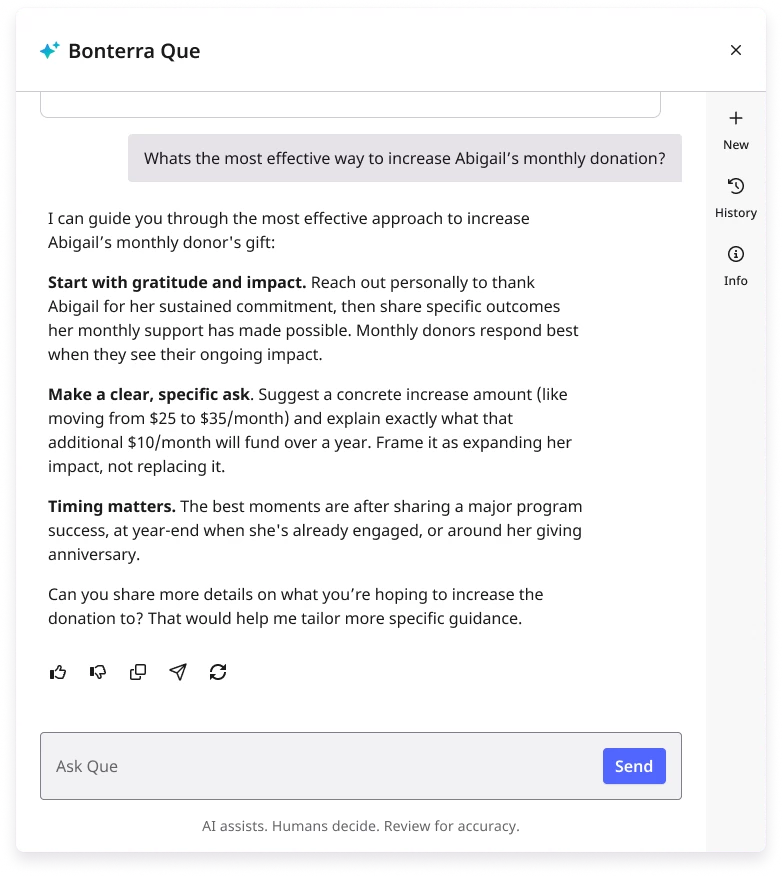
Step 4: Use the Guidance to Prepare Your Next Step
Que’s recommendations are designed to support preparation and decision-making. Review the suggested next step and determine how it fits into your existing stewardship strategy.
You remain fully in control. Donor Stewardship helps you prepare more efficiently and prioritize attention, without changing or automating your workflows.
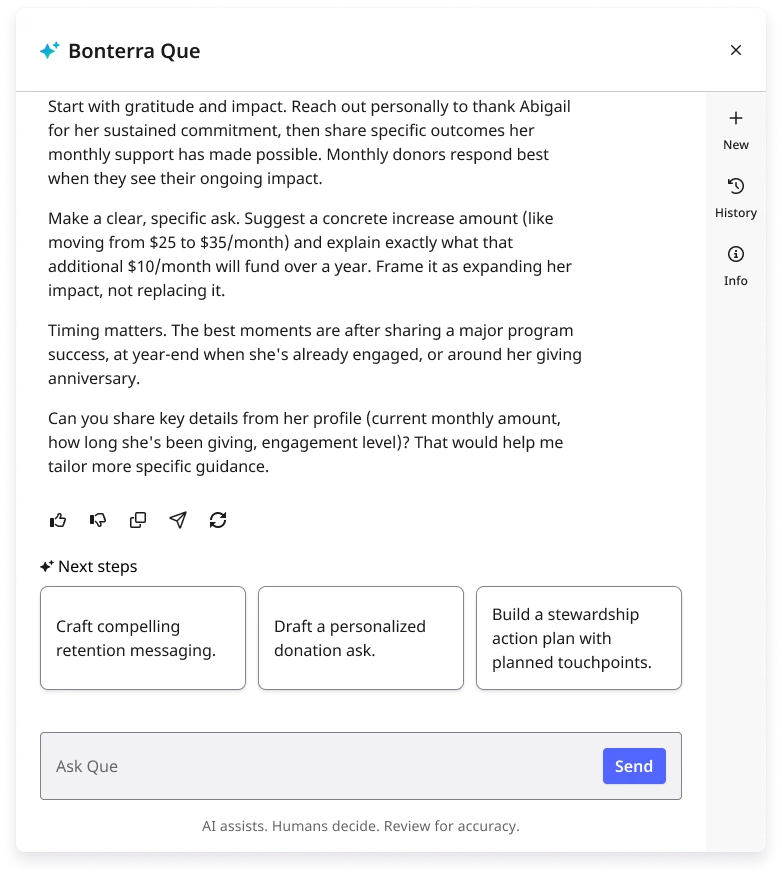
What else do you want to do next?
Interested in learning how Bonterra keeps your data safe? Read more about Bonterra's AI Responsibility and Data Security Practices here.
Ready to dive into Donor Stewardship now? Access these ‘How do I’ articles:
Want to learn more about Que Skills in EveryAction? Check out the Que Skill Index here.
Not what you are looking for? Return to Understanding Que here.
How do I look up a donor in Que? | How can I search for a donor by vanID in EveryAction? | Why is Que showing multiple donor matches? | How do I get a donor summary in EveryAction? | How do I ask Que what to do next with a donor? | Can I search for a donor by email address in Que? | How do I prepare for a donor meeting using Que?