

How do I create an email in Que?
Looking to draft your next campaign email faster? Check out this video that walks you through creating an email in Network for Good.
Step 1: Open Que
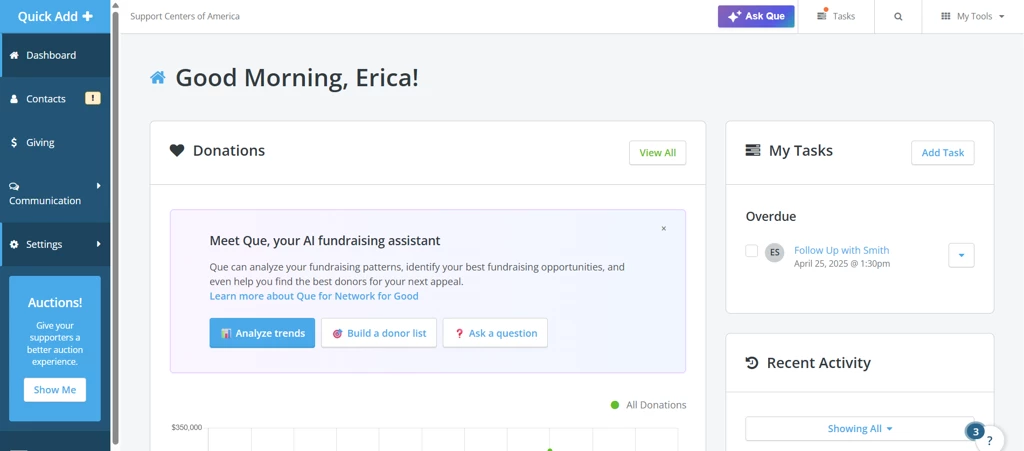
From your Network for Good dashboard, click the “Ask Que” button in the top-right corner to launch the assistant.
Step 2: Request an Email Draft
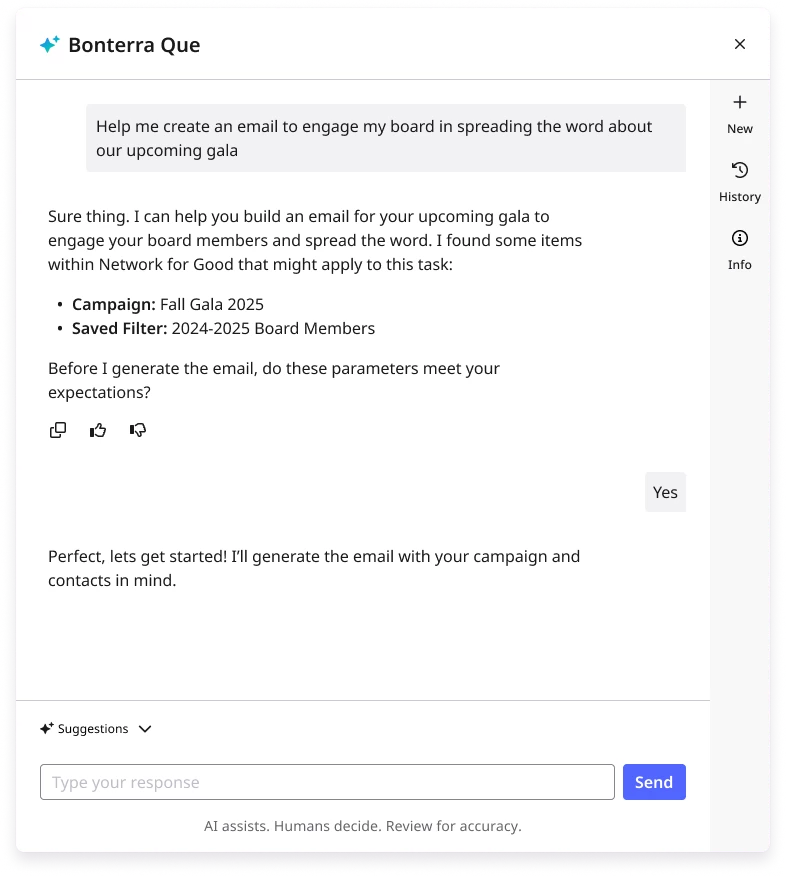
In the chat, type your email request with as much context as possible. The more detail you include, such as campaign type, audience, impact story, or tone, the better the draft will be.
Try prompts like:
-
Write a Giving Tuesday appeal that feels urgent but hopeful and highlights our new clean water program.
-
We’re planning a 48-hour match campaign. Can you create a short, energetic email to promote it to our general list?
-
Draft a thank-you email for first-time donors that emphasizes the difference their gift made last month.
Que will generate a full email draft, including subject line, pre-header, body content, and call-to-action, written in your organization’s voice.
Step 3: Review the Draft
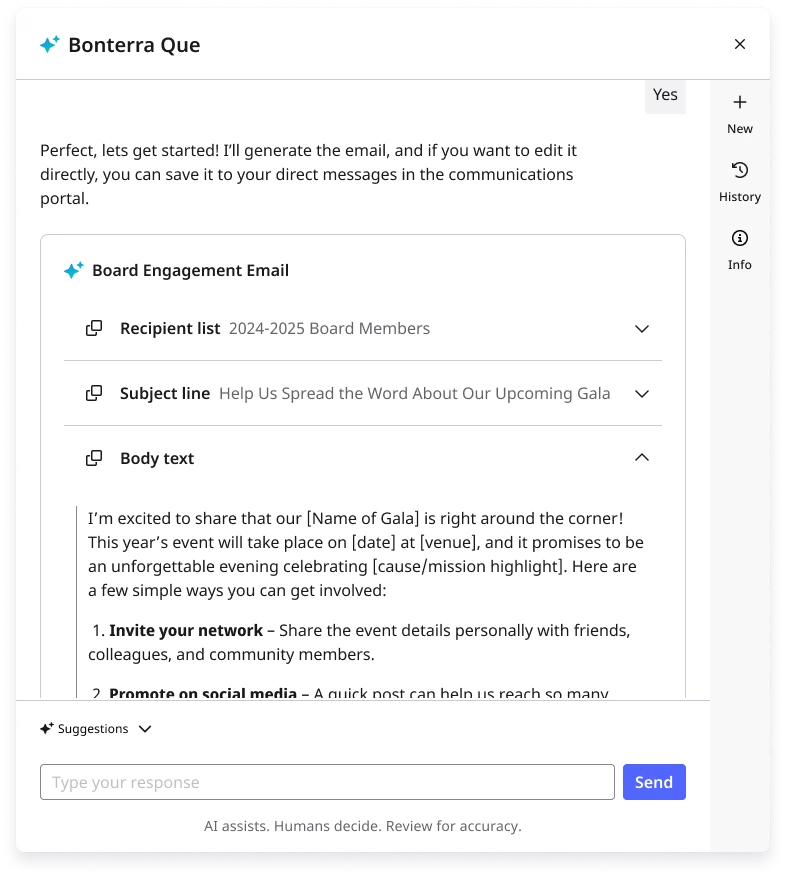
Once your request is processed, you’ll see a complete email draft in the chat. You can scan the subject line, read the message body, and review the CTA, all before making edits or saving it.
Step 4: Edit and Refine
Use natural language to make real-time edits in chat. Be as specific as possible about what you'd like changed, such as tone, structure, or messaging details.
Try prompts like:
-
Can you make the tone more community-focused and include our recent impact on local caregivers?
-
Reword the CTA to emphasize our match deadline and inspire urgency.
-
Shorten the introduction and focus more on our back-to-school campaign.
You can also manage versions and revert to earlier drafts if needed.
Step 5: Use the Drag-and-Drop Editor for your Saved Draft
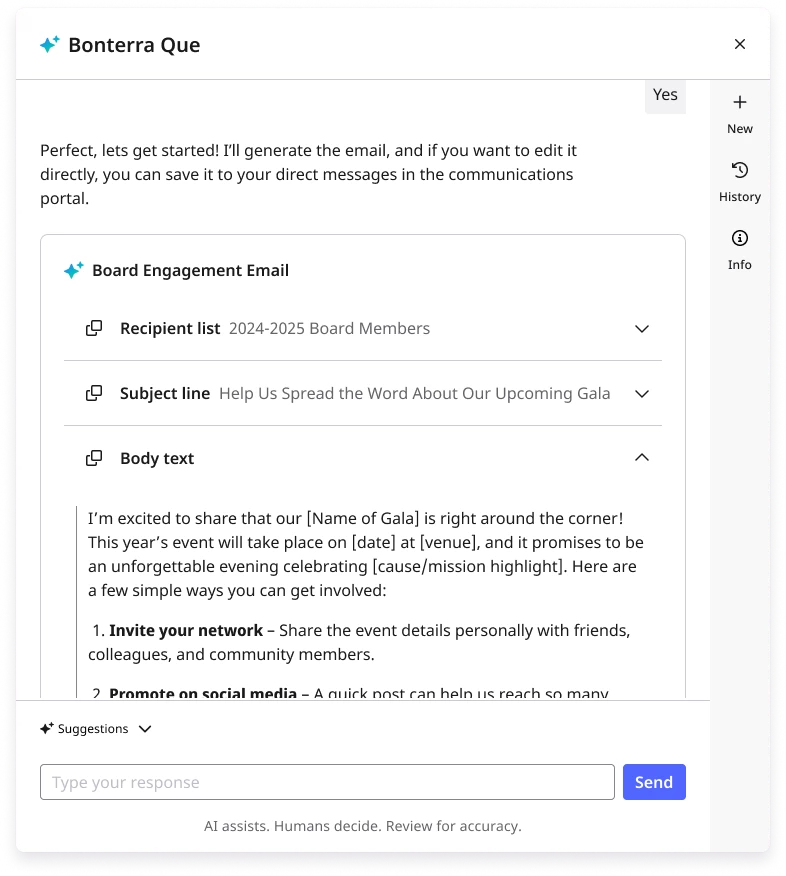
Once you save this draft email to your Network for Good account, you'll be able to open it in the visual editor where you can use the Drag-and-Drop editor to:
-
Rearrange sections by dragging blocks
-
Add images, buttons, and formatting
-
Customize colors and fonts to match your branding
-
Preview how it looks on mobile and desktop
What do you want to do next?
Interested in learning how Bonterra keeps your data safe? Read more about Bonterra's AI Responsibility and Data Security Practices here.
Ready to dive into Email Creation now? Access these ‘How do I’ articles:
Want to learn more about Que Skills in Network for Good? Check out the Que Skill Index here.
Not what you’re looking for? Navigate to Understanding Que.
How do I create a fundraising email in Network for Good using Bonterra Que? | Can Bonterra Que generate subject lines and preheaders? | How do I write a Giving Tuesday email appeal with AI? | How do I draft a 48-hour match email that drives donations? | How do I write a donor thank-you email for first-time donors? | How do I edit and refine an email draft in Bonterra Que? | Can I revert to earlier email draft versions in Que?