

How do I create a new filter?
In many cases, you’ll want to create a brand-new filter to pull a specific set of information you might need for a new report. This allows you to fully customize what fields you're looking to include in a report and pull results based on that specific information, with updated data and results included each time you create those reports.
Regardless of what filter type you’re creating (Contacts or Giving), you’ll build a new filter using the same tools and similar fields. Below, we'll walk you through how to do so for both types of basic filter types.
Step 1: Determine which type of information you're looking to report on
When you’re looking to create a filter, you’ll want to start by asking yourself one crucial question:
“Do I want to make a list of people? Or do I want to make a list of donations?”
We've provided a helpful guide here on how to determine which type of filter you might need - we recommend reviewing that before moving forward with building a report.
Step 2a: Build a filter based on a list of people, or donor-related data
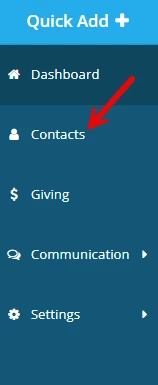
If you’re looking to make a list of people, you’ll want to click on the “Contacts” tab in the navigation on the left side of your screen.
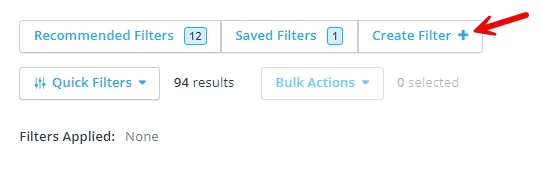
You can then create a filter by clicking on the "Create Filter" button towards the top-left of the "Contacts" screen.
Step 2b: Build a filter based on a list of transactions, or transaction-related data
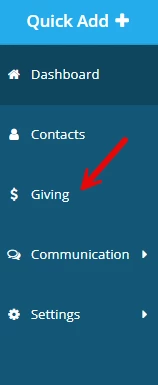
If you’re looking to make a list of donations or individual gifts, you’ll want to instead click on the “Giving” tab. ”
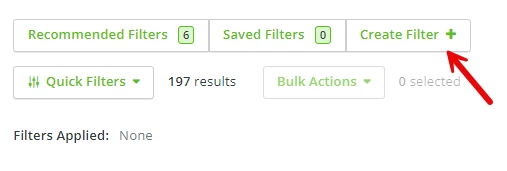
You can then create a filter by clicking on the "Create Filter" button towards the top-left of the "Giving" screen.
Step 3: Select your filter's first "condition."
You should see a box appear labeled “Create a Custom Filter.”
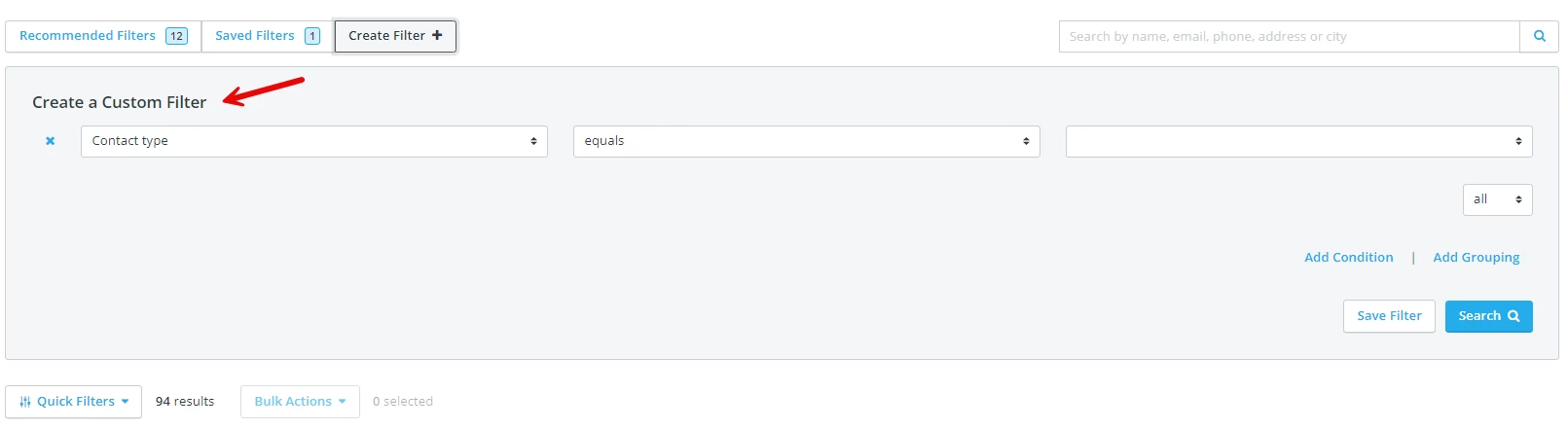
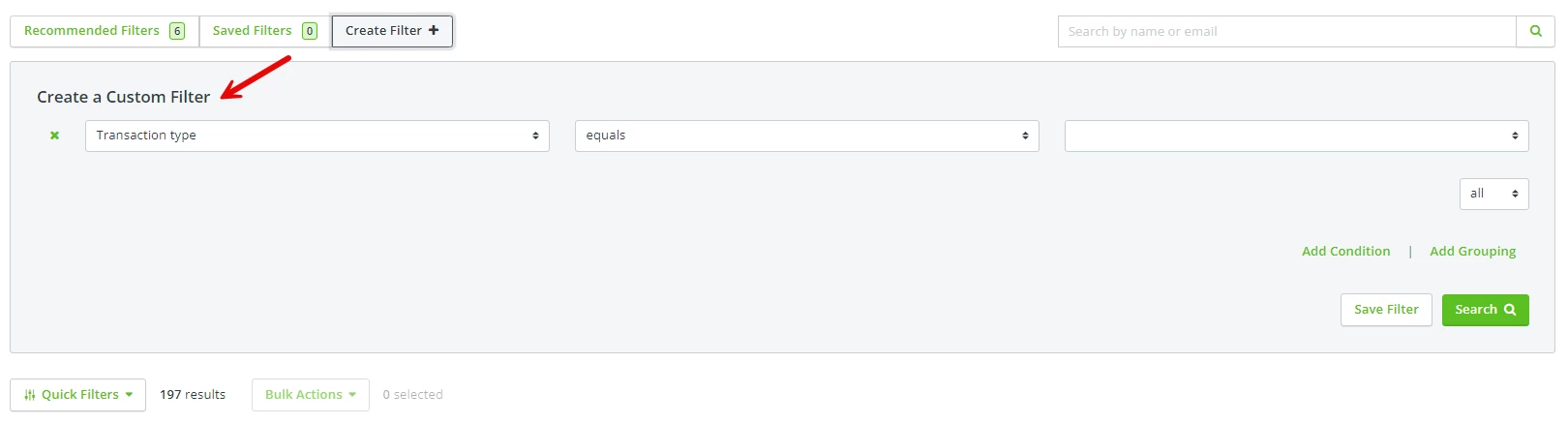
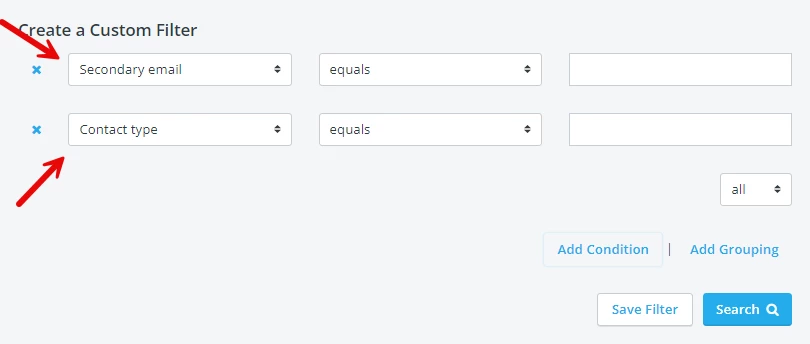
You’ll notice that there’s already a template for adding “conditions” (also known as “rules”) to this filter – it should be made up of several drop-down or blank fields.
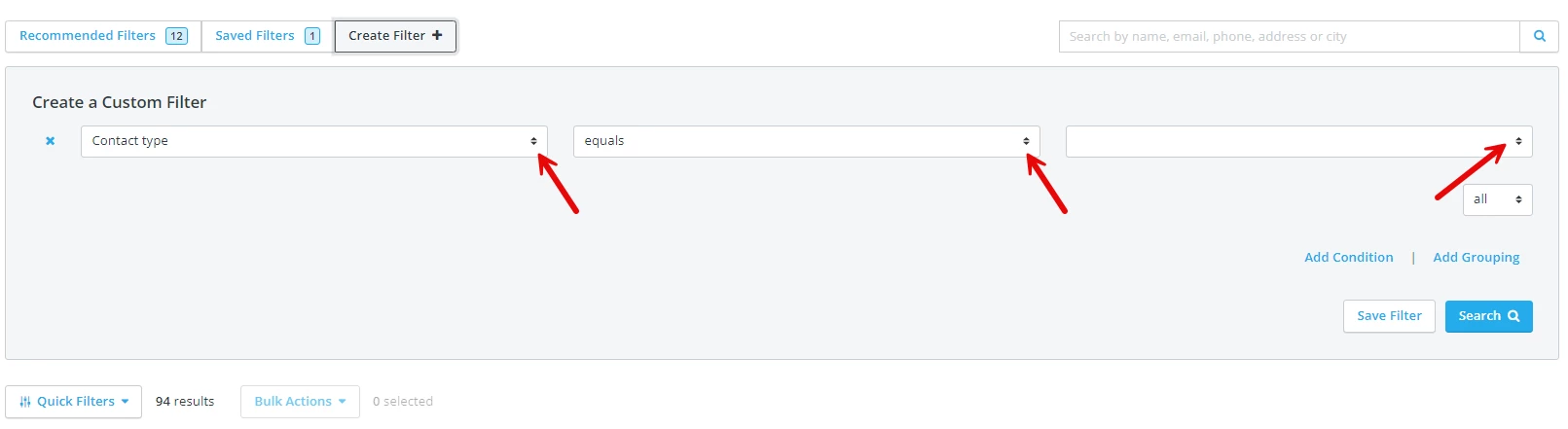
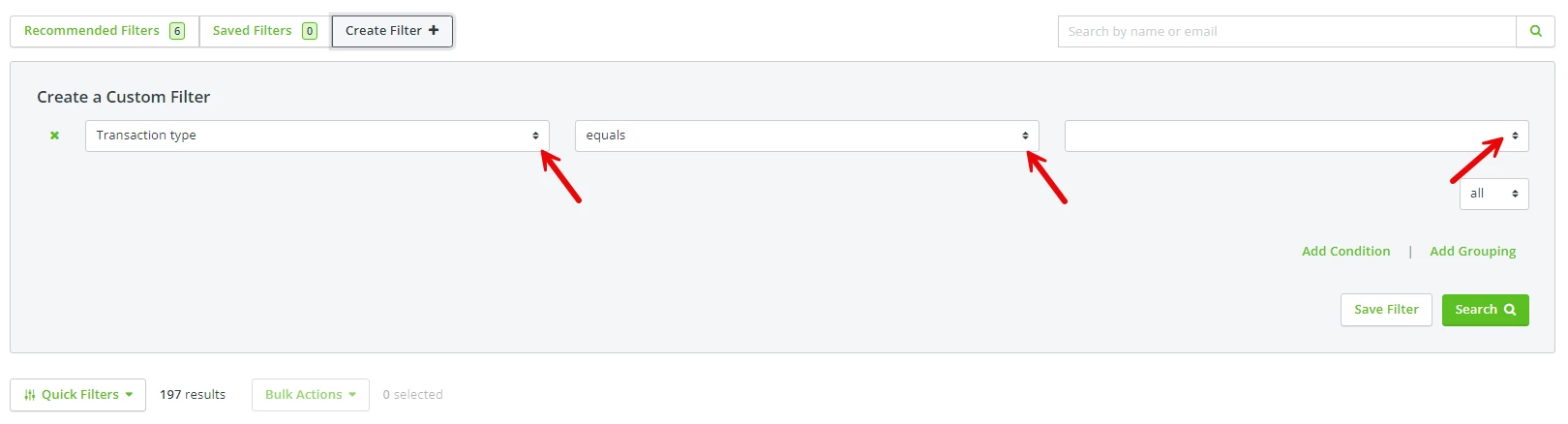
You’ll want to start by selecting an option from the first drop-down menu; this will help determine what specific group you’re trying to isolate with this filter. Filters are very customizable, so you’ll have plenty of options to choose from!
Please be sure to check what “sub-group” the condition you are selecting is listed under; there may be two options available from that first drop-down menu that appear to be the same, but fall under a sub-group – and can make it look like the filter you built isn’t working correctly.
Step 4: Select the appropriate drop-down options for your first condition
Once you’ve selected the first option for your condition, you may notice that the drop-down options for the remaining fields might change – that can sometimes happen, depending on what field you chose in that first menu.
Typically, the second drop-down menu is helping to narrow down your list of results further – it often includes options such as “equals,” “contains,” or “is blank.” Sometimes, the third field disappears entirely, and the only available options for the second drop-down menu are “is true” or “is not true.”
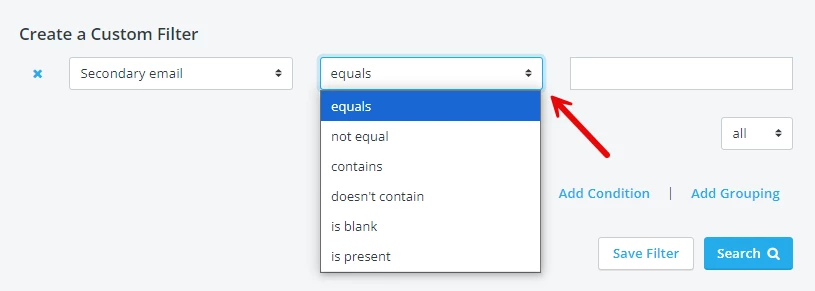
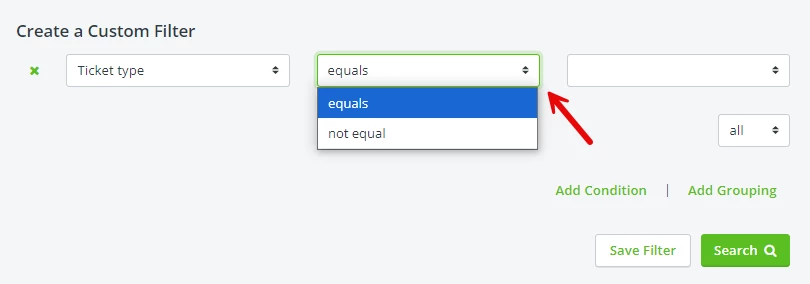
If the third, blank field is available, you’ll typically want to enter a number or value that will help finalize the results of your filter.
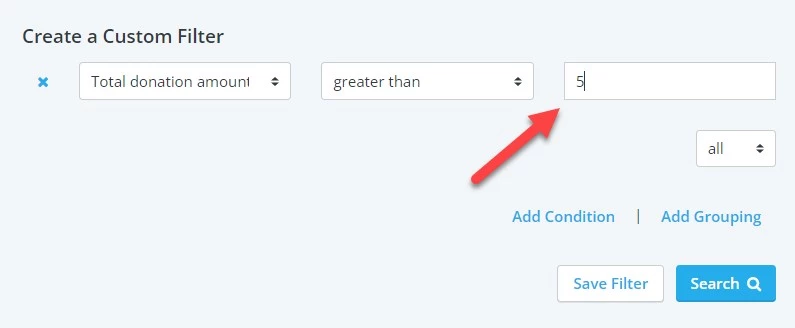
For example, your filter might be looking to find anyone who donated more than $5 in the prior year – that last blank field should then have the number 5 entered.
Step 5: Add other conditions, and repeat steps 3 & 4 as necessary
Most filters will contain several different conditions that you'll need to add. To do so, you can simply click on the "Add Condition" link within the "Create a Custom Filter" box.
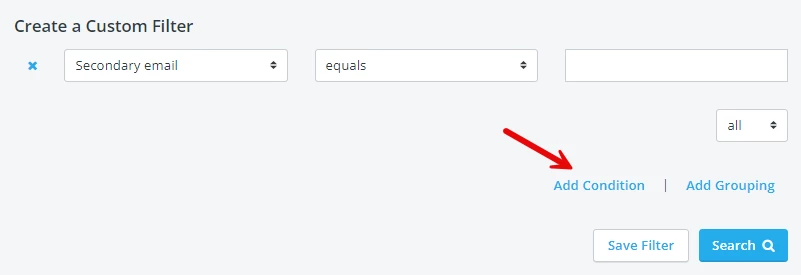
Doing so will automatically add a new, separate condition within the filter.
Step 6: Press the "Search" button to run the filter and generate your results
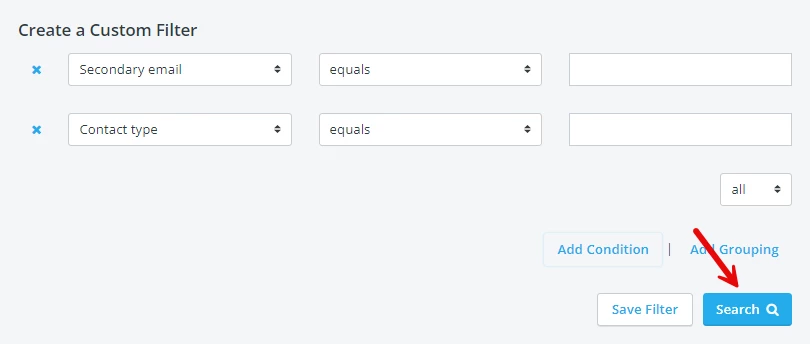
Once you've finalized your filter, you can click on the "Search" button to run that filter.
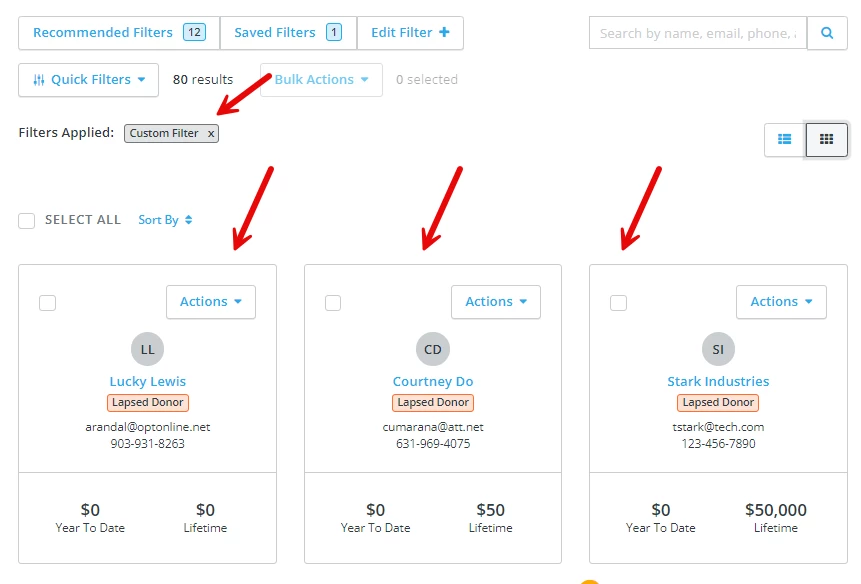
You should then see the results of that filter displayed once the page reloads, as well as what filters might be applied to the data.
What else do you want to do?
Not what you're looking for?
Go back to the Feature Overview.
Looking for training?
Explore this feature at your own pace - join a live training session or watch a recorded webinar by clicking the link below.