


How do I add and track a grant in the Nonprofit Hub?
Grant Management in the Nonprofit Hub lets you track grant opportunities from any source—whether you discovered them through GrantMatch, received a direct link from a funder, or found them entirely outside the platform. The following steps will guide you through the two ways to add a grant to your tracking list, how to navigate the grant detail view, and how to manage your pipeline as opportunities move through the lifecycle.
Step 1: Access Grant Management
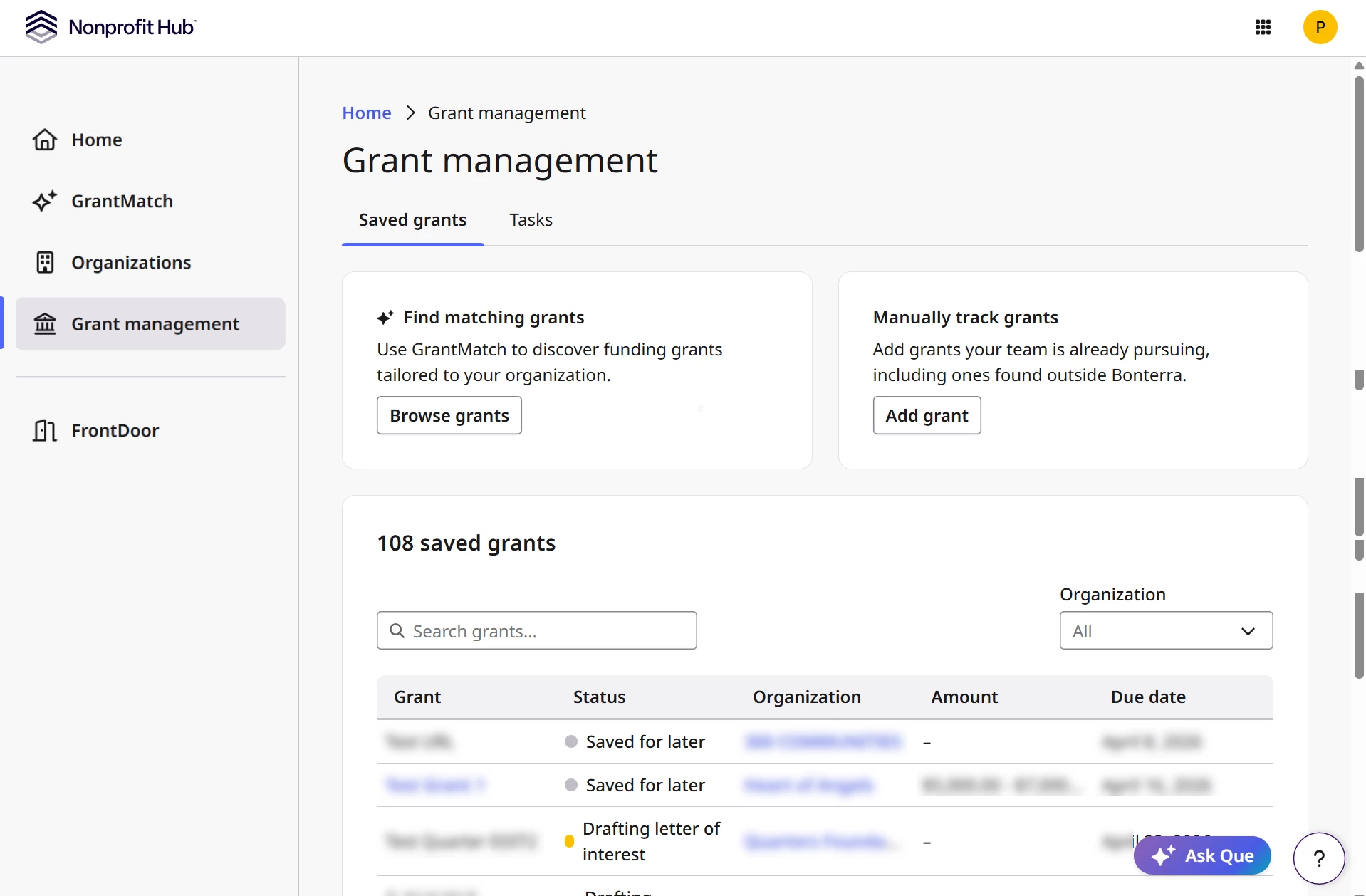
From the Nonprofit Hub, select Grant management in the left-hand navigation panel. This opens the Grant Management dashboard, which includes three sections: Find matching grants (links to GrantMatch), Manually Track Grants (opens the grant entry form), and the saved grants table (displays all grants you are currently tracking).
If you have not yet added any grants, the saved grants table will be empty. If you have previously saved grants from GrantMatch, they will already appear here.
Step 2: Add a grant
You can add grants to Grant Management in two ways.
Option A: Save a grant from GrantMatch
- From the Grant Management dashboard, select Find Matching Grants to open GrantMatch. You can also access GrantMatch directly from the left-hand navigation.
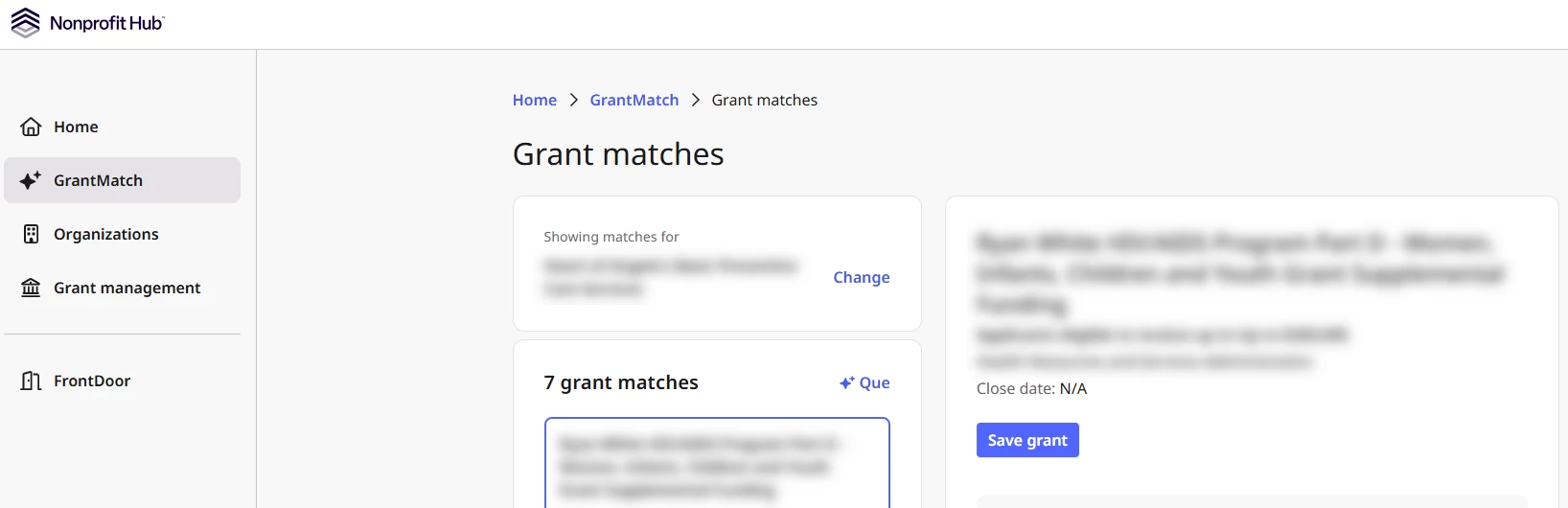
- Select an organization and program to run a grant search. GrantMatch will return a list of matched opportunities tailored to that program's focus, population served, and location.
- From the results list, select Save grant on any opportunity. The grant is added to your saved grants table immediately, with key details pre-loaded.
Click here for a more in-depth view of how GrantMatch works.
Grants saved from GrantMatch start with a status of Saved for later. Update the status from the grant's detail view as you move forward with the opportunity.
Grants saved from GrantMatch also include an analysis from Que covering eligibility, effort to apply, award profile, and additional considerations. This analysis appears in the grant's detail view in Grants Management and can help inform your go/no-go decision before you invest time in an application.
Option B: Add a grant manually
Use this option for grants you found outside of GrantMatch—through a direct funder invitation, an external database, or your own research.
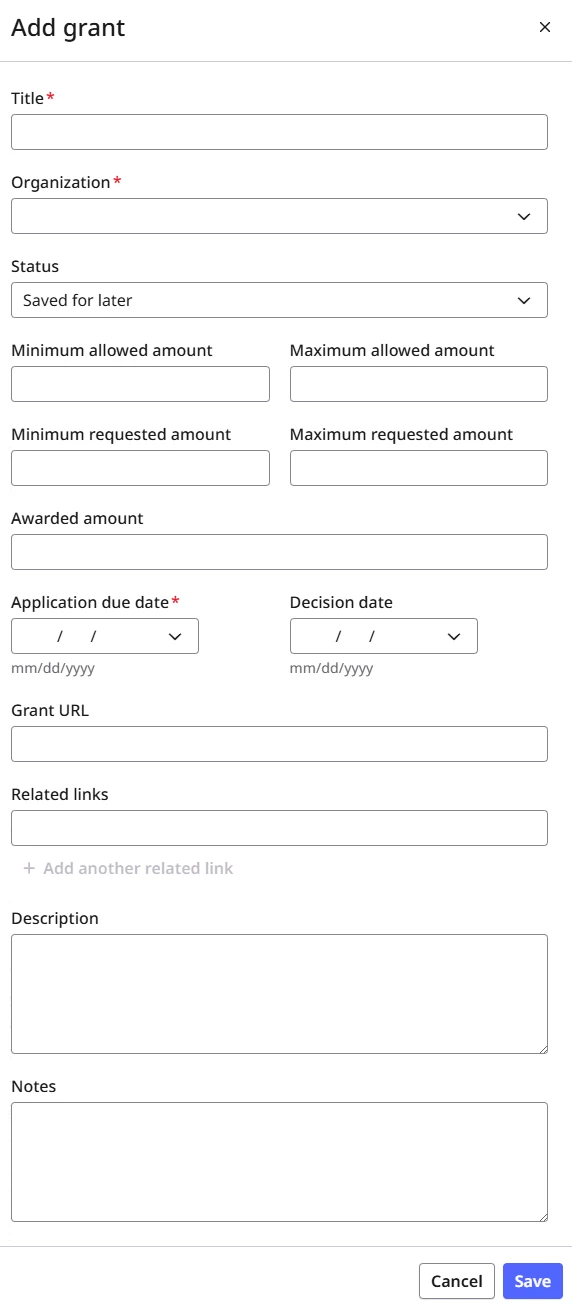
- From the Grant Management dashboard, select Manually Track Grants to open the grant entry form.
- Fill in the grant details. The fields available include:
- Grant Name — Enter a name to identify this opportunity (required).
- Organization — Select the funder associated with this grant.
- Program — Optionally link this grant to a specific program from your organization profile. Select Add a New Program to create one from the organization profile. Click here to learn more.
- Status — Choose where this grant is in your process.
- Amount fields — Optionally enter minimum and maximum allowed amounts, minimum and maximum requested amounts, and awarded amount.
- Application Due Date — Enter the application deadline (required).
- Decision Date — Optionally enter the date you expect to hear back.
- Grant URL — Add a link to the grant application or funder's page. This becomes the Apply link on the grant's detail view.
- Related Links — Add any additional relevant URLs.
- Description and Notes — Add any internal context or reminders about this grant.
- Select Save to add the grant to your saved grants table.
Step 3: Review the grant detail view
Select any grant in your tracking table to open its full detail view. This is where you manage everything associated with the opportunity.
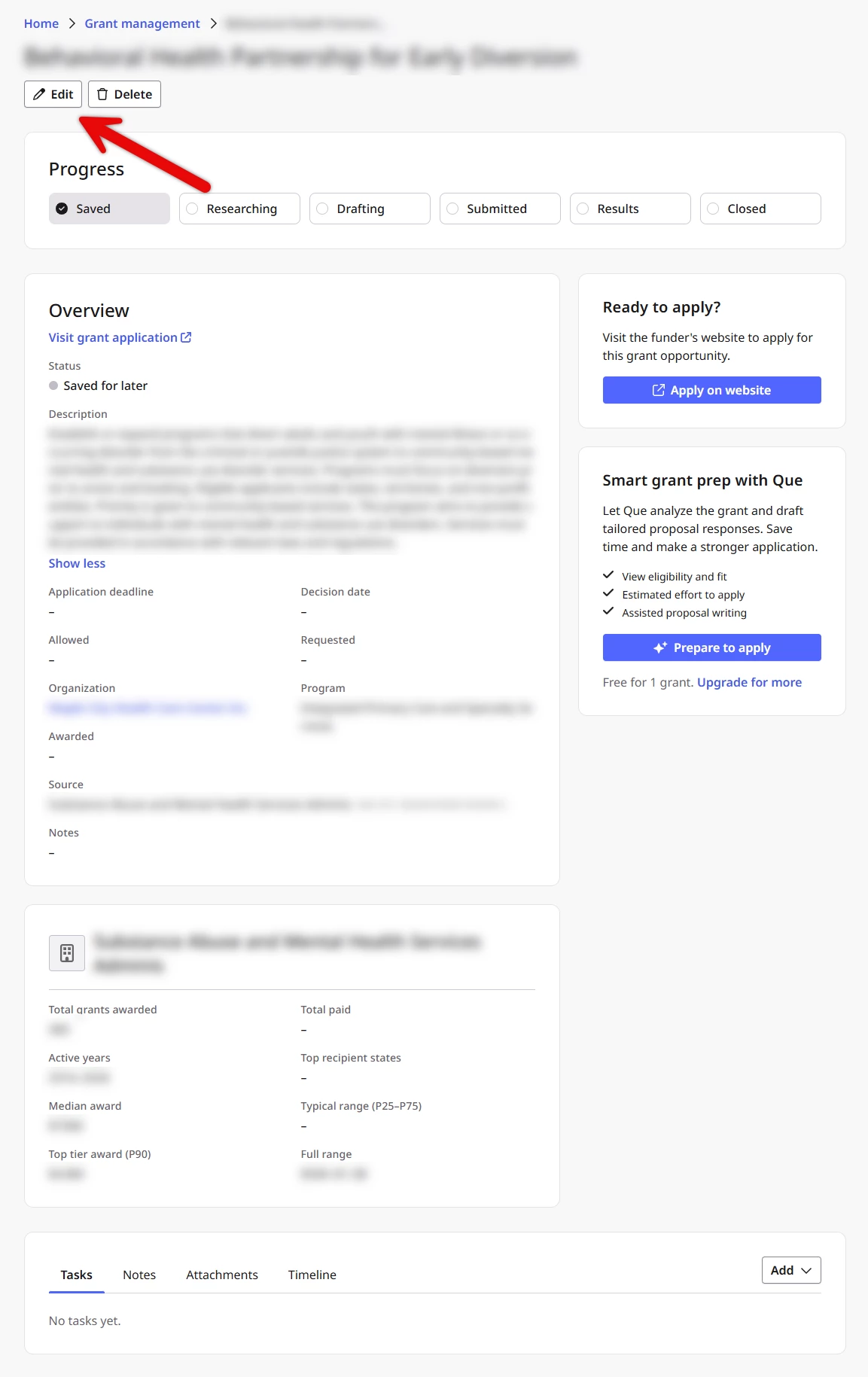
From the detail view, you can:
- Edit any grant field — Update information as it changes, such as deadline extensions, revised award amounts, or status changes.
- Update the grant status — Move the grant forward through the lifecycle: Saved for Later > Researching > Drafting Application > Submitted > Awarded (or Not Funded).
- Open the application — Select Apply to open a linked application URL directly. For Bonterra Deed Grants opportunites, select View to open and complete the application in-platform.
- Access proposal drafting tools — If proposal generation is available for this grant, you can access drafting tools directly from the detail view.
- Review grant analysis — For GrantMatch-sourced grants, the Analysis panel on the right side of the detail view shows your eligibility result, estimated effort to apply, award profile, and any additional considerations. Click here to see how Grant Analysis works for guidance on reading these results.
- Delete the grant — Remove the grant from your tracking list entirely. You will be returned to the Grant Management page.
Step 4: Manage your pipeline
As your tracked grants list grows, use search and filters to stay organized.
- Search by grant name to find a specific opportunity quickly.
- Filter by organization if your account is associated with multiple organizations.
Update each grant's status as work progresses. Status changes are made from the grant detail view by selecting the current status and choosing a new one. For Bonterra Deed Grants applications, application status updates automatically as the funder moves your submission through the review process—you do not need to update these manually.
Step 5: Track submitted applications and awards
After submitting an application, the grant remains in your Grant Management table with a Submitted status. From the detail view, you can:
- Review your submission status — Update the status to reflect where the funder is in the review process. For Deed Grants applications, this updates automatically.
- Resume a Deed Grants draft application — If you started but did not complete a Deed Grants application, select Continue application from the grant record to pick up where you left off.
- Track post-award activity for Deed Grants — For Deed Grants awards, the detail view provides access to payment tracking and any post-award reports assigned by the funder. You will receive email notifications when a report is assigned and as the due date approaches.
Note: Post-award payment tracking and reporting visibility are currently available for Bonterra Deed Grants awards. For grants from other sources, you'll need to track payments and reporting outside of the Nonprofit Hub and update the grant status manually.
What else do you need help with?
Not what you're looking for? Navigate to Understanding Grant Management in the Nonprofit Hub