

How do I schedule an Impact Hub dashboard for delivery?
Overview
Scheduled Dashboard Delivery lets you send an Impact Hub dashboard to email recipients automatically on a recurring basis. Set up a schedule once, and your recipients receive the dashboard as a PDF on the days and times you choose — no manual exports needed.
Before you start
Make sure the following are true before setting up a scheduled delivery:
- You own the dashboard you want to schedule. If you don't own it, ask the owner to create the schedule, or contact Bonterra Support with access questions.
- You have the email addresses of everyone who should receive the dashboard.
- You've confirmed that every recipient is authorized to view the dashboard's data. You're responsible for who receives the data.
Step 1: Open the schedule export option
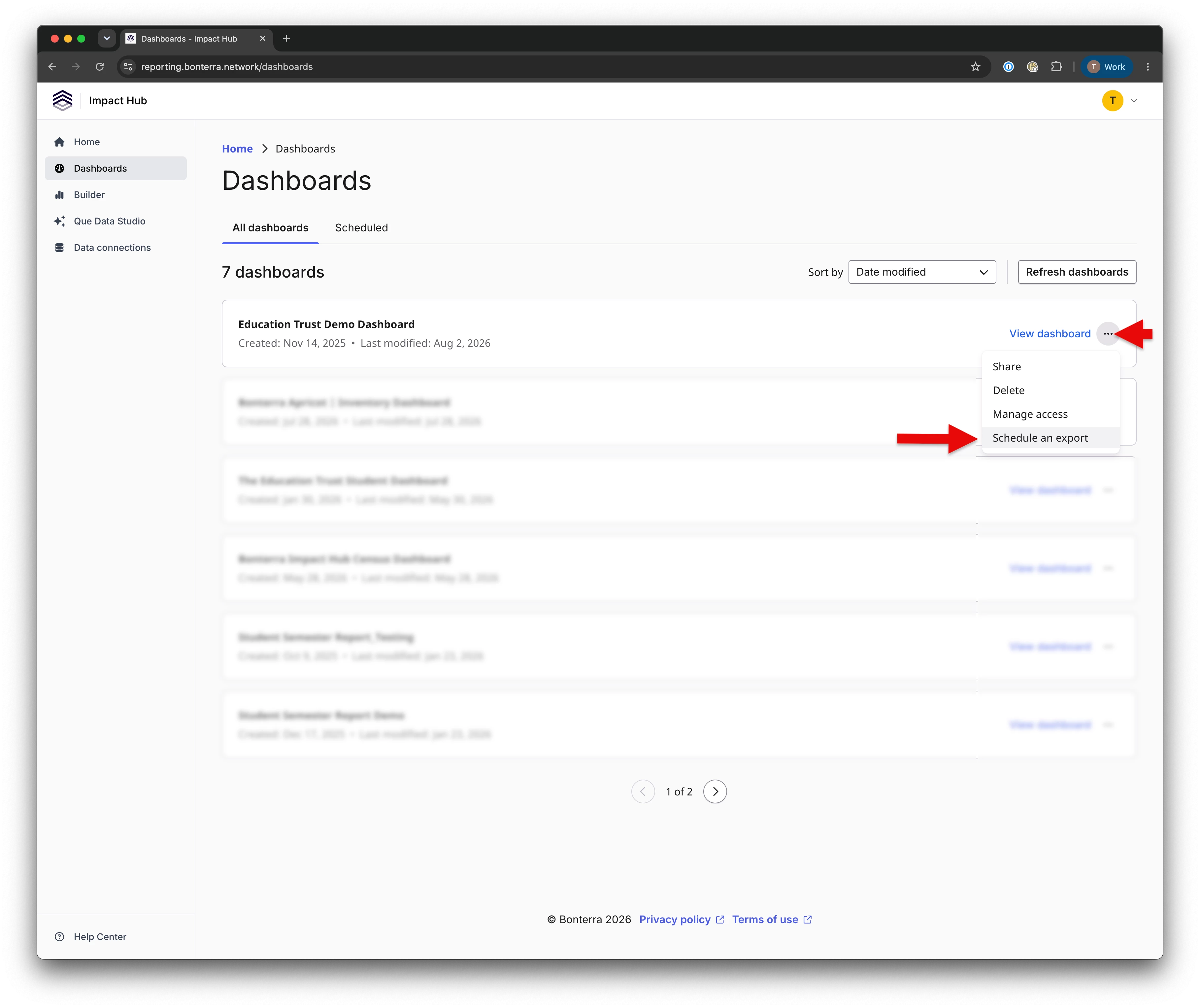
- Go to the Dashboards page and find the dashboard you want to schedule.
- Click the options menu (three dots) next to the dashboard name.
- Select Schedule an export.
Step 2: Add details
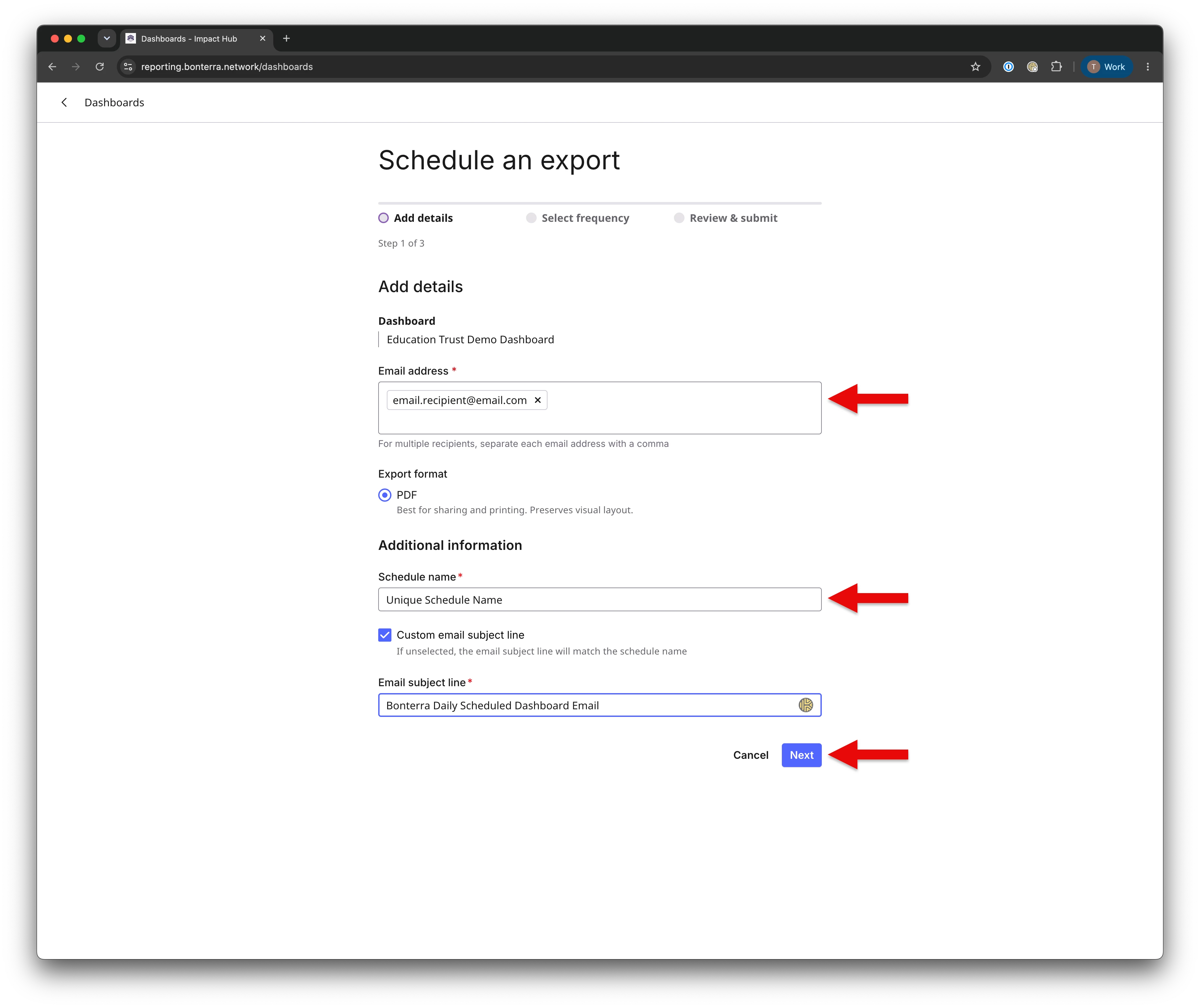
- Enter one or more Email address values, separated by a comma or semicolon. Recipients don't need to belong to your organization.
- Confirm the Export format — PDF is currently the only option. It preserves the dashboard's visual layout and works well for sharing and printing.
- Enter a Schedule name. This is how you'll identify the schedule later on the Scheduled tab.
- Optionally, check Custom email subject line to use a subject line other than the default. By default, the email subject matches the schedule name.
- Select Next.
Step 3: Select frequency
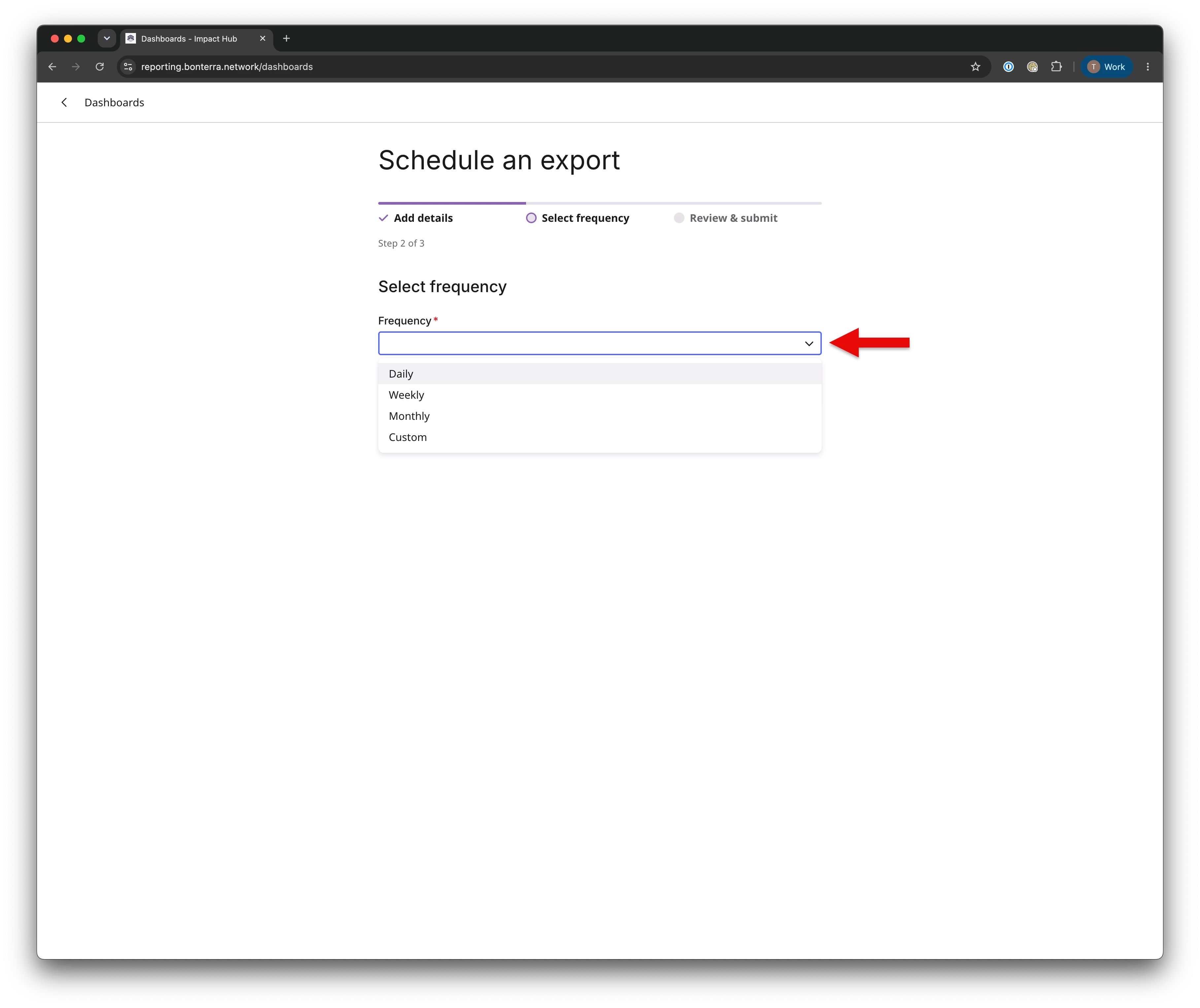
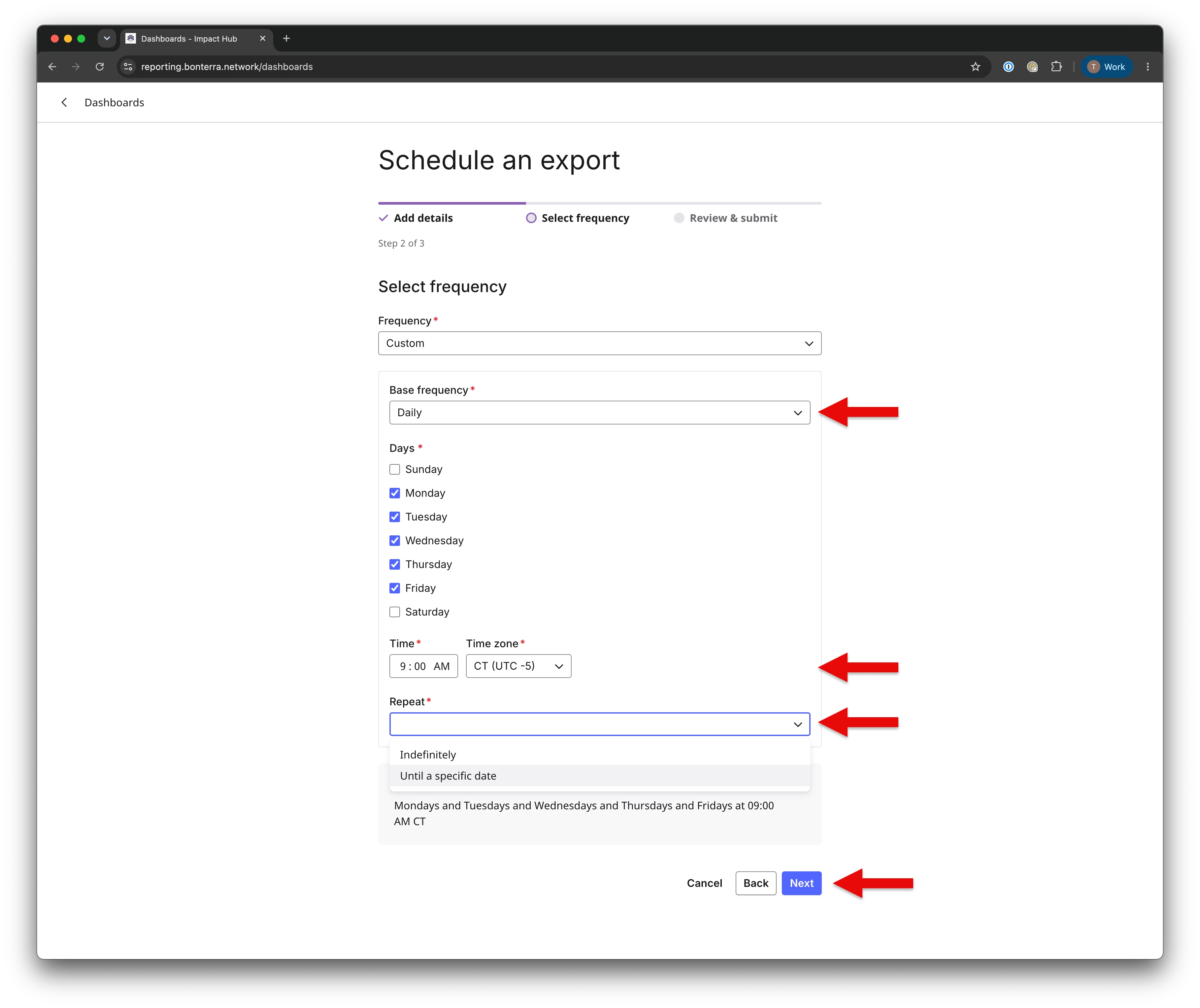
- Choose a Frequency: Daily, Weekly, Monthly, or Custom.
Using Custom frequency
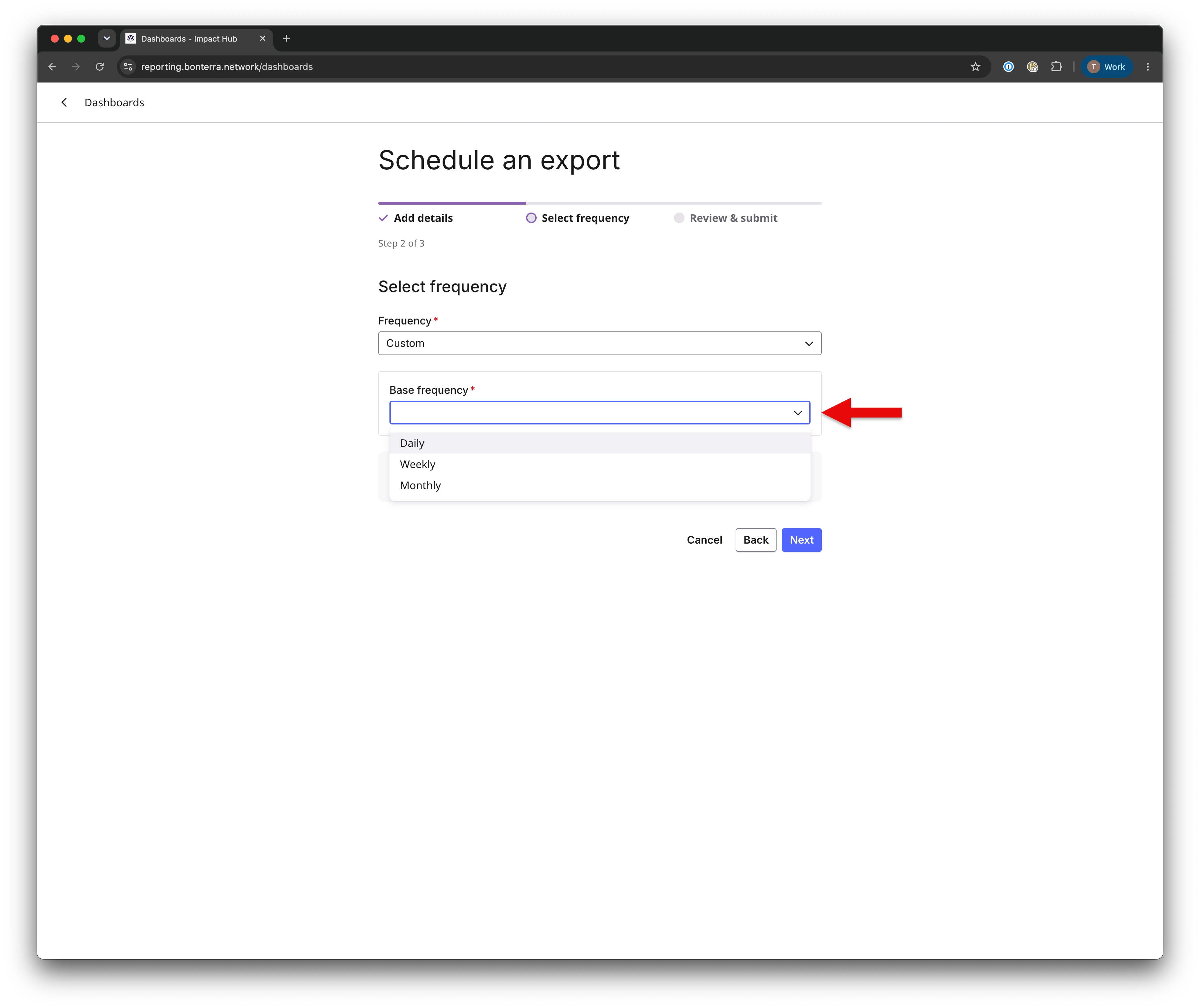
Custom gives you the most control over timing. It starts from one of the three base frequencies.
- Select a Base frequency: Daily, Weekly, or Monthly.
- Refine the schedule:
- Days — with a Daily base, choose specific days of the week (for example, Monday through Friday only).
- Time and Time zone — set when the email should send.
- Repeat — choose Indefinitely or Until a specific date.
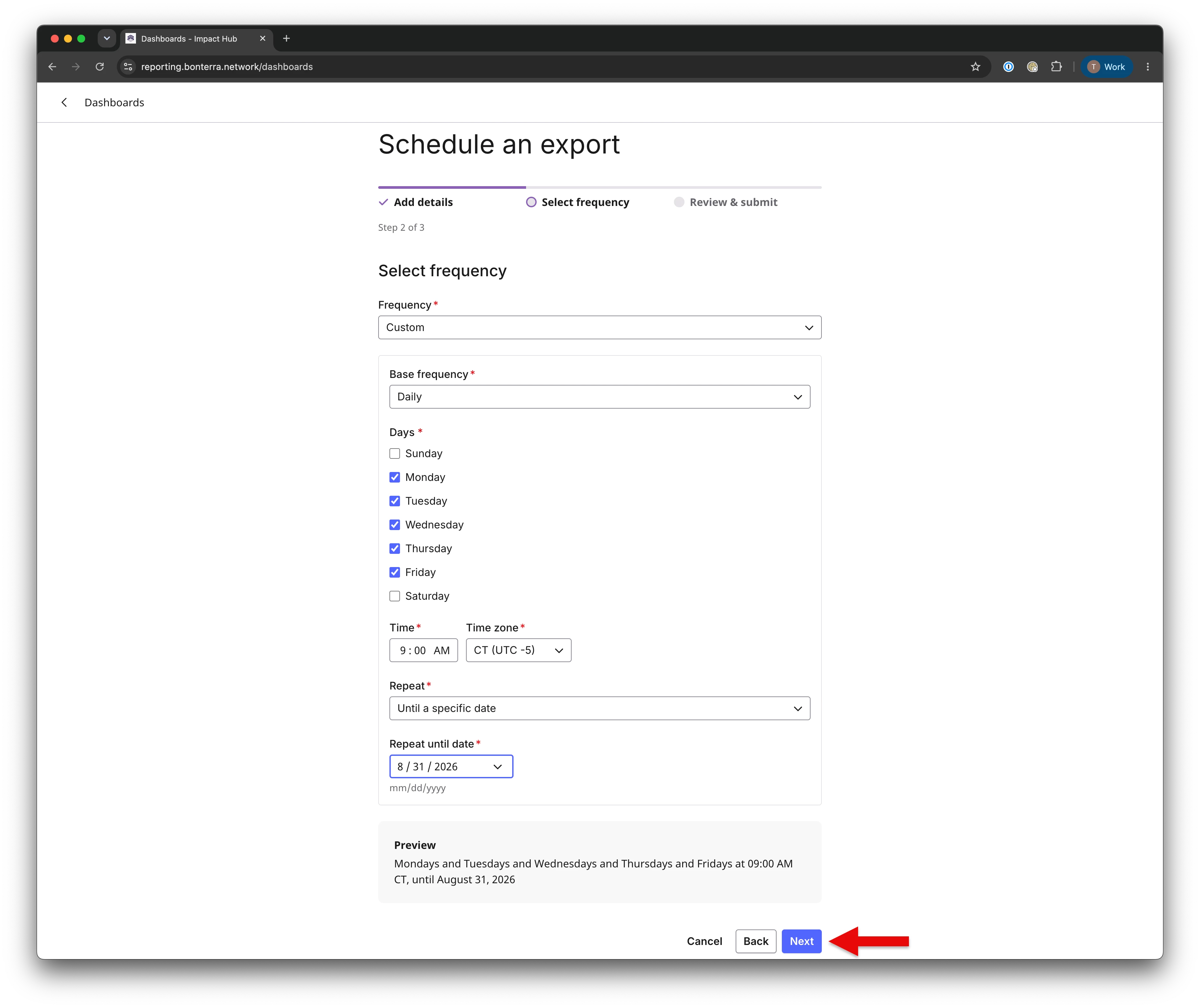
- If you choose Until a specific date, enter a Repeat until date.
- Review the Preview summary — for example, Mondays and Tuesdays and Wednesdays and Thursdays and Fridays at 09:00 AM CT, until August 31, 2026 — then select Next.
Step 4: Review and submit
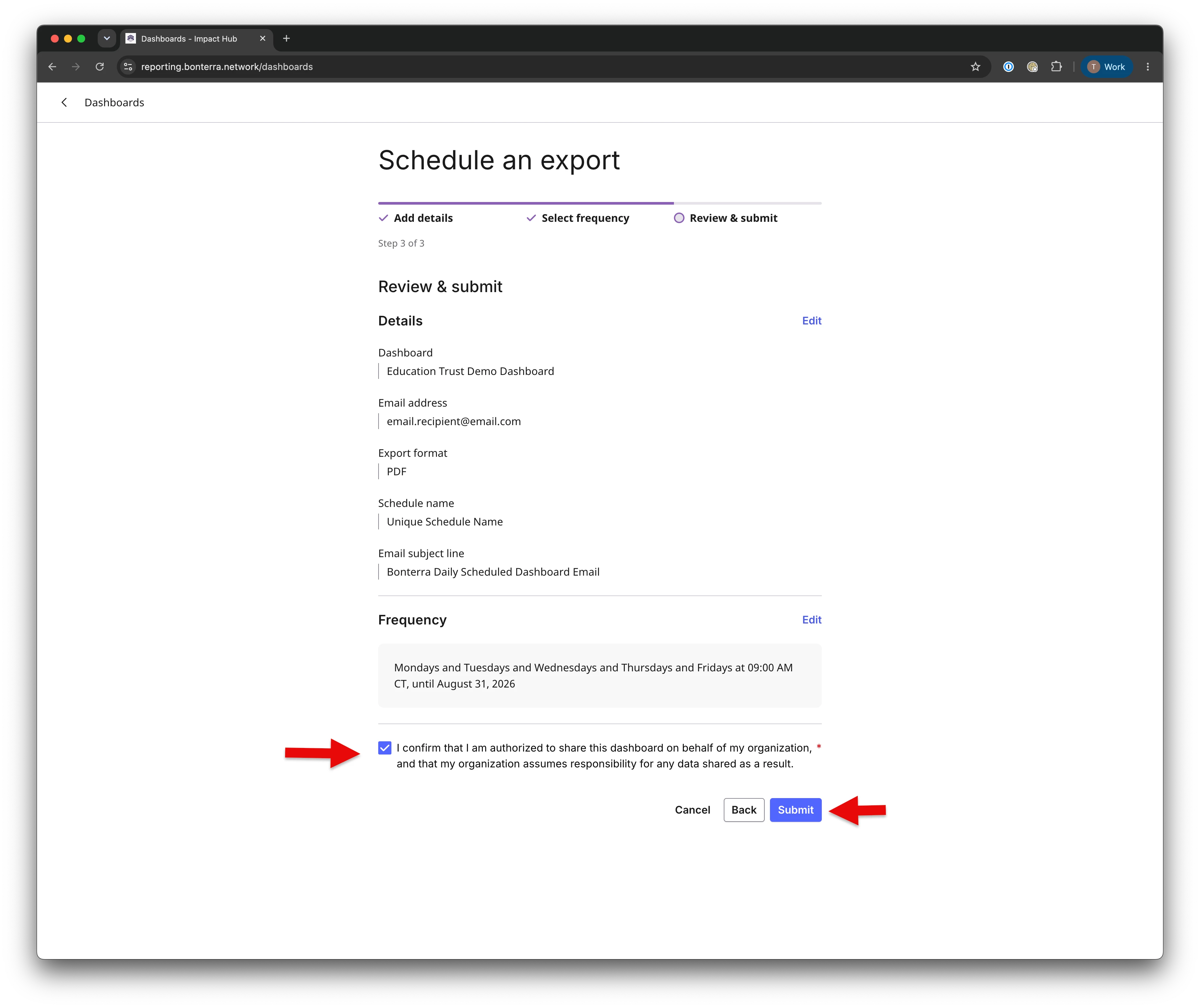
- Review the schedule details and frequency summary.
- Check the authorization box to confirm you are authorized to share this dashboard on behalf of your organization, and that your organization assumes responsibility for any data shared as a result.
- Select Submit.
Step 5: Confirm and manage the schedule
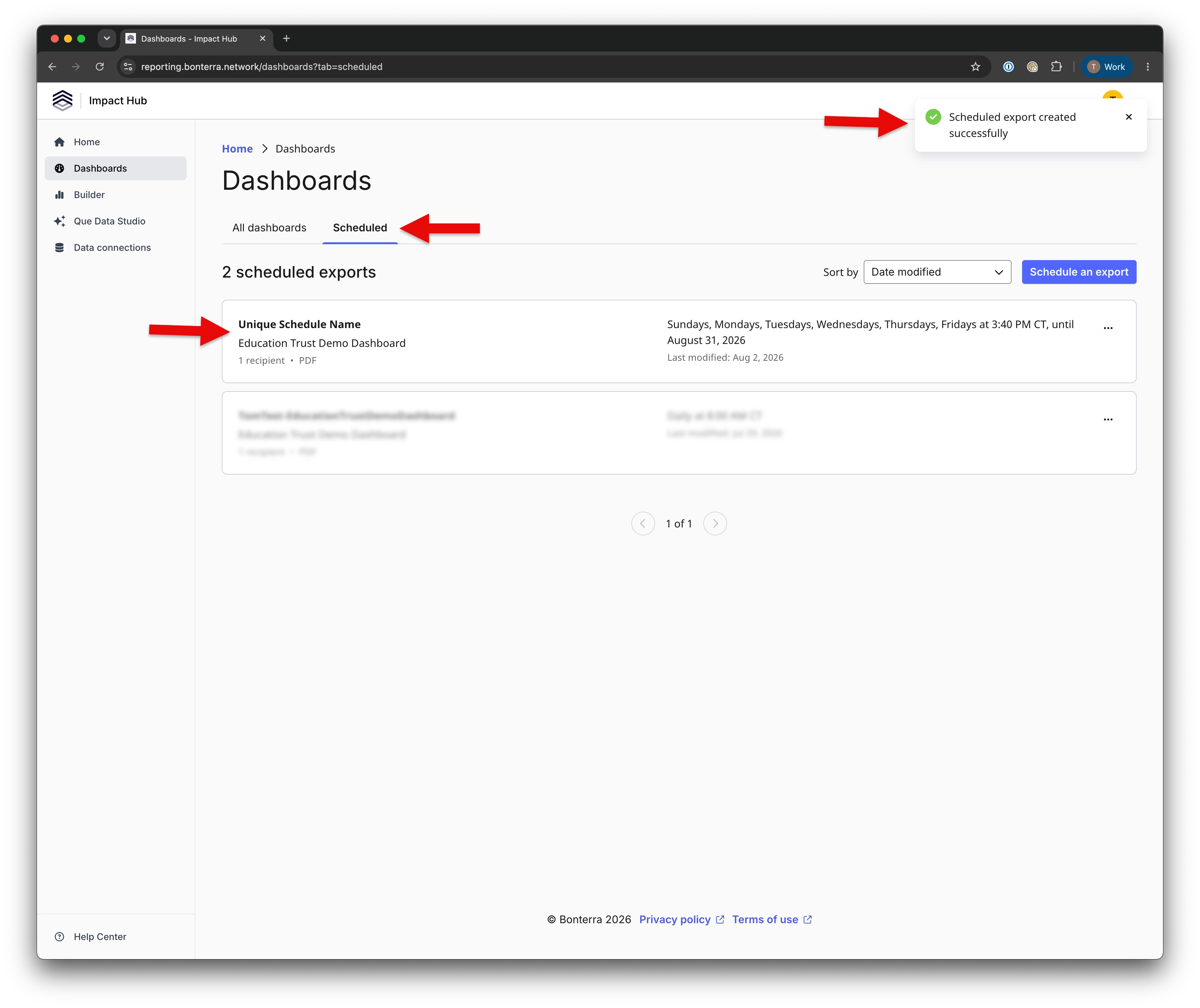
- After submitting, you'll see a Scheduled export created successfully confirmation.
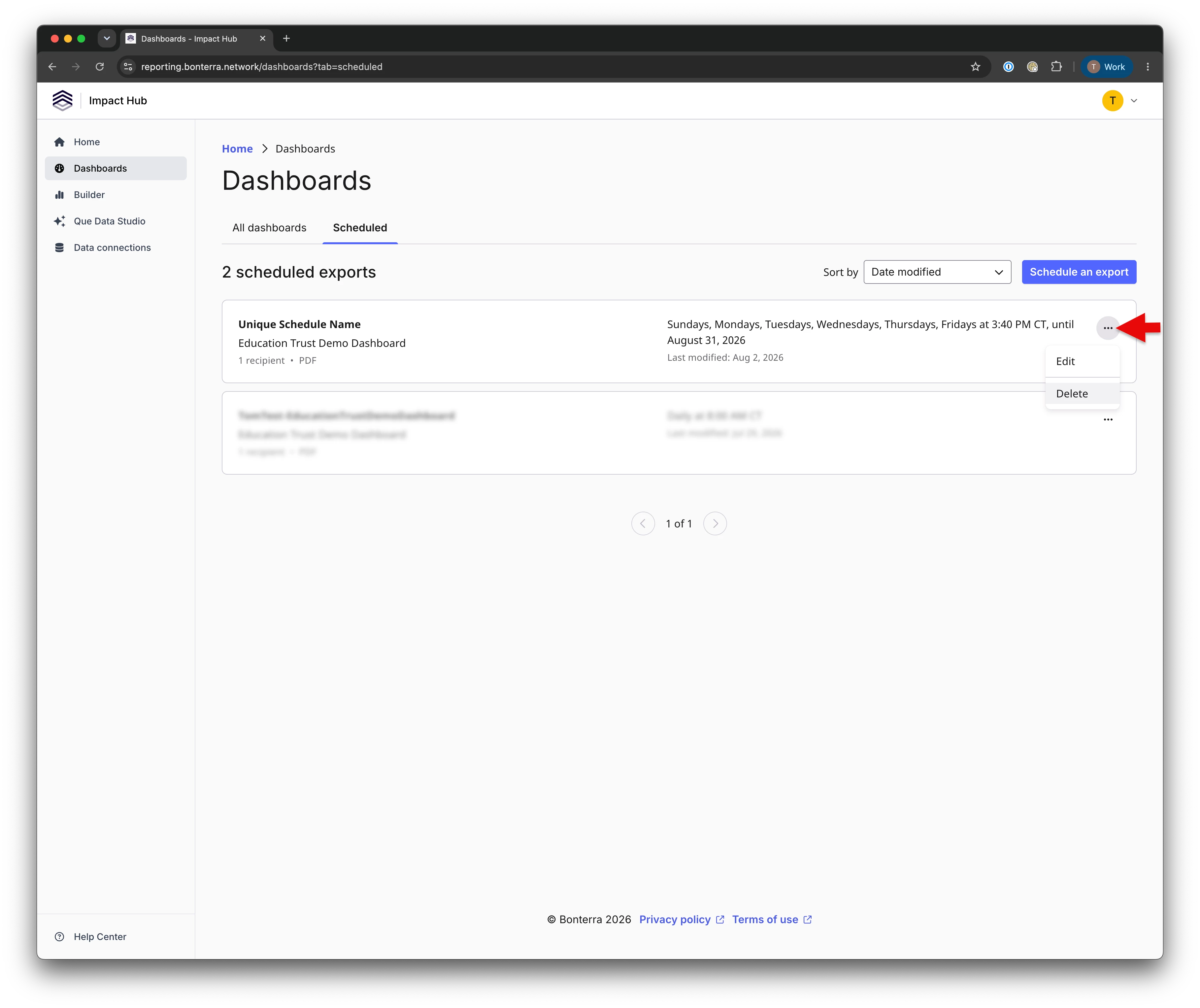
- Find your new schedule on the Scheduled tab of the Dashboards page.
- From the Scheduled tab, use the options menu on any schedule you own to Edit or Delete it.
Important things to know
- PDF is the only export format. It preserves the dashboard's visual layout and works well for sharing and printing.
- Recipients don't need to belong to your organization. You can enter any valid email address, separated by commas or semicolons.
- You're responsible for who receives the data. Before submitting, confirm every recipient should have access to the dashboard's contents.
- If a schedule owner leaves your organization, their schedules are paused. Contact Bonterra Support if this affects a schedule your team relies on.
- Recipients can opt out of individual schedules without affecting the schedule itself by using the unsubscribe link included in every scheduled email.
- If an email hasn't arrived, ask recipients to check their spam, junk, and promotions folders and confirm their email provider allows mail from Impact Hub.
What else do you need help with?
- How do I publish an Impact Hub dashboard?
- How do I view existing dashboards in Impact Hub?
- How do roles and permissions affect Impact Hub access?
- Understanding Impact Hub Report Building
How do I schedule an Impact Hub dashboard for delivery? | How do I send an Impact Hub dashboard by email automatically? | Can I set up recurring dashboard exports in Impact Hub? | How do I set a delivery schedule for an Impact Hub dashboard? | Why isn't my scheduled Impact Hub dashboard email arriving? | How do I edit or delete a scheduled dashboard export in Impact Hub? | Who can create a scheduled export in Impact Hub?