

How do I export data from Donor Management?
Looking to export out some (or all) of your donor records from your Donor Management system? Not sure where to start to make sure you're including the fields or data that you need?
Not to worry - we've created a quick, step-by-step guide on how to export out either contact or donation records from Donor Management below!
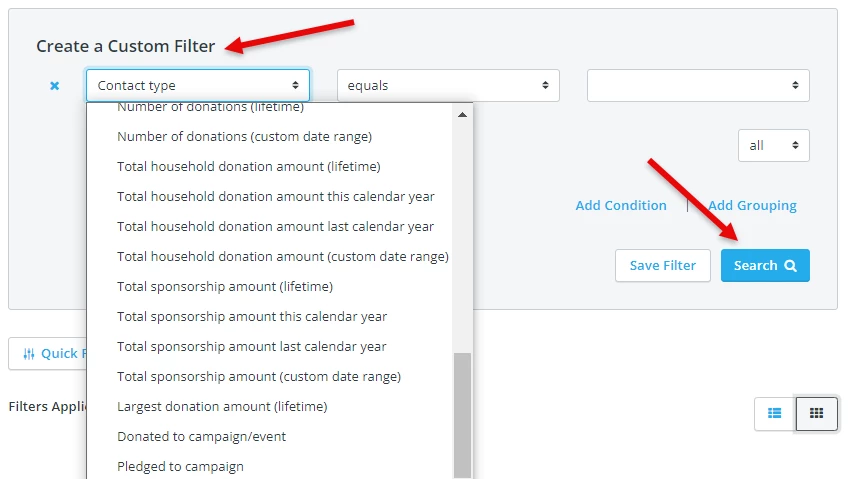
Step 1: Create an run a filter for the data you're looking to report on.
Your first step should be to click on either the "Contacts" or "Giving" tabs in the navigation bar, and create a new filter that identifies and segments out the data you're looking to export out of Donor Management.

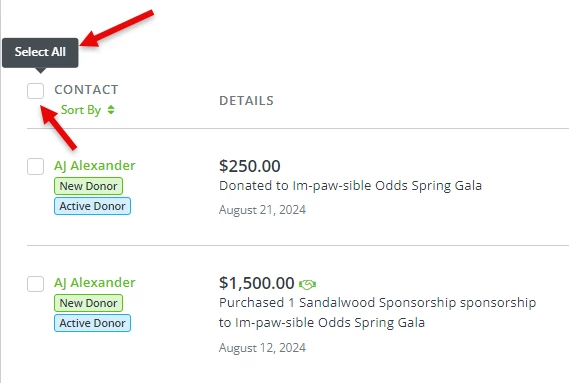
Step 2: Highlight the "Select All" checkbox above the results of your filter.
Once you've run your filter, you should see the "Select All" checkbox, located right above the first contact record on the page.
Not sure? The checkbox will say "Select All" if you hover over it with your mouse.
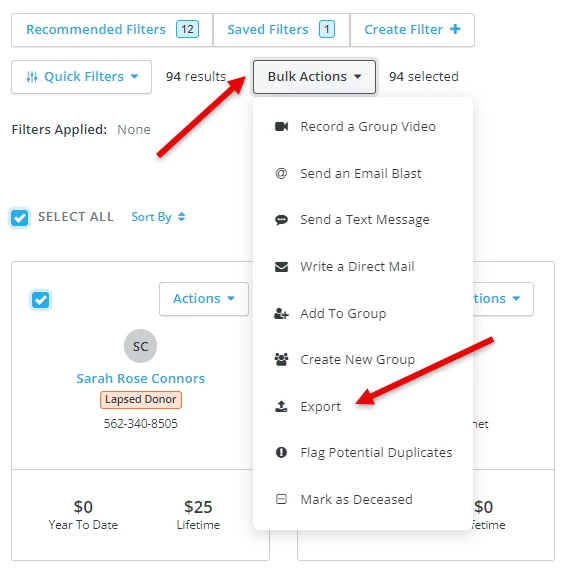
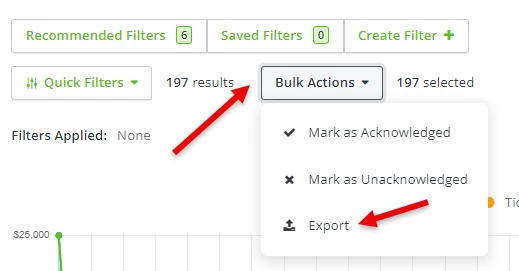
Step 3: Click "Bulk Actions", then select "Export" from the available options.
Step 4: Select the relevant export fields when creating your export.
When a pop-up window appears on your screen, please select all relevant fields on the left-hand box that you'd like to include in your export, including any donation custom fields you have created. (You can also give your export a name, to help locate it more easily in the future.)
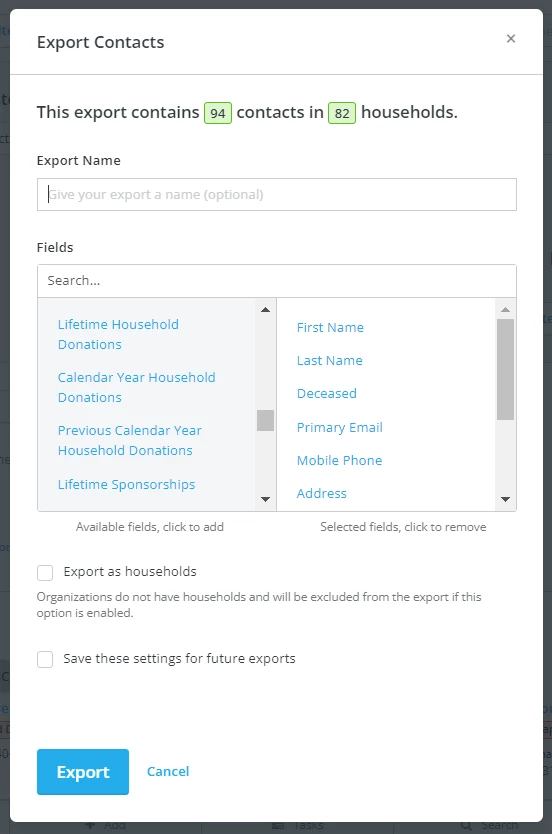
If you are generating a report from the "Contacts" tab, there is an option on this screen to "export as households." This option will only provide an export of data on those found within a household, and will exclude other contacts (such as organizations, businesses, etc.) Please be mindful when selecting this option!
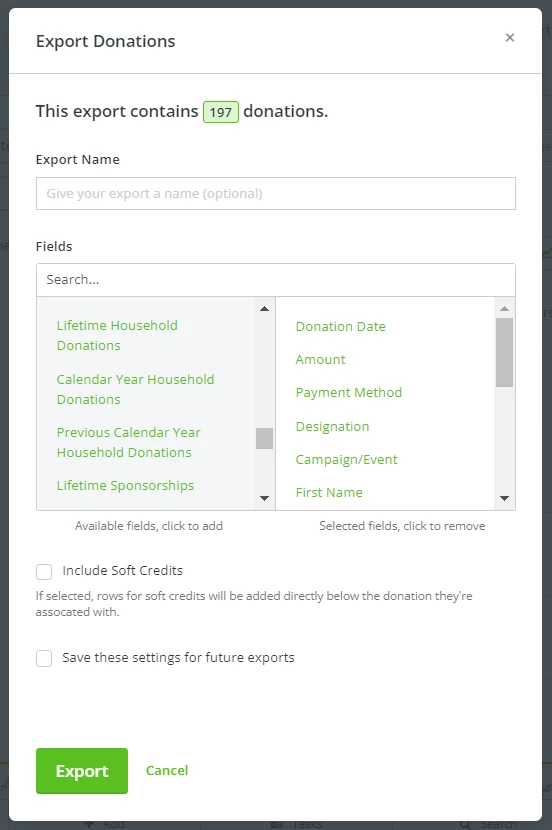
If you are generating a report from the "Giving" tab, there is an option on this screen to "include soft credits." We strongly recommend checking this option if you have soft credits that you would like to be included in your export, as they will not be listed in the export otherwise.
If you are looking to export all of the data, be sure to select all of the available fields.
Step 5: Click "Export."
Once you click the "export" button, you should be directed to the "Exports" screen, along with a message that your export is processing and will be ready soon.
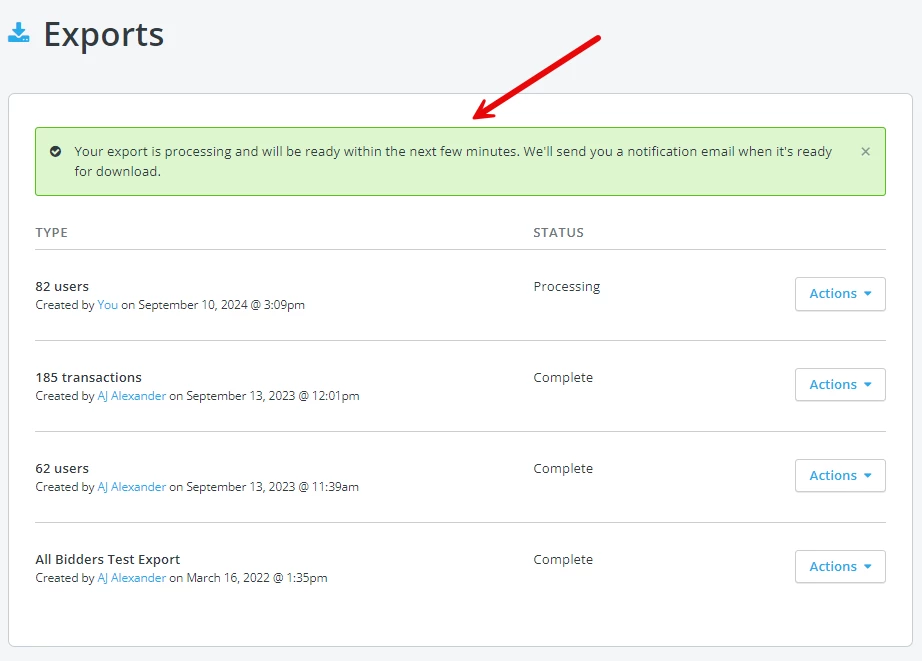
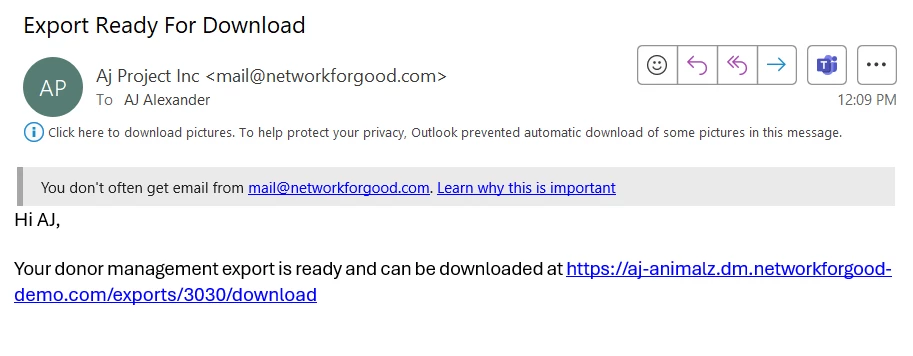
You are welcome to refresh that page to see if the export has completed; you also will receive an email to the email associated with your admin account letting you know once the export is complete as well.
What else do you want to do?
Not what you're looking for?
Go back to the Feature Overview.
How do I export contacts or donations from Donor Management? | Where is the Export option in Network for Good? | How do I select fields for a data export? | How do I include soft credits in an export? | What does “export as households” mean? | Why didn’t my export include all contacts? | How do I download my completed export file?
How do I link a pledge to a grant plan? | How does link a pledge to a grant plan work in EveryAction? | Why can't I link a pledge to a grant plan? | Where do I link a pledge to a grant plan in EveryAction? | What is link a pledge to a grant plan in EveryAction? | How to link a pledge to a grant plan? | Can I link a pledge to a grant plan in EveryAction?