

How do I export data to report on households?
Need to create insightful reports on household-related data, such as an entire household's giving history?
The steps outlined below will help you create a custom filter to report on this within 'Donor Management' so you can gather and share that information efficiently!
Step 1: Create a custom filter
From your 'Donor Management' Dashboard, click the 'Contacts' tab on the left navigation panel and click the 'Create Filter' button to create a custom filter that identifies and isolates household-specific information.
Commonly used contact types are:
-
Total household donation amount (lifetime)
-
Total household donation amount this calendar year
-
Total household donation amount last calendar year
-
Total household donation amount (custom date range)
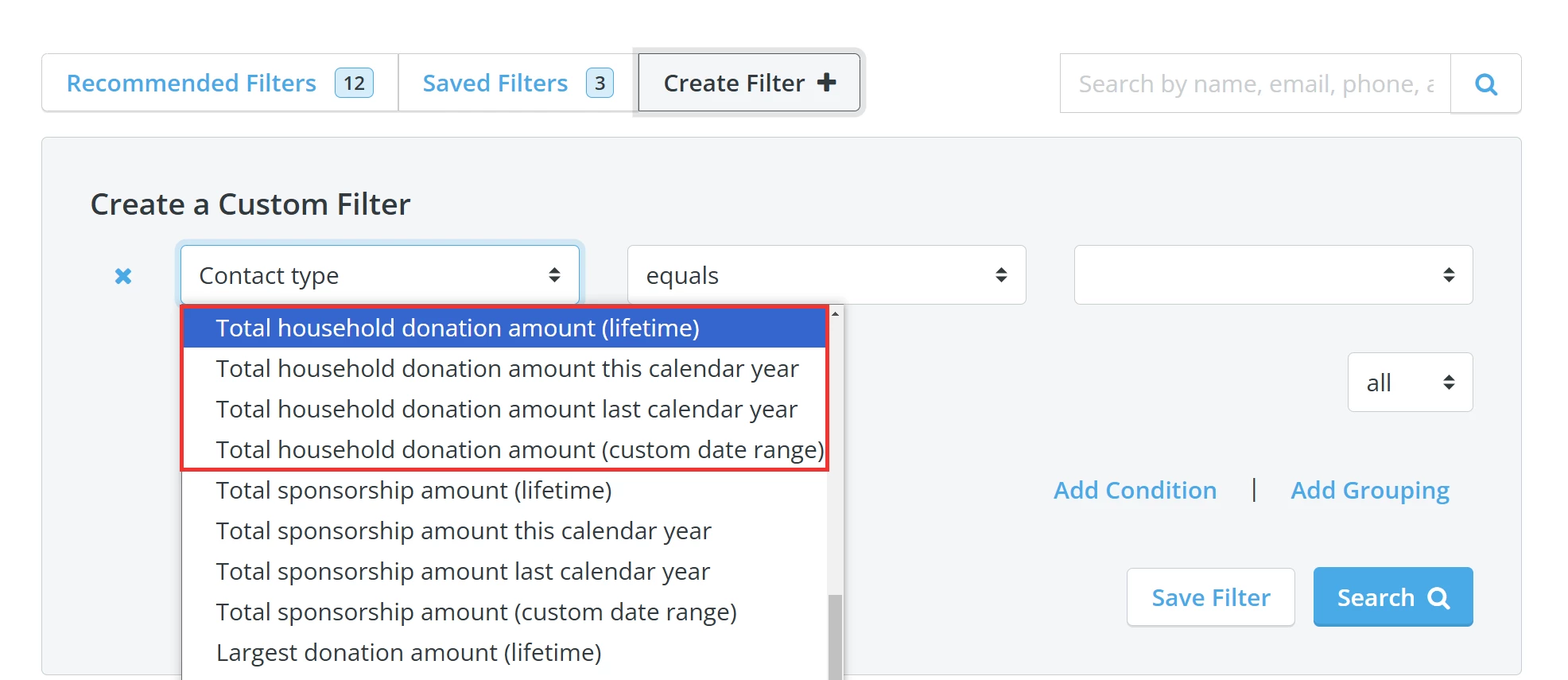
When you are finished setting your conditions, click the 'Search' button in that section.
Step 2: 'Select All'
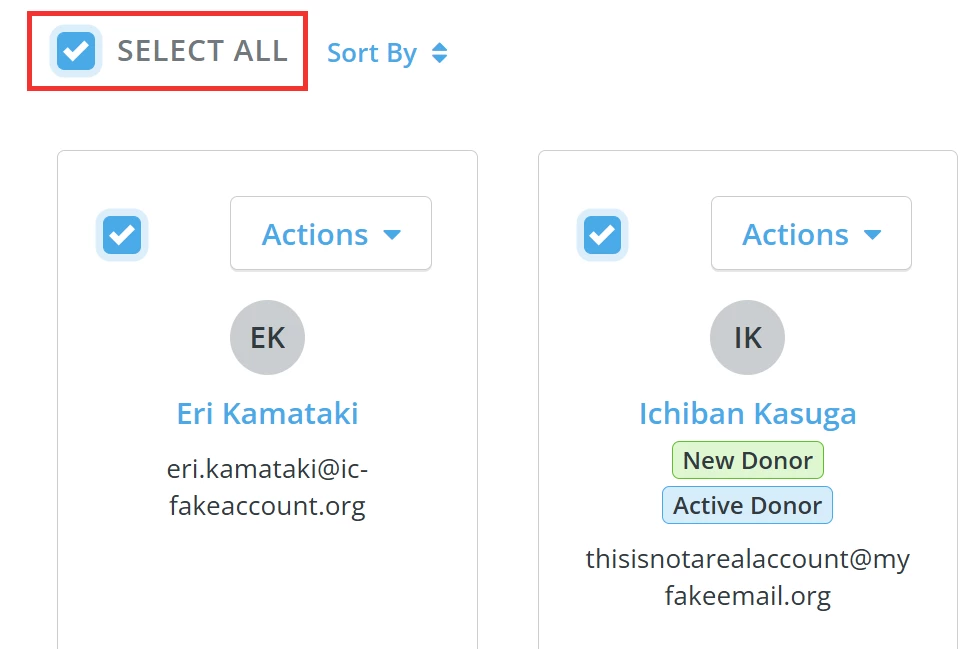
Your 'Contacts' page will refresh - check the box next to 'Select All' above the list of contact records included in the search results.
Step 3: Click to start building your export
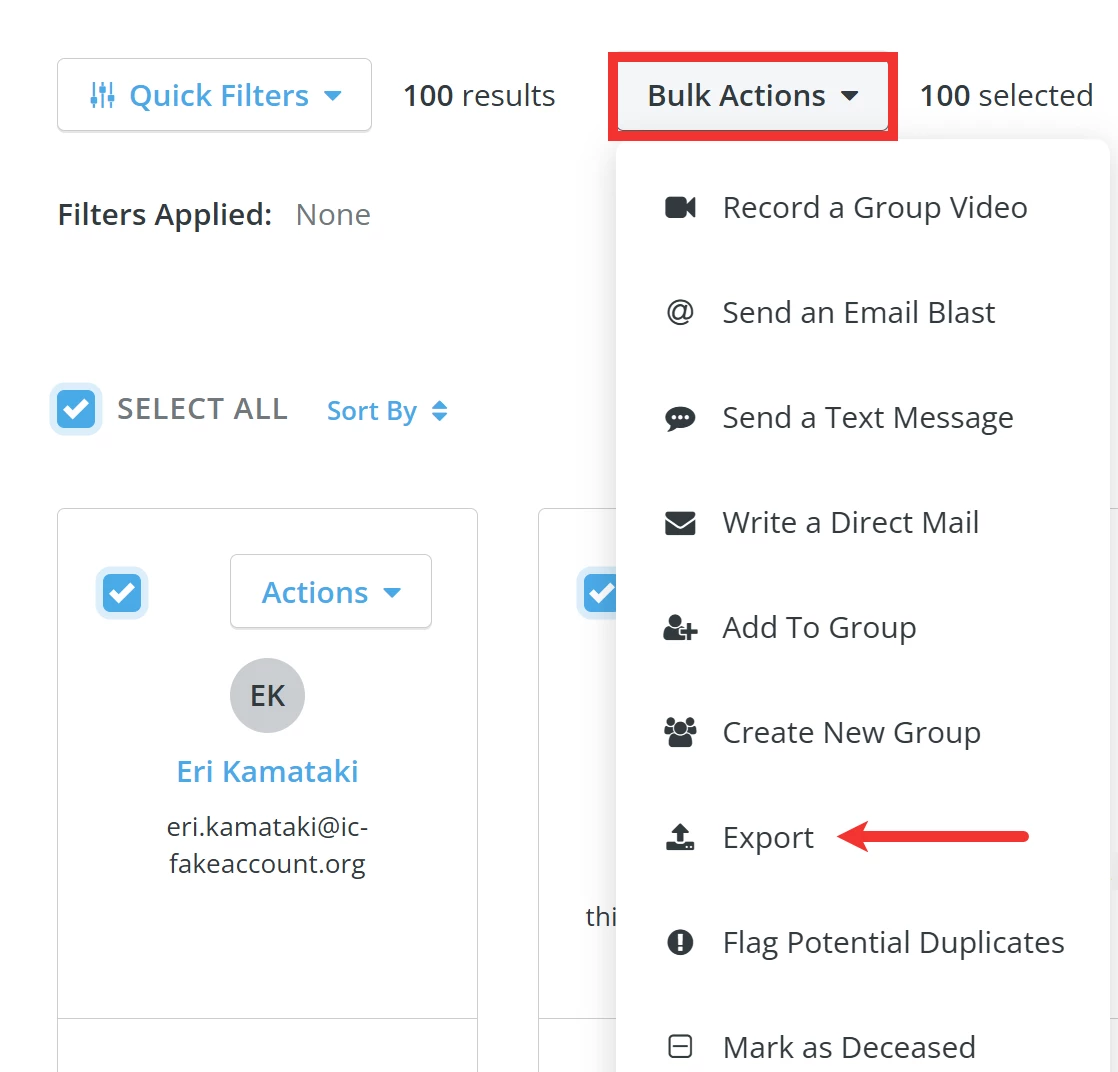
Next, click the 'Bulk Actions' button and select 'Export' from the drop-down list of options.
Step 4: Select relevant export fields
A pop-up window labeled 'Export Contacts' will appear, confirming how many contacts in how many households are included in your export.
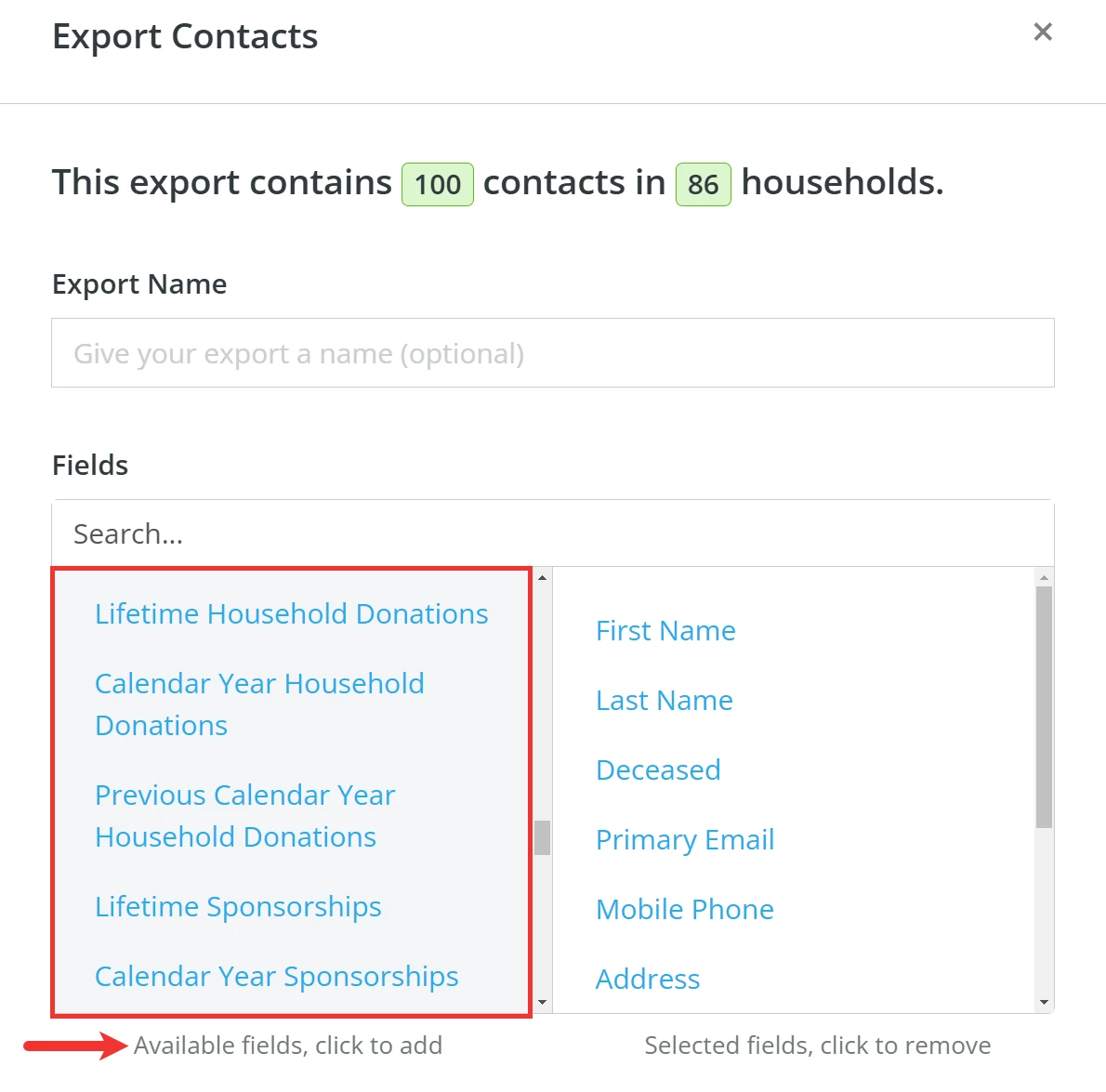
Tip: We recommend giving your export a name so you can easily locate it later.
Be sure to add the following from the list of available fields on the left:
-
Lifetime Household Donations
-
Calendar Year Household Donations
-
Previous Calendar Year Household Donations
-
Fiscal Year Household Donations
-
Previous Fiscal Year Household Donations
Step 5 (OPTIONAL): Select 'Export as Households'
By selecting this option, your export will contain several additional fields not included in a standard export file.
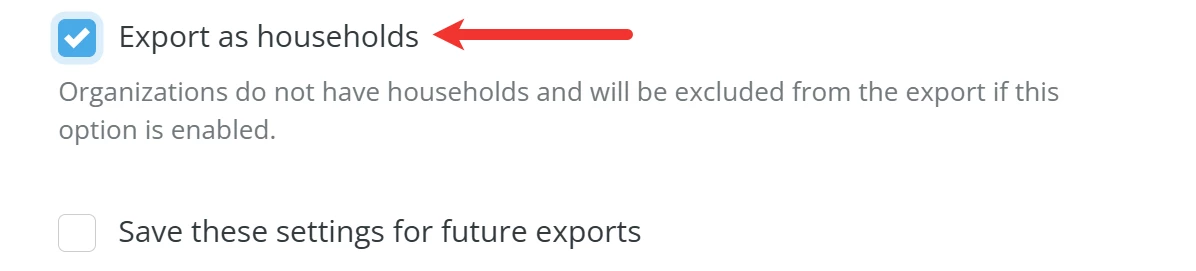
Those fields include:
-
Household Greeting - intended to be used as the greeting for the household on a letter or mailing label, i.e., The Smith Family, Dr. Tom and Sue Smith
-
Household Name - automatically generated and can be updated from the contact's profile
-
Head of Household - primary contact of a household, can be designated from the contact's profile
-
Other Household Members - this column includes the names of all other members of the household
Step 6: Export your data
When you are ready, click the 'Export' button at the bottom of the pop-up window.

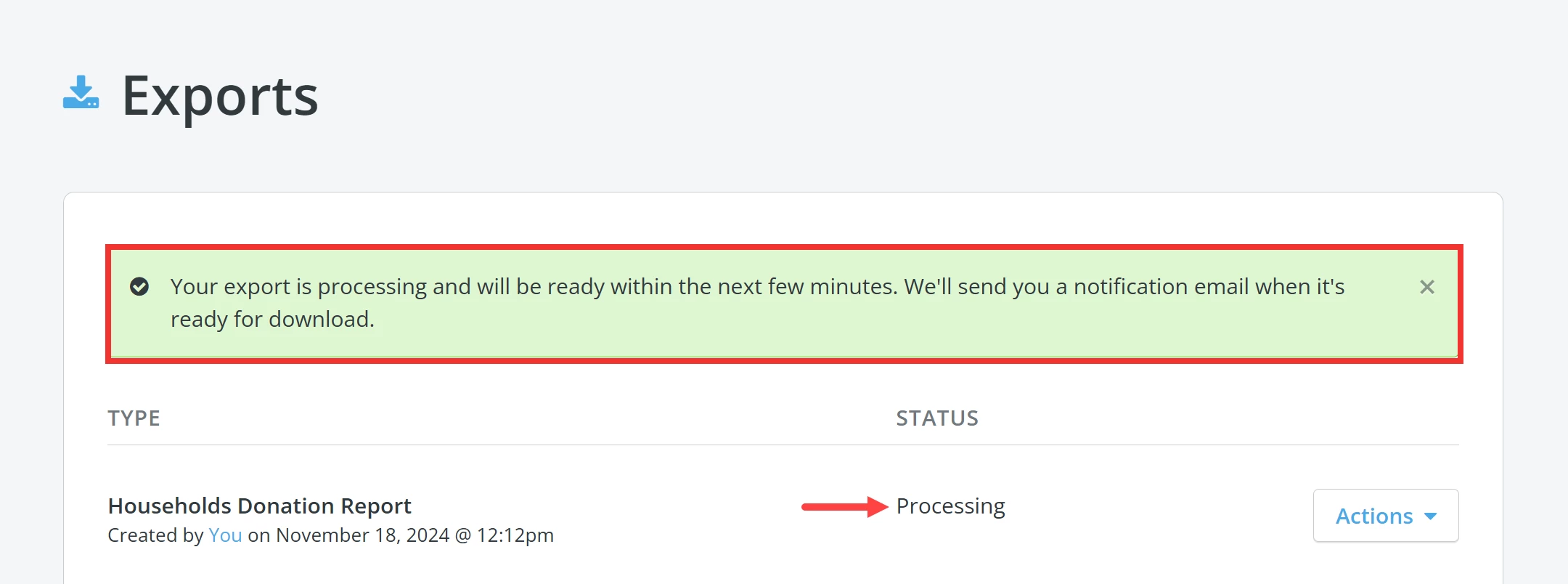
You should be directed to your 'Exports' page and a banner confirming your export is processing should appear near the top of the page.
Step 7: Download your data
Once your export is ready for download, a confirmation e-mail with a unique download link will automatically be sent to you.
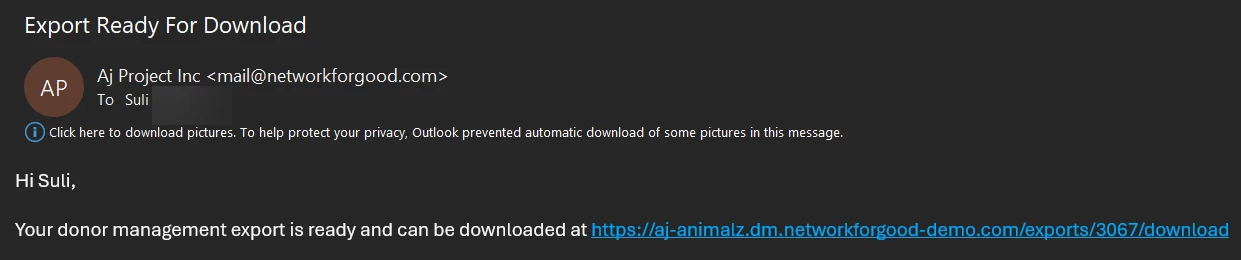
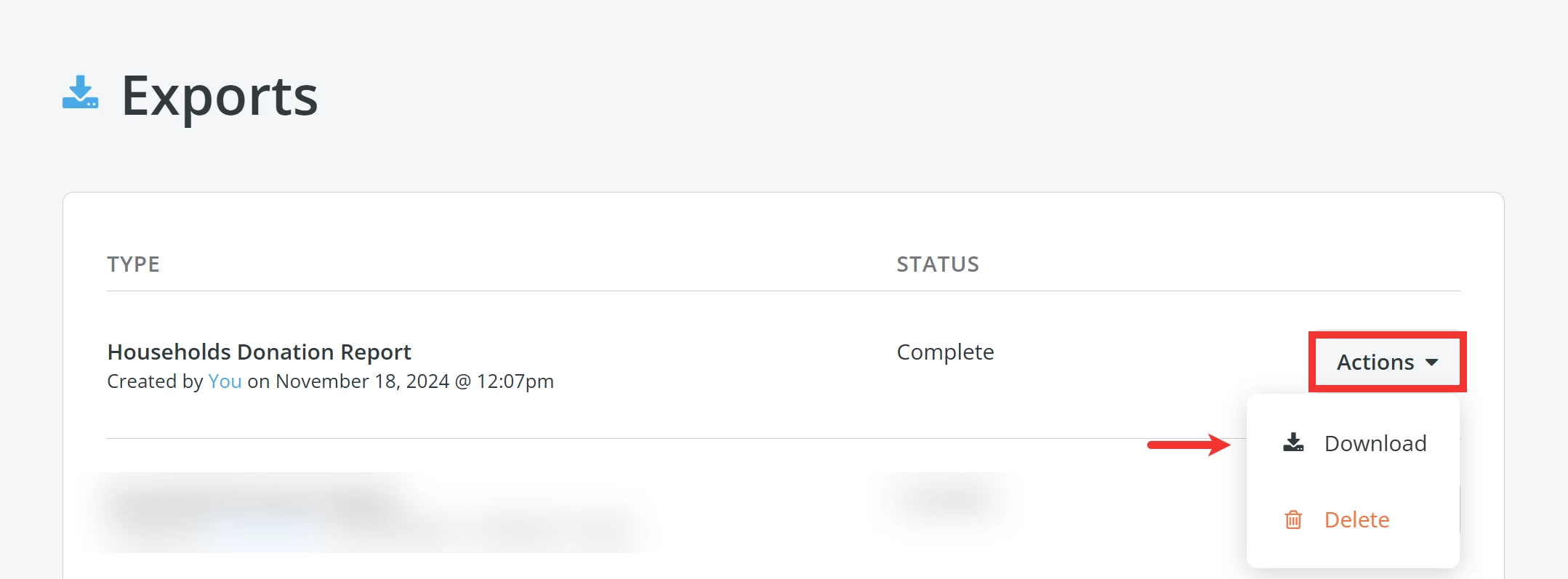
You can click the link in the e-mail or refresh your 'Exports' page until the status of your export updates to 'Complete'. Click the 'Actions' button next to it and select 'Download' from the drop-down list of options.
What else do you need help with?
Not quite what you were searching for?
Navigate back to the Feature Overview.
How do I export household giving totals in Donor Management? | How do I run a report on total household donations? | What does Export as Households include? | How do I filter by lifetime household donations? | Where do I find household fields in an export? | How do I download a household donation report? | Can I include fiscal year household totals in my export?
How do I use the fundraising optimization guide? | How does use the fundraising optimization guide work in EveryAction? | Why can't I use the fundraising optimization guide? | Where do I use the fundraising optimization guide in EveryAction? | What is use the fundraising optimization guide in EveryAction? | How to use the fundraising optimization guide? | Can I use the fundraising optimization guide in EveryAction?