

How to: Use Team Canvassing
An overview of MiniVAN which includes tools like Street Team can be found here.
The Basics of Team Canvassing
What is Team Canvassing?
Team Canvassing on MiniVAN allows canvassers using the same list number to see the canvass results of anyone using that list.
Team Canvassing improves the canvassing experience by:
-
Pairing newer canvassers with experienced canvassers who are comfortable showing them the ropes. This partnership creates a more welcoming space, helps build trust, and validates new tools.
-
Providing options for canvassers who prefer to canvas with a partner. This leads to a more inclusive and volunteer-accommodating experience.
-
Allowing canvassers the ability to see the previous results of multiple passes on the same turf packet.
How does Team Canvassing on MiniVAN work?
During Team Canvassing, anyone else using the list can see which doors have already been knocked. This feature is especially helpful during GOTV when you might not have time to refresh turfs between canvasses, or if you have canvassers working the same lists for multiple days. The most recent knock attempt will appear for that list number for 7 days, or until the turf is refreshed.
Learn more about canvassing on MiniVAN here.
Enabling Team Canvassing
Team Canvassing begins with cutting turf. Turf Cutter allows you to select groups of households from a target universe for canvassing efforts by drawing on a map. Once turfs are cut from that map, the Quick Actions menu guides you to generating list numbers for each turf. You can then provide the list numbers to your canvassers for use in MiniVAN.
There are two ways to share lists with canvassers using Turf Cutter:
-
From the Quick Actions menu, “Generate List Numbers” will provide each turf with a corresponding list number that canvassers can directly enter into MiniVAN.
-
Or, by selecting “Send to MiniVAN” which allows you to select which users can see the canvass when they log into MiniVAN, rather than having to enter a specific list number. You can send to more than one canvasser by entering in the names of the individuals who are Team Canvassing on that list.
Watch this tutorial on using turf cutter for a demonstration.
Viewing Team Canvassing Data in MiniVAN
It is important to note these key factors for viewing Team Canvassing Data in MiniVAN:
-
Once a list is sent and canvassing begins, Team Canvassing will show you the results of anyone using that list if you are on the same list number, or if you are sent the same turf at the same time from Turf Manager.
-
If a canvasser is on the same list number, you will see their results for the last seven days only. After seven days, the results are not accessible to view in MiniVAN.
-
Additionally, if you have previously downloaded a list, discarded it, and then downloaded it again, you will be able to see your own previous progress.
Syncing Team Canvassing Data in MiniVAN
When canvassers are using the same list number or have been sent the same turf from Turf Manager, MiniVAN will update on sync with the new canvass results of anyone else using the same list. These results will be viewable for seven days.
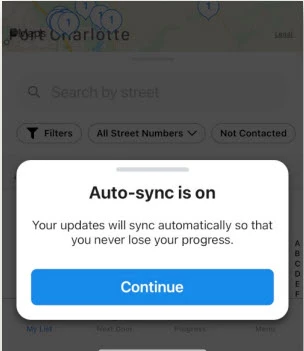
The Auto-sync feature enables automatic syncing so progress and results are updated.
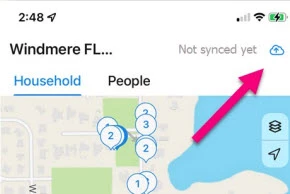
Manual syncing is an option by selecting the sync icon in the upper right corner of the list view in MiniVAN. It is generally a best practice to select the sync icon anytime you change lists to ensure updating.
Updating Team Canvassing Results in MiniVAN
MiniVAN supports the following tools which specifically support team canvassing. A more comprehensive guide to all of the tools for canvassing in MiniVAn can be found here.
When a list has been updated with team canvass results, banner notifications appear showing that the list has been updated.
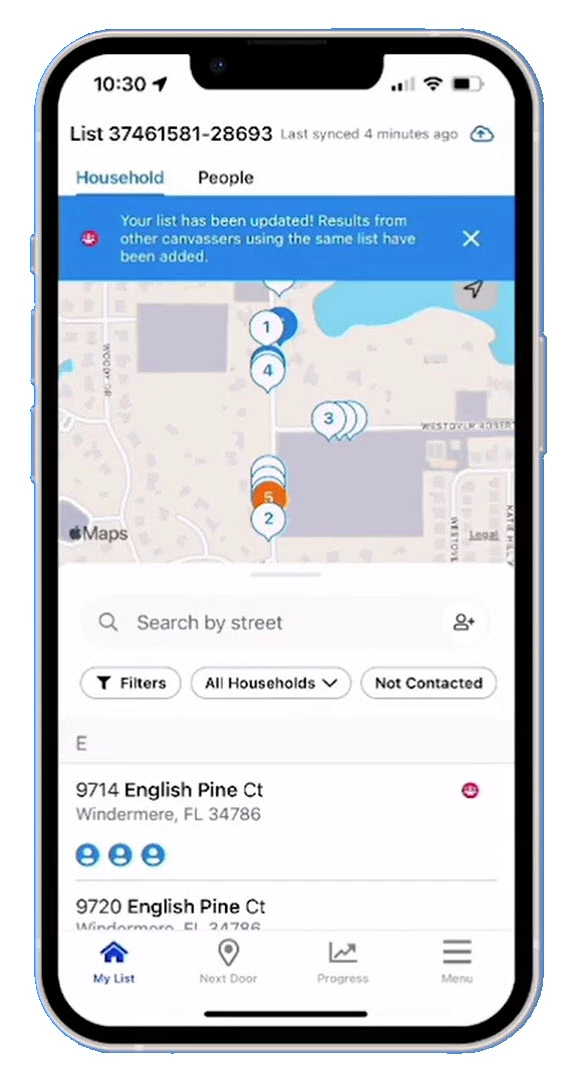
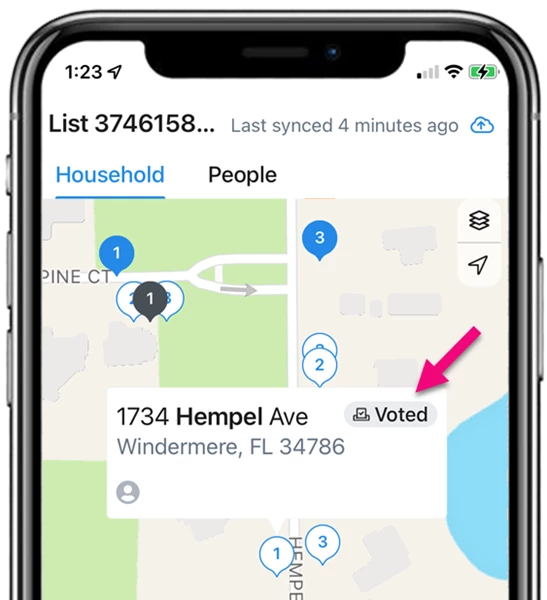
While participating in a team canvassing effort, the red icon in the upper right corner of the address box shows you if anyone else has canvassed that particular household. The person icon below the address will display as blue for canvassed, orange for not home, or grey for other canvass results.
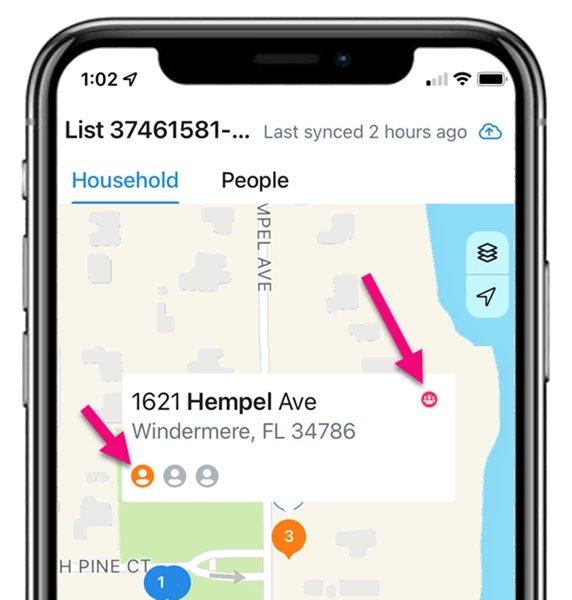
Voted icons in the upper right corner let you know if any individuals in the household have already voted.
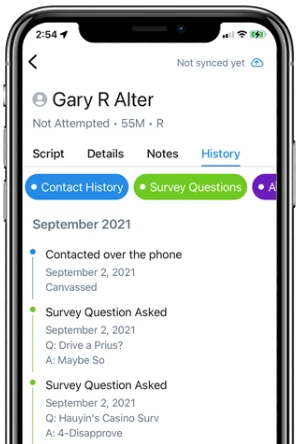
The History tab in the contact record will show you previous canvassing results including dates of canvass efforts, answers to Survey Questions, and Activist Codes applied based on previous canvass responses.
Using Team Canvassing for Multiple Passes
There are many instances when you may need to conduct multiple passes on a list when canvassing. When using team canvassing for multiple passes, it is important to know:
-
Using team canvassing for multiple passes requires using the same list number.
-
Team canvassing will show you all previous attempts on the list number by other canvassers over the last seven days. For example, someone taking a list number out on a second pass will be able to see what canvassers attempted previously if it’s within seven days.
Troubleshooting
If you are not seeing elements of team canvassing, it could be due to these considerations:
-
You may not be on the same list number. Check to ensure that you and your partner are using the same list number.
-
You may be looking for data that is older than seven days. We only show you the last seven days of team canvassing results.
Read more about best practices in canvassing with MiniVAN here.
Learn more about troubleshooting common errors in MiniVAN here.
How do I how to: use team canvassing? | How does how to: use team canvassing work in EveryAction? | Why can't I how to: use team canvassing? | Where do I how to: use team canvassing in EveryAction? | What is how to: use team canvassing in EveryAction? | How to how to: use team canvassing? | Can I how to: use team canvassing in EveryAction?