(4 min read)
Turf Cutter gives you an easy way to segment the households in your canvass list geographically to make knocking doors easier for your canvassers. After creating your universe of contacts, you can view them on a map and cut turf boundaries based on household location and density. You can then generate list numbers to use with MiniVAN or create walk packets to share with canvassers.
Read more about MiniVAN
Preparing your script
To generate list numbers for use in MiniVAN, you will be required to add a script. The Script field only supports linear scripts, but if the script associated with your MiniVAN campaign is branched, that is what will download to the app.
If you are planning to canvass with a branched script, the quickest way to create a linear version is to edit it, changing the script type to linear, providing an alternative name, and choosing Save As. This will save a new script and preserve your original, branched one.
Using Turf Cutter
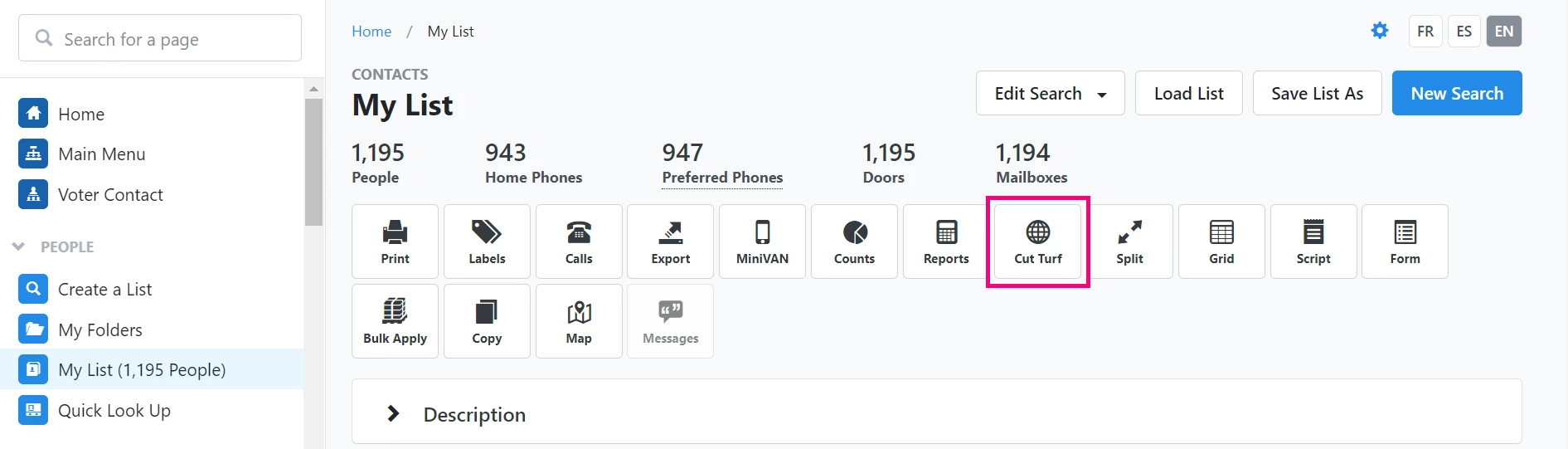
After you’ve loaded your canvass universe to My List, find Cut Turf at the top of your list page.
Read more about using Create a List to create your universe
This functionality is only available for lists with 10,000 people (5,000 doors) or fewer. If your list is too large, you can choose to Split it first, or edit it.
Read more about splitting a list
Cut Turf takes you to Turf Cutter, a map where your addresses are represented as dots. Click a dot to see its address. Switch to Satellite view if you want real-world detail of the turf. Zoom in and out, or click and drag to adjust what areas you can see.
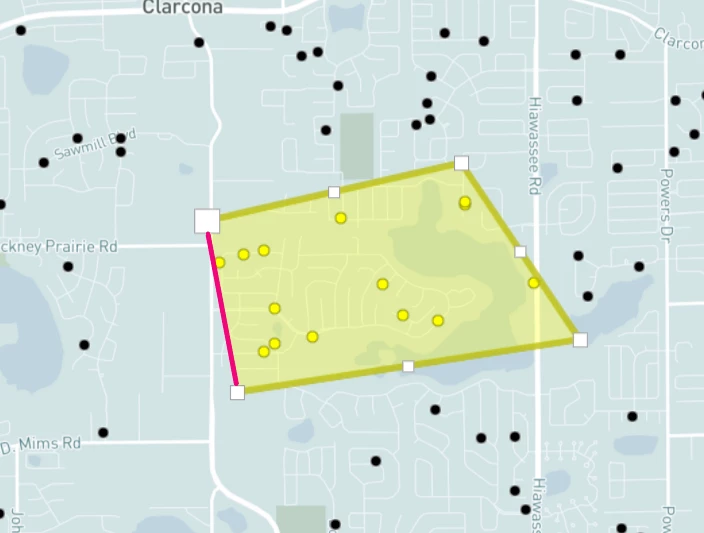
Create turf boundaries around groups of dots by clicking on the map. Each click drops a pin.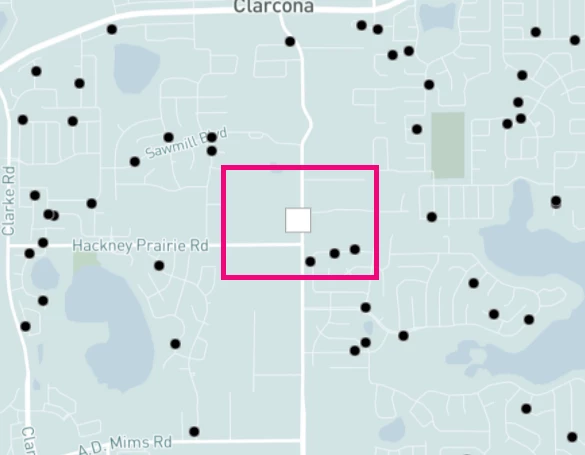
One pin links to the next, creating an outline of your turf boundary.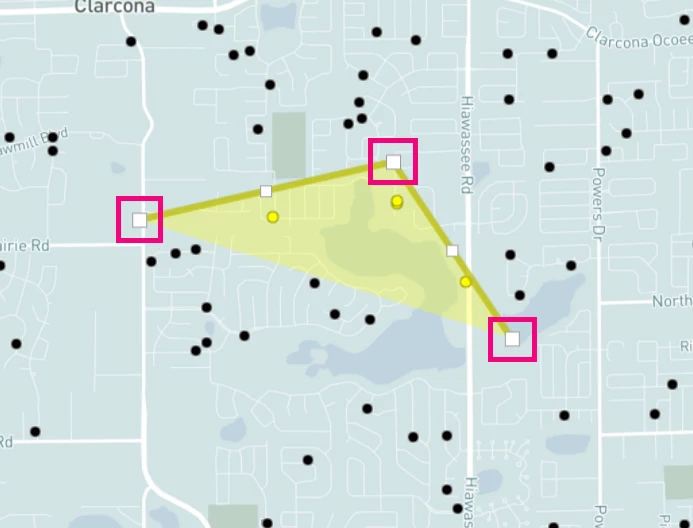
To close your turf, click the first pin. Your boundaries should not overlap. Zoom in further on your map to see areas in extreme proximity better.
The color-coded legend tallies the number of addresses you capture in each turf boundary.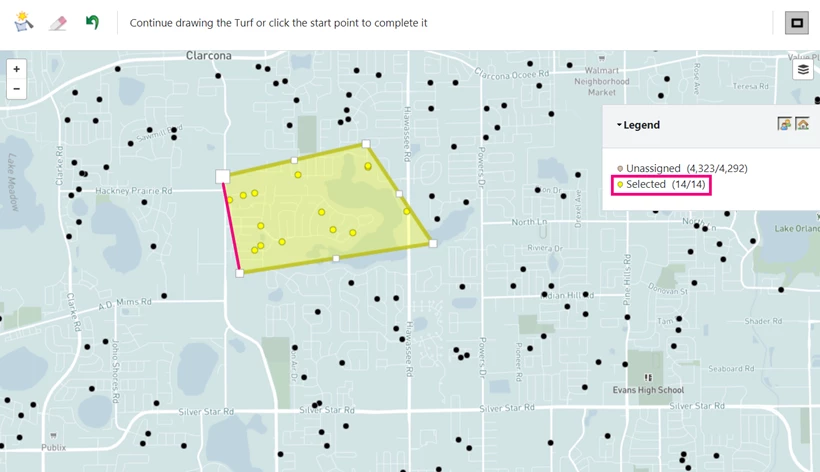
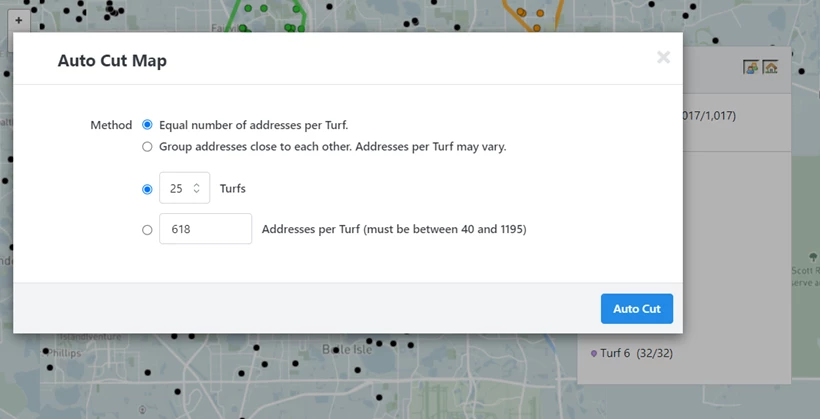
Depending on your account type, you may have the option to auto-cut your turf. To auto-cut your turf, find the polygon tool icon at the top of your map. Choose to distribute addresses among turfs in equal number or to create turfs based on address proximity.
Every turf boundary you create is listed under your legend. Hover over a given turf to auto-cut that boundary further, zoom in on the boundary, or delete the boundary.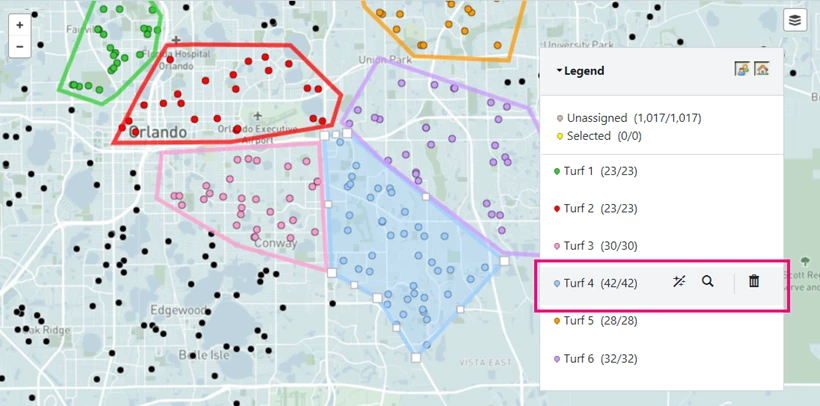
When you have created the turf boundaries you want, Save and Finish. You can then distribute turf to your canvassers by:
-
Generating list numbers to use with MiniVAN
-
Printing for MiniVAN
-
Sending to MiniVAN
- Printing packets
Watch more about canvassing with MiniVAN
Generating List Numbers
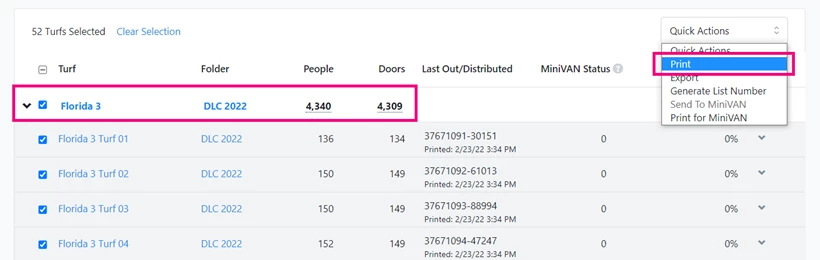
To Generate List Numbers, begin by searching for My Turfs on the Sidebar. This opens the Turf Manager which lists your turfs grouped by Map Region.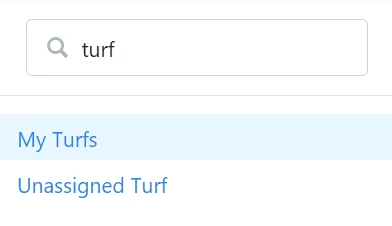
Check the box next to one of your bolded rows to select all the turfs in that group. Uncheck any turfs you do not want to generate numbers for.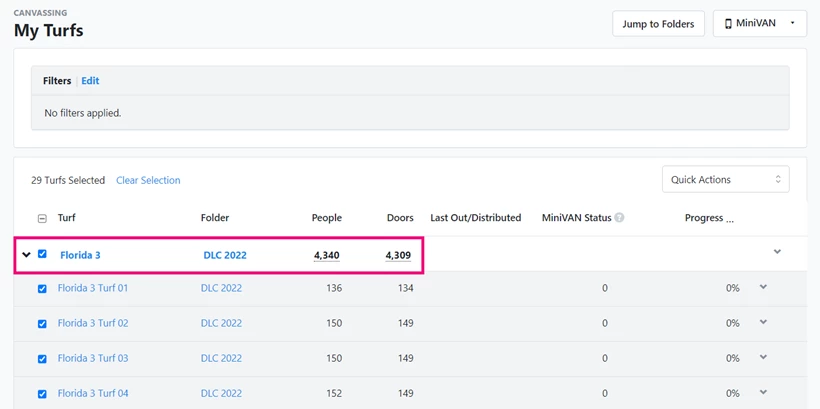
Find Quick Actions on the upper right corner of the section and select Generate List Number.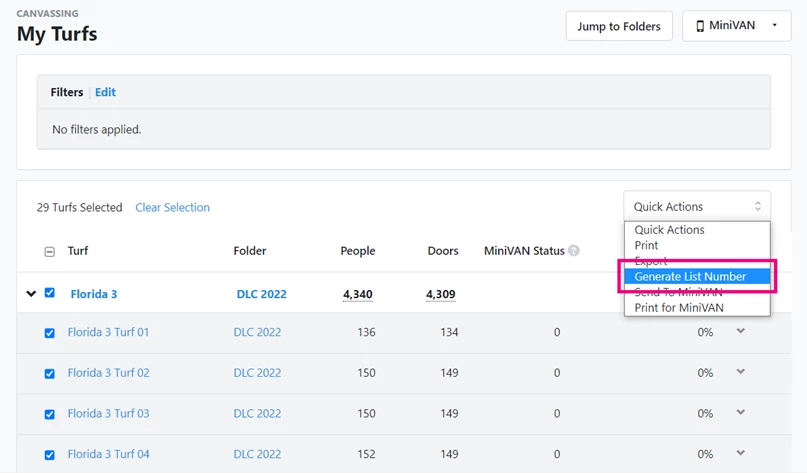
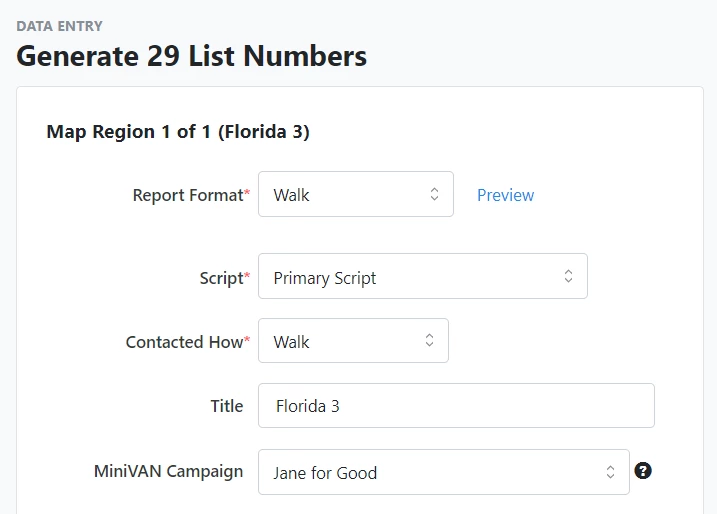
You will then need to add:
-
a Report Format - This format determines what fields from your contact records you want to print on the canvass walk sheets or packets you share with your volunteers.
-
a Script - The script you select here should be linear. If you’re using MiniVAN, whatever script type associated with your MiniVAN Campaign will override this field.
-
Contacted How
Read more about Report Formats
Now that you have list numbers, your canvassers can get to work. List Numbers expire after 30 days.
Printing for MiniVAN
You can create paper packets to use alongside the MiniVAN app. Search for My Turfs in the Sidebar to open your Turfs list. Check the box next to the row of turfs you want to print and select Print for MiniVAN under Quick Actions.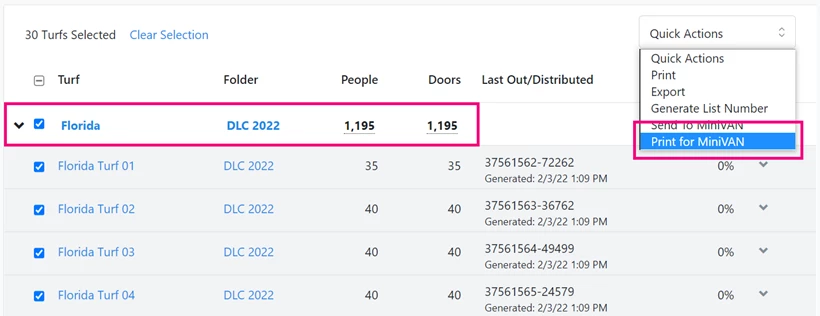
Completing the form and selecting print, creates a PDF of your MiniVAN Turf Packets.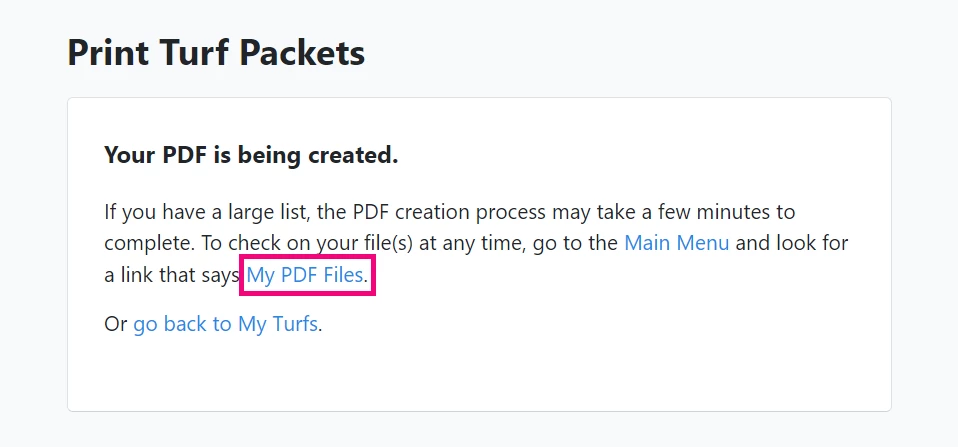
This and any other PDF file you create can be downloaded from your PDF Files list.
Inside your turf packet, find list numbers for each turf printed above their respective maps.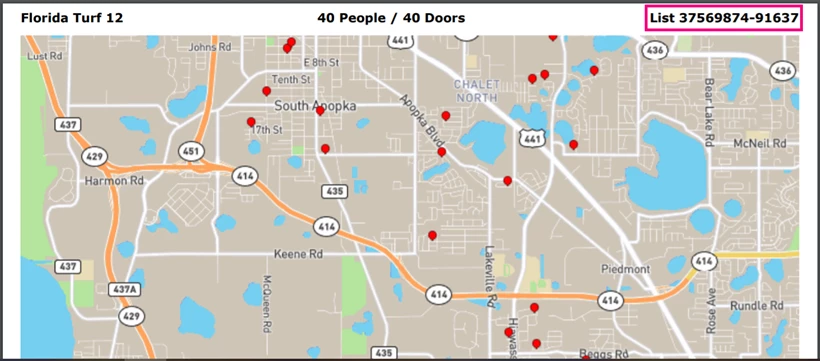
Sending to MiniVAN
If you are planning for members of your own team with individual accounts to canvass, you can send their list numbers directly to MiniVAN. Search for My Turfs in the Sidebar and then select the turfs you want to assign to your users. Then select Quick Actions > Send to MiniVAN.
Read more about canvassing with MiniVAN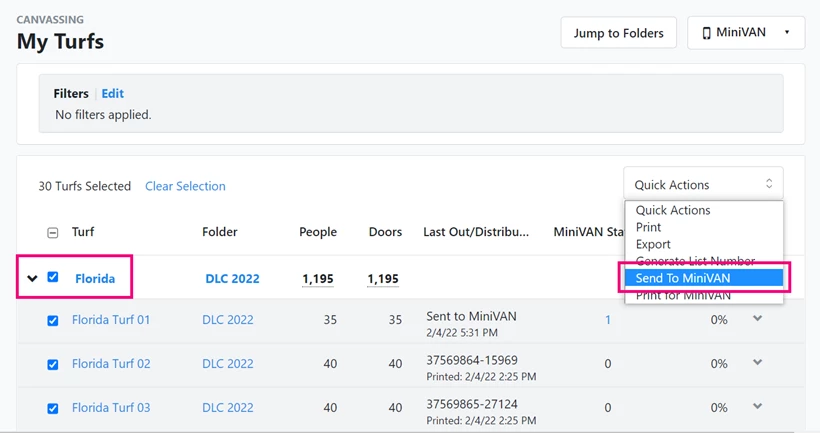
You can then select the names of your staff members from the Canvasser dropdown.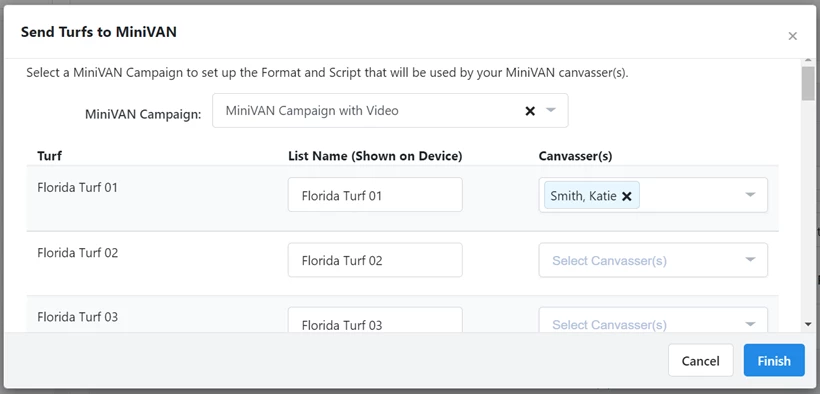
Printing packets
If you will be running an offline canvass and later entering your data, you can print turf packets that include list numbers for manual data entry. Search for My Turfs in the Sidebar and then select the turfs you want to include from your list. Then select Quick Actions > Print.