


Homepage
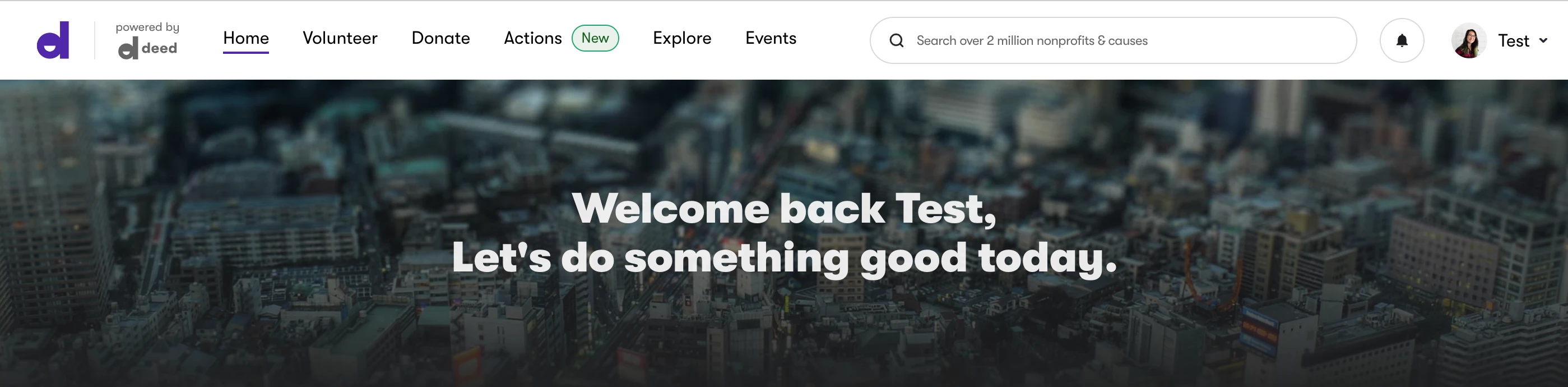
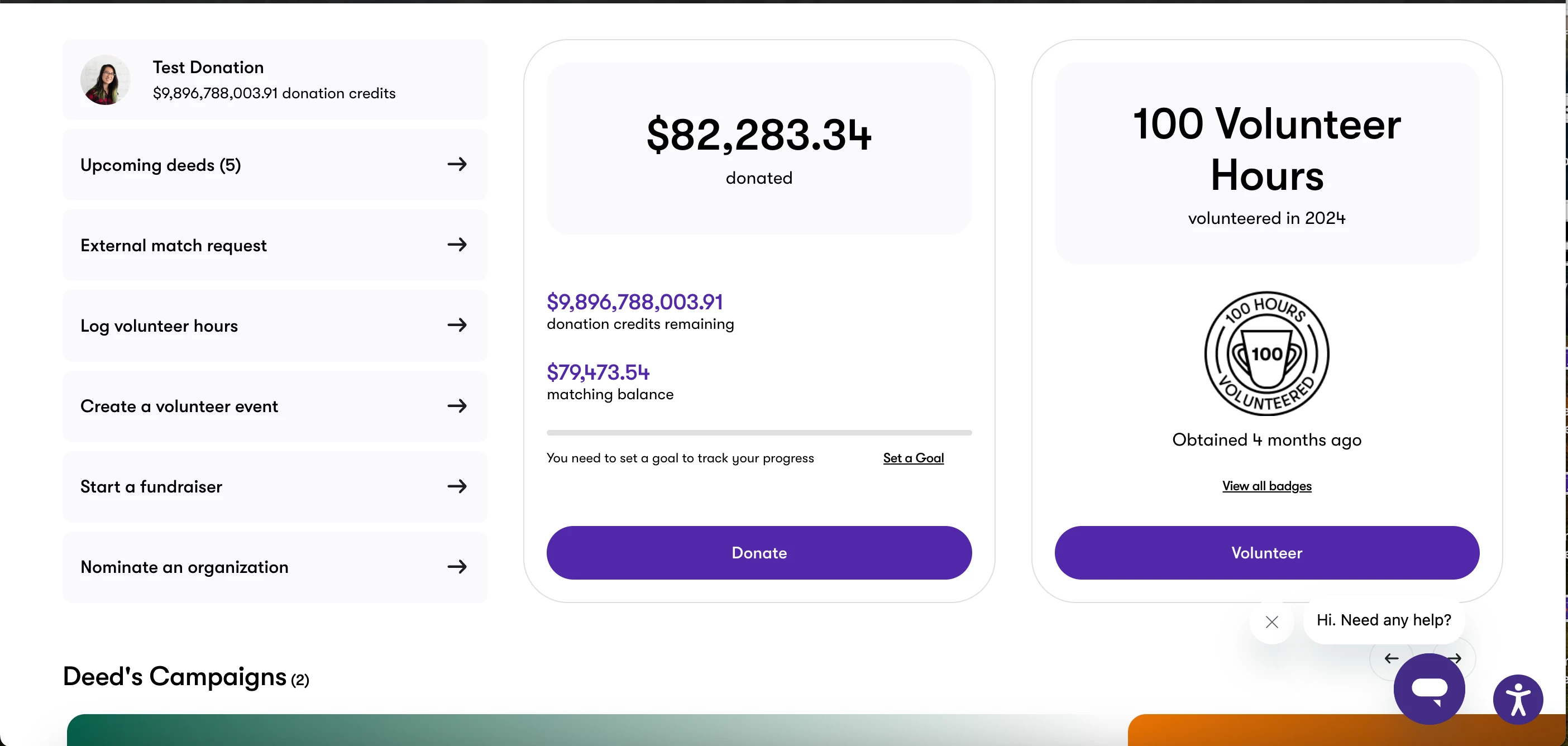
Your Deed homepage is where you’ll find your Upcoming Deeds, your company's Featured Causes, and ERGs. You can also search for the kind of impact you are looking to make. Click into a campaign, Featured Cause, or ERG to learn more about that focus area and view affiliated opportunities and nonprofits.
Languages
At the top of your homepage next to the universal search bar, you can select the language that you'd like to access the Deed platform in. Our available languages are:
- English (US)
- Spanish
- Portuguese
- French
- French (Canada)
- Italian
- German
- Dutch
- Danish
- Bahasa Indonesia
- Russian
- Hindi
- Chinese (traditional)
- Chinese (simplified)
- Korean
- Japanese
Pledges
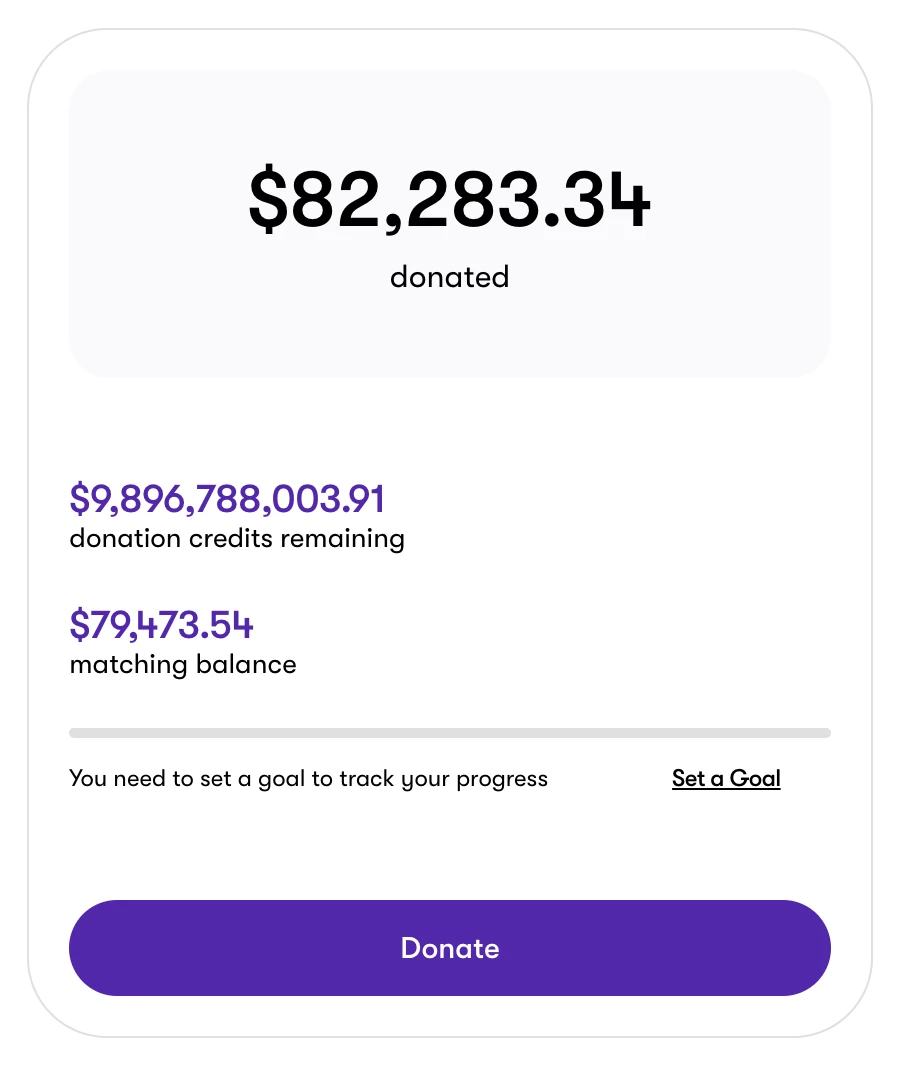
If you are looking for an easy way to calculate an annual donation goal, Deed can help! Click 'Set a Goal' to get started!
- Set your giving goal for the year and track your progress in real time on your homepage
- Both on and off platform donations will be counted
- Your pledge does not include the matched amount
- Pledges are non-binding but great ways to keep track and stay motivated around your giving
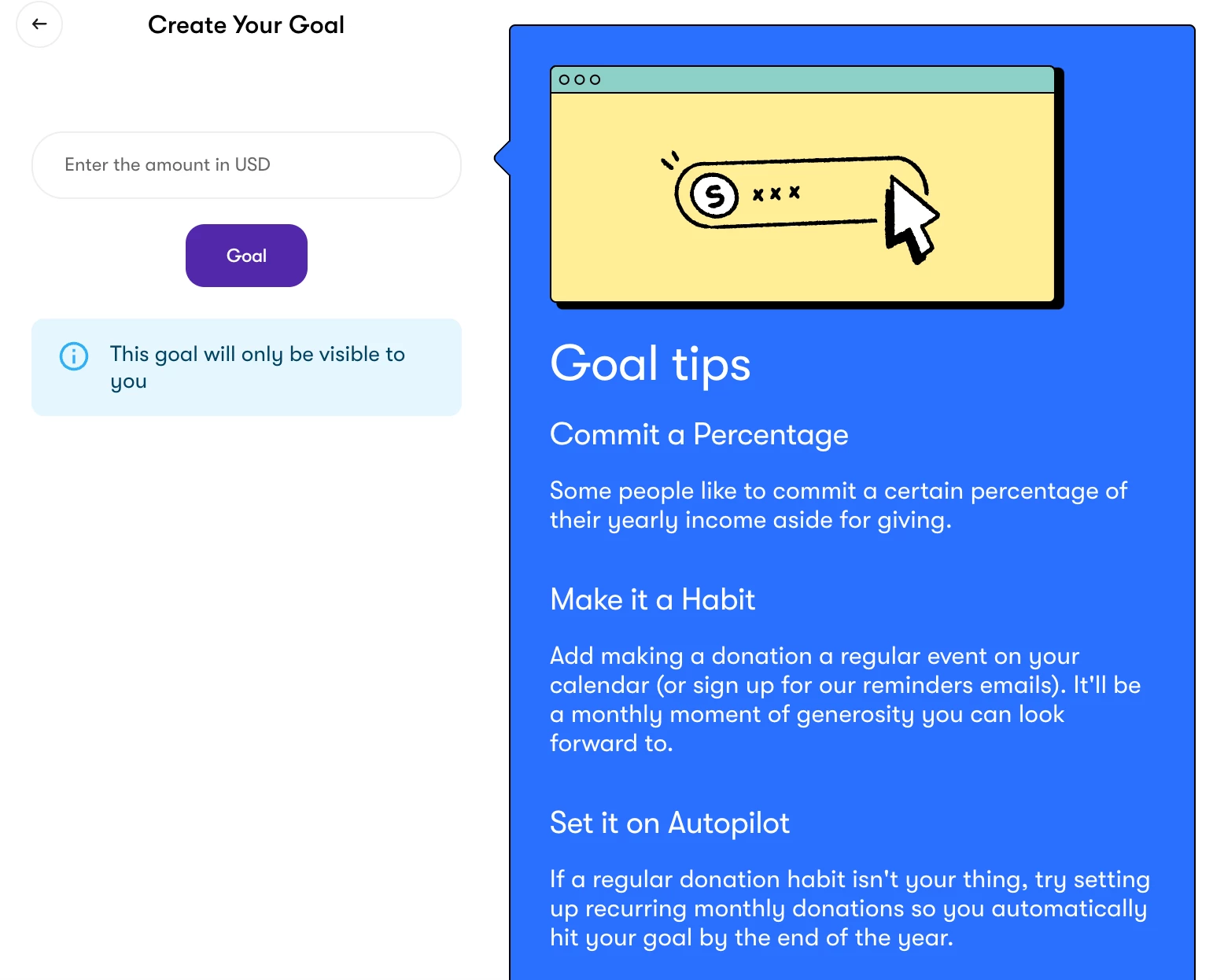
When you enter an amount, the system will deduct any donations made and then divide up the total across the remaining months in the year. For example, if you entered a pledge in January for $500 and make a donation of $46.00 from February to December, you'll have hit your pledge goal!
To edit your pledge, click the edit icon (pencil) in the top right of the widget.
My Profile
Head to your Profile on the dropdown menu in the top righthand corner of your Homepage. Below is a video tutorial of how to navigate your Deed profile:
What can I do in my Profile?
- Add a photo
- As you travel to different offices, update your location to see opportunities in those cities! (Dependent of company settings)
- Access your personal give back metrics – total volunteer hours, donation overview, upcoming, ongoing, and past deeds
- Log hours
- View and edit deeds you created (Dependent of company settings)
- View your friends
- View your favorite nonprofits. To add a nonprofit as your favorite, navigate to their nonprofit page and select the heart in the top right-hand corner.
- NEW: You can now add Affiliations that you have with your favorite nonprofits!
- Select the skills that you bring to the table
- Identify your cause interests
VTO
If your company has VTO functionality turned on, you'll be able to request VTO approval.
VTO Requests
- When you sign up to a Volunteer Event, you will see your updated VTO balance. If you have sufficient balance, you will have the option to select 'request VTO.' You will need to select the checkbox to do so.
- Once you select the checkbox and complete the signup, a VTO request will be created. This will automatically get sent to the HRIS system in the backend.
- You can track your VTO request on your Profile. Additionally, you can track your request on your HRIS system.
- Coming soon: ability to log hours independent of a deed Volunteer Event. You will be able to select the nonprofit, the date and times, and request VTO.
VTO Approval
- Approving a VTO request is handled through the HRIS system by Company Admin.
- Once the VTO request has been approved or declined, Deed will receive that update and email you with the status. The status will also be updated on your Profile.
- If the VTO time is approved, the VTO hours will be deducted after the event has occurred and you have logged your hours.
- Coming soon: when auto-logging is live, this will happen automatically.
- If the VTO time is declined, you will still be signed up to the event – you will need to choose whether you want to continue attending the Volunteer Event or not. You can cancel your attendance at any time.
VTO Tracking
You can view your VTO balance and VTO requests from your Profile at any time. It is always updated in real-time. You will see two metrics:
- Volunteering hours – these hours include all volunteering hours (with VTO and without)
- VTO hours – you can see your VTO cap (if your company has one) and your remaining balance
- If you click on the VTO hours, you will be able to see a list of all your VTO sessions, including your VTO requests and their status: Pending & Approved.
- If the VTO request is declined it will be removed from this history and you will be notified about the decline via email.
- If you click on the VTO hours, you will be able to see a list of all your VTO sessions, including your VTO requests and their status: Pending & Approved.
☝ Check in with your social impact admin or refer to your company FAQs for more information on VTO.
Request a Donation Match
If your company has this feature turned on (and has a matching policy), you can request a donation match for a donation you made outside the platform. Navigate here and you will be prompted to provide details about your donations. You'll get a confirmation email after you submit your request, and after your Admin reviews it you will be notified via email.
Nominate a Nonprofit
If you can't find the organization you're looking for, and your company supports this feature, you will find the option to Nominate a Nonprofit on the dropdown menu in the top righthand corner of your Homepage. Make sure that the nonprofit you are nominating is a registered nonprofit and ensure that it meets the criteria for inclusion.
- Nonprofits within the United States: Must be recognized by the Internal Revenue Service as tax-exempt, and designated a public charity under Section 501(c)(3) of the Internal Revenue Code or as otherwise described by 26 U.S.C. § 170.
☝🏼 Pro tip: if you're searching for a nonprofit in the United States, you can also type in the nonprofit's EIN. - Nonprofits outside of the United States: Deed's donation partners do due diligence on international organizations' eligibility for donations, ensuring that your donation will be used for charitable purposes.
Once you nominate your nonprofit, you can track the nomination in your Profile.
- You will receive an email from Deed once you nominate the nonprofit and again when:
- The nonprofit is available in Deed.
- The nonprofit doesn't respond and we "close" the nomination.
- The nonprofit declines to enroll.
Create a Deed
If your company supports this feature, you'll see the option to Create a Deed on the dropdown menu in the top righthand corner of your Homepage. You can also select Create a Volunteer Event or Start a Fundraiser from the panel under your name on the left-hand side of your homepage.
You'll be asked to enter important information – nonprofit, fundraiser goal, description, etc. – and then depending on your company's configuration, your event or fundraiser will be submitted for review or published to the platform. If submitted for review, you'll be notified when an Admin approves it.
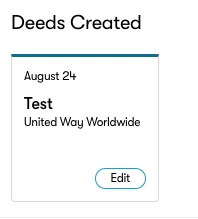
You can edit your created Deeds via your profile by scrolling down to "Created Deeds" and selecting edit.
Employee Nonprofit Affiliations
With Deed's nonprofit affiliation tool, you can keep track of your favorite nonprofits and the way you support them. Sharing your involvement with your favorite nonprofits has never been easier! You can add your affiliations directly on the nonprofit's profile or after making a donation on the confirmation page. When adding affiliations, you can select the start and end date (or select ongoing) and can edit your affiliation(s) by visiting your profile or the nonprofit's profile and selecting "View affiliations".
☝ You can have multiple affiliations per nonprofit!
Examples of affiliations may include:
- Board Member (President, Director, VP, Secretary, Member)
- Volunteer
- Donor
- Personal Connection
- Family Member Affiliation
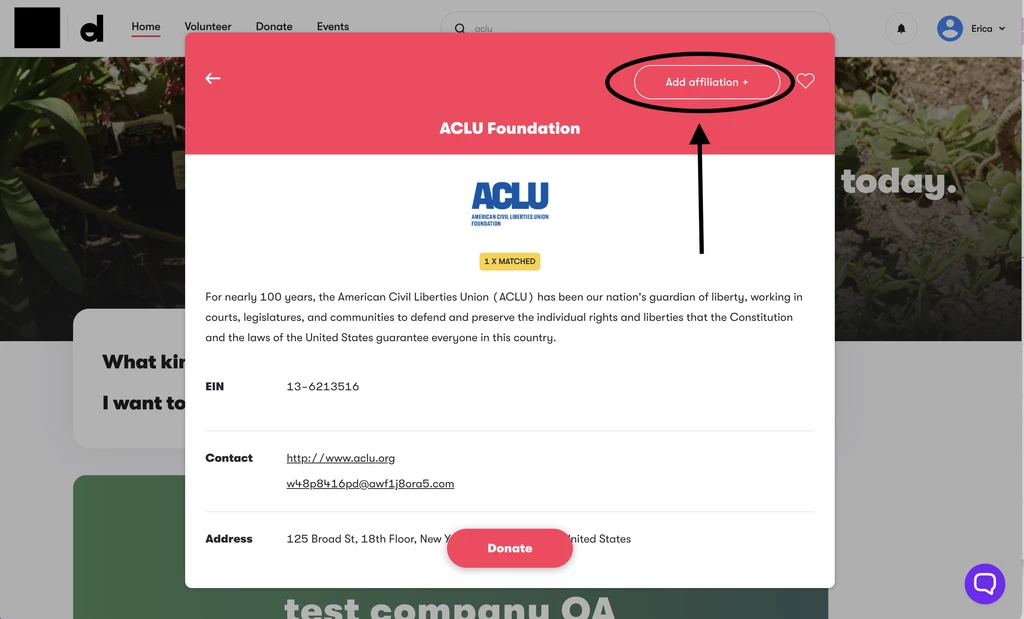
Adding affiliation through nonprofit profile
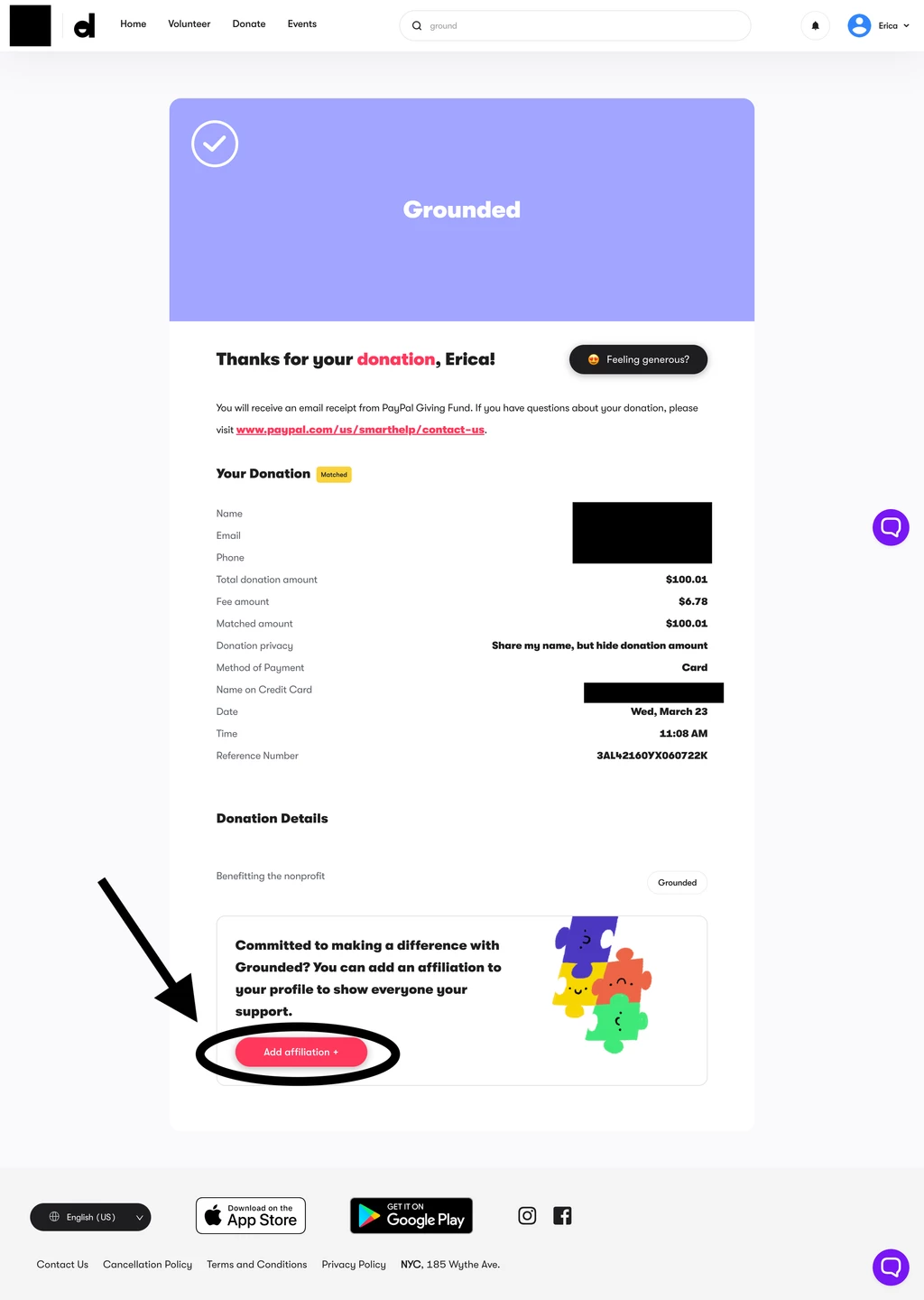
Adding affiliation on donation confirmation page
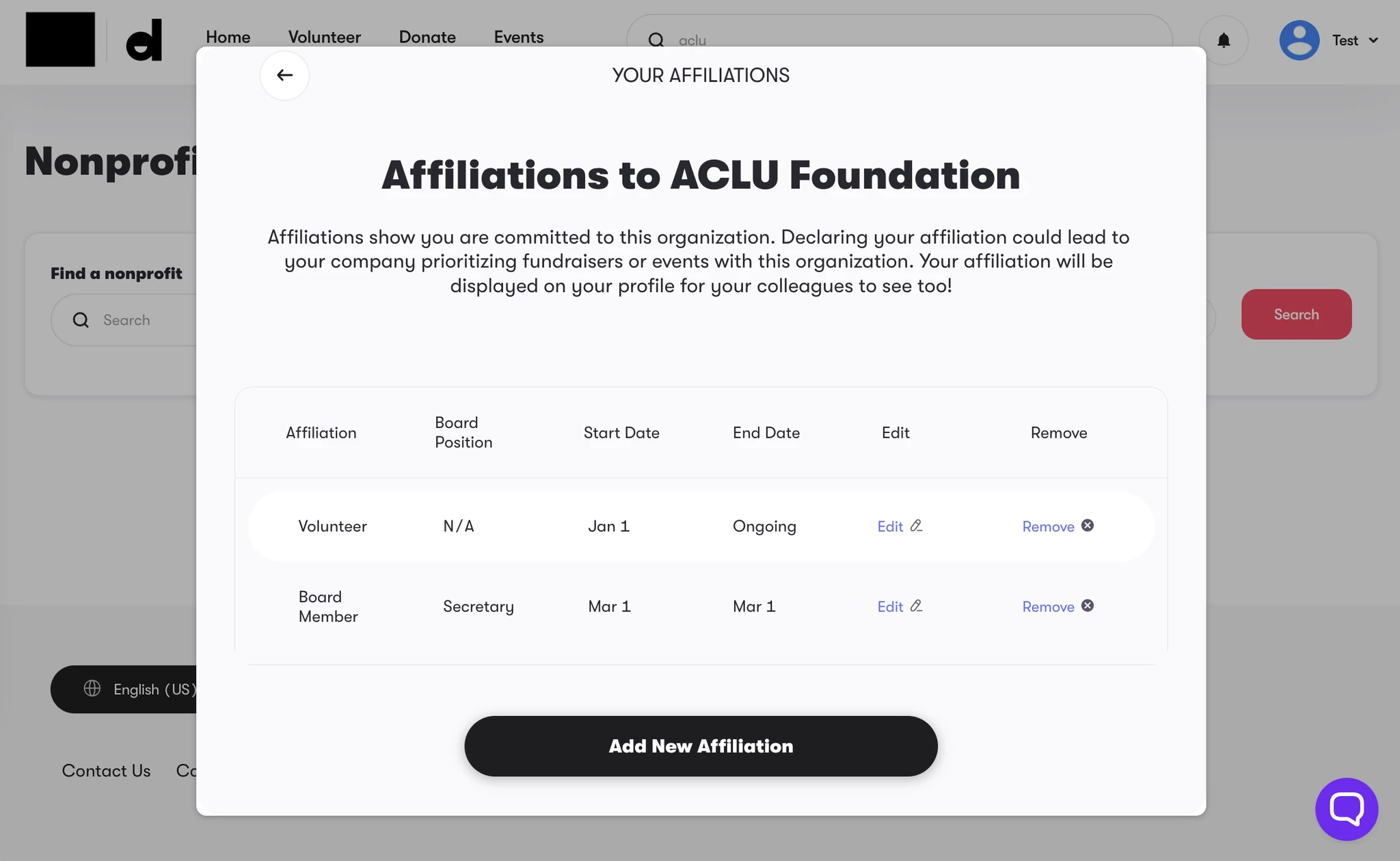
Viewing affiliations on your Profile
FAQs
Here you'll find your company's customized FAQs or a link to Deed's Corporate Employee Help Center.
Settings
Your Settings allow you to edit:
- Language
- First name*
- Last name*
- Email*
- Phone
- T-shirt size
- Date of Birth
- Department*
☝ *This information is pulled in from Workday and any changes you make will be overridden.
How do I homepage in Deed? | How does homepage work in Deed? | Why can't I homepage in Deed? | Where do I homepage in Deed? | What is homepage in Deed? | How to homepage in Deed? | Can I homepage in Deed?