

How do I add an offline donation to a Peer-to-Peer Fundraiser's page?
Your Peer-to-Peer Fundraisers may collect offline donations, such as checks or cash contributions, on behalf of your organization. Donors could also approach you directly with an offline gift designated for a specific fundraiser.
Follow the steps below so donations are designated to their intended fundraising page. This will keep fundraisers' progress bars and donor scrolls up-to-date, acknowledging their contributions and hard work!
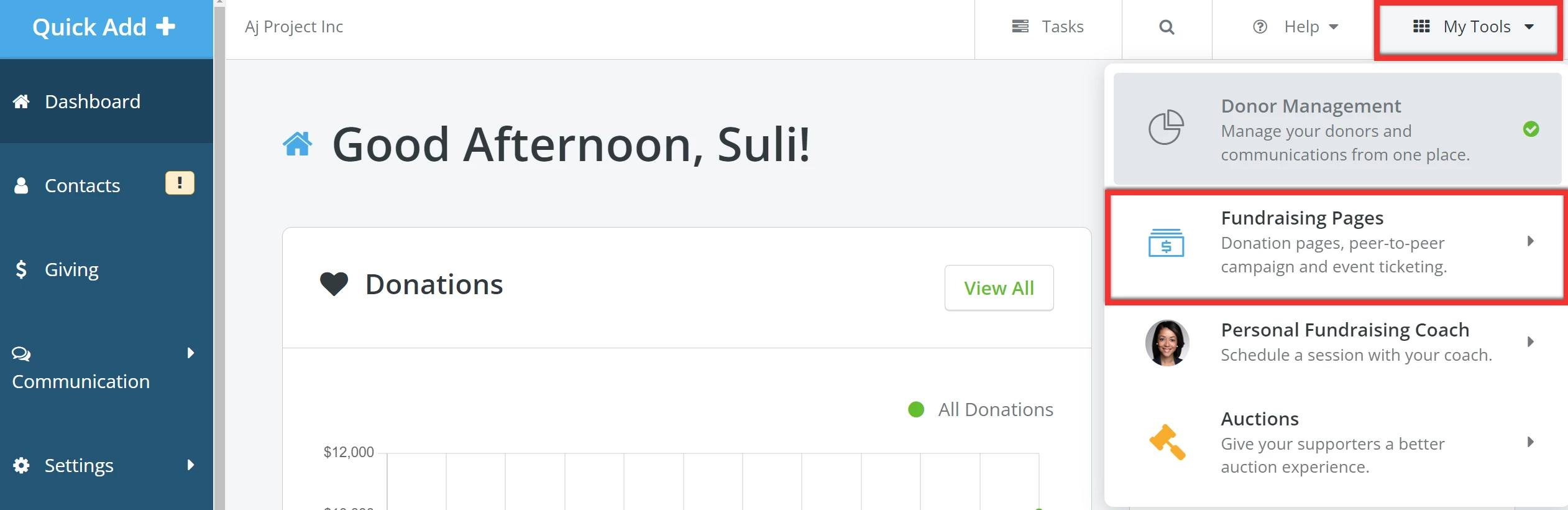
Step 1: Navigate to your 'Fundraising Pages'
From your 'Donor Management' Dashboard, click 'My Tools' in the top right corner of the page and select 'Fundraising Pages' from the drop-down list.
Step 2: Navigate to your 'Offline Donations'
You will be directed to your 'My Campaigns' page. Click the 'Offline Donations' tab in the navigation menu at the top.

Step 3: Add a donation
Click the 'Add Donation' button near the upper right corner of the 'Offline Donations' page.

Step 4: Add details attached to the donation
On the next page, search for the donor by name in the 'Donor' drop-down and select their record from the auto-populated results.
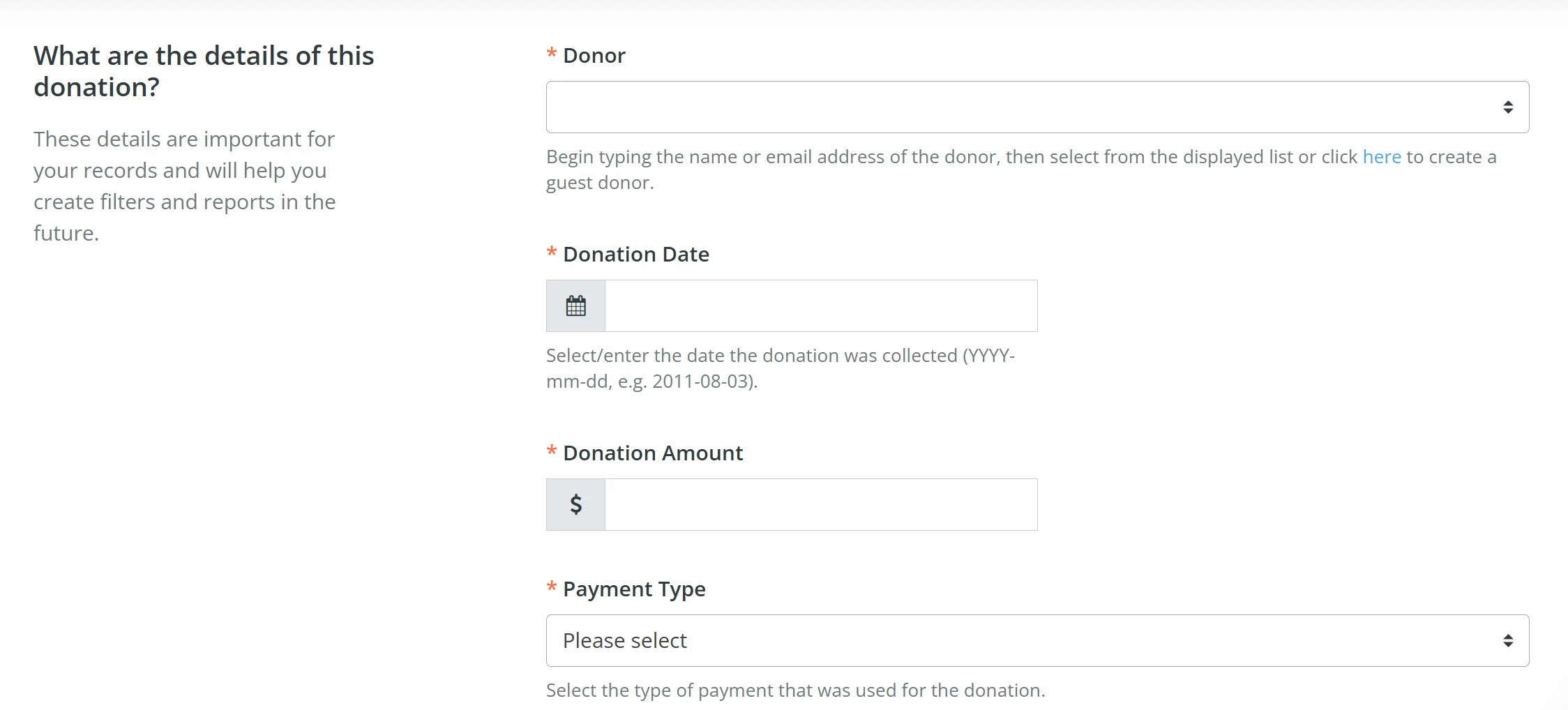
Note: If you need to create a guest donor, click the link below the 'Donor' drop-down.

Step 5: Add additional details
In the 'Optional Details' section, start typing the P2P Fundraiser's name in the 'Campaign Page' drop-down to attribute the donation to their page.
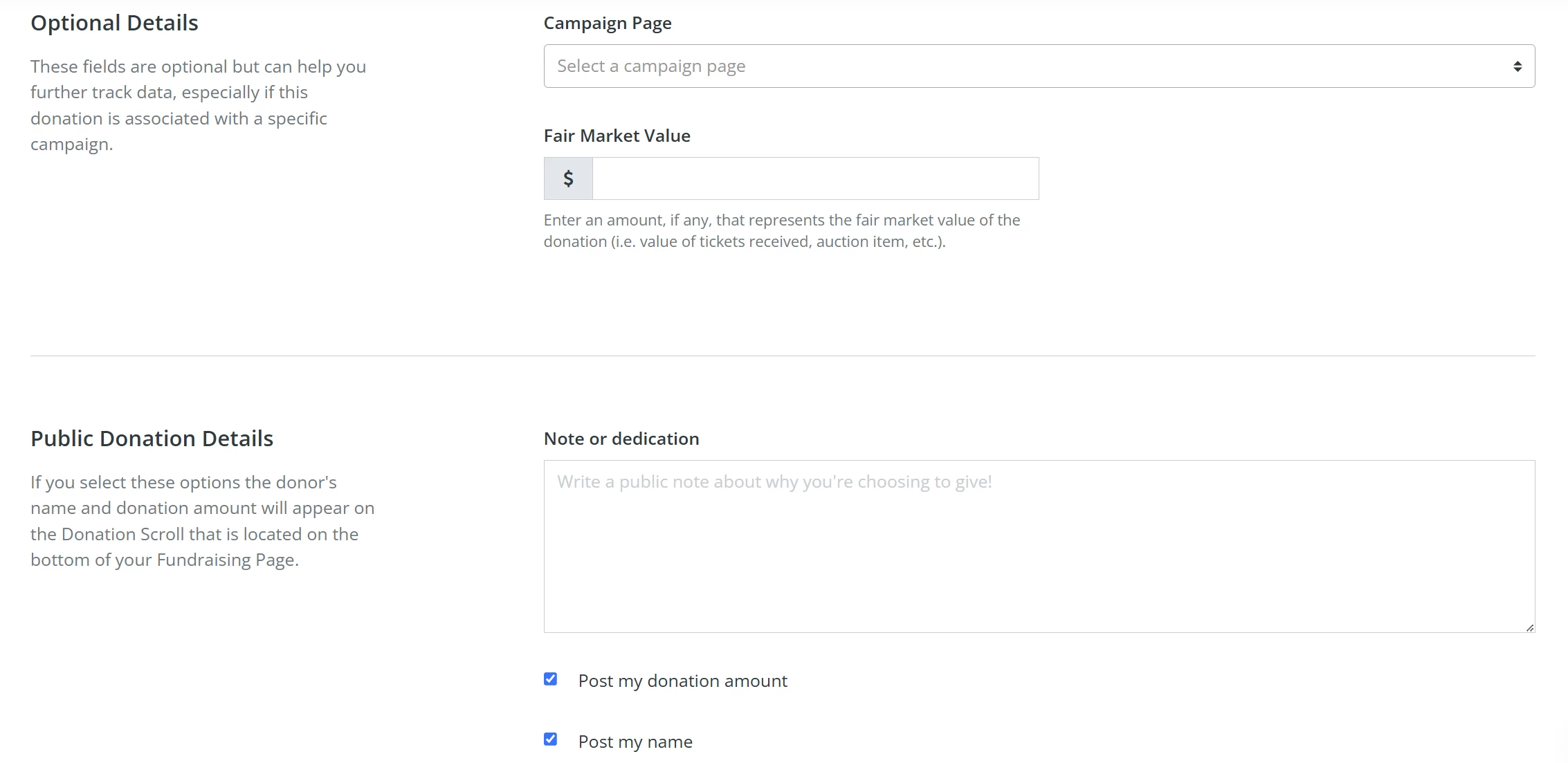
Tip: You can view the name of the campaign your fundraiser is raising support for in parentheses, next to their name in the search results. This will help you select the correct fundraiser and the corresponding campaign.
Once you have entered all relevant details for the donation to your fundraiser's page, click the 'Save & Exit' button near the top right to save the information.

Step 6: Confirm your offline donation has been added
When the page refreshes, a notification banner should appear across the top, confirming your donation for the fundraiser's page has been accepted.
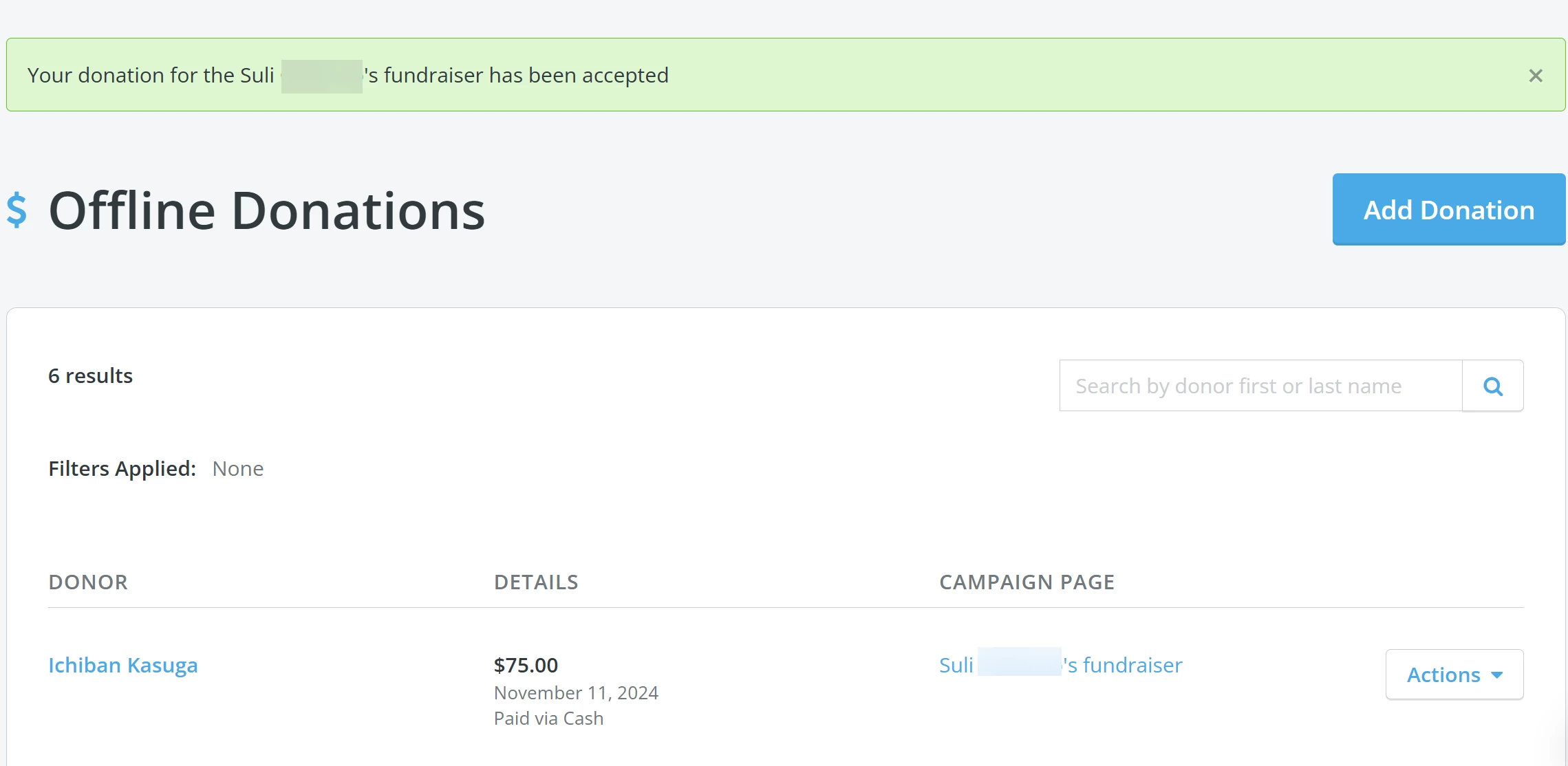
You can also navigate directly to the fundraiser's page and check their Donor Scroll, where you should find details of the offline gift you added.

What else do you need help with?
How do I set my Peer-to-Peer Fundraisers up for success?
How do I edit my Peer-to-Peer campaign?
Not quite what you were searching for?
Navigate back to the Feature Overview