

How do I enter a complimentary ticket on an Events page?
Who doesn’t love a free ticket to an exciting upcoming event?
By using promo codes, you can create a code that, once applied, will reduce the cost of a ticket to $0 for the guest.
This can then be used either by guests directly through the checkout process, or by applying the code to an offline ticket purchase – this article will show you how to to both!
Step 1: Create a promo code for use with the complimentary ticket.
To create a complimentary ticket, you’ll first want to create a promo code that will change the cost of a ticket to reflect $0.
When adding the required details for the promo code, you’ll want to select "percentage" for the "Discount Amount Per Ticket" field, and you'll want to enter 100% for that percentage.
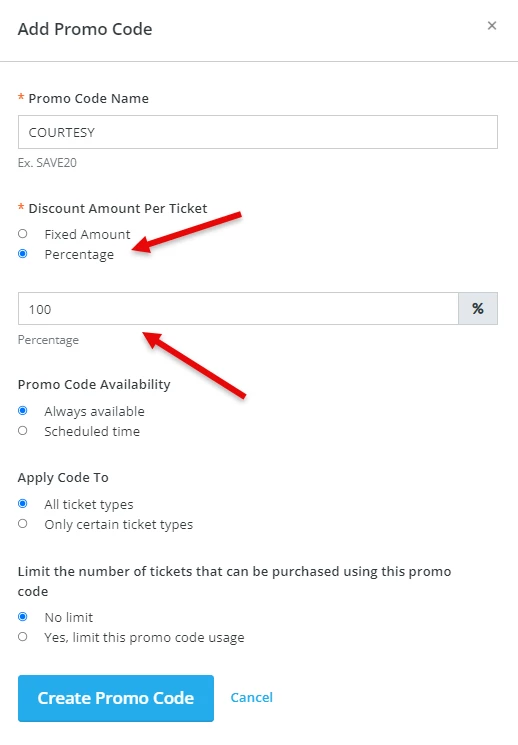
You may also want to fill out any other additional relevant fields (such as if this promotion is applicable to all ticket types, or just one) - and then click “Save.”
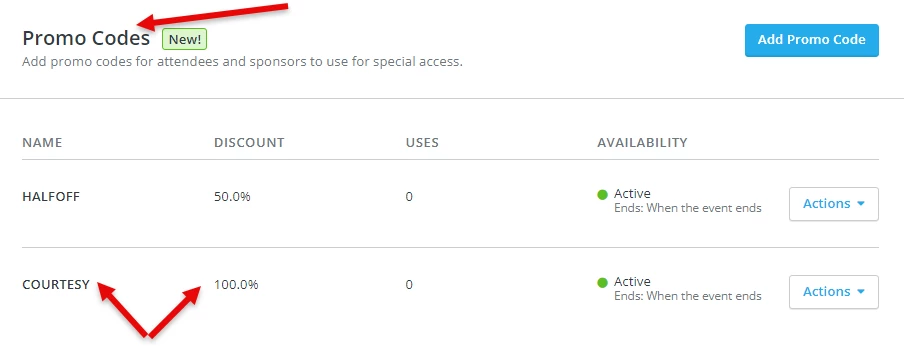
You should now see the Promo Code for your complimentary ticket listed under “Promo Codes,” along with any other Promo Codes you have created for this event.
Step 2: Guide a ticket purchaser in entering the promo code at checkout.
To enter a complimentary ticket through the standard checkout process, guests should select a ticket type that is compatible with the complimentary promo code that you created.
During the checkout process, the guest should be prompted to “Enter Promo Code” prior to finalizing their payment.
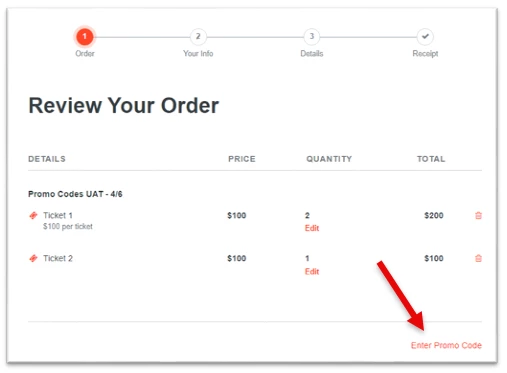
At this point the guest should enter the complimentary promo code, and click “Next.”
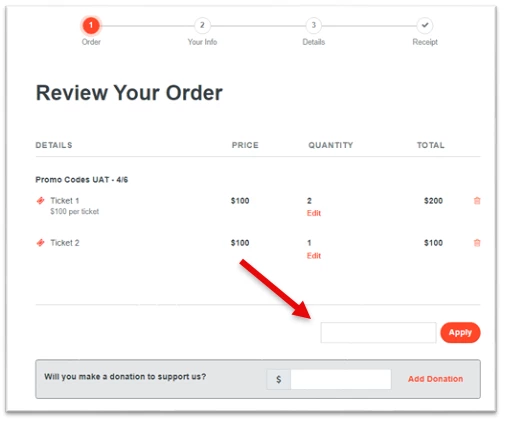
On the next screen, the ticket should now reflect with a $0 value, and the promo code should be listed as “applied.” The guest can now complete the checkout process normally.
Step 3: Enter a promo code for a complimentary ticket to an offline ticket purchase.
To add an offline ticket purchase, we encourage you to check out our helpful guide on that process here.
While entering the details of the offline ticket, select the promo code that corresponds with complimentary ticket for that event from the drop-down options listed under “Promo Code.”
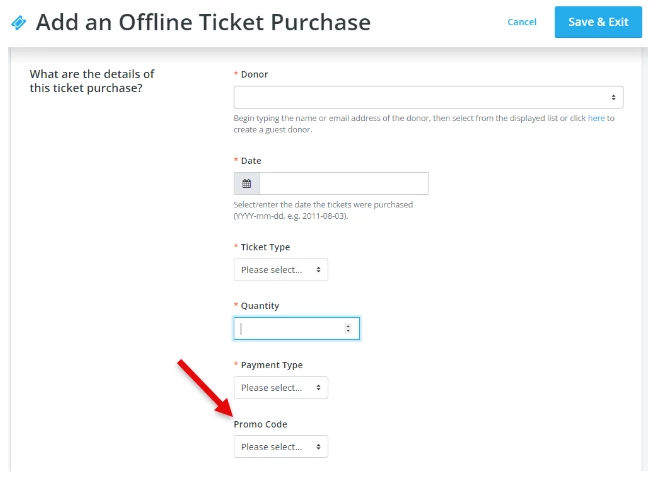
Once all required fields have been filled out and the Promo Code selected, click “Save & Exit” at the top-right corner of the screen.
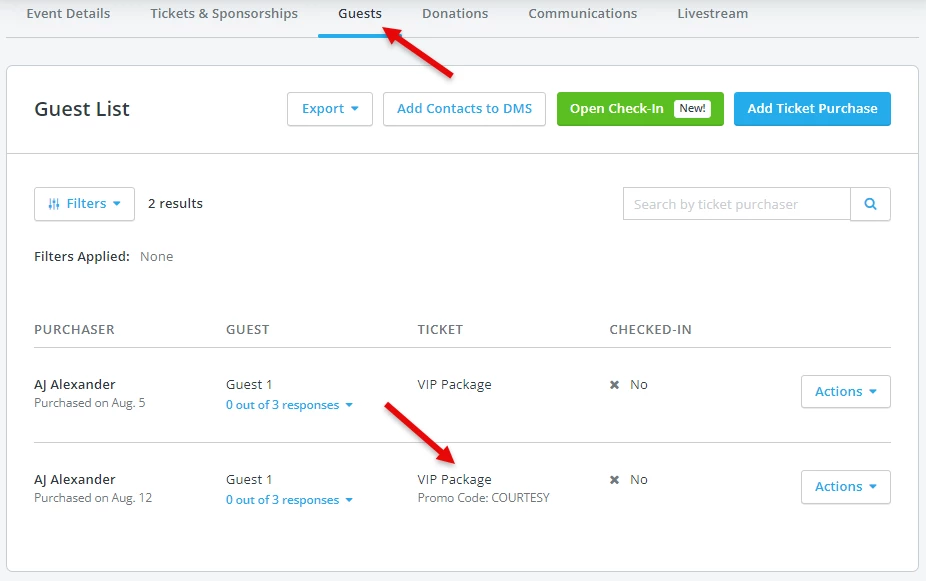
You should now be able to see the guest and their ticket listed underneath the “Guests” tab.
What else do you want to do?
Not what you're looking for?
Go back to the Feature Overview. How do I create a free ticket for my event in Network for Good? | How do I make a ticket $0 with a promo code? | How do I apply a promo code to give someone a free ticket? | How do I enter a complimentary ticket offline? | How do guests redeem a free ticket code at checkout? | Can I comp a ticket for a VIP guest? | How do I use a 100% discount promo code for an event?