

How do I add an offline ticket purchase?
Sometimes donors purchase a ticket that they didn't actually mean to buy; sometimes they might pay you for a ticket directly through cash or check.
In those cases, you can easily follow the steps below to add an offline ticket purchase, so that the ticket still reflects in your overall ticket count - but doesn't incorrectly impact your financial totals.
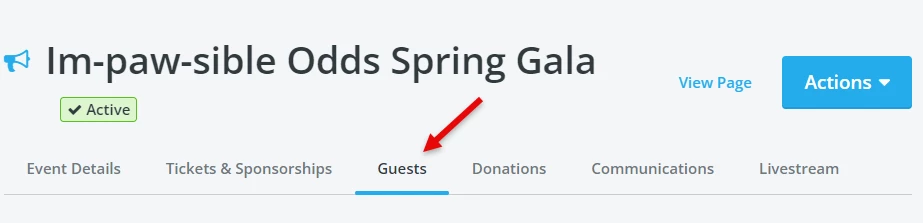
Step 1: Click on the "Guests" tab on your Event Dashboard
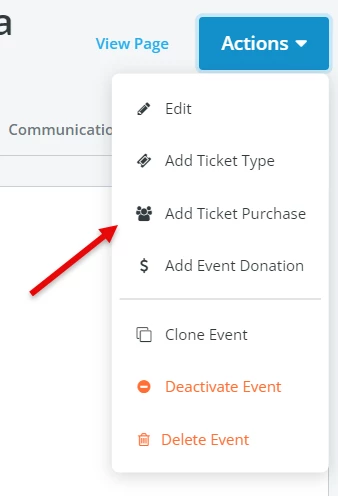
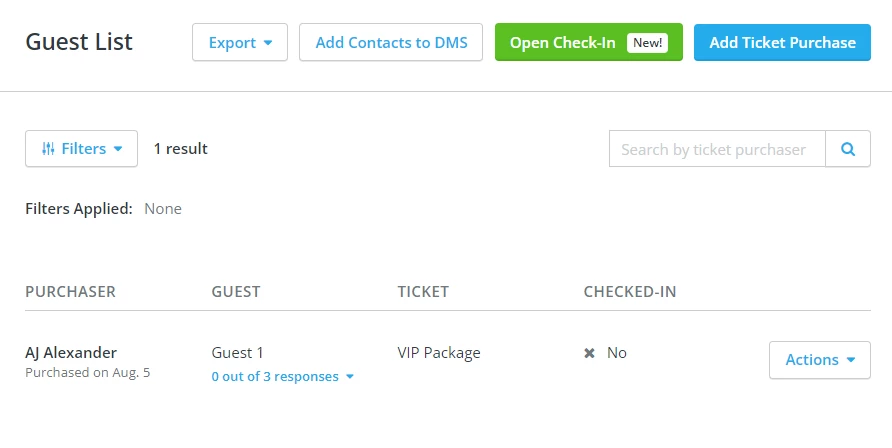
Step 2: Click on the "Actions" button, then click on the option to "Add Ticket Purchase"
Step 3: Select the attendee who is making the offline ticket purchase
On this screen, you'll first be prompted to select the attendee (listed as a "donor") who is making the purchase.

If the individual who is making the purchase is already listed as a donor in your platform (i.e. has made a donation or purchased a ticket previously) you should be able to just begin typing their name or email address, and select their name from the drop-down options that will automatically appear.
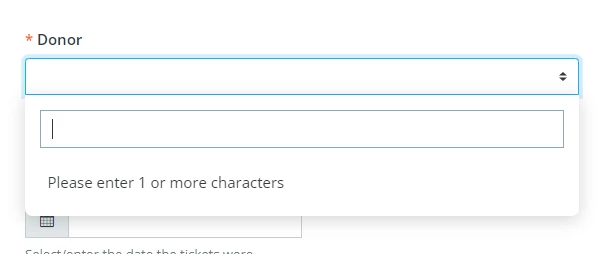
If this is a new donor or attendee, you'll want to click on the link underneath the "donor" field, and a new pop-up window will appear asking you to fill in some details about that new donor.

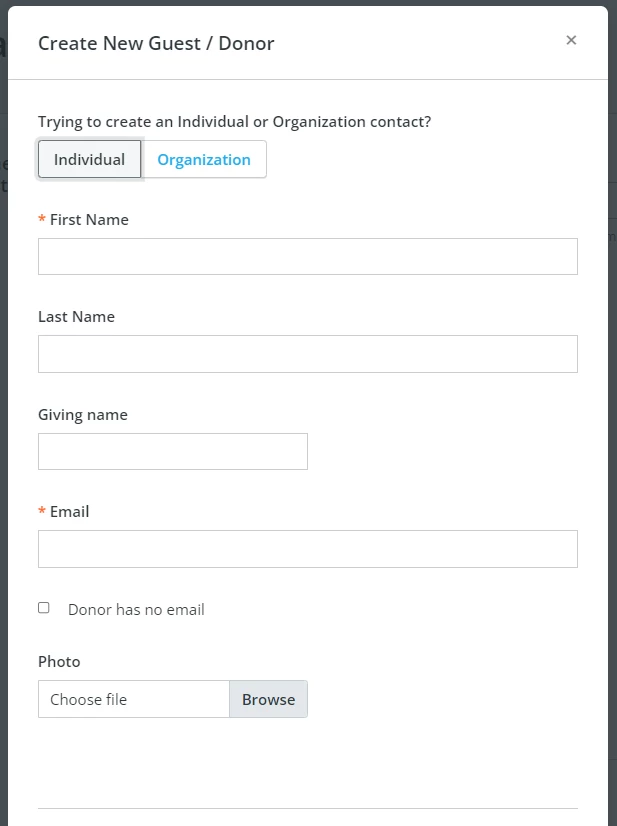
The only necessary or required fields are the donor's first name and email address, but we strongly encourage you to include all details you have, to avoid any possible duplicates (and to make future communications easier!).
Step 4: Add additional information about the ticket purchase
Once you've selected or added a donor to associate the purchase with, you'll want to then fill in the other necessary fields on the screen.
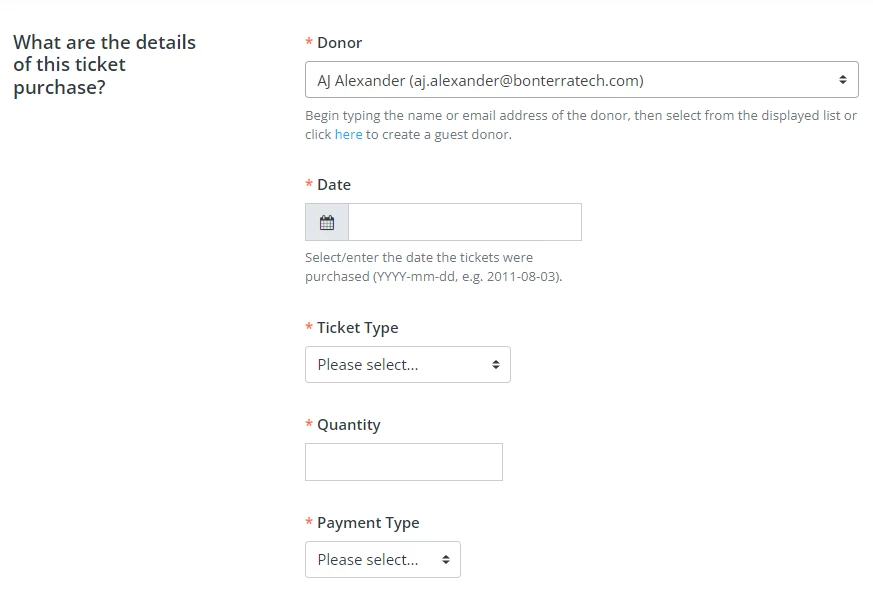
You will be required to add the date of the purchase, the type of ticket being purchased, the quantity of tickets, and the payment type (such as cash or check).
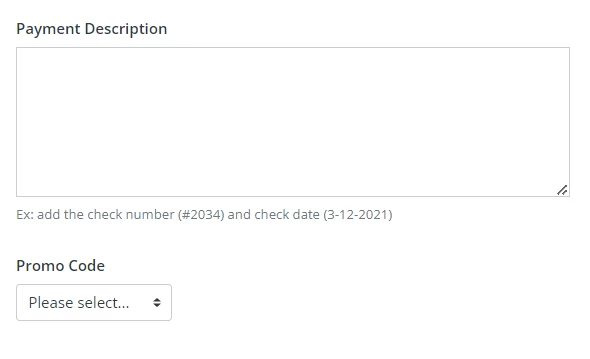
You'll also have the option on this screen to add a brief description of the payment (such as a check number), or to use a promo code on this purchase.
Step 5: Click "Save & Exit" at the top of the screen
Once you've entered all of the details of the purchase, you can click the "Save & Exit" button to add the offline ticket purchase.

You should then see a confirmation email at the top of your screen indicating the ticket purchase has been added.

You should also see your offline ticket purchase now listed under the Guest List as well.
Note: If a donor requests another copy of the receipt for their offline ticket purchase, you can resend them an acknowledgment via e-mail or direct mail.
What else do you need help with?
Not quite what you were searching for?
Navigate back to the Feature Overview.
How do I record a cash or check ticket purchase in Network for Good? | How do I manually add an event ticket purchase? | How do I enter a ticket paid offline? | How do I add a guest who paid by check? | How do I track offline ticket sales on my event page? | Can I apply a promo code to an offline ticket purchase? | How do I resend a receipt for an offline ticket purchase?