

How to: Use Custom Fields for searching and reporting
Custom Fields help you add information to your contact records, contributions, and disbursements (for organizations filing compliance reports) that you can’t easily store with Activist Codes, Survey Questions, or other tools used to record supporter or donor responses. Once you’ve created these fields, you can then add data to them and view them in your records, search on them, and add them to your reports.
Read more about creating Custom Fields
If you have a Development Pro package, you can also add and use Custom Calculated Fields that will help you calculate specific counts or amounts for your fundraising purposes. These fields can then be used for searching and reporting in much the same way as other types of custom fields.
Read more about using Custom Calculated Fields
Viewing and editing Contact Fields
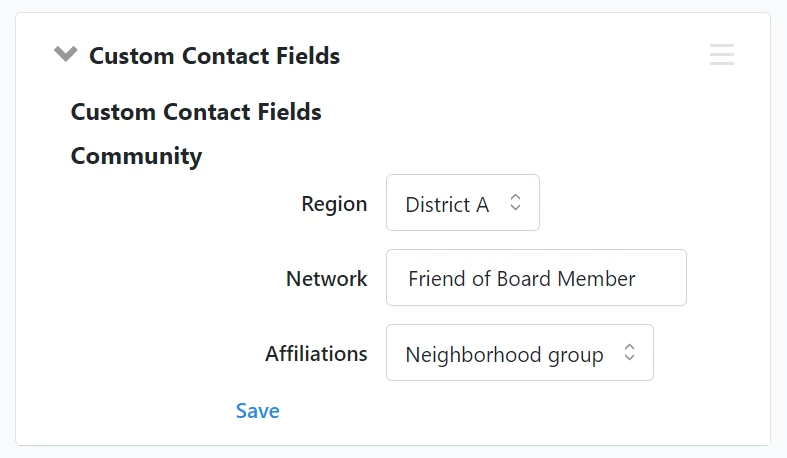
Custom contact fields will appear in the Custom Contact Fields section of the All-Details page in the contact record.
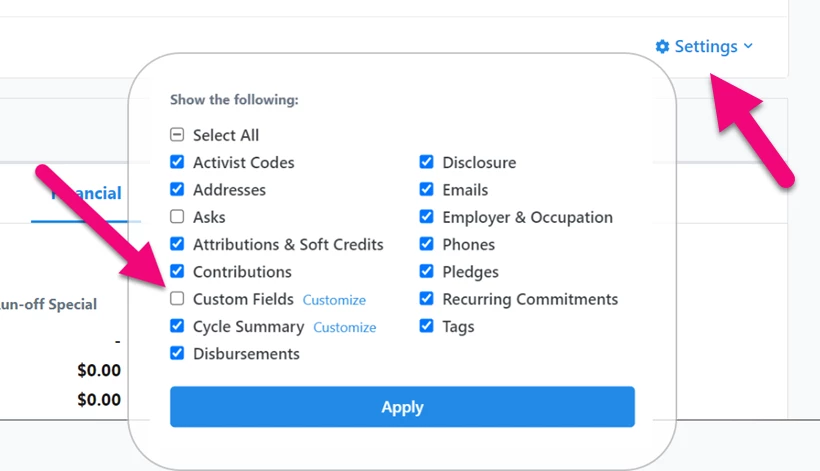
You can also add them to the Overview page by using the check box in Settings. Select the Customize link to choose which custom contact fields you want to include in the Overview.
Viewing and editing Contribution Fields
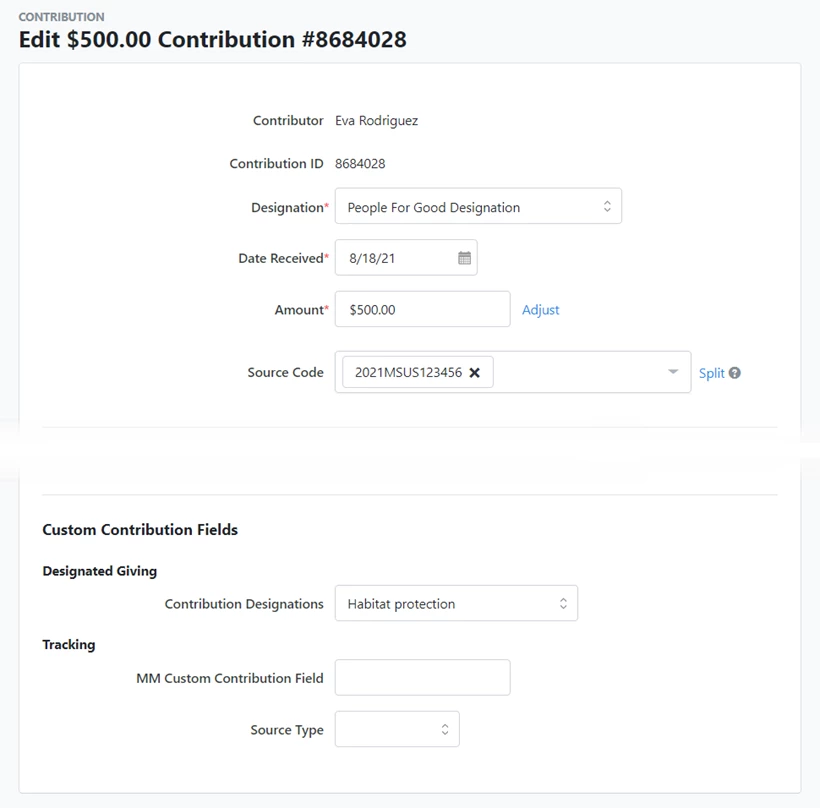
Custom Contribution Fields can be added, viewed, and edited from the bottom of a contribution details page.
Custom Contributions Fields can also be viewed and edited at the bottom of a Recurring Commitment. Whether these fields are applied to just the first contribution in the commitment or to every contribution will depend on which settings were selected when the fields were created. This setting is editable by administrative users from the detail page for that Custom Field.

Viewing and editing Disbursement Fields
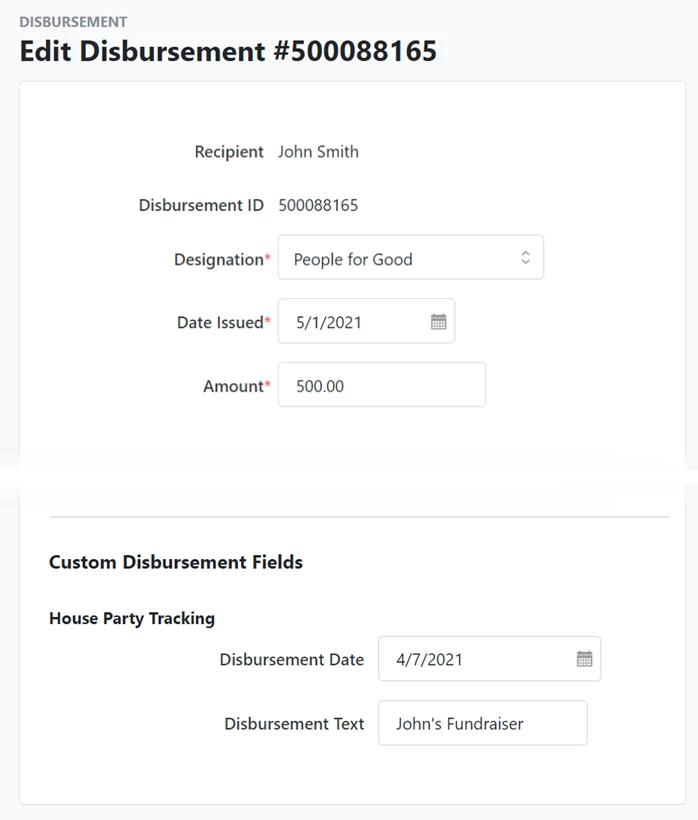
Custom Disbursement Fields can be added, viewed, and edited at the bottom of a Disbursement details page. (Disbursements are available for organizations filing disclosure reports.)
Changing the order of Custom Fields
Custom Field Groups appear in alphabetical order in your records.
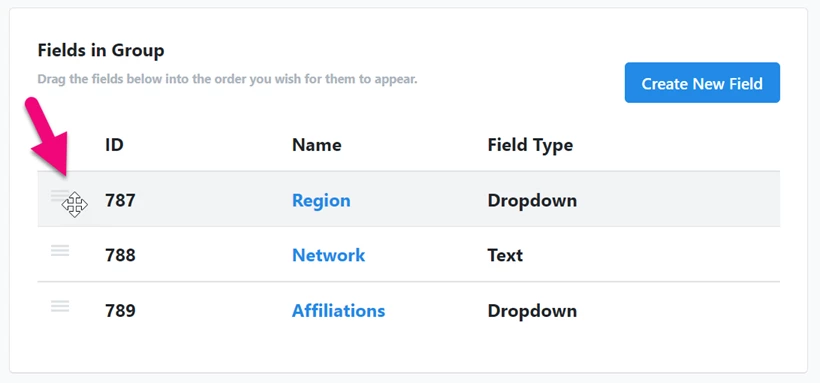
If you are an administrative user, you can rearrange the order in which the fields within each group appear in your contact records, contributions, disbursements, and in Create a List from the Group details page. Open the Custom Fields list by searching for it in the Sidebar. Then select Go to Groups from the top right corner and click the name of the group you want to edit. Go to the Fields in Group section and drag and drop the fields in the order you wish.
Using Bulk Upload and Bulk Apply
You can use Bulk Upload or Bulk Apply to add data to your custom fields in bulk. Open the Bulk Upload Wizard or create a list the same way you usually would.
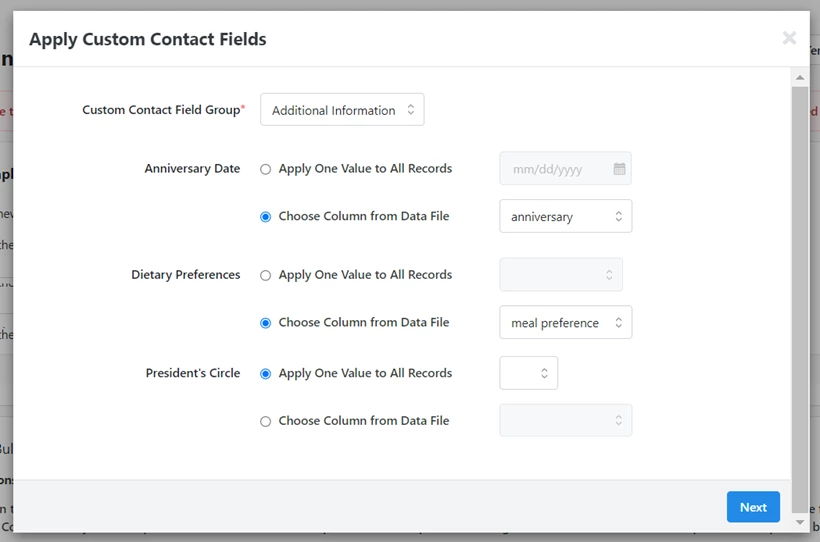
To add your Custom Contact Field data, use the mapping Apply Custom Contact Fields. Select the Custom Contact Field Group and then map the columns from your upload file or select the values you want to apply in bulk to your list.
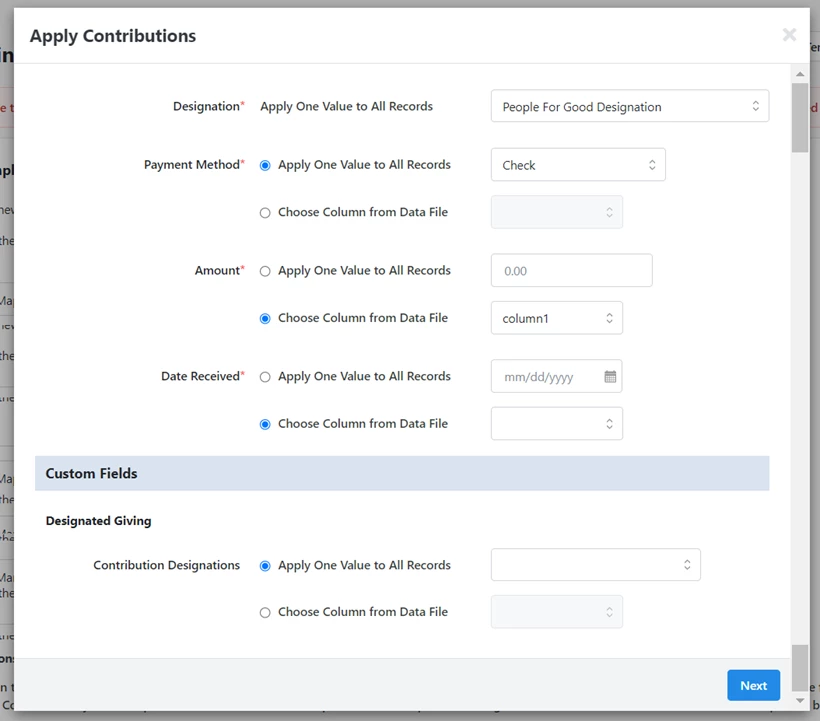
To add your custom fields for contributions, select Apply Contributions or Apply Recurring Commitments. You will see your custom fields at the bottom of the mapping options.
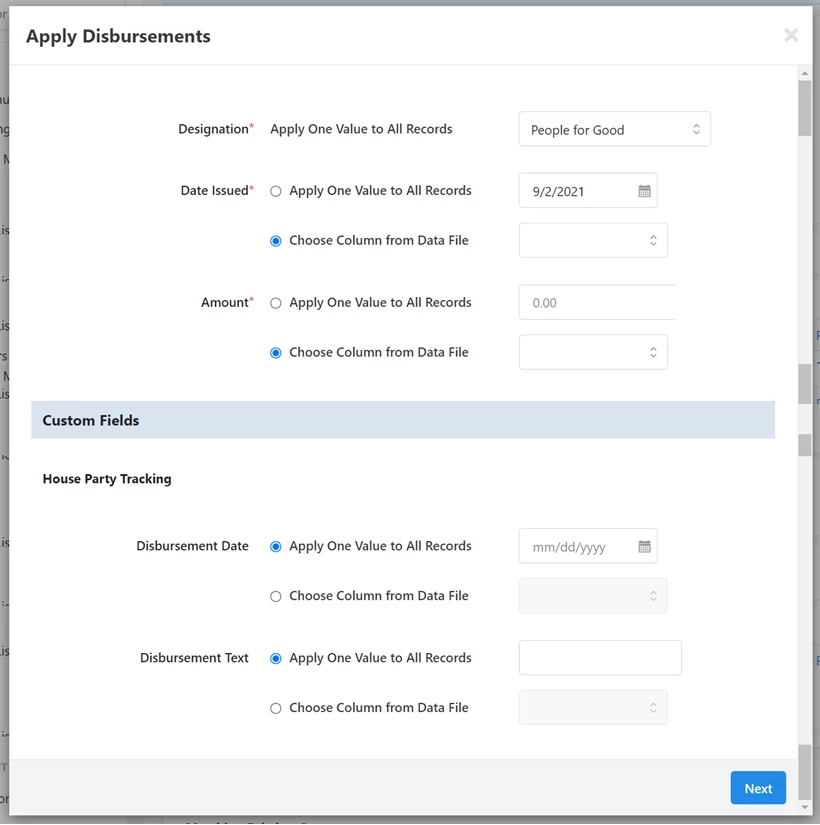
You can Bulk Upload and Bulk Apply your Custom Disbursement Fields using the mapping for Apply Disbursements.
Searching on Custom Fields
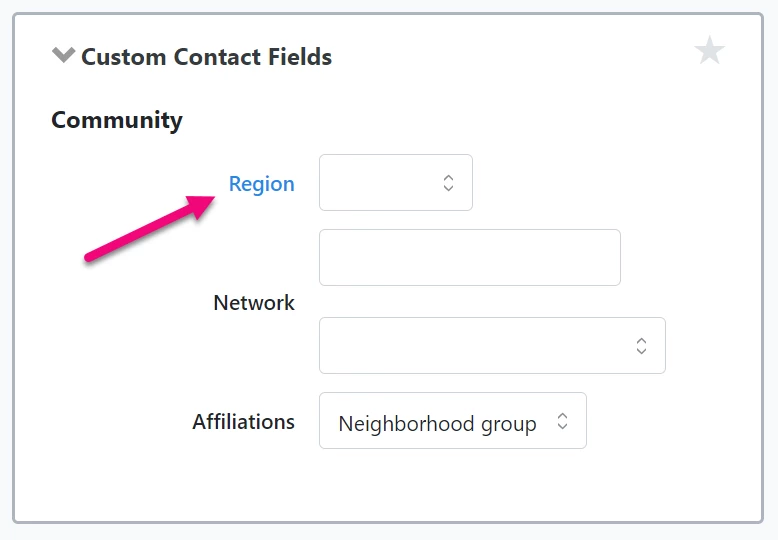
To search for contacts using your Custom Contact Fields, use the Custom Contact Fields section in Create a List. If a field label is blue, you can click it to select multiple options at once. Otherwise, select just one option using the dropdown next to it.
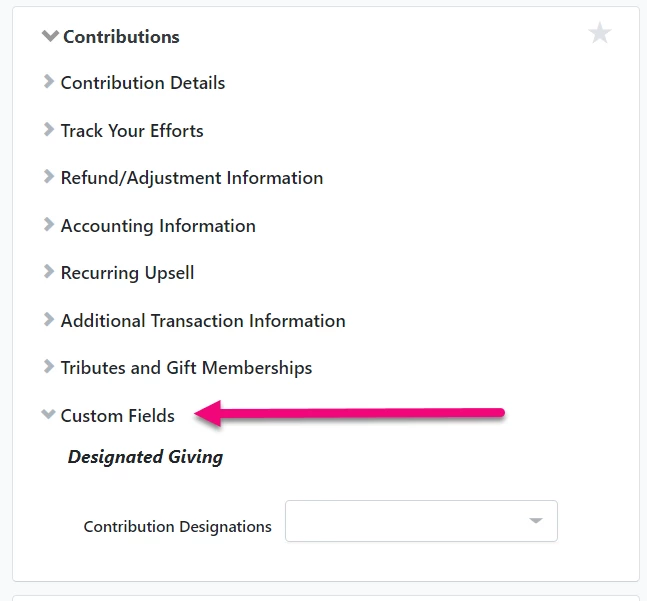
To search on Custom Contribution Fields, open the Contributions section in Create a List and look at the bottom of the section for your custom fields. (Custom fields will not appear in the Recurring Commitments section.)
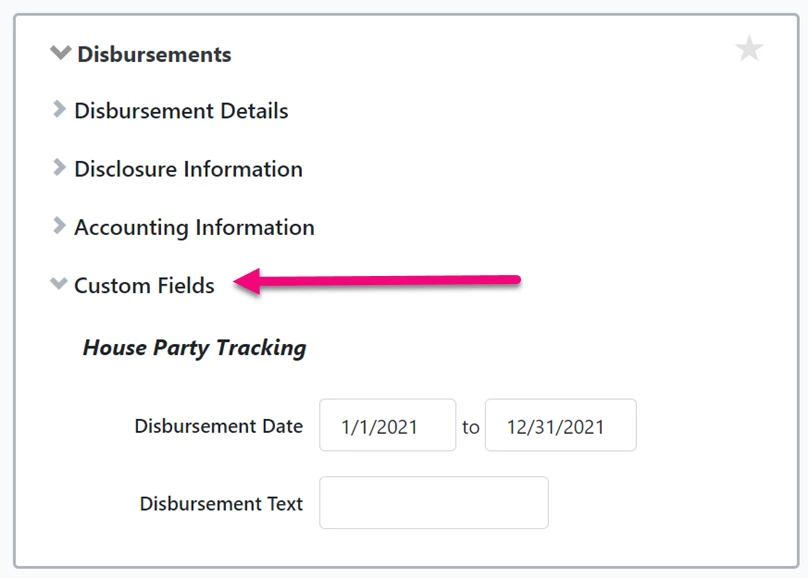
If your organization uses Custom Disbursement Fields, you can open the Disbursements section in Create a List and use the custom fields at the bottom of the section to create searches.
Reporting on Custom Fields
Custom Fields can be added to many default reports available in the Report Manager by using Edit Columns. (The reports that are available to you in Report Manager depend on your package.)
You can add your Custom Contact Fields to these reports:
-
Advocacy Report
-
Attributions & Soft Credits Report
-
Contribution Acknowledgment Report
-
Contribution Report
-
Count of Contacts Report
-
Event Participant Report
-
General Ledger Adjustments Report
-
General Ledger Contributions Report
-
General Ledger Pledges Report
-
Grants Report
-
Membership Report
-
Moves Management Report
-
Online Activity Report
-
Online Forms Custom Questions Report
-
Phone Number Report
-
Planned Giving Report
-
Pledges Report
-
Premium Fulfillment Report
-
Recurring Commitment Processing Report
-
Recurring Commitment Report
-
Ticketed Event Contribution Report
-
Ticketed Guest Report
-
Tribute Gifts Report
Custom Contribution Fields can be added to:
-
Attributions & Soft Credits Report
-
Contribution Acknowledgment Report
-
Contribution Report
-
General Ledger Adjustments Report
-
General Ledger Contributions Report
-
Premium Fulfillment Report
-
Reconciliation Report
-
Ticketed Event Contribution Report
-
Tribute Gifts Report
Custom Disbursement Fields can be added to:
-
Disbursement Report
-
Disbursement Over Limit Report
How do I how to: use custom fields for searching and reporting? | How does how to: use custom fields for searching and reporting work in EveryAction? | Why can't I how to: use custom fields for searching and reporting? | Where do I how to: use custom fields for searching and reporting in EveryAction? | What is how to: use custom fields for searching and reporting in EveryAction? | How to how to: use custom fields for searching and reporting? | Can I how to: use custom fields for searching and reporting in EveryAction?