

How do I rebuild a permission report with the Roles fields?
Use this article to rebuild an old permission report with the new Roles fields in Native Reporting. Old reports built with Permission Sets fields do not update after your organization moves to the updated permissions model.
📢 Your old permission reports are not deleted or changed. They still run, but they can show old information. Rebuild them with the Roles fields to see the most up to date data.
Before you begin
-
Your organization must be on the updated permissions model.
-
You must have access to the Roles fields. Admins, Site Admins, and users with the existing Manage User/Program Profiles role have access.
-
The Roles field list appears after the reporting database update runs for your organization.
Rebuild a permission report
-
Open your old permission report. Write down the form it starts from, the fields it shows, and the filters it uses. You will use this to match the new report.
-
Go to Reports. Create a new report, or open the report you want to rebuild.
-
Add a section that starts from one of these forms:
-
The Users form, to see full user details with each role.
-
The Programs form, to see roles from the program point of view.
-
-
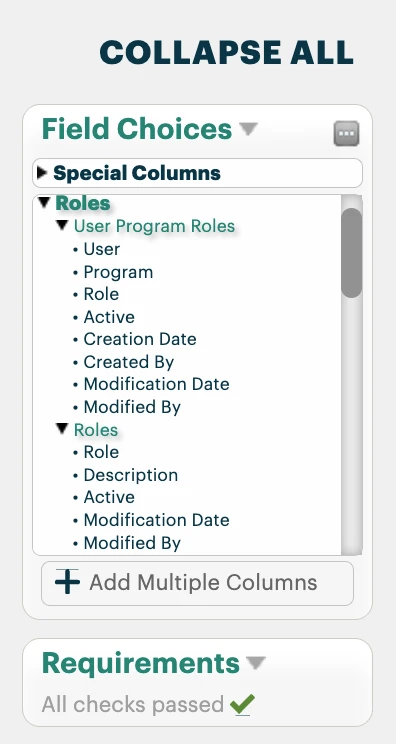
From the Roles field list, add the User Program Roles fields or the Roles fields that you need.
-
To show only current role assignments, add a filter on the Active column.
-
Run the report. Compare the results with your old report.
Example: rebuild a "Users and their roles by program" report
| Report | Start from this form | Fields to add | Use this when |
|---|---|---|---|
| Users and their roles by program | Users | User details from the Users form. Then User Program Roles fields: User, Program, Role, Active, Modified By, and Created By. | You need full user details with each role and program. |
| Programs and assigned roles | Programs | Program details from the Programs form. Then User Program Roles and Roles fields. | You need to review role assignments from the program point of view. |
Things to know
-
Use one supported form (Users or Programs) as the start of each section.
-
Do not add Attendance or Enrollments fields to the same section as the Roles fields.
-
Only users who have a role assignment show in the report. Users with no role are not included.
-
The Created By value from the Programs form describes the program record. It does not show who created the role assignment. Use the Created By field from User Program Roles for that.
-
You cannot report on what a role allows (role permissions) in Native Reporting at this time.
-
Inactive records are still being tested. Check your results before you depend on them.
Related articles
How do I rebuild a permission report in Apricot? | How do I report on roles by program in Native Reporting? | How do I use the User Program Roles fields? | How do I replace Permission Sets fields in a report? | How do I show only active role assignments in a report? | Why are some users missing from my roles report?