



(4 min read)
Improving your email outreach or fundraising efforts depends on tracking your success and understanding how deliverability and messaging impact your results.
Depending on your needs, there are several different methods you can use to see how well your emails are performing, including:
- viewing results on the Targeted Email dashboard
- reviewing individual contact records
- creating a list of recipients using the Targeted Emails or Targeted Email Summary sections in Create a List
- using one of the default email report templates in Report Manager
Before you begin
If you are new to email reporting, it can be helpful to make sure you understand what all of the terms mean that you will be seeing.
Read more on email performance fundamentals
You should also understand the impact that email privacy policies can have on your results, including Apple Mail's privacy protection program.
Read more about tracking email open rates for Apple devices
Finally, you should make sure your existing email program uses the best practices to ensure deliverability.
Read our Success Guide on email deliverability
Using the Targeted Email dashboard
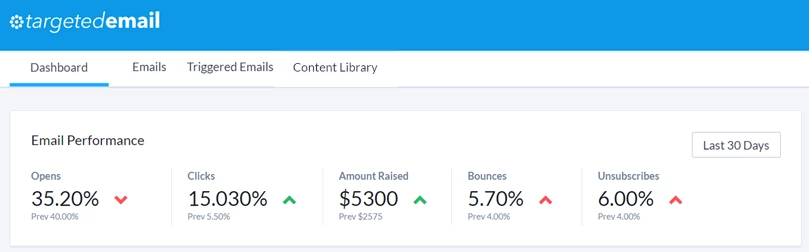
The Targeted Email dashboard is the best place to get a quick overview of how healthy your email program is. You will see statistics on how well your emails have performed over the last 30 days and how their performance compares to the previous 30 days.
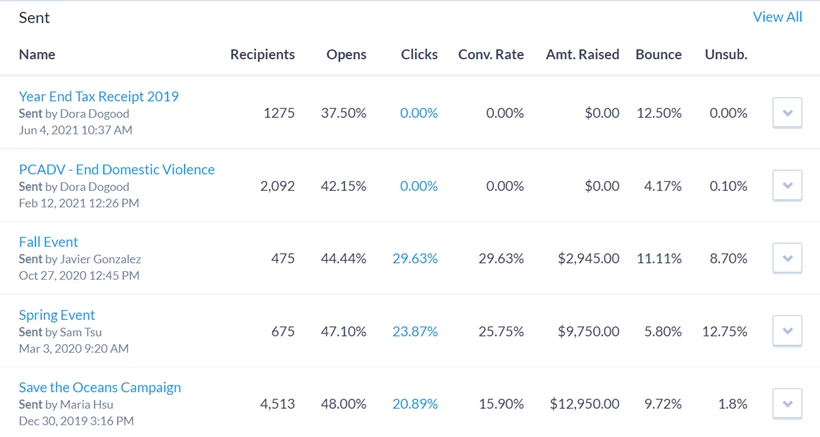
Below the summary section, you will see the most recently sent emails and their performance metrics. You will see how many recipients there were for each email and the percentage of opens, clicks, bounces, and unsubscribes. If you hover over the percentages, you can view the hard count. To see a complete list of sent emails, select View All or use the Emails tab at the top of the page.
You can get more details about each email by using the dropdown to the right of the email name to open the results page. You can hover over the percentages to get exact counts.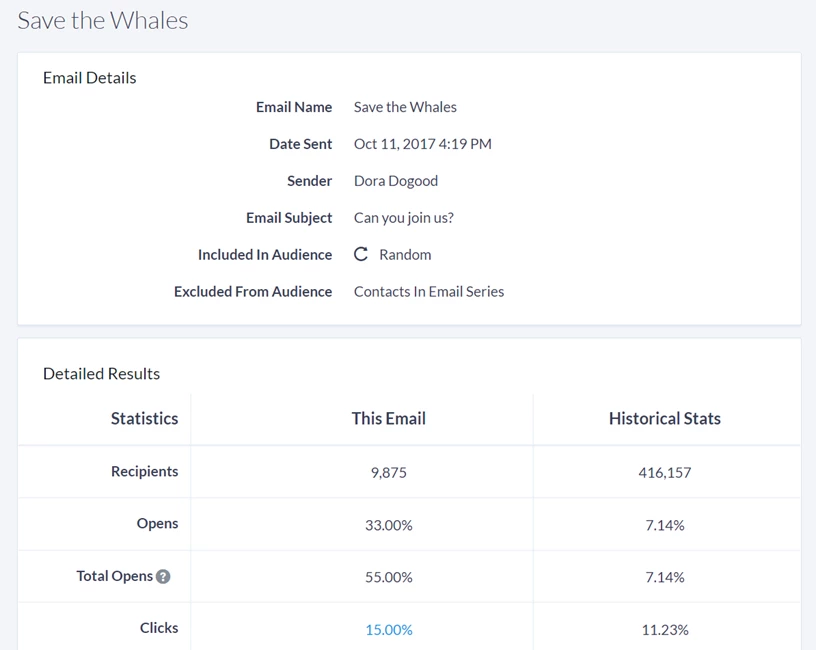
Reviewing email stats on contact records
To see which emails a supporter received and how they responded, expand the Targeted Emails section on their contact record (All Details view).
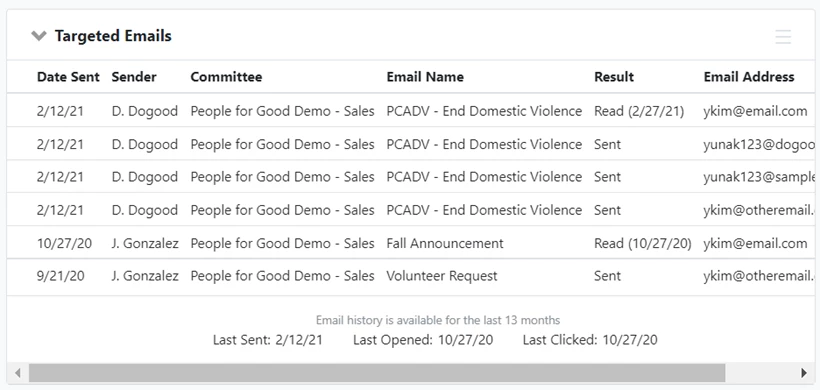
Possible responses include:
- Sent (this means they did not take any action)
- Read (this means they opened) and date opened
- Clicked and date clicked
- Bounced and date bounced
- Unsubscribed and date unsubscribed
You'll also see a summary at the bottom for:
- Last Sent
- Last Opened
- Last Clicked
If you want to review all the email addresses for that particular contact and the current subscription statuses you can open the Email section (All Details view) or open the Overview page.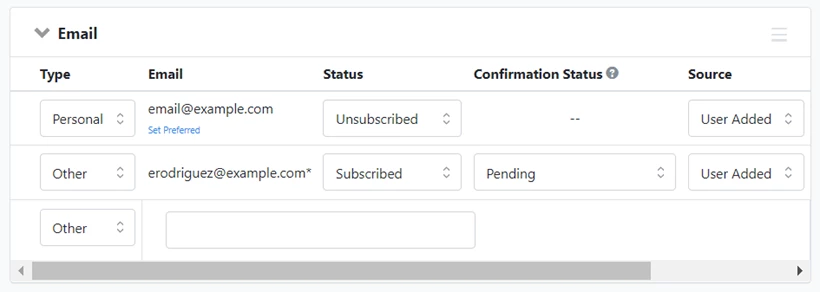
Reporting on email performance
Report Manager offers several templates designed track your email performance and discover where you can improve your program.
-
Email Comparison Report
The Email Comparison Report summarizes the performance for each sent email. It does not list recipients of each email but it provides an overview of results including opens, clicks, conversions, donations, hard bounces, soft bounces, and unsubscribes. You can filter by Email Type to see Single emails or emails that were part of a Series, such as Triggered Emails or emails in an Automation.
-
Email Performance Report
The Email Performance Report allows you to select an email that was sent in the last 13 months, and view the result for each recipient including opens, clicks, conversions, donations, bounces, and unsubscribes. This report only counts Hard and Soft bounces in the Bounce category.
-
Email Test Case Comparison Report
The Email Test Case Comparison Report allows you to compare how the variants in your A/B tests performed. It contains one row per email test case. Emails without test cases, where no split test was run, will only have a single row. You can also add columns for From Email, From Name, and Subject Line to this report, making it a good report to use even if you did not run a test case if you want to include your subject lines in your reports.
-
Email Links Comparison Report
To discover the response rate to the links in your emails, use the Email Links Comparison Report. Filter or group the links by UTM (Urchin Tracking Module) codes or other email details to compare link performance across multiple emails. With this report, you can identify which email elements work best for improving donor responses or supporter engagement.
-
Email Address Status Report
The Email Address Status Report contains one row per email address, regardless of receiving any emails, and their subscription and Confirmed Opt-In status, and if unsubscribed, the method by which the unsubscribe happened.
You can also add additional columns to these reports that will help you differentiate machine opens from your actual email opens.
Read more about machine opens and tracking email open rates for Apple devices
Tracking bounce rates
Depending on where you are viewing Targeted Email statistics, you may see different numbers for bounce rates.
- Targeted Email Dashboard and Comparison Report counts Hard Bounces, Soft Bounces, and Failed Delivery.
- Email Performance Report only counts Hard and Soft Bounces in the total.
- Contact Details includes Unsubscribed for Hard Bounce totals.
- Create a List "bounce" search includes both Hard and Soft Bounces.
Creating lists of people based on email sends
You can use the Targeted Emails section in Create a List to search for contact records that do or do not have particular email results. For example, you could search for anyone who was sent an email in the last six months but did not open it. Or, you can find people who opened a message but did not click any links.
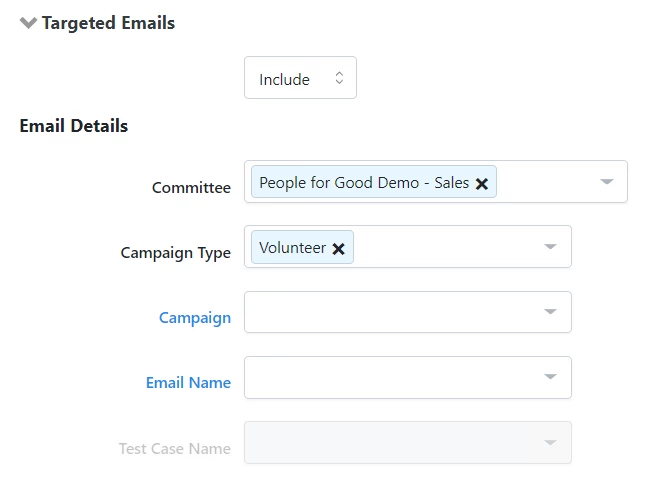
You can also use Targeted Email Summaries to filter contacts by the most recent date they were sent, opened, or clicked an email. This allows you to easily target or exclude contacts based on their recent email engagement. You can also discover who was part of your machine open segment, making it easier to target them for other outreach channels if necessary.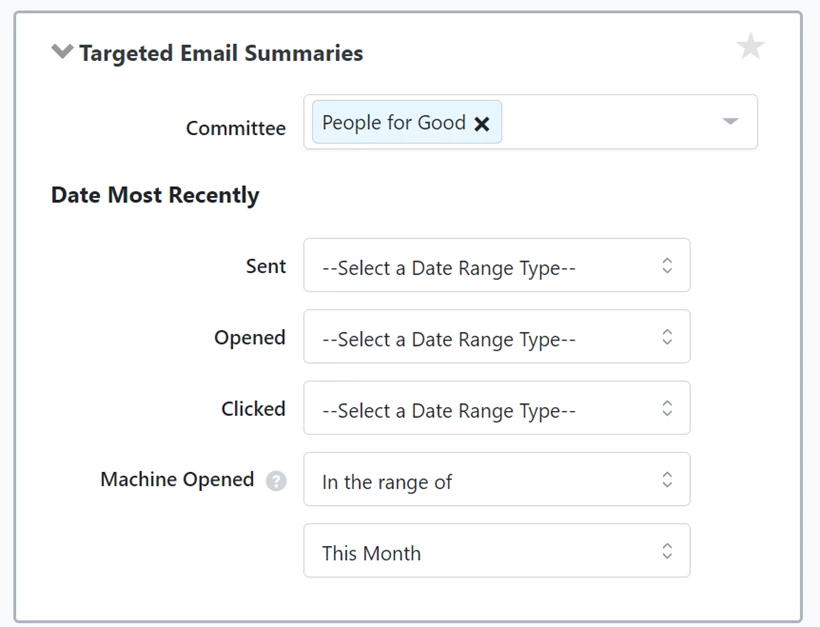
Looking for training?
Explore this feature at your own pace - join a live training session or watch a recorded webinar by clicking the link below.
How do I how to: track targeted email performance and statistics? | How does how to: track targeted email performance and statistics work in EveryAction? | Why can't I how to: track targeted email performance and statistics? | Where do I how to: track targeted email performance and statistics in EveryAction? | What is how to: track targeted email performance and statistics in EveryAction? | How to how to: track targeted email performance and statistics? | Can I how to: track targeted email performance and statistics in EveryAction?