



What is 2FA?
Two-factor authentication provides an added layer of security when logging in, requiring a second piece of information only you should have access to when logging into your account from a new device.
How does 2FA for my ActionID account work?
When you are logging in from a new device or browser, you will use your ActionID and password first, and then you will be prompted to enter a code that is texted to your phone (or in the case of an authenticator app, the code that appears in the app).
You will have the option to 'Remember this device' for the device and browser you are using. If you choose to 'remember', you will not have to complete two-step verification from that device and browser combination for 30 days (or unless you clear the browser cookies).
If you do not 'remember' the device and browser, you will be required to verify the device and browser each time you log in from it.
If you do not 'remember' the device and browser, you will be required to verify the device and browser each time you log in from it.
If you no longer have access to that mobile device, you can click 'use a backup code' - that's why it's very important to download those codes and keep them in a secure place you can get to them when needed! More information about backup codes is below.
Enabling 2FA for your ActionID
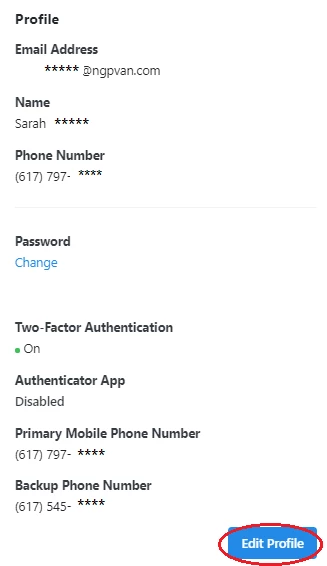
To set up 2FA, begin by going to accounts.ngpvan.com and log in with your ActionID. Then click 'Edit Profile.'
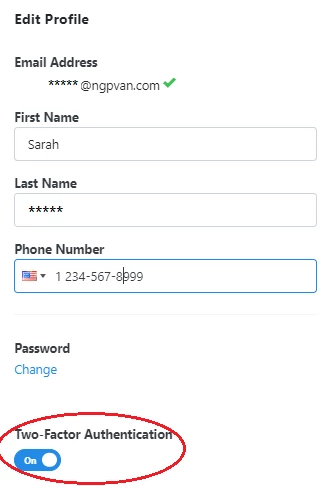
Next, Toggle 'Two-Factor Authentication' to 'On.'
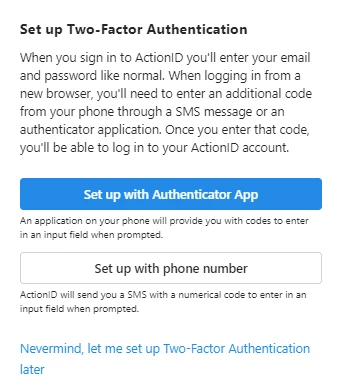
Select one of the two options:
• Set up with Authenticator App (recommended)
• Set up with phone number
Set Up With Phone Number
If you choose to set up 2FA with a phone number, you will be prompted to send a code to your phone. At this point, you have the option of changing the phone number associated with your ActionID.
When you’re ready, click ‘Send Code.’
You will then see page where you can enter the code that was texted to you. Enter that number and click ‘Verify.’ You’ve now enabled 2FA for your ActionID!
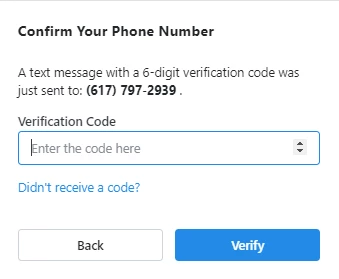
The next time you log in with your ActionID and password, a similar code will be texted to you, and you will enter that code on your screen to finish logging in. This will happen every 30 days or if you use a new browser or device.
Set Up With Authenticator App
If you select the option to enable 2FA with an authenticator app, you will need to have downloaded an authenticator app of your choice. Most common authenticator apps will work with ActionID.
Once downloaded, use the app to scan the QR code on your computer screen. The app will display a code; enter that code on your screen and click ‘Enable.’ You’ve now enabled 2FA for your ActionID!
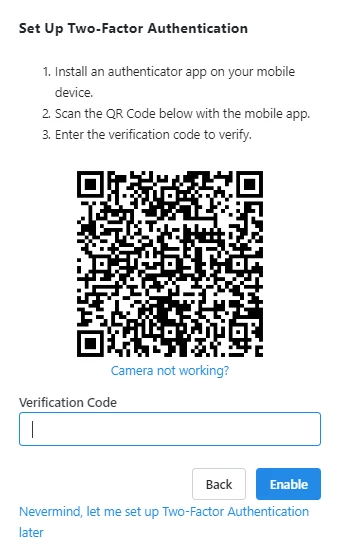
Once downloaded, use the app to scan the QR code on your computer screen. The app will display a code; enter that code on your screen and click ‘Enable.’ You’ve now enabled 2FA for your ActionID!
The next time you log in with your ActionID and password, you will need to open your app to view the code, and enter it on your screen to finish logging in. This will happen every 30 days or if you use a new browser or device.
Download Your Backup Codes!!
Once you've enabled 2FA, go back to accounts.ngpvan.com and click 'View Backup Codes' and either download or print your backup codes.
These backup codes provide you with an alternative way to log in if you do not have access to your phone, you are not receiving the SMS, or the authenticator app is not working.