



A User Profile is an easy way to assign groups of permissions or capabilities to individual users in your database. If you are serving as an administrative user in your organization, you may be able to assign certain pre-set User Profiles to your users, as well as create and edit new custom profiles.
User Profiles do not specify which records a user can access, but rather how they interact with records with respect to editing, searching, and so on.
If your organization logs into EveryAction at app.everyaction.com, you will not be able to create or apply User Profiles, but you will be able to assign other pre-designed user profiles called User Roles.
Read more about User Roles in EveryAction
Understanding pre-set profile naming
Pre-set user profiles are created based on the packages available for purchase.
Each user profile begins with (DA), which stands for Database Administrator, followed by a combination of abbreviations for each package.
The abbreviations and general descriptions of the most important features for each package include:
- Dig: Digital package, most significantly includes access to create Online Actions forms and Targeted Emails, as well as run reports on these features in Report Manager
- Advo: Advocacy package, includes the ability to create all types of forms
- Vol: Volunteer package, includes access to Virtual Phone Bank and Volunteer Management tools as well as the ability to create Volunteer and other Forms (but not Advocacy Forms)
- Basic: Basic Development package, includes permissions for Contributions, Acknowledgements, Pledge Reports, Financial Households, and adding images to contact records
- Std: Standard Development package, includes everything in the Basic package as well as Action Plans, Grants, and Social Media Handles
- Pro: Pro Development package, includes everything in the Standard package as well as the ability to manage Scores, Campaigns Management, Direct Response Plans, Origin Code, and Premiums
- OC: Online Contributions add-on for clients with a Development package, includes permissions around Tribute Gifts, Contribution and Event Forms, Recurring Commitments, and Events
(To review the specific security functions for each package, we suggest creating a test user with the package you'd like to view.)
The abbreviations for packages are sometimes followed by _Staff. For each combination of packages that exist, there is one User Profile with _Staff, and one without (reserved for your admin accounts). The _Staff option allows you, as the administrator of an organization, to give the same access to the database that you have to other high-level users, while still maintaining the ability to edit them.
For example, if your User Profile has (DA) Dig+Advo, you can edit other users with (DA) Dig+Advo_Staff. The _Staff users will not be able to edit other users, but they will otherwise have the same access to functionality in the database that you do.
User Profile Hierarchy and Functionality
Once a User Profile is created or changed, the permissions will apply to all users with that profile. This makes user management easier so that you do not have to make changes for users one by one.
User Profiles are hierarchical. You can only administer User Profiles that have 'lesser' permissions than your own. This means you can never edit your own user account, nor can you edit other users with the same User Profile.
Additionally, you will only ever be able to administer users with profiles that contain packages your organization has purchased. For example, if your organization has not purchased the Advocacy package, you will not be able to view or administer any User Profiles that contain Advo.
Example User Profiles:
(DA) Std+Dig+Advo: a combination of the Standard Development, Digital, and Advocacy packages with the ability to edit all Users in the committee. (DA) Std+Dig +Advo_Staff: a combination of the Standard Development, Digital, and Advocacy packages.
(DA) Dig +Advo: a combination of the Digital and Advocacy packages.
Step 1: Creating and Editing User Profiles
We strongly suggest that you avoid creating a separate user profile for each user. Instead, user profiles should be more broadly structured and applied to a class of users, such as Administrator, Staff, Volunteer, and so on.
To create a new user profile, go to the Users menu and select User Profiles.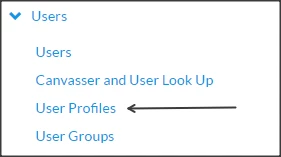
You will then see a list of available User Profiles which you can view or edit. To create a new one, select Add New Profile.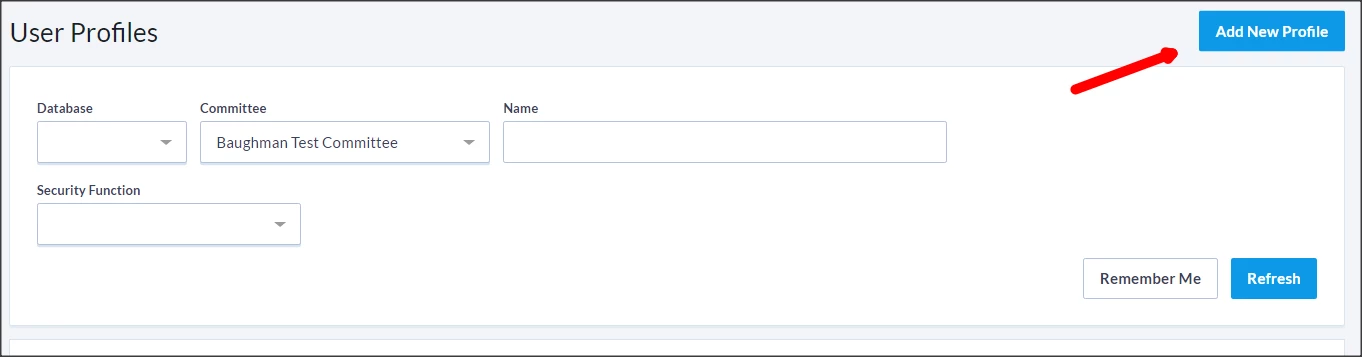
You can then begin to add the basic details for your new profile.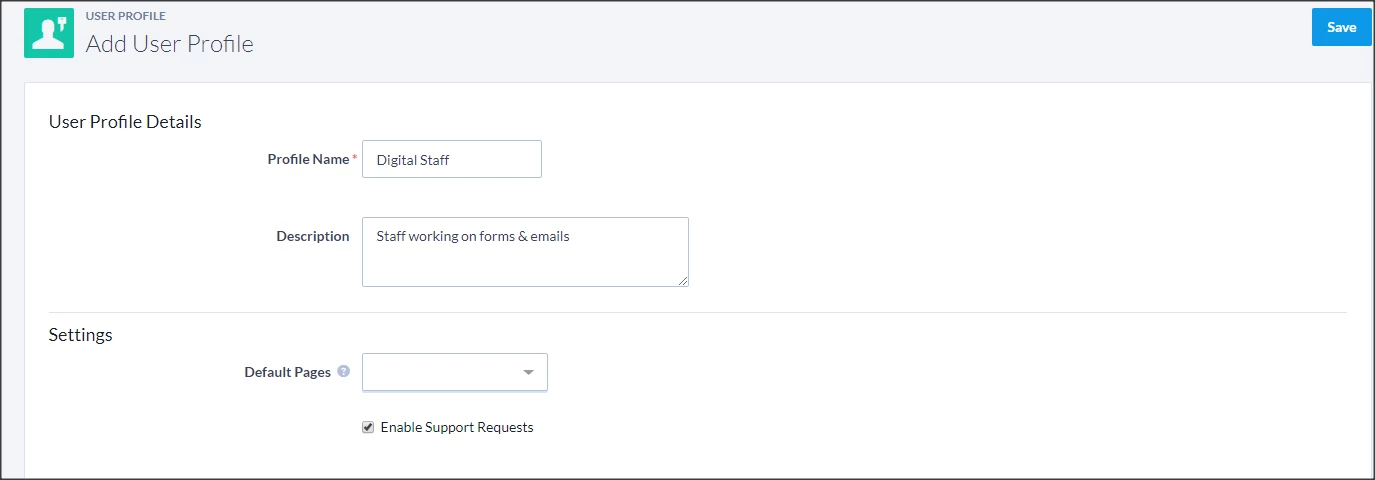
After you've added the basic details, you will then need to select how much access you are granting to those users using various security functions.
You can choose from the following levels of access: No Access, Access & Cannot Assign, and Access & Assign. The difference between the last two is whether the users with that profile will be able to assign out access to that functionality to other users.
To enable an Access & Assign level permission for any security function, you will first have to enable Create and Edit Users.
You can then select the additional security functions you wish to enable. The security functions are grouped into categories and each section can be collapsed and expanded as necessary.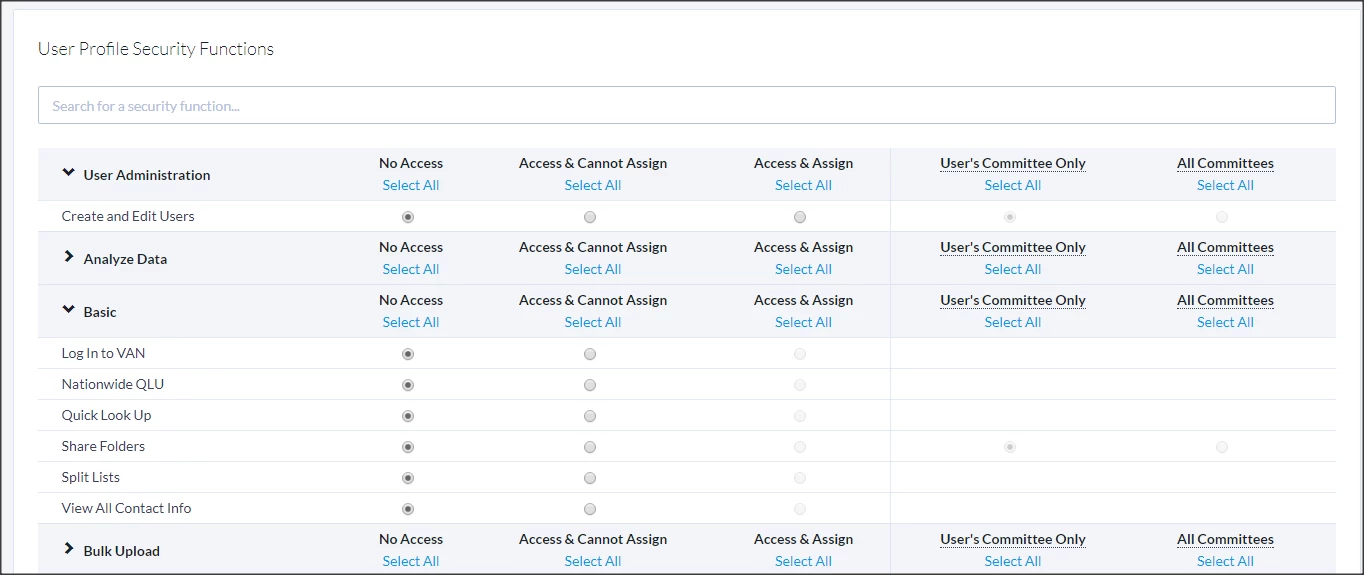
Additionally, the search bar can be used to search for keywords in the security function name.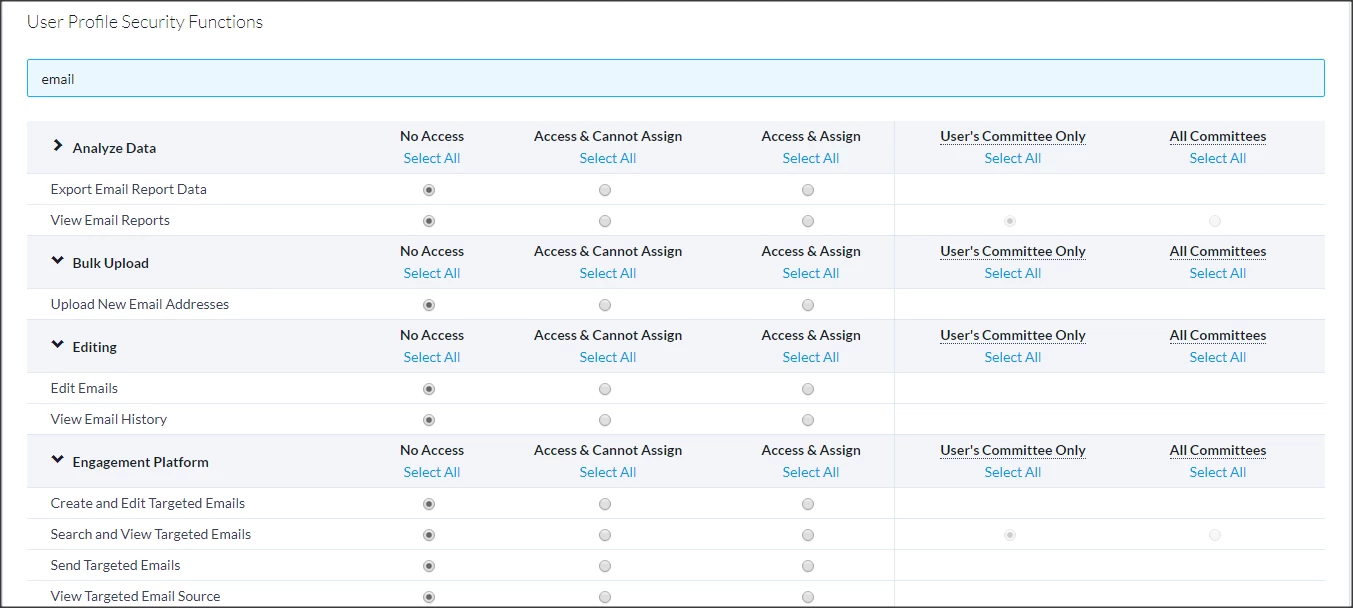
Certain security functions will include the option to select between User's Committee Only and All Committees:
- User’s Committee Only – This setting implies that the user with this function can only perform the task on the specific committee(s) to which they have explicit access on their user account.
- All Committees – This setting implies that the user with this function can perform the task on all committees under a hierarchical relationship to a parent committee, regardless of being explicitly added to those child committees.
Generally, most user profiles should only have User's Committee Only permissions unless it's an administrator that needs broader security access to all committees under a hierarchy.
Copying, saving, and deleting profiles
A User Profile can be saved as a new User Profile via a Save as button, making it easier to create profiles with slight variations.
User Profiles can only be deleted when no users – active or inactive – are assigned the profile. The Delete button will only appear once this is true.
Assigning Default Pages
User Profiles can be customized to land on a specific page whenever that user logs in. Default pages are useful for users who just need to access to tools like Virtual Phone Bank or other basic Data Entry pages.
Troubleshooting
Why can't I edit a user?
Your user profile is likely missing some functionality that the other user has. Your administrator can troubleshoot using the User Profile Comparison tool, in order to figure out where the discrepancies are.
Comparing User Profiles
User Profiles are hierarchical. Upper-level users should have all the security functions that lower-level users have, and these permissions should be assignable if they need to create a lower-level user account. There's a handy tool for administrators called the User Profile Comparison tool under Users and Committees on the Main Menu.
How do I how to: create or use user profiles in everyaction? | How does how to: create or use user profiles in everyaction work in EveryAction? | Why can't I how to: create or use user profiles in everyaction? | Where do I how to: create or use user profiles in everyaction in EveryAction? | What is how to: create or use user profiles in everyaction in EveryAction? | How to how to: create or use user profiles in everyaction? | Can I how to: create or use user profiles in everyaction in EveryAction?