

How do I edit a Bidder's information?
In instances where a Bidder made a typo when setting up their account or requests to update their e-mail or preferred name, you can follow the steps outlined below to quickly make those edits and keep your Bidder's details accurate and up-to-date!
Step 1: Navigate to your 'Auctions'
From your 'Donor Management' Dashboard, click 'My Tools' in the top right corner of the page and select 'Auctions' from the drop-down list of options.
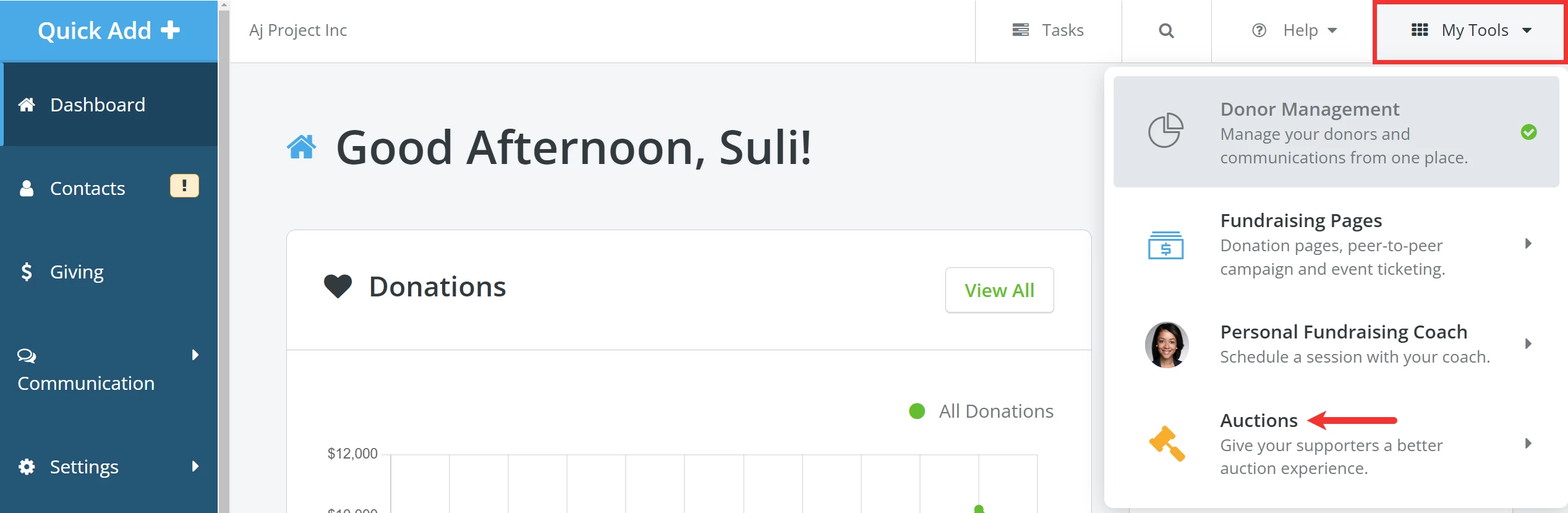
You will be directed to your 'Auctions' Dashboard.

Step 2: Locate your auction and click to view your Bidders
Scroll down on your 'Auctions' Dashboard to locate your auction. Click the 'Actions' button next to it to expand the drop-down and select 'View Bidders'.
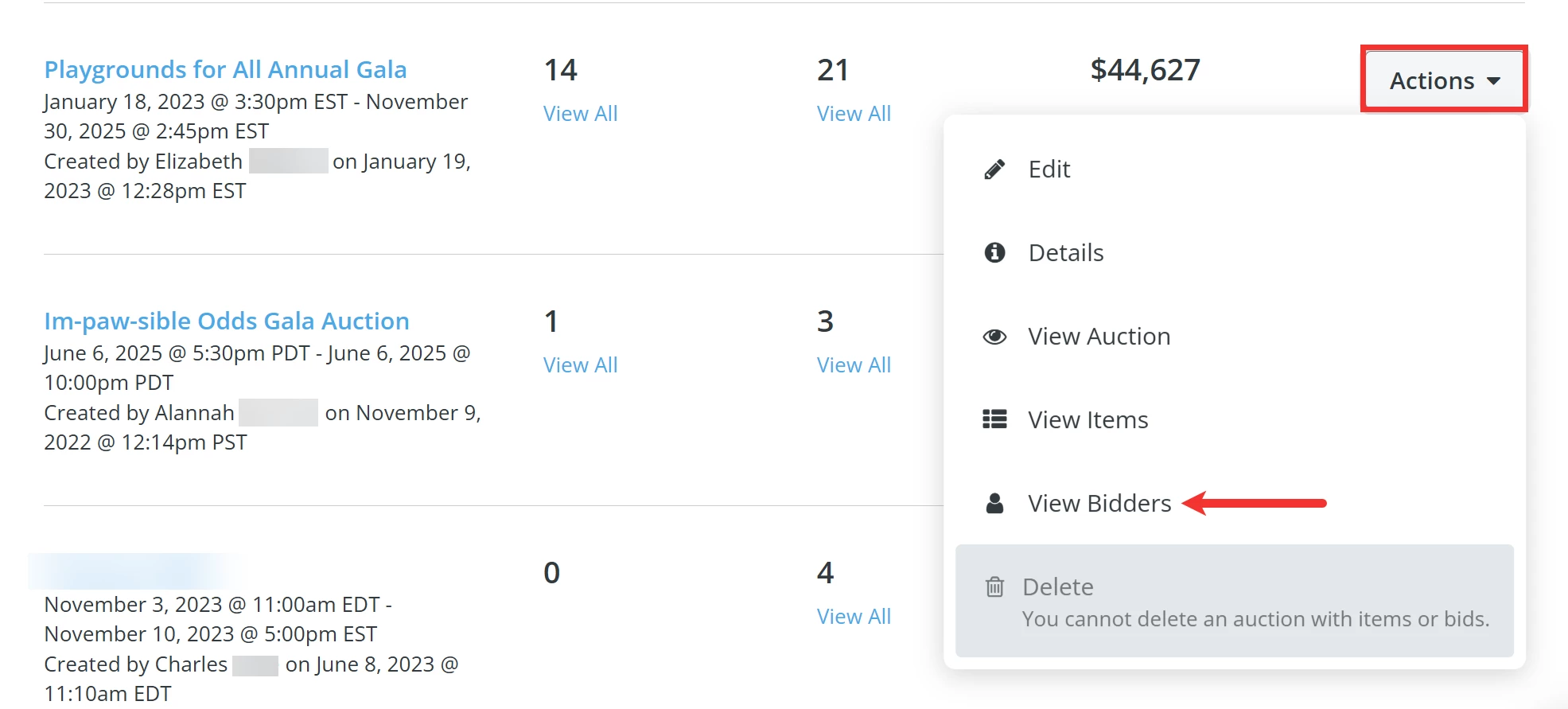
This will bring you to a page listing all Bidders for that auction.
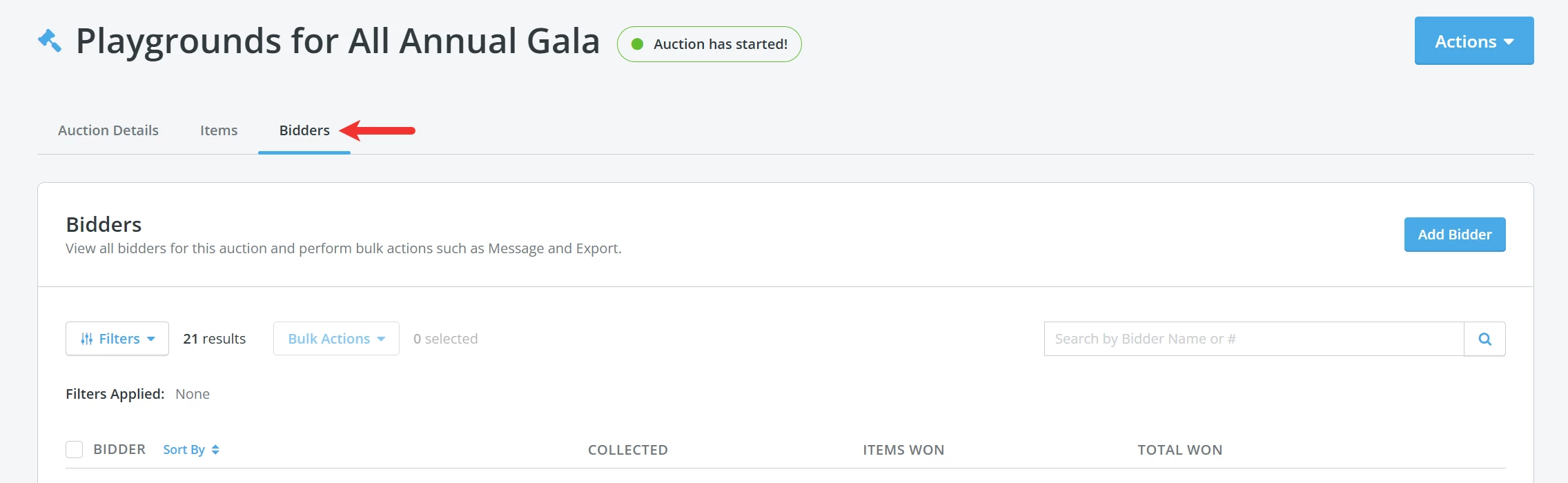
Step 3: Search for the Bidder you need to update
On this page, you can click the 'Filters' button or search by name or Bidder # to locate the Bidder.

If you have a shorter list, you can scroll through and manually search for their record.
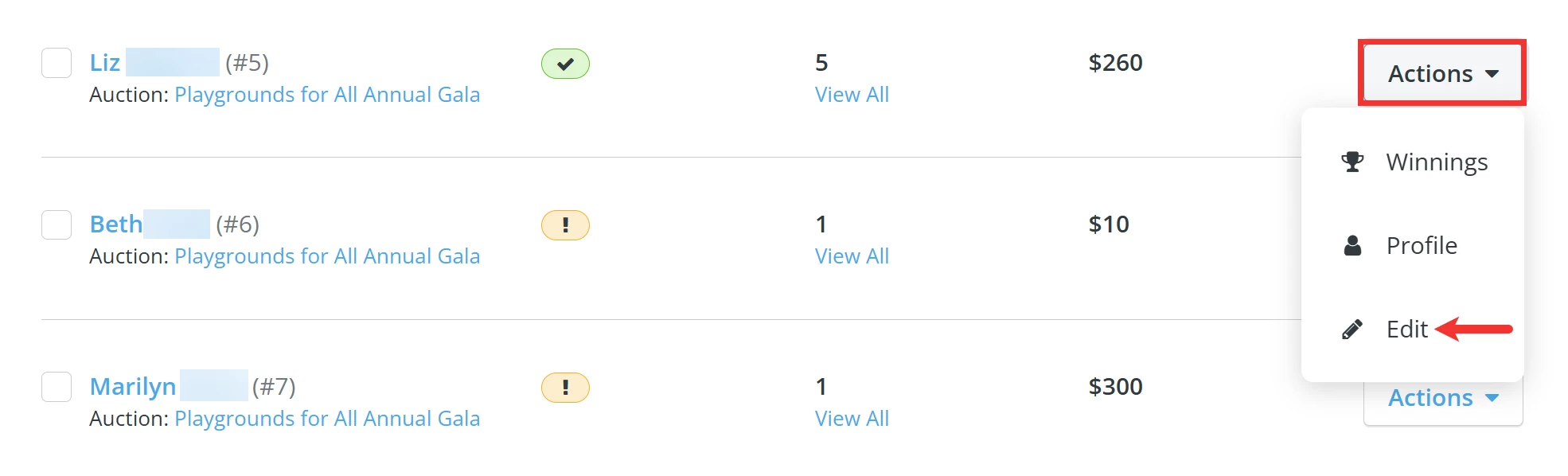
Step 3: Click the 'Actions' button to edit the Bidder's profile
When you locate the Bidder's record, click the 'Actions' button next to it and select 'Edit' from the drop-down list.
Step 4: Make any necessary changes to the bidder's information
On the 'Edit Bidder' page, you can update the Bidder's name, e-mail, phone number, notification setting, and/or 'Bidder Number'.
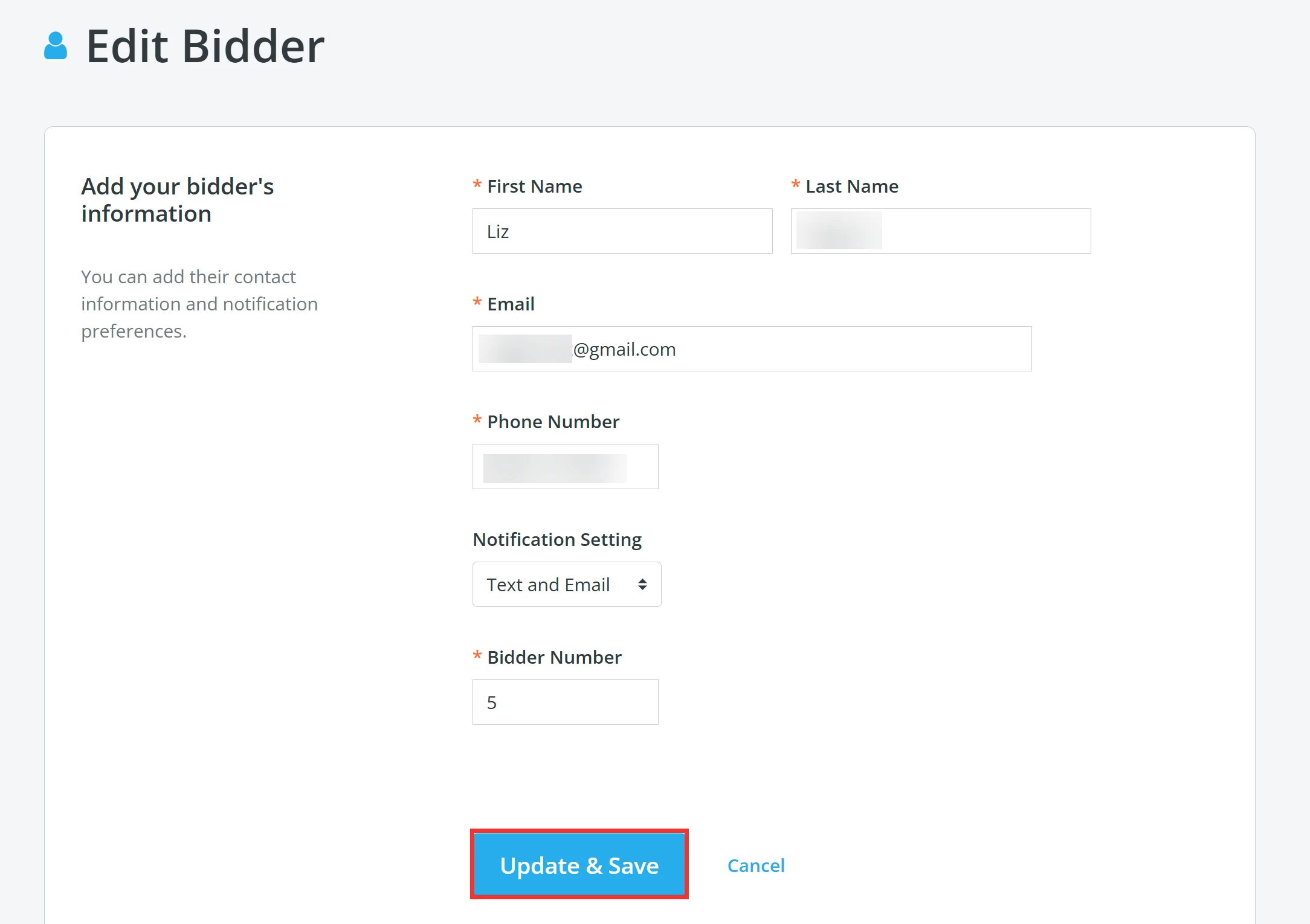
Once you are finished, click the 'Update & Save' button at the bottom of the page.
What else do you need help with?
Not quite what you were searching for?
Navigate back to the Feature Overview.
How do I add attributions to a contribution from a contact record? | How does add attributions to a contribution from a contact record work in EveryAction? | Why can't I add attributions to a contribution from a contact record? | Where do I add attributions to a contribution from a contact record in EveryAction? | What is add attributions to a contribution from a contact record in EveryAction? | How to add attributions to a contribution from a contact record? | Can I add attributions to a contribution from a contact record in EveryAction?