

How to: Bulk Edit source code attributes
Note: We're transitioning to a new and improved bulk upload process. Click here to learn more about Better Bulk Upload.
(2 min read)
Source codes are used to track many different attributes of your efforts. Depending on your package and permissions, you can use them to track or assign different attributes to your supporters' interactions with you, including:
- Campaign Type & Campaign
- Channel & Contact type
- Revenue Stream & Type
- General Ledger Fund
- Cost Center
- Mail Merge Template
While you can update an individual source code by opening the details and editing it, the fastest way to add or update the attributes for many source codes at once is to use Bulk Edit or Bulk Upload.
Using Bulk Edit
You can change a list of source codes to all have the same value by using the Source Code Report in Report Manager. Open the report and filter it to include the source codes you wish to update.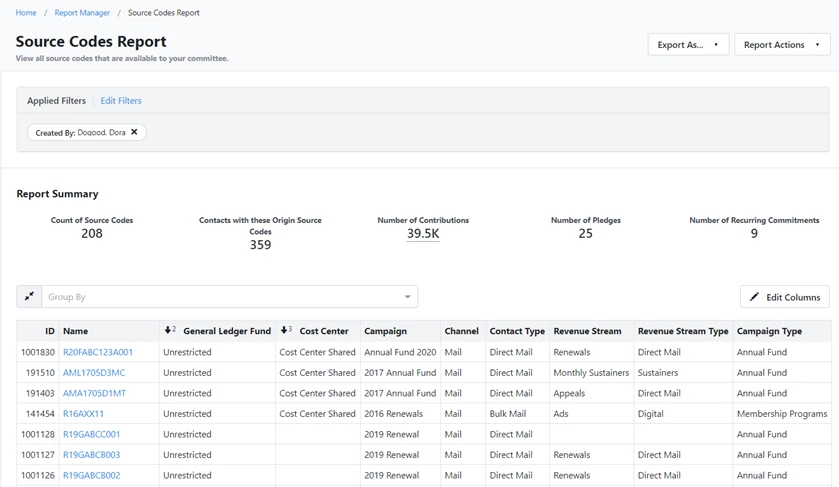
You can use the yes/no filters under Source Code Details (such as Has GL Fund?, Has Revenue Stream?, and so on) to quickly find all the source codes that do not have yet have a value for the field you would like to Bulk Edit.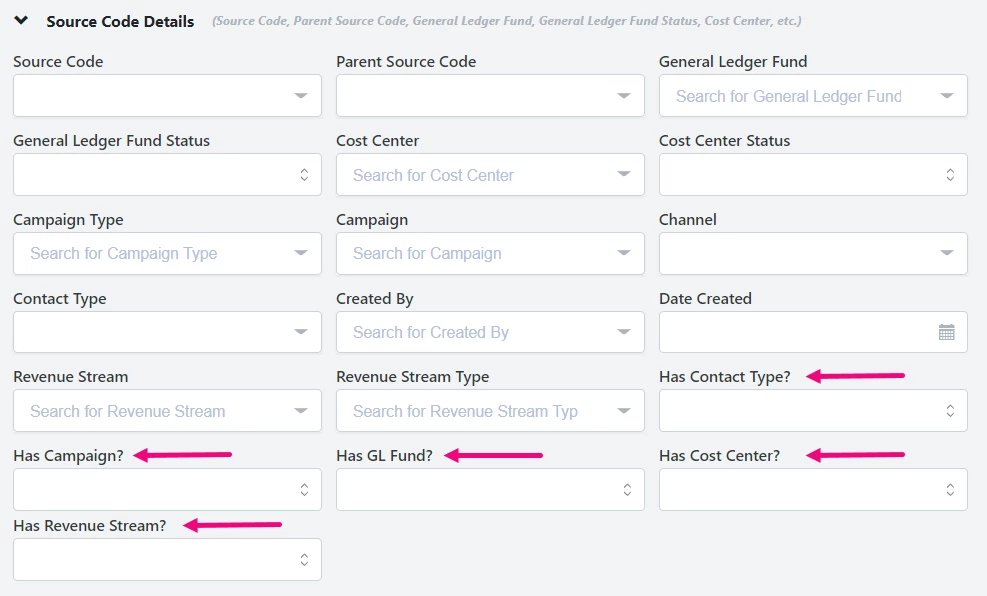
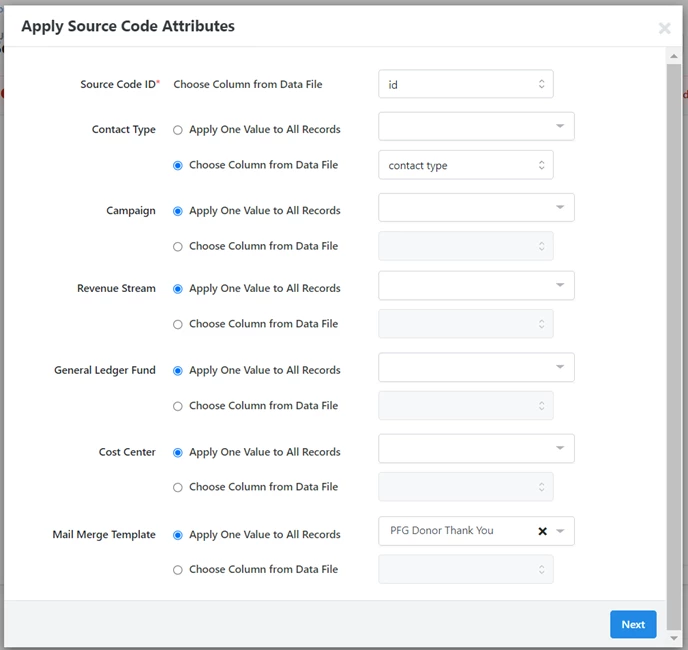
Select Report Actions > Bulk Edit > Apply Source Code Attributes and use the dropdowns to select the values you wish to assign to those source codes.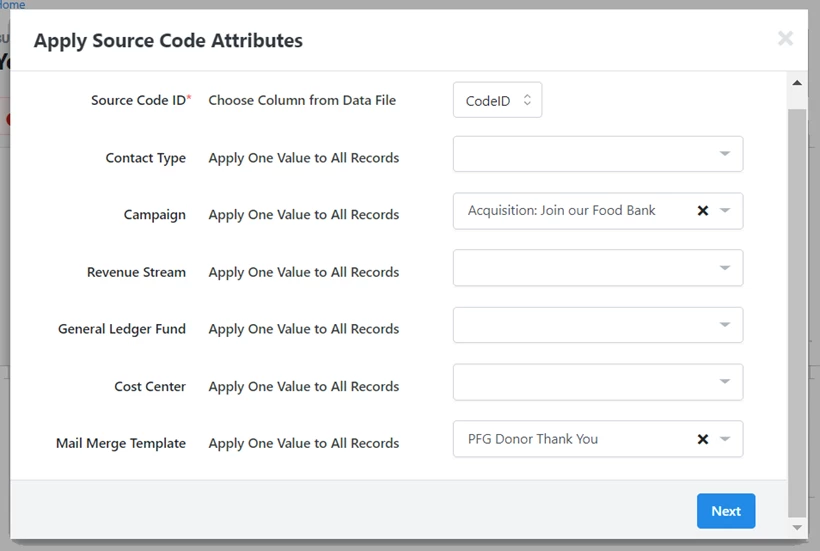
Using Bulk Upload
If you want to update many source codes at once with DIFFERENT values, you can instead use Bulk Upload.
The easiest way to make sure the data you are entering is correct is to first Export your source codes and columns you wish to update and then re-upload the data once you’ve added your changes.
Open the Source Codes Report and filter it to include the source codes you wish to update. Then use Edit Columns to remove any columns you don’t need and add the ones you want to update. Make sure you keep the Source Code ID number and Name.
Make your changes and then open the Bulk Upload Wizard by searching in the Sidebar. Select Edit Source Codes by Source Code ID. 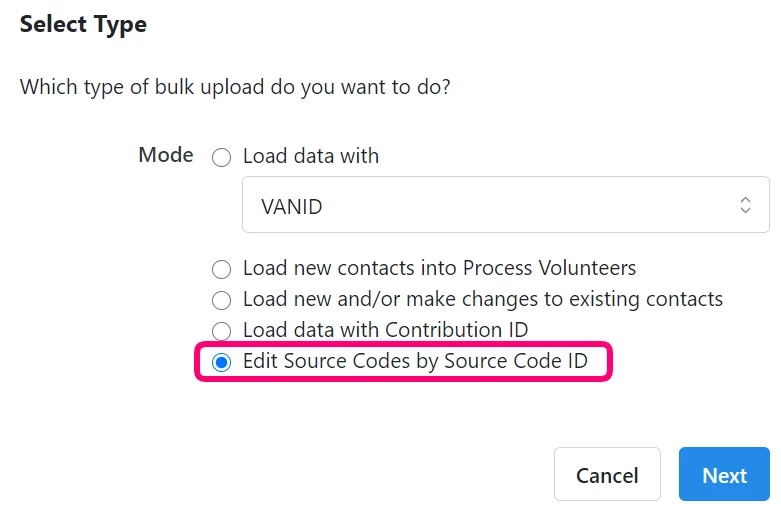
Select your file to upload and then use Apply New Mapping > Apply Source Code Attributes to map columns as you normally would. The fields available to map will depend on your package and permissions.
Using Bulk Upload to Bulk Create Source Codes
The Bulk Upload Source Codes tool allows you to efficiently create new source codes in the system while uploading or editing transaction data. Rather than manually creating individual source codes, you can upload a file with your new source codes to add to the system.
Read more about using Bulk Upload to bulk create Source Codes
How do I how to: bulk edit source code attributes? | How does how to: bulk edit source code attributes work in EveryAction? | Why can't I how to: bulk edit source code attributes? | Where do I how to: bulk edit source code attributes in EveryAction? | What is how to: bulk edit source code attributes in EveryAction? | How to how to: bulk edit source code attributes? | Can I how to: bulk edit source code attributes in EveryAction?