

How to: Use Bulk Upload Templates
Note: We're transitioning to a new and improved bulk upload process. Click here to learn more about Better Bulk Upload.
When you Bulk Upload a file to update your contact records, you are required to map the columns from your source file to the fields in your database (e.g. 'Street Address' to 'Address1'). If you are regularly uploading similar files which require mapping a large number of fields, each upload can be time-consuming.
Read more about bulk uploading
Bulk Upload Templates allow you to complete the mapping of a file format once and then save the mapping as a template. The next time a file of the same construction is uploaded, you can select the same template, and the fields will automatically map to your records.
Saving a Template
To create your Bulk Upload Template, map your file using the Bulk Upload Wizard. Once the mapping is done, select Save Mapping Template in the upper right corner. Then, enter a name and save the template.
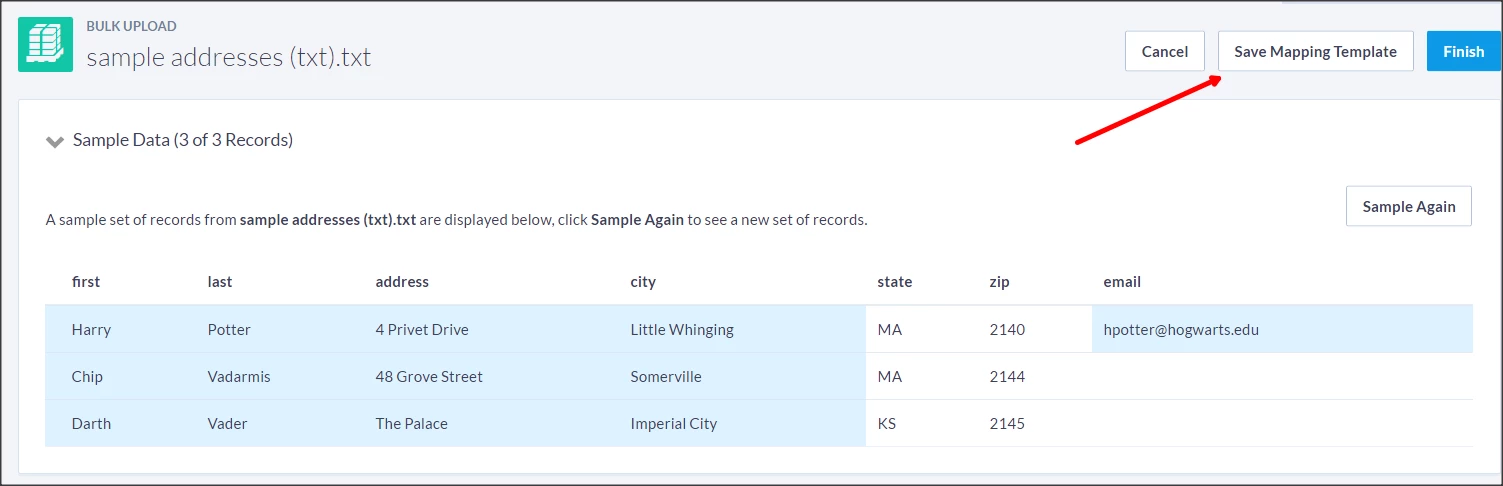
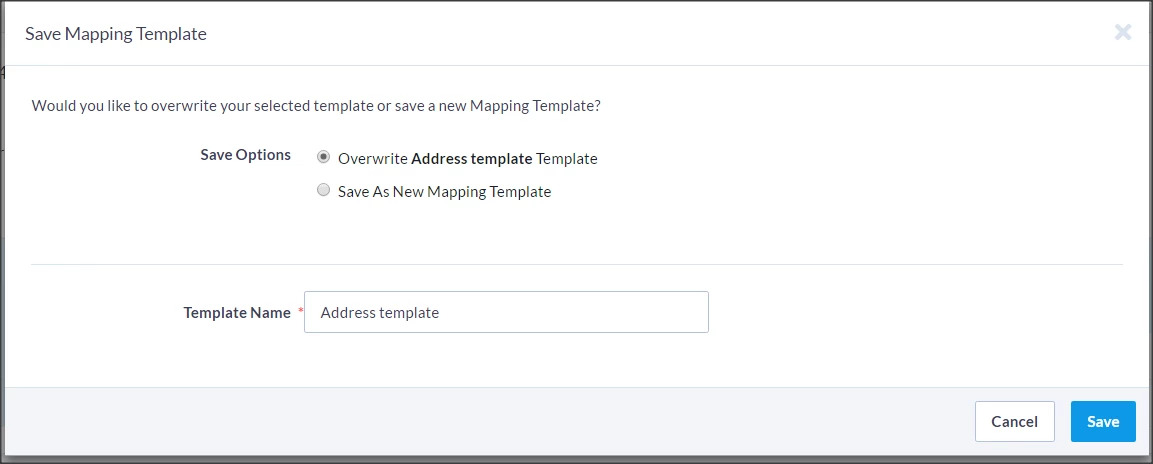
You can overwrite your bulk upload template if needed. Once the file has been loaded and the template selected, make the necessary changes to the mapping and then resave your template.
You can also decide to save the mapping as a new template.
Using Templates
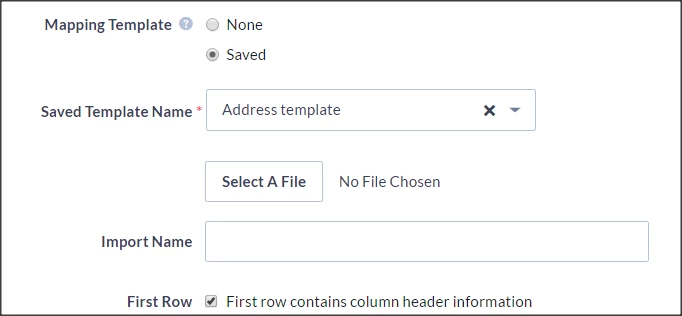
Once you have saved at least one template, it will be available to select on the Upload Data page when uploading future files.
Accessing Saved Templates
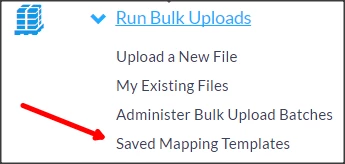
You can see your saved templates by going to Saved Mapping Templates from the Sidebar or opening Main Menu > Load Data > Run Bulk Uploads.
How do I how to: use bulk upload templates? | How does how to: use bulk upload templates work in EveryAction? | Why can't I how to: use bulk upload templates? | Where do I how to: use bulk upload templates in EveryAction? | What is how to: use bulk upload templates in EveryAction? | How to how to: use bulk upload templates? | Can I how to: use bulk upload templates in EveryAction?