

How do I see if a guest has been checked in for my event?
Unsure if your guest has already been checked in?
Use the helpful steps below to confirm whether or not they've checked in - or if you need to help them complete that easy process.
Step 1: Locate the "Open Check-In" button under the "Guests" tab
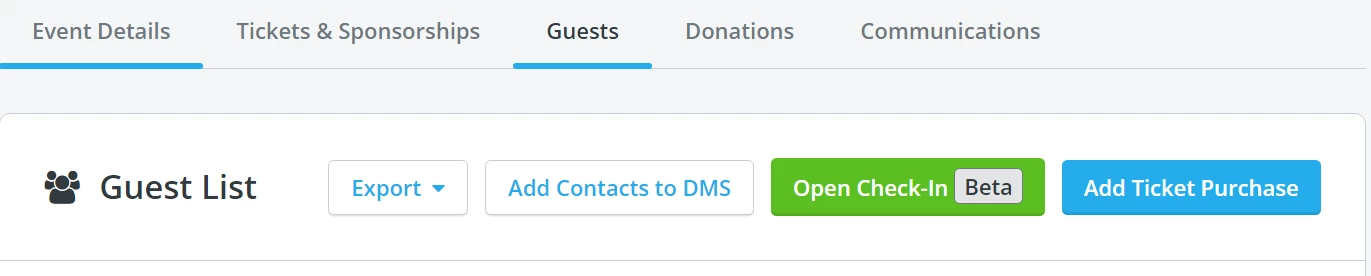
Step 2: Click "Open Check-In"
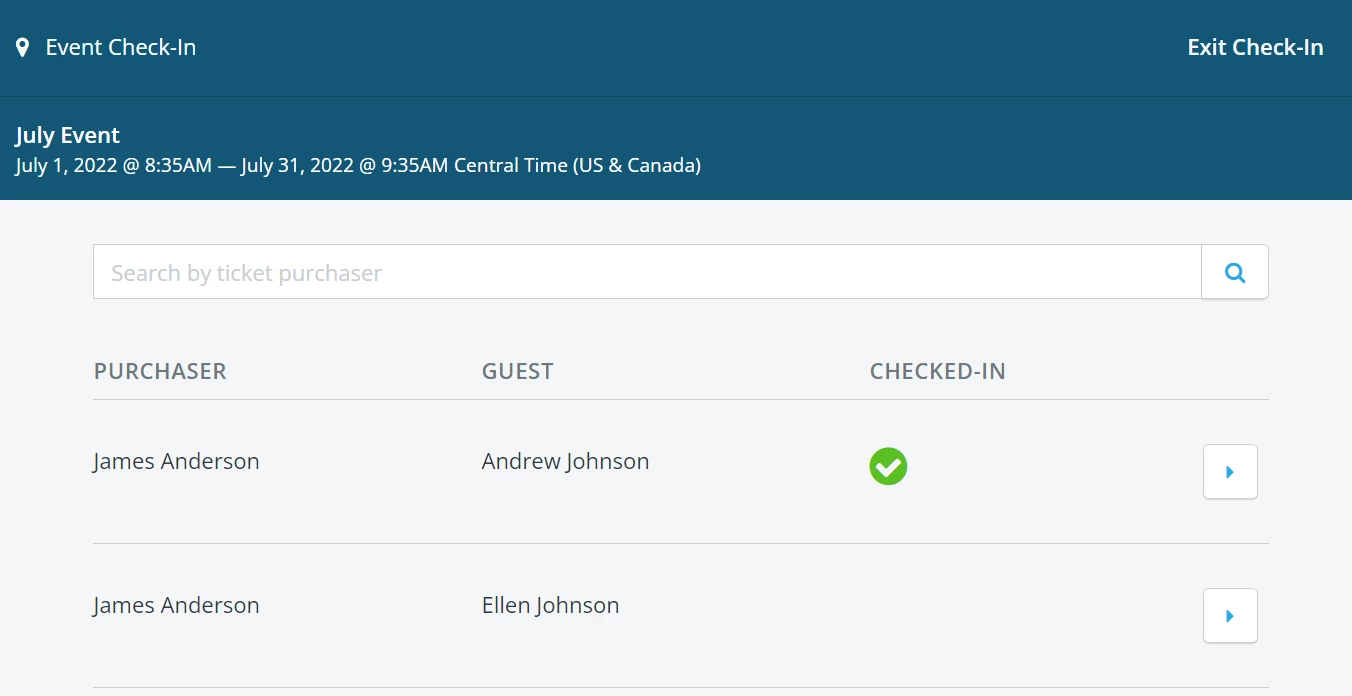
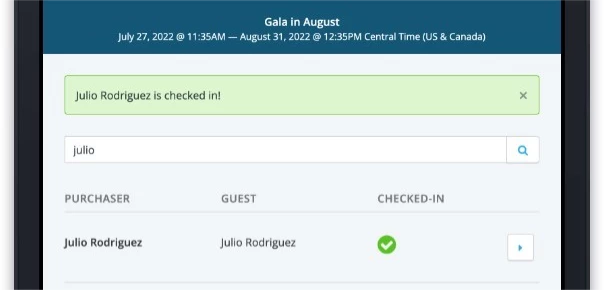
Step 3: Confirm that the guest has a green checkmark next to their name
If you search for the ticket purchaser and locate the guest, you should be able to see a green checkmark next to the guests who have been checked in.
What else do you want to do?
- How do I change a guest's information after they've been checked in?
-
How do I address a last-minute ticket purchase that isn't reflecting during check-in?
- How do I enable the check-in feature for my event?
-
Not what you're looking for?
Go back to the Feature Overview.
How do I check if a guest is already checked in in Network for Good? | How do I see who has checked in to my event? | What does the green checkmark mean in event check-in? | How do I confirm a guest’s check-in status? | Where can I view checked-in attendees? | How do I search for a guest in the check-in tool? | Why doesn’t a guest show as checked in?