

How do I change a guest's information after they've been checked in?
If a guest needs to update their requested additional information after they’ve already been checked in, you can always edit that information on their behalf from the “Guests” tab within your Events page.
Step 1: Locate the guest under the "Guests" tab
You can search for the guest using the ticket purchaser’s name or email.
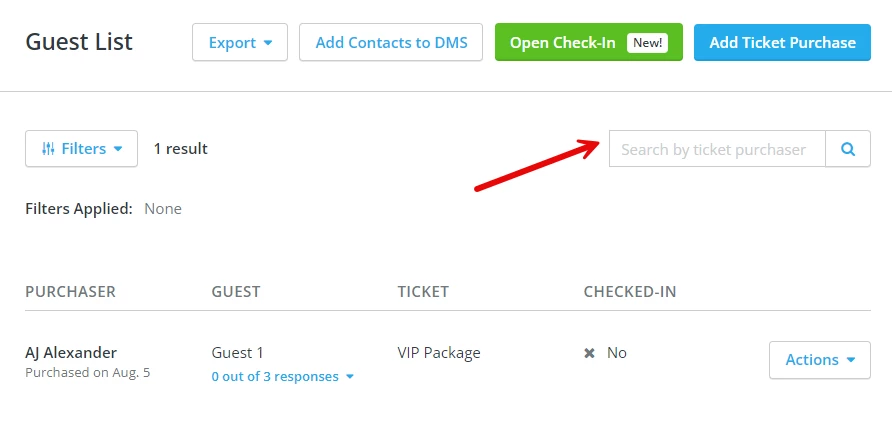
Step 2: Click "Actions" next to the ticket purchase, then select "Edit Guest Info"
Once you’ve located the guest, click on the “Actions” button next to their name, and select “Edit Guest Info” from the drop-down menu.
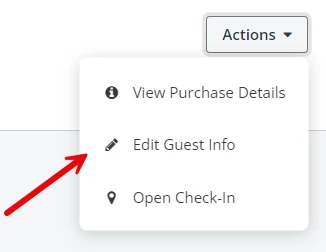
Step 4: Update the guest's info as needed
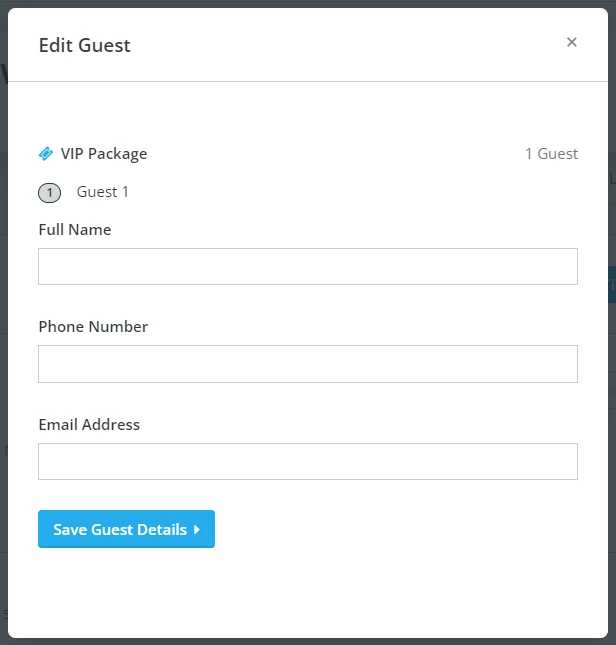
A pop-up should appear, where you can edit those details.
Step 5: Click "Save Guest Details"

What else do you want to do?
Not what you're looking for?
Go back to the Feature Overview.
How do I edit guest information after check-in in Network for Good? | Can I update attendee details after they are checked in? | How do I correct guest info during an event? | Where do I edit a checked-in guest’s details? | How do I fix incorrect guest information after check-in? | Can I change contact info for a checked-in attendee? | How do I update guest responses to event questions?
How do I find donortrends data on a contact record? | How does find donortrends data on a contact record work in EveryAction? | Why can't I find donortrends data on a contact record? | Where do I find donortrends data on a contact record in EveryAction? | What is find donortrends data on a contact record in EveryAction? | How to find donortrends data on a contact record? | Can I find donortrends data on a contact record in EveryAction?