

How do I choose which Impact Goals employees see?
Want employees to see the right goals in the app? As an admin, you decide which goals appear and in what order.
Follow these steps to feature a goal.
Step 1: Open your goals
In Organizer, go to Impact Measurement > Impact Goals.
Step 2: Check each goal's status
Employees see only Active or Completed goals. Draft and Archived goals never show, even if featured.
Step 3: Feature the goal and choose its position
Feature an Active or Completed goal to surface it in the employee app. Featuring is off by default for every goal, including existing ones, so employees see no goals until you feature them.
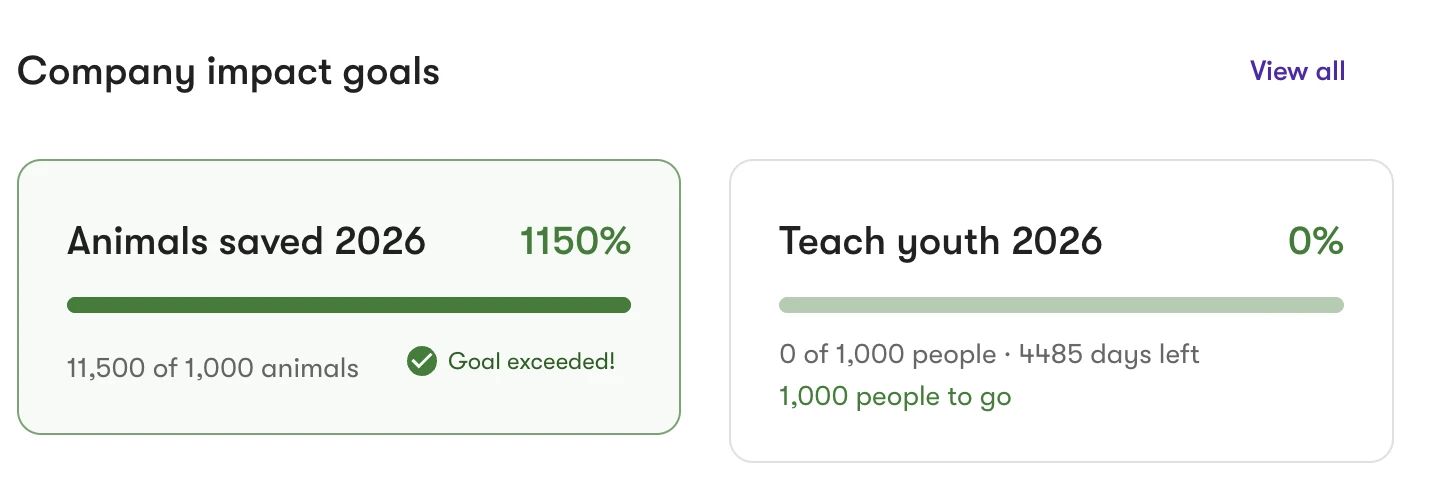
Up to two featured goals appear under Company impact goals on the home screen, in your top two positions. Employees can open the full Company impact goals page to see the rest on the All, Past Goals, and Completed tabs.
Step 4: Check the date range
A featured goal whose end date has passed stops showing automatically, with no error. If a goal isn't showing, review its dates. If you scoped a goal with HRIS filters, only matching employees see it.
Note: Employees see a progress bar, days remaining, and a Goal reached or Goal exceeded badge on the web, iOS, and Android. They don't see the On Track or At Risk status you see in Organizer; therefore, the same goal may read differently to admins and employees.
What else do you need help with?
- How do I create an Impact Indicator?
- How do I link an Action to an Impact Indicator?
- How do I add impact to a volunteer event or project?
- How do I create an Impact Goal?
Not what you’re looking for? Navigate to Understanding Impact Measurement
Why can't employees see my Impact Goal? | How do I feature an Impact Goal on the employee home screen? | How do I change the order of Impact Goals in the app? | Why did my featured Impact Goal disappear? | Do Draft goals show to employees? | How many Impact Goals show on the employee home screen? | Are Impact Goals featured by default? | How do I make a goal visible to employees?