

How do I create an Impact Goal?
Want employees to see live progress toward a company target? Follow these steps to create an Impact Goal in Organizer. Goals build on Impact Indicators, Actions, and events, so ensure those are set up first.
Check out this brief silent demo:
Step 1: Start a new goal
In Organizer, go to Impact Measurement > Impact Goals, then click Create Goal in the upper right corner.
Begin by entering the goal name and description. Then, proceed through the following steps to complete the remainder of the form.
Step 2: Choose the metric type
Select Indicator or Volunteer Hours. You can't change this after you create the goal, so choose carefully.
For an Indicator goal, pick the unit progress is counted in, then select the indicators that report it. You can only select indicators that use the goal's unit. Volunteer Hours goals need no indicator setup.
Step 3: Set the target and dates
Enter the target amount and the start and end dates for the period progress is tracked over. The target must be greater than zero, and the start date must come before the end date.
Step 4: Choose what contributes
For Actions, and separately for Events and Projects, choose one option:
- Include all (everything reporting the goal's indicators counts automatically)
- Exclude all (nothing counts automatically)
- Include specific (you pick individual Actions or Events)
This step doesn't apply to Volunteer Hours goals. They count approved volunteer hours only, and you can't link Actions or Events to them.
Dates affect what counts. Action completions always count only within the goal's dates. With Include all, an Event or Project counts only if its dates overlap the goal's dates, and one without a date is skipped. A hand-picked Event or Project counts in full, whatever its dates.
Step 5: Add optional scoping and tags
For a Volunteer Hours goal, you can scope by HRIS filters, such as location, department, or other custom fields, so only those employees' hours count. Employees outside the scope don't see the goal, so two employees may see different goals. You can also tag any goal with a cause grouping: Category, Sustainable Development Goal (SDG), or Pillar.
Step 6: Set the status and feature the goal
Choose Draft or Active. To show the goal in the employee app, feature it and choose its position. Only Active or Completed goals show to employees. Goals aren't featured by default, so employees won't see this goal until you feature it.
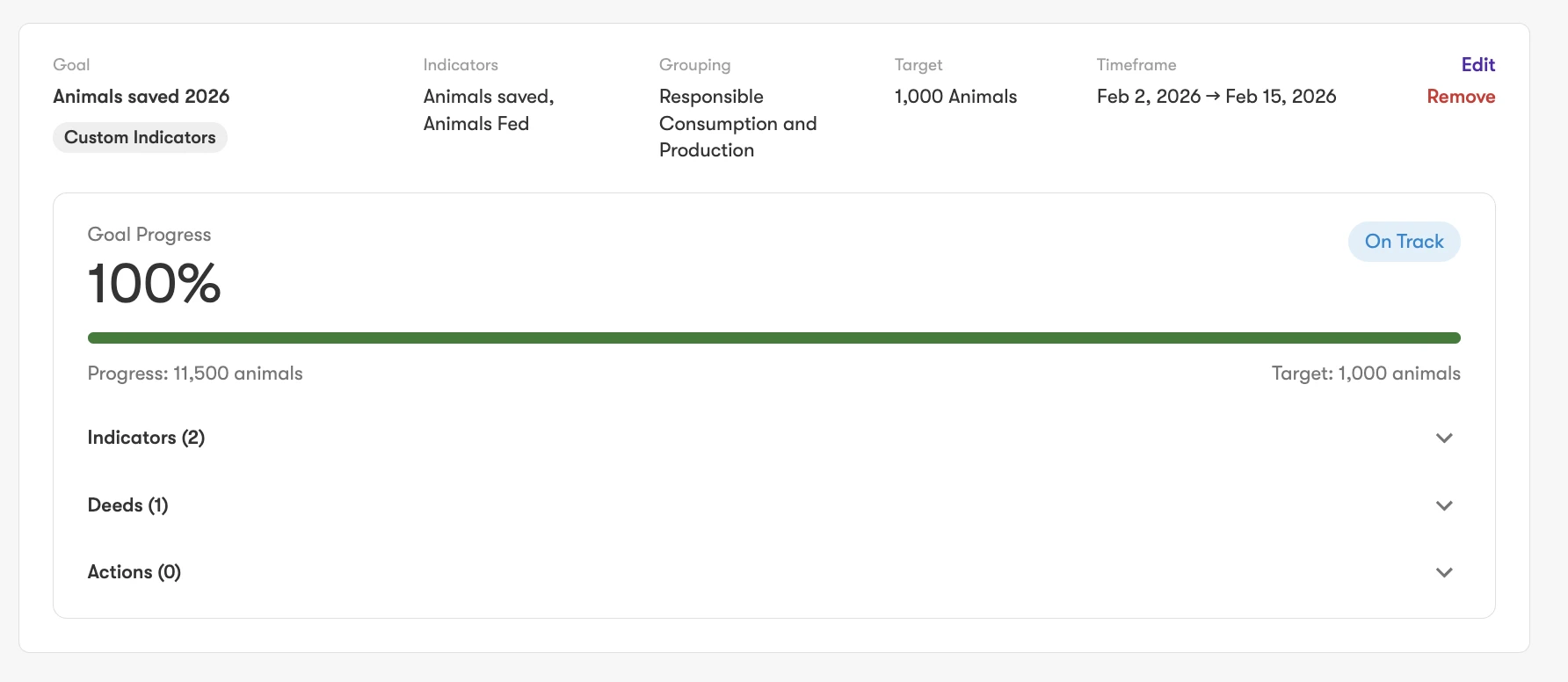
Once the goal is active, the Organizer goals summary shows whether it's On Track or At Risk, based on progress compared with how much of the date range has passed.
What else do you need help with?
- How do I create an Impact Indicator?
- How do I link an Action to an Impact Indicator?
- How do I add impact to a volunteer event or project?
- How do I choose which Impact Goals employees see?
Not what you’re looking for? Navigate to Understanding Impact Measurement
How do I create an Impact Goal in Deed Engage? | How do I set up a volunteer hours goal? | How do I set up an indicator goal? | Can I change the metric type of an Impact Goal? | How do I scope an Impact Goal to a location or department? | How do I choose which Actions count toward an Impact Goal? | How do I set a target and dates for an Impact Goal? | Why isn't my event counting toward my Impact Goal? | What does At Risk mean on an Impact Goal?