

How do I add reCAPTCHA to my form?
reCAPTCHA is a tool used to help verify that a human is completing an online form and protects your forms from becoming entry points for scammers and spam bots.
Google's reCAPTCHA feature uses a combination of information to help determine if a person or a bot is filling out your form.
Step 1: Navigate to your 'Forms'
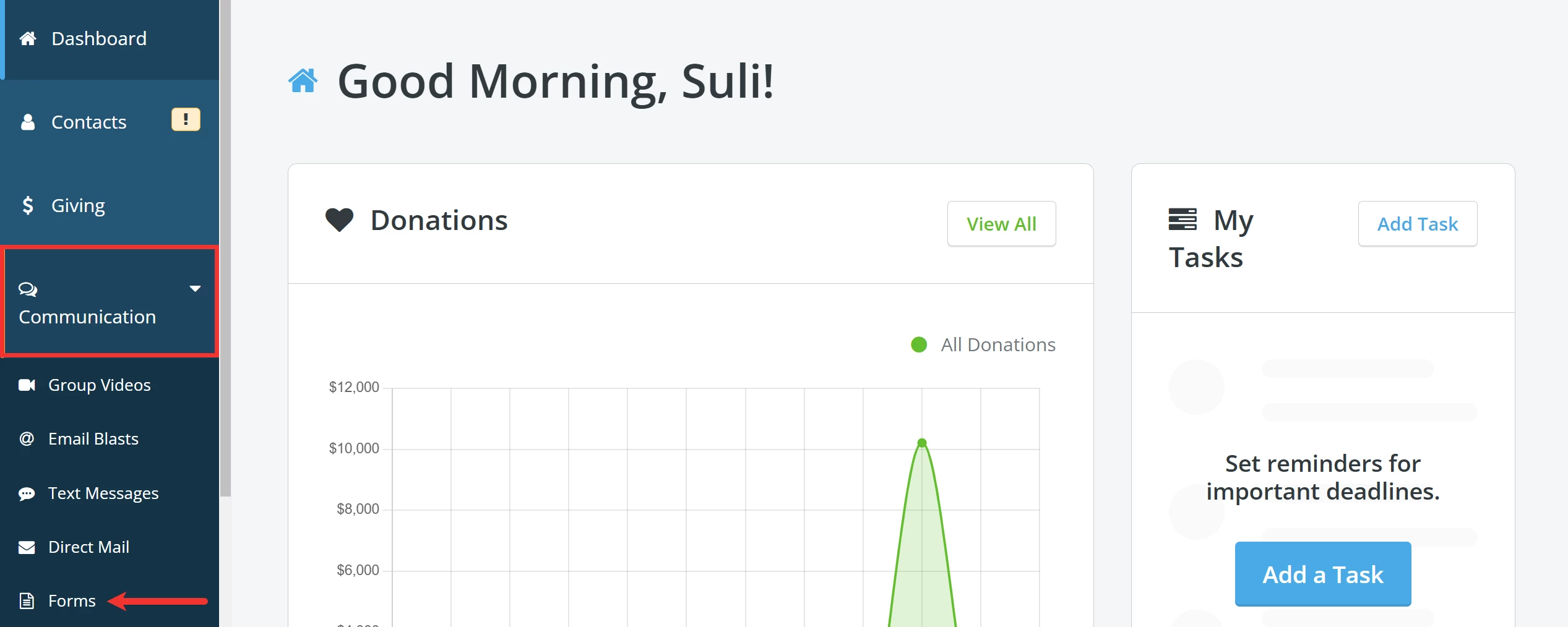
From your 'Donor Management' Dashboard, click the 'Communication' tab on the left navigation panel and then click 'Forms'.
Step 2: Click to edit your form
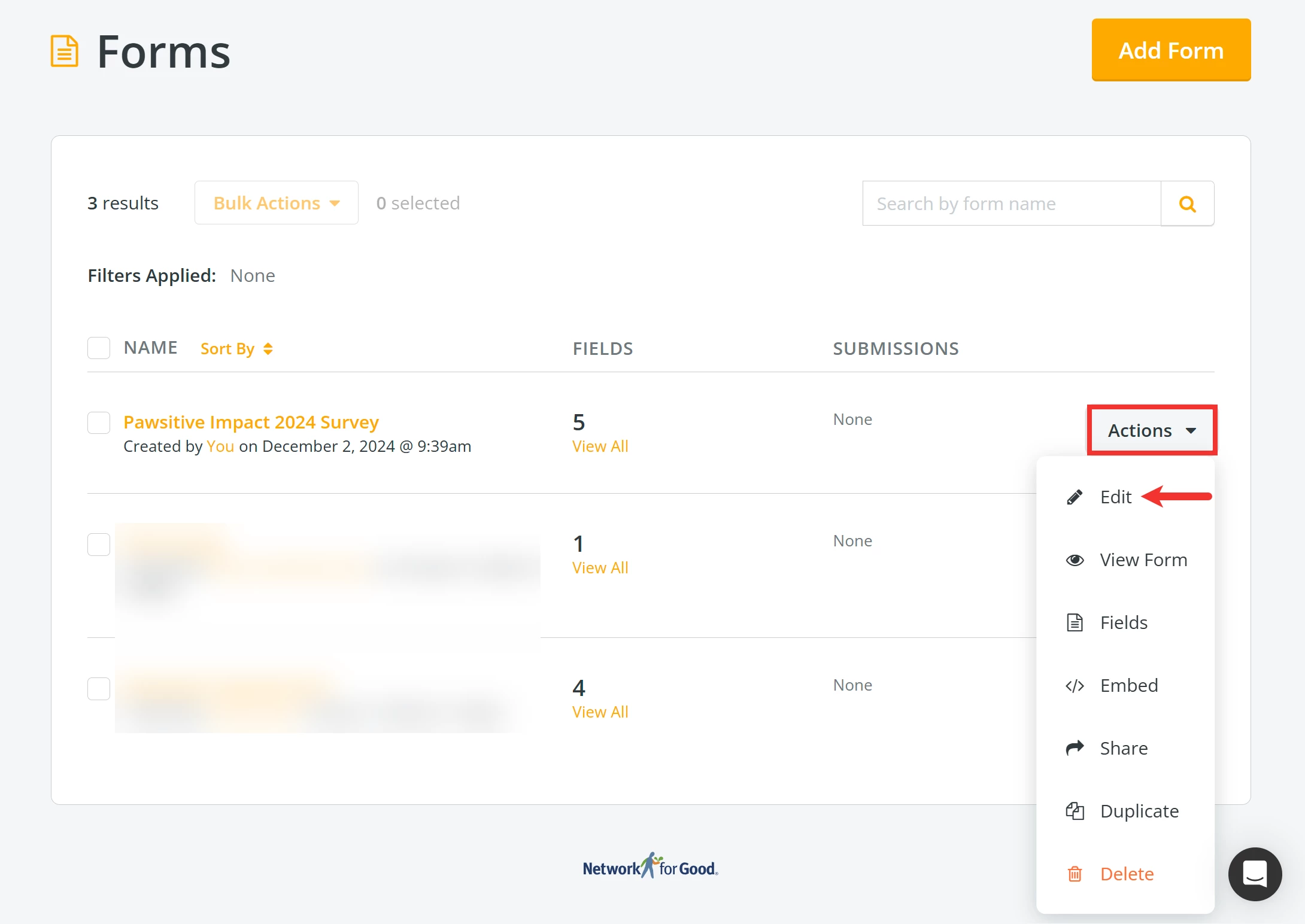
Once you have located the form you want to edit, click the 'Actions' button next to it and select 'Edit' from the drop-down list of options.
Step 3: Enable Captcha
In the first section, 'What's this form's information?', scroll down to 'Enable Captcha?'. Click the radio button next to 'Yes' to enable this feature.
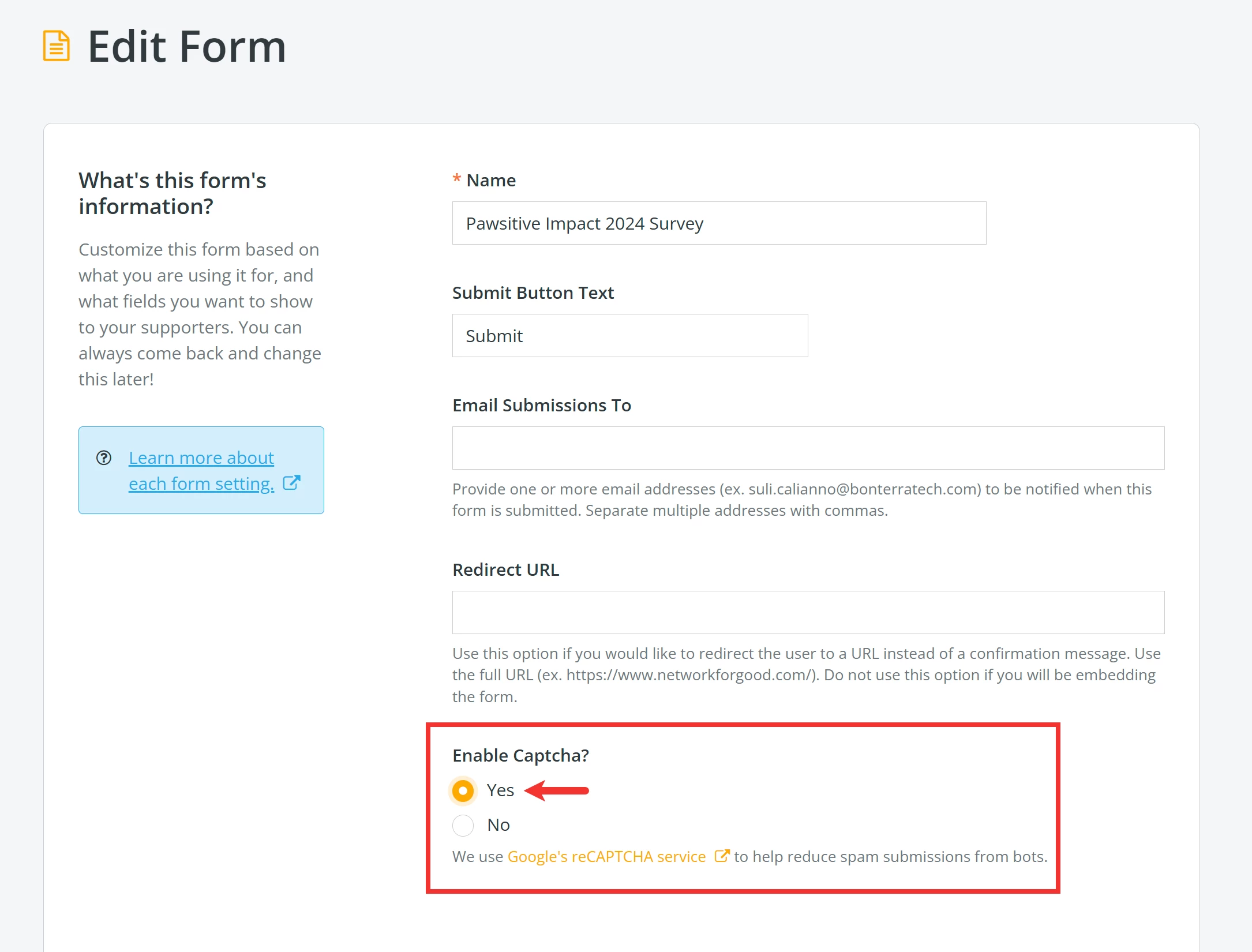
Note: We strongly encourage leaving this feature enabled - however, if you need to deactivate it for whatever reason, click the radio button next to 'No' and save your changes.
When you are finished making your updates, scroll to the bottom of the page and click the 'Update & Save' button.

How does Google determine if a bot created the submission form?
This is not 100% clear. Google keeps the specifics a secret, which is one of the reasons why this is such an effective tool in protecting against bots.
Here are a few examples of criteria that likely play into Google's bot check:
-
Your IP address: Has it previously been identified as a bot?
-
Resources you "load": A simple bot does not load styles or images.
-
Your sign-in information: Are you signed in to a Google account? Does that account appear to belong to a real person?
-
Your online behavior: Humans scroll on the page, move the mouse around, and take time between pushing the mouse button and releasing it; a human does not click the dead center of the checkbox every time, whereas a bot would do so.
-
Your browsing history: Google tracks a lot of your browsing history, which is typically varied. Bots do not usually have a browsing history - just a list of similar phishing attempts.
What else do you need help with?
How do I know what each form field represents?
How do I add an image to my form?
How do I manage responses to my form?
Not quite what you were searching for?
Navigate back to the Feature Overview.
How do I enable reCAPTCHA on my form in Network for Good? | How do I stop spam submissions on my form? | Why am I getting bot submissions on my form? | Where is the Enable Captcha setting on my form? | Can I turn off reCAPTCHA on my form? | How does reCAPTCHA work on Network for Good forms? | Why should I use reCAPTCHA on my registration form?
How do I use reports to track payment processing? | How does use reports to track payment processing work in EveryAction? | Why can't I use reports to track payment processing? | Where do I use reports to track payment processing in EveryAction? | What is use reports to track payment processing in EveryAction? | How to use reports to track payment processing? | Can I use reports to track payment processing in EveryAction?