

How do I manage responses to my form?
The article below will explain two ways to track responses submitted through forms you create in your 'Donor Management' system.
E-mail Confirmation
'Donor Management' can send an automated e-mail confirmation to specified recipients each time a new form submission is created.
Step 1: Navigate to your 'Forms'
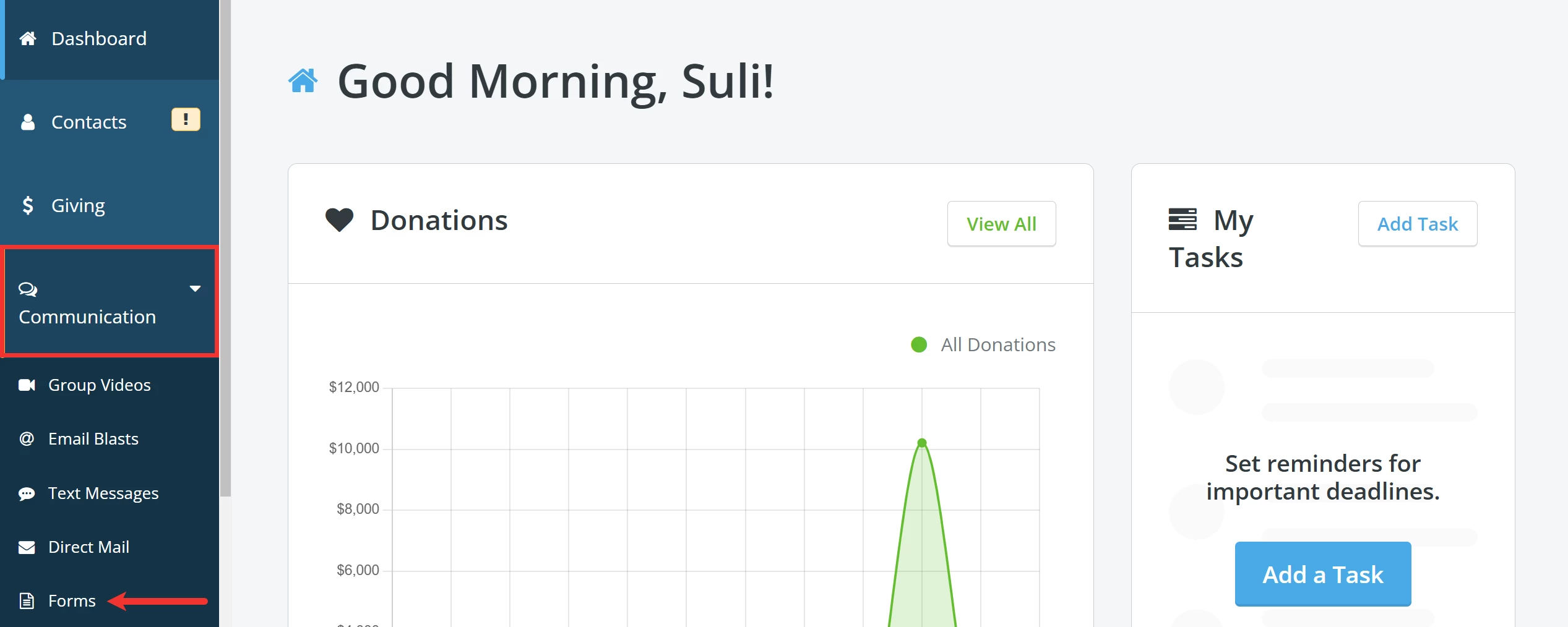
From your 'Donor Management' Dashboard, click the 'Communication' tab on the left navigation panel and select 'Forms'.
Step 2: Edit your form
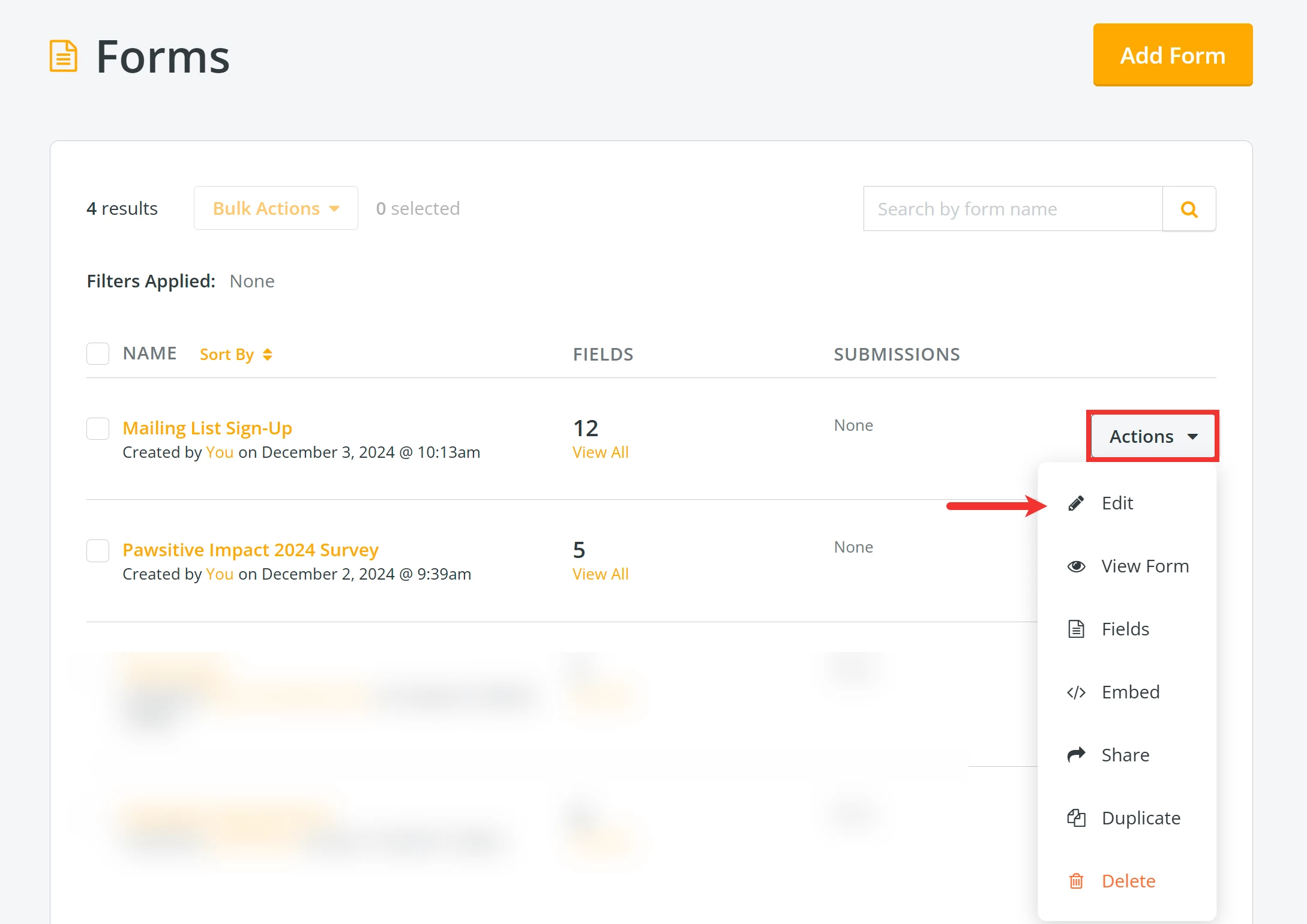
To update your form's settings, click the 'Actions' button next to it and select 'Edit' from the drop-down list of options.
Step 3: Update the 'Email Submissions To' field
Add e-mail addresses for individuals in the 'Email Submissions To' field who should be notified when the form is submitted.
?
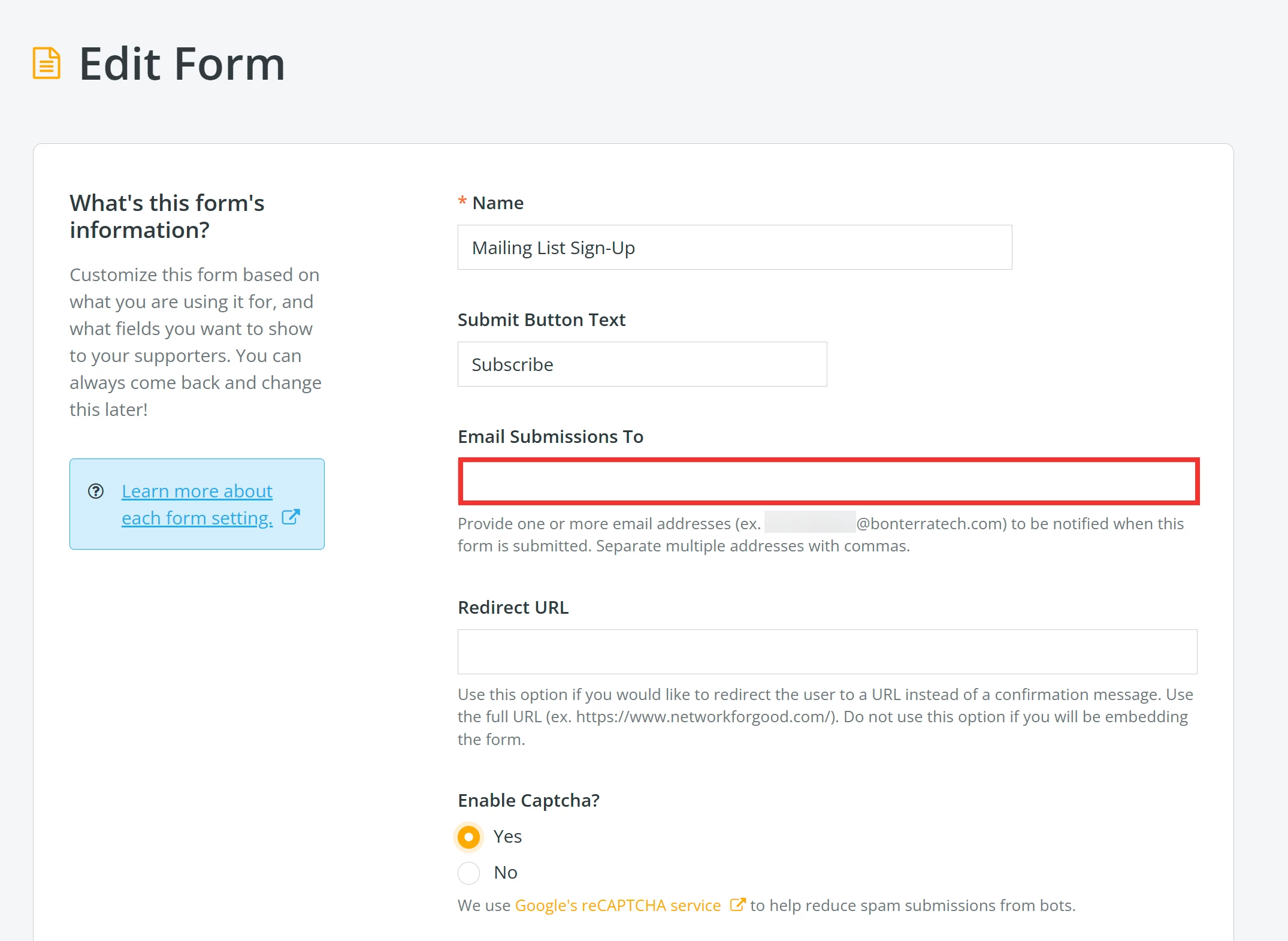
Click the 'Update & Save' button when you are finished making your updates.

Submission Report
Step 1: Click to view all submissions
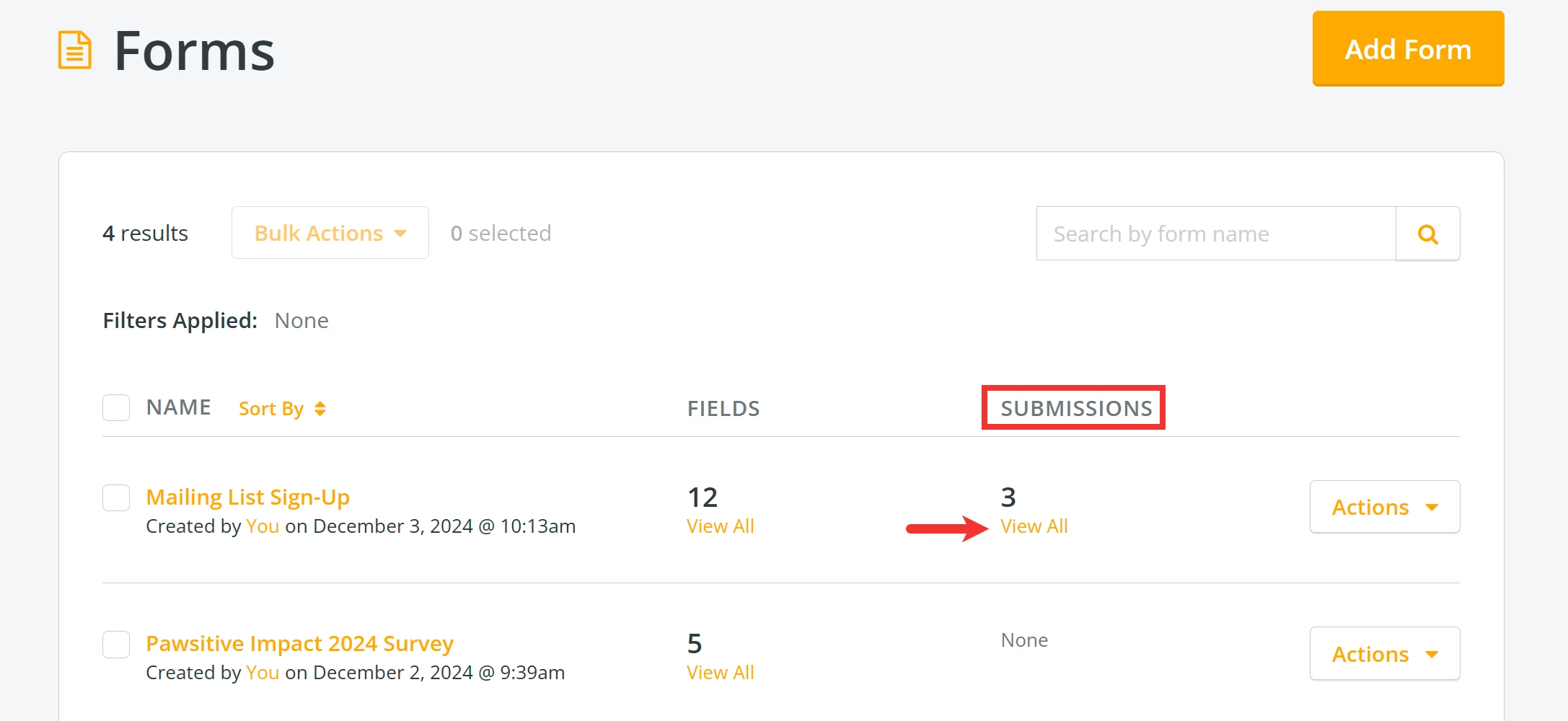
From your main 'Forms' page, click the 'View All' link in the 'Submissions' column next to the form you want.
Step 2: Export your data
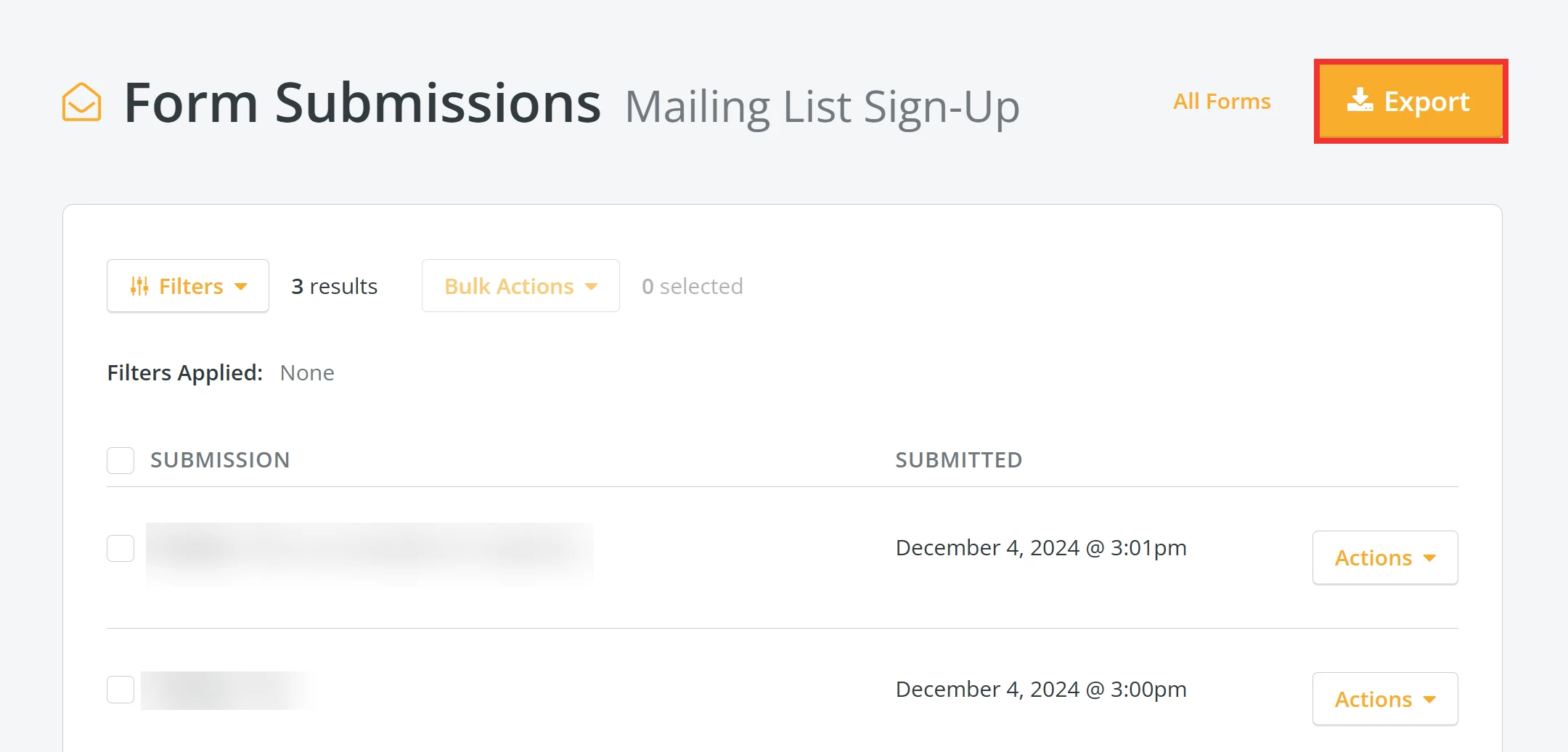
When directed to the 'Form Submissions' page, click the 'Export' button in the upper right corner.
Step 3: Download your report
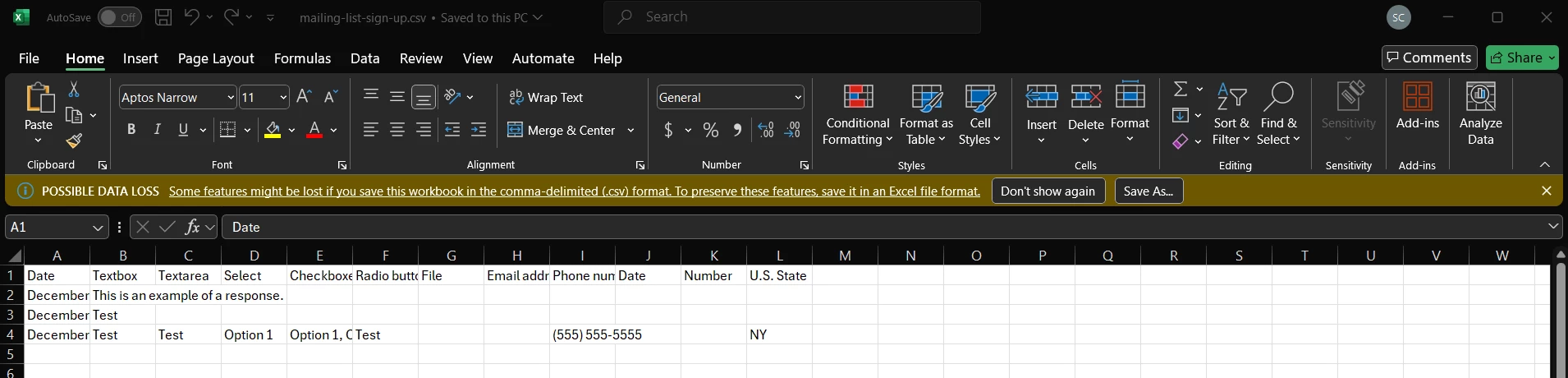
Open the downloaded file in Excel to format, print, and share as you like. We recommend saving it as a .xlsx file type.
What else do you need help with?
How do I create a mailing list sign-up form?
How do I create an e-mail blast?
How do I send a bulk 'Direct Mail' communication?
How do I send 'Direct Mail' to a specific individual?
How do I send a 1:1 video message?
How do I send a group video message?
Not quite what you were searching for?
Navigate back to the Feature Overview.
Looking for training?
Explore this feature at your own pace - join a live training session or watch a recorded webinar by clicking the link below.