


How to: Create a Joint Fundraising Entity
To create a Joint Fundraising Entity, you first need that capability turned on. Contact Client Services to have Joint Fundraising enabled.
Creating a Joint Fundraising Entity
Navigate to your Joint Fundraising Entities page and select the actions menu at the top right. Add New Entity. 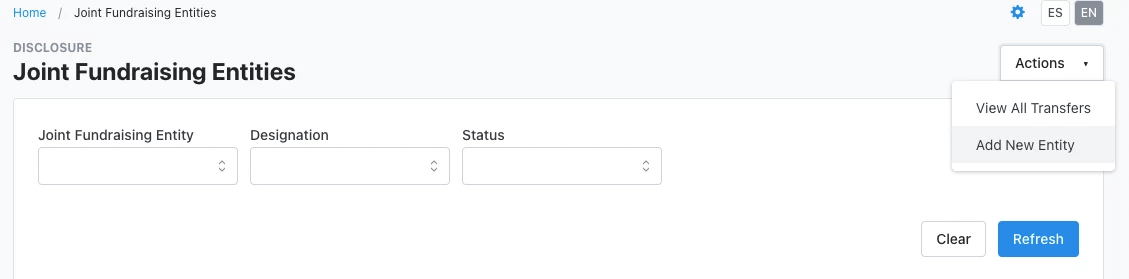
On the Entity Details page, provide the following information:
-
Designation: Assign a designation for the Joint Fundraising Entity
-
Name: Provide a unique name for your Joint Fundraising Entity
-
Export Name: This is how your Joint Fundraising Entity will appear in exports
-
Description: Use this space to record any additional identifying details you find useful
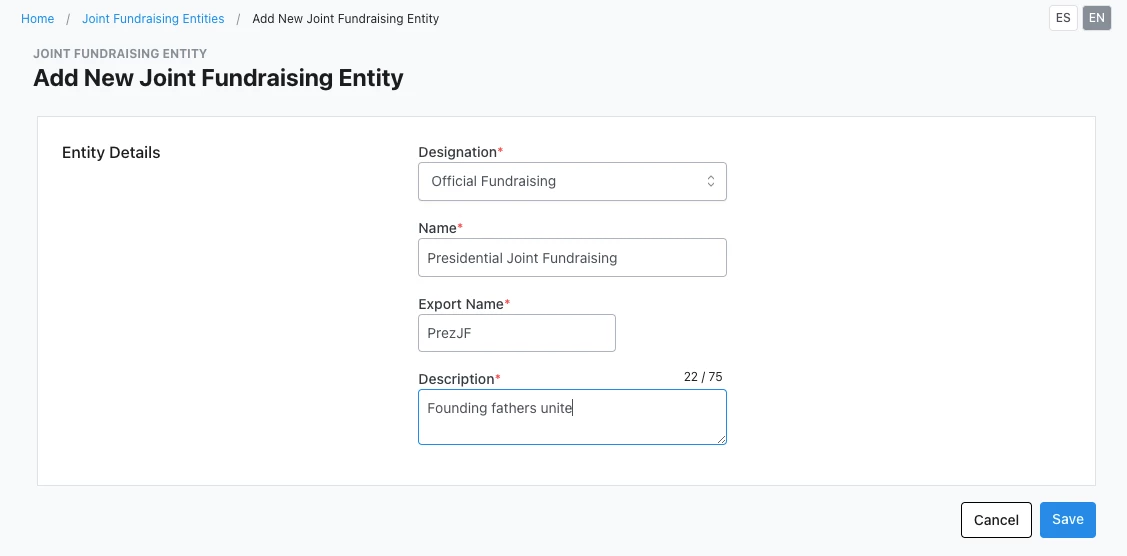
After you Save, the page will refresh and you will see that your Joint Fundraising Entity is in Draft form. At this time, you can add participating committees to the entity from the Actions dropdown menu.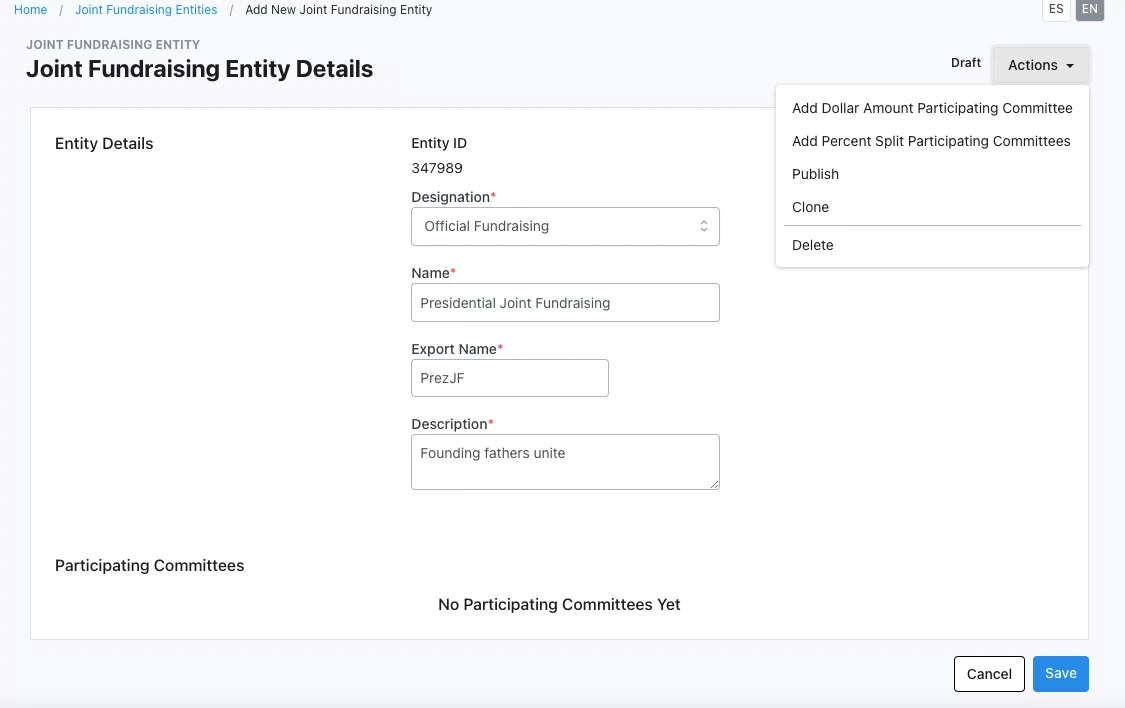
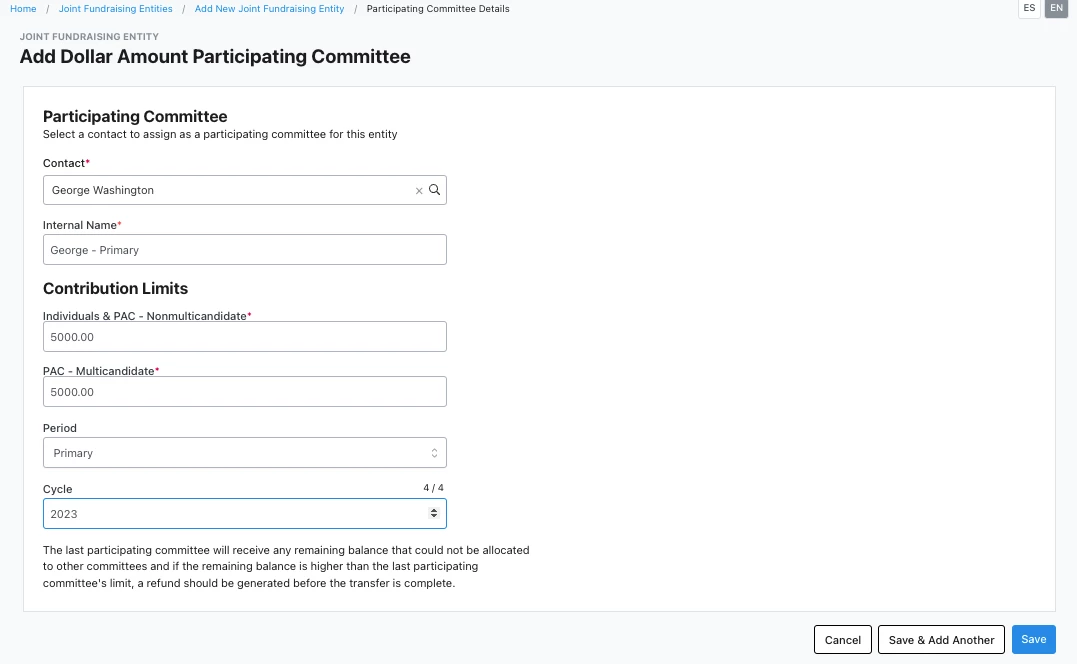
Selecting Add Dollar Amount Participating Committee opens a form where you can create a participating committee that receives up to a fixed dollar amount of any contribution made to the entity.
-
Contact: Search for a specific contact for the participating committee
-
Internal Name: Provide a unique name for the participating committee
-
Individuals & PAC - Nonmulticandidate: Enter a dollar-amount limit
-
PAC: Multicandidate: Enter a dollar amount limit
-
Period: Enter specified period
-
Cycle: Enter specified cycle (only required if a period is selected)
You can then Cancel, Save & Add Another, or Save. Saving takes you back to the Entity Details page where you will see the participating committees displayed.
Selecting Add Percent Split Participating Committees opens a page where you can create a new group of participating committees where each committee receives a percentage of the total contribution made to the entity up to a specific dollar amount based on each committee’s limits.
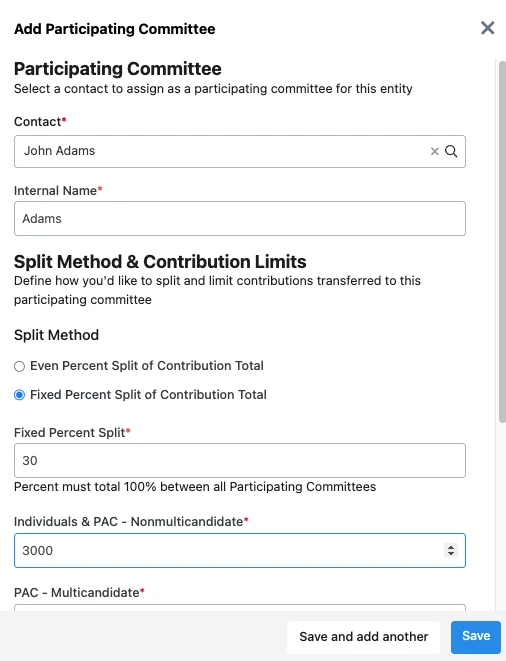
Provide a unique name for the group of participating committees and Add Participating Committee to open a modal with the following fields:
-
Contact: Search for a specific contact in the committee for the Participating Committee
-
Internal Name: Give the Participating Committee a name
-
Split Method:
-
Choose either Even Percent Split of Contribution Total. The system calculates the percent split based on the other Participating Committees in the group,
-
Or Fixed Percent Split of Contribution Total. Enter a specific percent that this Participating Committee will receive within the group
-
-
Individuals & PAC - Nonmulticandidate: Enter a dollar amount limit
-
PAC - Multicandidate: Enter a dollar amount limit
-
Period: Enter specified period
-
Cycle: Enter specified cycle (required if a period is selected)
You can then Cancel, Save & Add Another, or Save. Saving takes you back to the Percent Split Group Details page where you will see the added participating committees displayed.
Saving takes you back to the Entity Details page where you will see the added participating committees displayed. 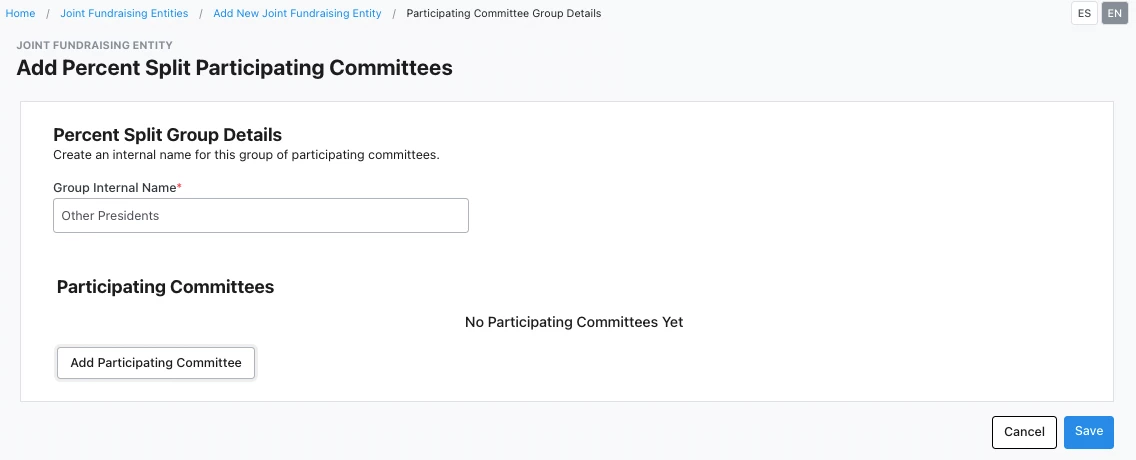
While an entity is in Draft form, you are able to click and drag Participating Committees to reorganize your list. While in Edit, the grip displays when you hover over the left side of the Participating Committee or Group card. You can drag and drop groups to rearrange them, but once formed you are not able to drag Participating Committees into or out of them.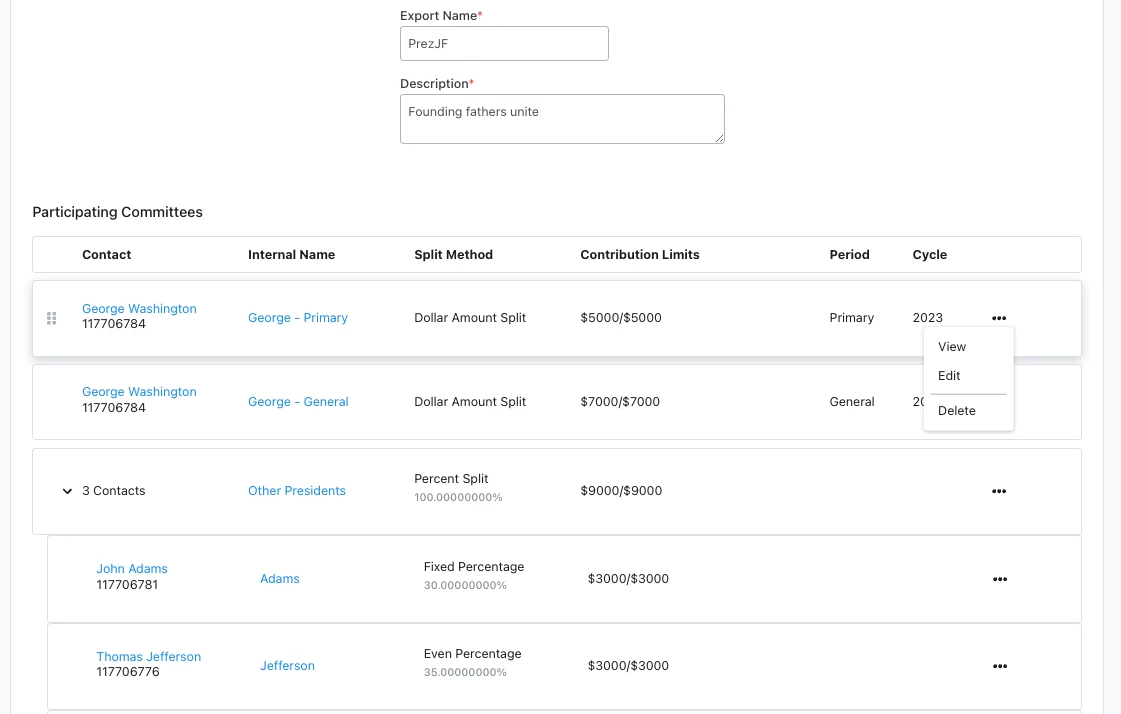
When you have finished entering all details for your new Joint Fundraising Entity, select Publish in the Actions menu. The system will then check for any errors in the Percent Split Group allocations. The sum of all groups must total 100% and all groups must contain at least one participating committee.
If no errors are found, the page will refresh and the status will update to Published. The new Joint Fundraising Entity will appear in dropdown menus elsewhere in the system.
If errors are found, the page will remain in Draft, and the errors will be displayed on the page.
Understanding entity statuses
Joint Fundraising Entity Statuses help you better manage and organize your Joint Fundraising Entities so that only entities ready for use appear elsewhere in the CRM. There are four statuses:
-
Draft: All details of the entity are fully editable and participating group data is not validated upon saving. The entity only appears on the Joint Fundraising Entities list page. When you publish the entity, if the system finds errors, the entity remains in draft.
-
Published: Some details of the entity are editable and the entity appears elsewhere in the CRM. To make more substantial changes to the entity, unpublish and make changes in Draft.
-
Active: An entity becomes Active when the first contribution is applied or the entity is made the default for a designation. Some details of the entity are editable and the entity appears elsewhere in the CRM. An Active entity can only be Deactivated. Its status cannot be changed to Published or Draft.
-
Deactivated: Some details of the entity are editable but the entity only appears in a few places in the CRM. Contributions cannot be applied to a Deactivated entity. You can change the status back to Active.
Editing a Joint Fundraising Entity
To edit a Joint Fundraising Entity, navigate to the entities page, click the three dot menu to the right of the entity name, and select Edit. You can also edit from the Entity Details by clicking the Actions menu and select Edit.
Additional Considerations
How many groups of Participating Committees does the system support? The system supports up to 40 groups with no limit to the number of Participating Committees within each group. Please note that a dollar amount Participating Committee is considered a group of one. For example, an entity with three dollar amount Participating Committees and a single percent group of Participating Committees is considered to have a total of four groups.
Why can't I publish my draft entity? Likely because there are errors within the entity that need to be fixed before it can be published. Check the error messaging on the details page and address them.
Possible errors include:
-
Groups that do not contain any Participating Committees
-
Groups where the total percentage of all Participating Committees within the group does not equal exactly 100%
Can I set my entity as default for a designation? Yes, contact Client Services to set a specific entity as the default for a specific designation. For any contribution where this designation is selected after the default has been set, the entity will automatically be applied to that contribution.
How do I how to: create a joint fundraising entity? | How does how to: create a joint fundraising entity work in EveryAction? | Why can't I how to: create a joint fundraising entity? | Where do I how to: create a joint fundraising entity in EveryAction? | What is how to: create a joint fundraising entity in EveryAction? | How to how to: create a joint fundraising entity? | Can I how to: create a joint fundraising entity in EveryAction?