


How do I set up Single Sign-On (SSO) in Microsoft Azure?
Looking to add a Single Sign-On configuration to your Apricot database? Check out this video that walks you through how to set up SSO in Microsoft Azure and upload the metadata into Apricot.
Note: Only Apricot administrators can configure Single Sign-On (SSO). If SSO is not currently enabled for your organization, please reach out to Support to have the feature activated.
Step 1: Create a new application
Open the Office 365 Admin Center and navigate to the 'Azure Active Directory'. Next, select 'Enterprise applications'.
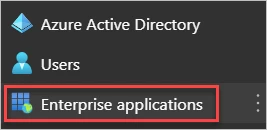
Click '+ New application', then "+ Create your own application".


Choose a name for your application (ex. 'Apricot'), and select the option "Integrate any other application you don't find in the gallery (Non-gallery)".
Finally, click 'Create'.
Step 2: View the application
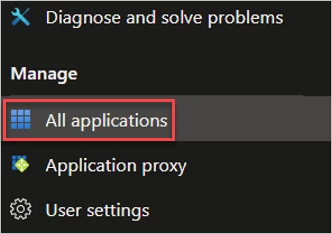
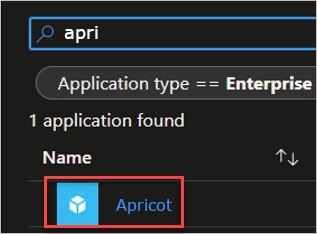
Navigate again to 'Enterprise applications'. This time, select 'All applications' and click on your newly created application.
Step 3: Manage the application
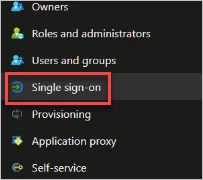
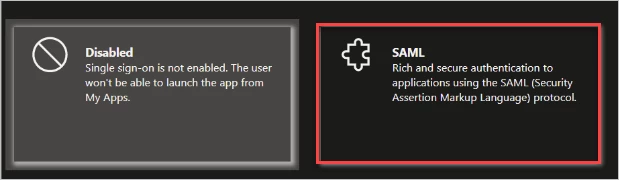
Under 'Manage', select 'Single sign-on'. Next, click the 'SAML' tile.
Click the Edit button in the 'Basic SAML Configuration' section.
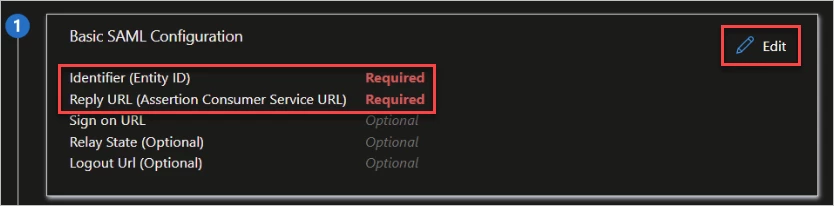
Step 4: Enter the required fields
To gather the required information from Apricot, follow steps 1-3 in this article.
Back in your application settings, click 'Add identifier' under the 'Identifier (Entity ID)' field.

In the textbox, paste the SSO Pool ID you copied from Apricot's 'Manage Federated SSO' page. It should look similar to the following example, but with your unique SSO Pool ID:

Next, click 'Add reply URL' under the 'Reply URL (Assertion Consumer Service URL)' field.
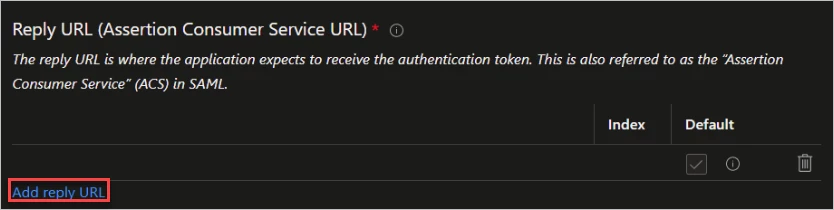
In the textbox, paste the SSO Pool Domain Name from Apricot's 'Manage Federated SSO' page. Again, the text should look similar to the following example:

Finally, click Save to confirm.
Step 5: Upload the metadata
Scroll down the application's settings to the 'SAML Signing Certificate' section.
Copy the 'App Federation Metadata Url' found here and follow steps 4-5 in this article to paste the text into the "Provide a metadata document endpoint URL" field in Apricot.

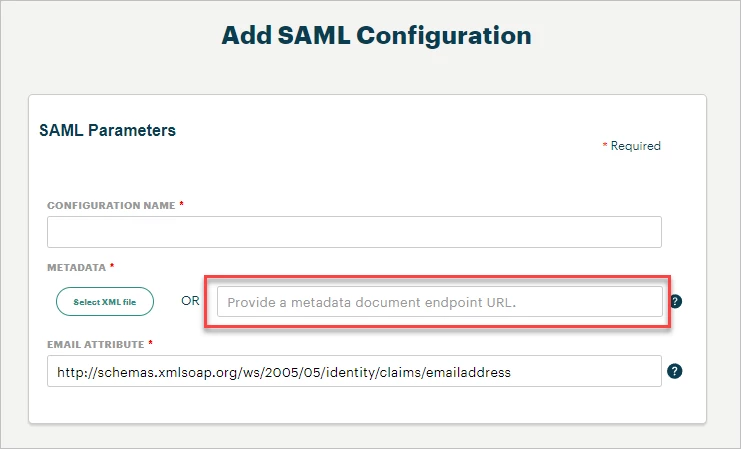
Click Save at the bottom of the Apricot page to complete your SSO setup.

What else do you need help with?
-
Not what you're looking for? Navigate to overview
How do I set up SSO for Apricot in Microsoft Azure? | How do I configure Apricot single sign-on with Azure AD? | How do I connect Apricot to Azure Active Directory? | How do I enable SAML SSO for Apricot using Azure? | How do I add Apricot as an enterprise application in Azure? | How do I upload Azure SSO metadata into Apricot? | Why can’t I log in to Apricot after setting up Azure SSO?