



DomainKeys Identified Mail (DKIM) is a digital signature at the top of every e-mail sent, verifying the e-mail sent using your domain is an approved message. This allows E-mail Service Providers, like Gmail or Hotmail, to confirm the DKIM attached as we send e-mails on your behalf match a DKIM record you have added to your domain.
Sender Policy Framework (SPF) is a generic approval you can add to your domain to approve certain groups to send on your behalf. SPF records should include who you use for your internal e-mail inbox (like GSuite or Office 365) and any blast e-mail providers (like us). SPF records allow E-mail Service Providers, like Gmail or Hotmail, to verify that an e-mail from your domain is sent through an IP address you have verified as allowed to send on your behalf.
SPF and DKIM are used in tandem to ensure your e-mails are legitimate and not a phishing attempt. Failing to pass an SPF or DKIM check could mean your e-mails are more likely to land in Junk/Spam folder(s).
Where do I enter the DKIM/SPF information?
Login to wherever you manage your website domain information. Add or edit this information directly within your host provider. If you are unsure of where this is located, connect with whomever manages your website hosting and they should be able to assist you. We strongly recommend you confirm the DKIM and SPF information is correct to ensure the best deliverability possible.
Since we do not manage hosting your organization's domain, our support staff cannot assist you with editing these records. If you are not sure who manages your domain, you can search for your domain at whois.com and find the name and e-mail address of the assigned administrator. Work with your domain admin to implement the instructions below.
How do I add a DKIM record?
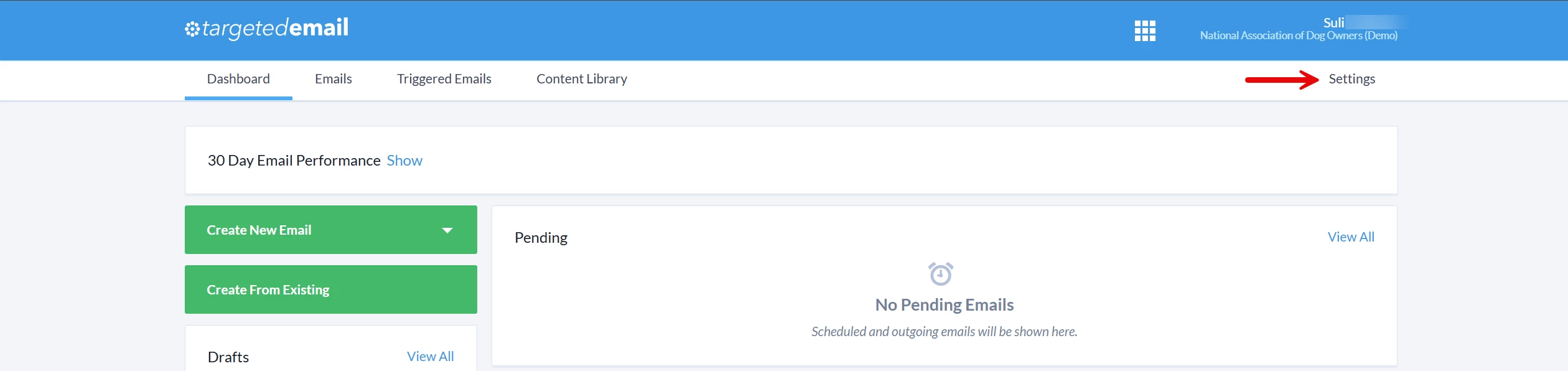
Step 1: Navigate to your 'Targeted Email' Dashboard
Click 'Settings' in the upper right corner of the page.
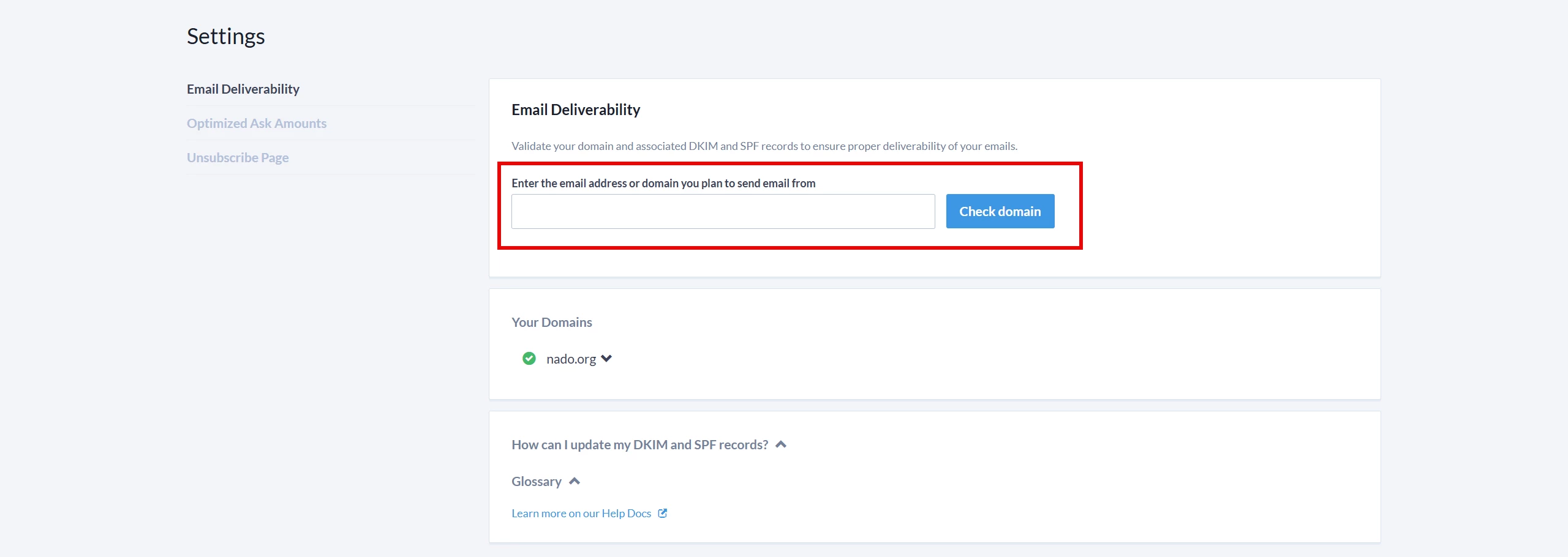
Step 2: Enter your e-mail address or Domain Name
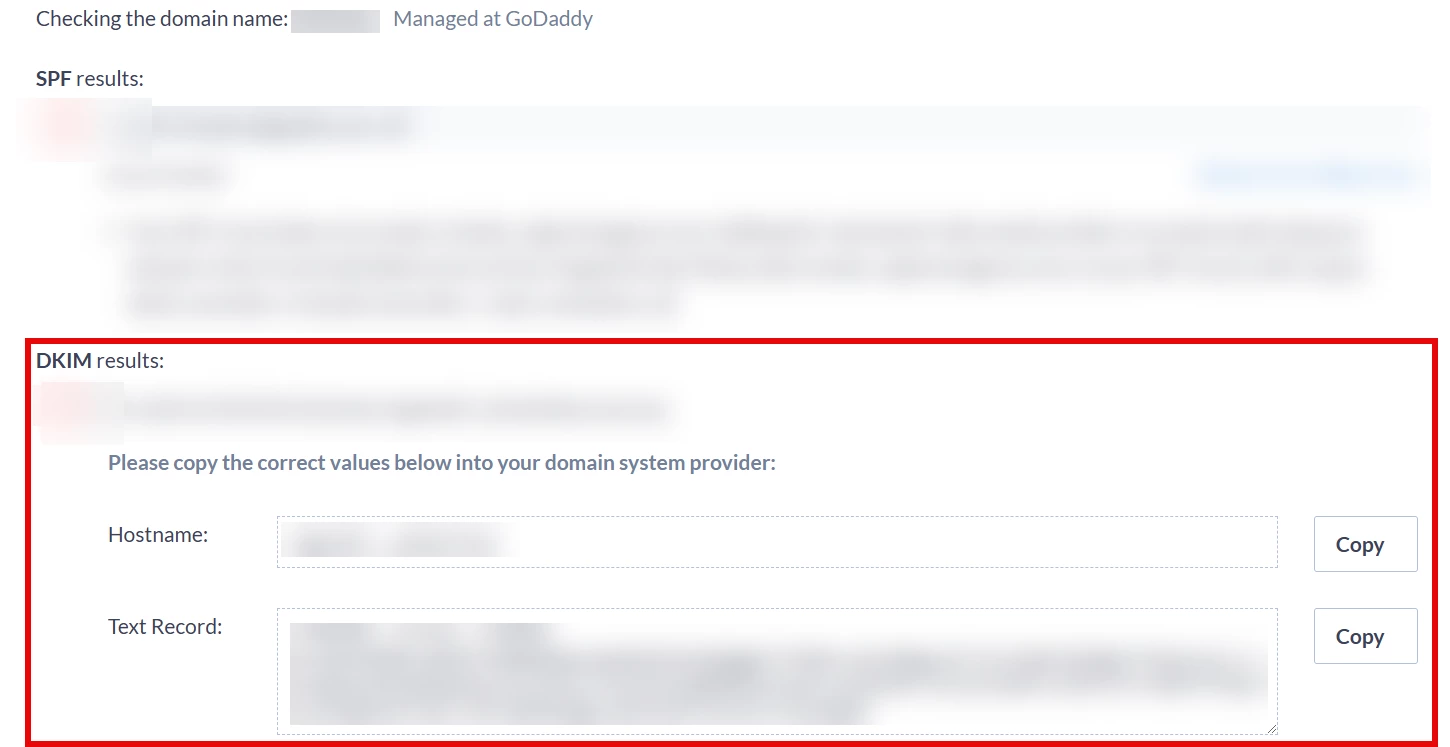
Step 3: View the DKIM results
Copy the Hostname and Text Record values into your Domain System Provider.
How do I add a SPF record?
For the SPF TXT record, please modify the existing TXT record that starts with “v=spf1” to add “include:_spfprod.ngpvan.com“ after v=spf1. Please ensure there is a space between the two values.
If no TXT record exists with a starting value of “v=spf1” please create a new TXT record with the following information:
Host Value: @
TXT Value: v=spf1 include:_spfprod.ngpvan.com ~all
If you do not currently have an SPF record, we suggesting creating a TXT DNS record for your SPF that includes all sources of email from your email domain.
Below are a few examples.
Example #1: You use the yourorganizationsdomain.org email domain (e.g. info@yourorganizationsdomain.org) and send email from G Suite and our products only. Add a TXT record for yourorganizationsdomain.org with the following value:
v=spf1 include:_spf.google.com include:_spfprod.ngpvan.com ~all
Example #2: You use the yourorganizationsdomain.org email domain (e.g. info@yourorganizationsdomain.org ) and send email from Microsoft Office 365 and our products only. Add a TXT record for yourorganizationsdomain.org with the following value:
v=spf1 include:spf.protection.outlook.com include:_spfprod.ngpvan.com ~all
In order to validate that bulk email being sent from our servers is truly coming from your organization, you at a minimum need to create the following:
v=spf1 include:_spfprod.ngpvan.com ~all
How do I modify an existing SPF record?
For example, if your current SPF record looks like the following because you use G Suite (formerly known as Google Apps):
v=spf1 include:_spf.google.com ~all
You need to update your current SPF record by adding "include:_spfprod.ngpvan.com" in the SPF record. For example, the above SPF record would be updated to looked like the following:
v=spf1 include:_spf.google.com include:_spfprod.ngpvan.com ~all
In order to check and make sure everything is correct, follow the instructions in Troubleshooting SPF/DKIM setups.
Another important component of email deliverability is DMARC. If you want to set up DMARC to work with your Targeted Emailed sends, follow the instructions in Configuring DMARC to work with Targeted Email.
Looking for training?
Explore this feature at your own pace - join a live training session or watch a recorded webinar by clicking the link below.
How do I configure my dkim or spf for e-mail deliverability? | How does configure my dkim or spf for e-mail deliverability work in EveryAction? | Why can't I configure my dkim or spf for e-mail deliverability? | Where do I configure my dkim or spf for e-mail deliverability in EveryAction? | What is configure my dkim or spf for e-mail deliverability in EveryAction? | How to configure my dkim or spf for e-mail deliverability? | Can I configure my dkim or spf for e-mail deliverability in EveryAction?