



(5 min read)
| Email Series is a legacy feature and will discontinued later this year in favor of Automation, which uses branching decision trees to create highly personalized email journeys for your supporters depending on their responses. |
An Email Series allows users to send the same email or series of emails to segments of their universe based on a set of dynamic search criteria. Email series are most often used to introduce a new subscriber to the organization, in particular, to set expectations for what kinds of emails they will receive from you, and move them up the ladder of engagement.
Email Series can be helpful for a variety of other purposes, such as asking former recurring donors whose commitments have expired or are failing to renew, asking current recurring donors to increase the amount, or reaching out to inactive email recipients to encourage them to take action before deciding to remove them from your list.
Setting Up the Universe
The first step of setting up an Email Series is to determine what criteria you want to use to determine who falls into the series. It's possible to set up an Email Series based on the way somebody came to your organization. For example, someone who came to you from a signup form would probably receive different messaging than someone who used a contribution form to join.
You can use saved searches from Create a List to segment people into your Email Series. The saved search you use for the first email in the series is the one that will determine who is included in the rest of that Email Series.
Setting Up the Series
Once you've created your saved searches, open Targeted Email.
Select Create New Email > Create Email Series to get started.
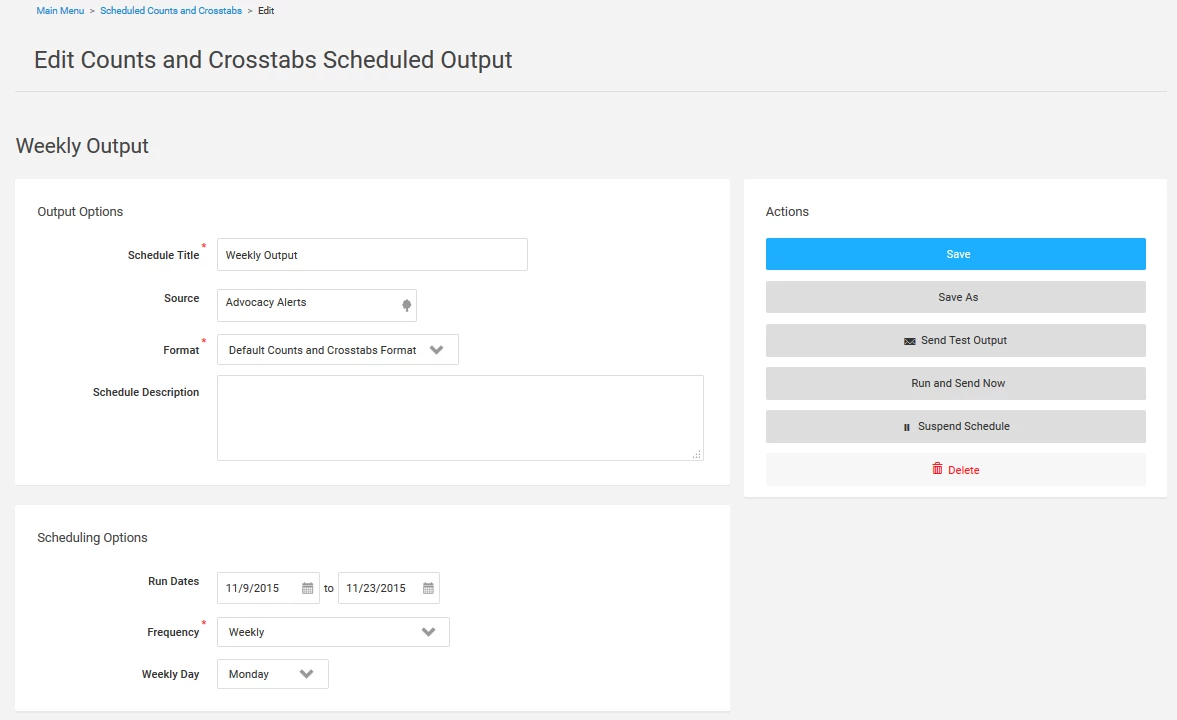
Your Email Series name must be unique. You can add a Description to help you document the function of the email series you are setting up.
To help you limit the number of emails your supporter might receive at the same time, you can choose to Exclude anyone in the current series from other messages that you send with your regular Targeted Emails. Once the series is "complete" (your supporter has received all emails in the series), they are allowed to be sent emails again. You can select how long you want to wait before normal messaging resumes. Exclusions can be overridden on a case by case basis.
We highly recommend using the exclude option. This will help ensure you are sending consistent messaging to your new subscribers, which will improve their overall engagement with your organization. Sending your subscribers mixed messaging will only serve to hinder their move up the ladder of engagement.
Selecting Recipients and composing your message
After selecting Create First Email, you'll need to select whether you want to create your first message from scratch or use a previously sent email. Overall the setup for each message is very similar to creating regular Targeted Email.
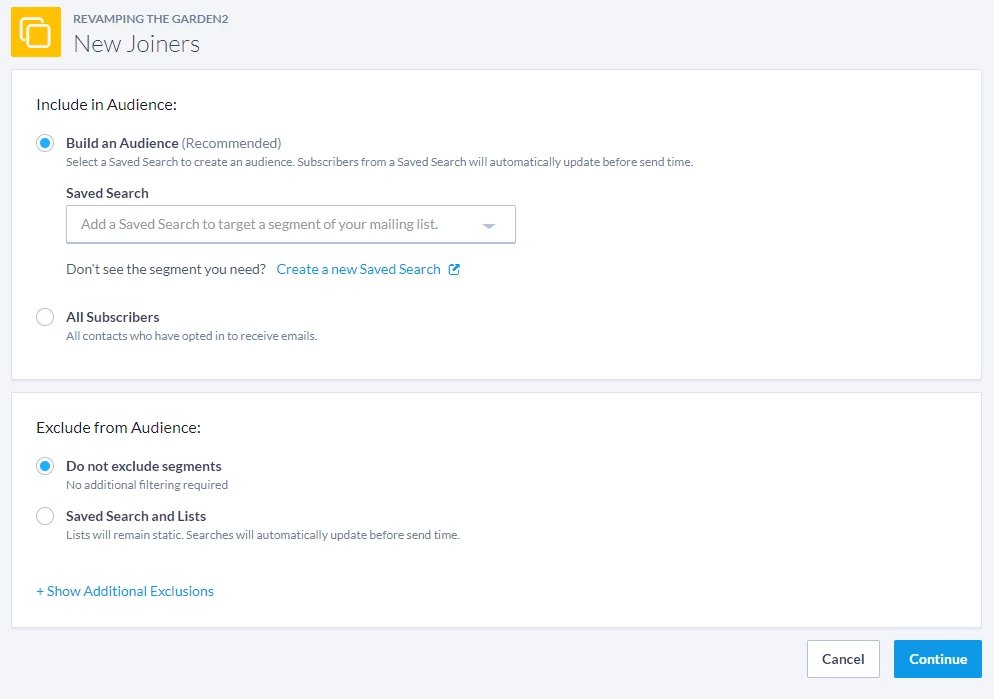
For the first message in the series, the segment you choose to Select Recipients is what determines who will receive your Email Series. Like you do with Targeted Email, you can use previously saved searches or create one on the fly with Create a new Saved Search.
You must use saved searches for Email Series, rather than saved lists. Email Series is meant to be a dynamic process. Each day we will attempt to send the first message by running the search you selected. Any new subscribers that fall into the search will be sent the email.
Once you have the recipient searches added and your exclusions selected, you can then proceed to Compose Message, which is the same as any other Targeted Email.
Setting up Delivery
On your Review & Deliver Message step the main change is to your Schedule Message section.
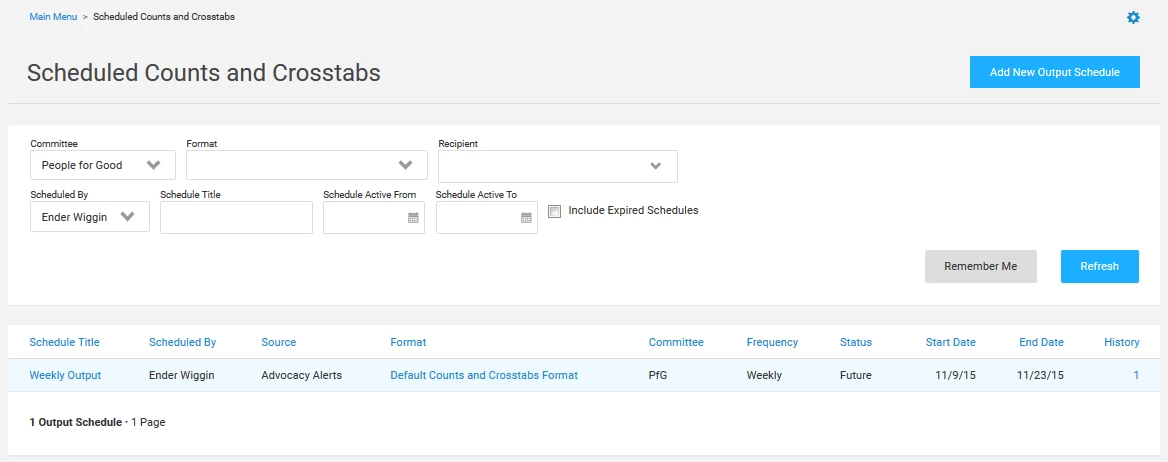
- Send: This tells you which message in your series your current message will follow. In the case of your first email it will always be the first message in the series.
- Schedule: We attempt to send the first message in the series every day.
- Preferred Send Time: We make every possible attempt to send at this time. However, during high volume send times, we may prioritize regular emails ahead of email series.
Adding more messages to your series
Once you Save your first message, you will be redirected to the Email Series dashboard where you can add edit the Series Details or add more messages to the series.
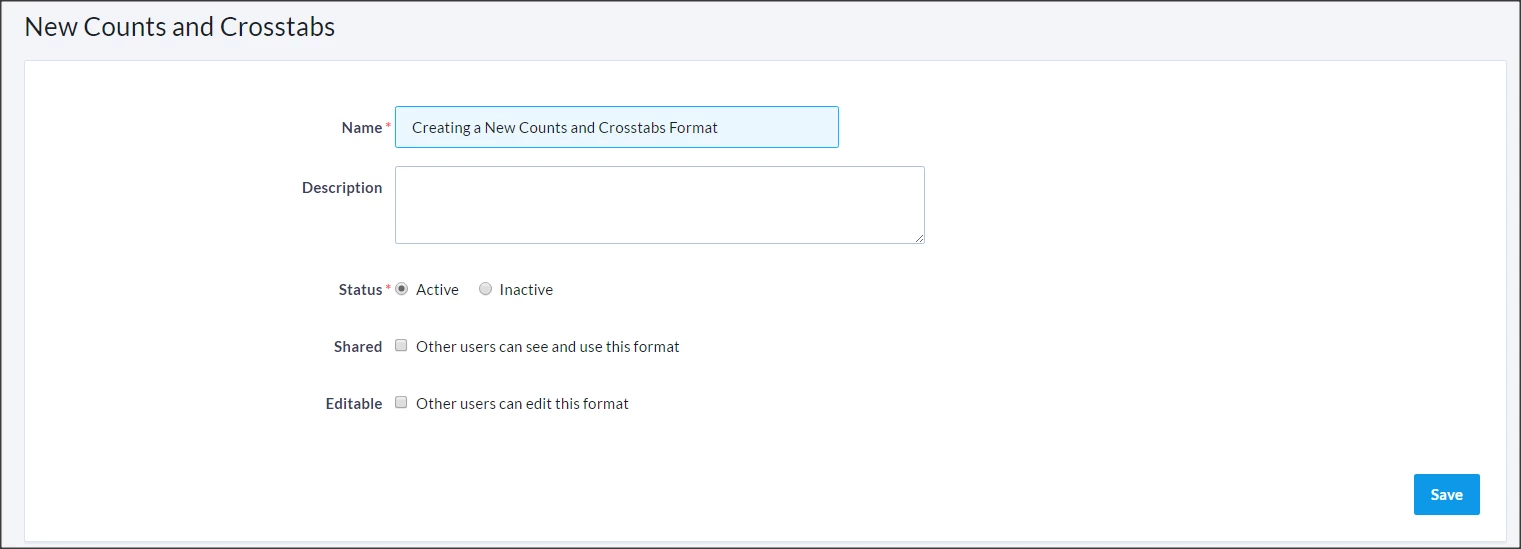
If your series is only one message, you can choose to launch your series once you are finished with the first message. Otherwise, you can select to add a new email, which will take you through the same process as above, with a few differences.
Please note there are a couple of important things to note for subsequent emails in a series:
-
Select Recipients step: If you want everyone who received the first message to receive the next message, you don't need to select anything here. Any additional searches you select will filter down the recipients from those who received the first message.
-
Review & Deliver Message step: The major change from the first email is that you are able to select a delay that determines how many days after the previous message it will be until the subscriber receives this message. Additionally, you can set a "don't send after" option. This is important if you had set specific criteria the subscriber needs to meet before being sent the message. If they are to meet the criteria a year later, you probably don't want to send them this message.
Once you're satisfied with your series, you should select Launch Series to start running the daily search and send.
You can return to the series from the Targeted Email Dashboard > Email Series section. When you re-open your series, you can select any of the messages to edit. You will also see an option to End the series or Resume the series if stopped.
Viewing Email Series performance
You can see an overview for your Email Series from the Targeted Email dashboard. This section shows you the email series you have created, the status of the series, the number of unique recipients who have received the series, and the start date.
To display details about individual email messages, select the series you want to view and you will see a summary screen with details for all the messages in that series. Messages are displayed in the order they appear in the series with the first message at the top. You can also use the Email Comparison Report to view statistics on the performance for each series. Select Group By > Email Series Name to see a comparison of your series side by side.

Statistics on each message accumulate over the life of the series. You can drill into each message to view how that message performed on a certain day.
How do I how to: create and use an email series? | How does how to: create and use an email series work in EveryAction? | Why can't I how to: create and use an email series? | Where do I how to: create and use an email series in EveryAction? | What is how to: create and use an email series in EveryAction? | How to how to: create and use an email series? | Can I how to: create and use an email series in EveryAction?