

How do I send year-end donation summaries using 'Direct Mail'?
While your big year-end push may be over, you likely still have some important things to wrap up - such as sending acknowledgments for those final year-end donations, following up with new donors, creating year-end reports, and sending out donation summaries to your donors from last year.
Thankfully, 'Donor Management' can help you check those tasks off your list!
Step 1: Navigate to 'Direct Mail'
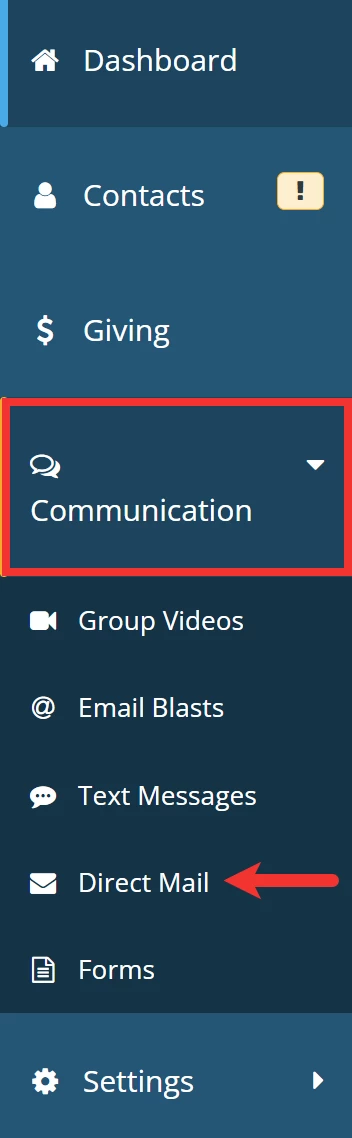
From your 'Donor Management' Dashboard, click the 'Communication' tab on the left navigation panel and select 'Direct Mail' from the newly expanded drop-down list.
Step 2: Click 'Add Direct Mail'
Next, click the 'Add Direct Mail' button in the upper right corner of the page.

Step 3: Build your direct mailing
Follow the step-by-step process in creating a new direct mailing - and note the following:
-
when asked if you want to 'Create Only One Letter Per Household?', selecting 'Yes' will list all donations made by a household when you generate your 'Last Year Donation Summary'
-
if you want to provide individual letters to each donor within a household, select 'No'
-
when selecting recipients, choose a filter that includes all your donors from the past year
-
you can use a 'Saved Filter' or the 'Recommended Filter' titled 'Made donation in calendar year 20XX'
Here are a few options regarding creating content for your end-of-year direct mailing:
-
Option 1: use our sample recommended content (including the necessary merge fields), found below
-
Option 2: use the pre-built template created for this type of mailing (which can be found by selecting 'Yes' when asked if you want to 'Create from Template') and select 'Last Year Donation Summary'
-
Option 3: use the merge field *|DONATION_SUMMARY_LAST_YEAR|* within a communication you crafted to pull in relevant information
Step 4: Preview and download your mailing
Once you have finalized a draft of your direct mailing, click to download a preview to verify your message appears as intended.
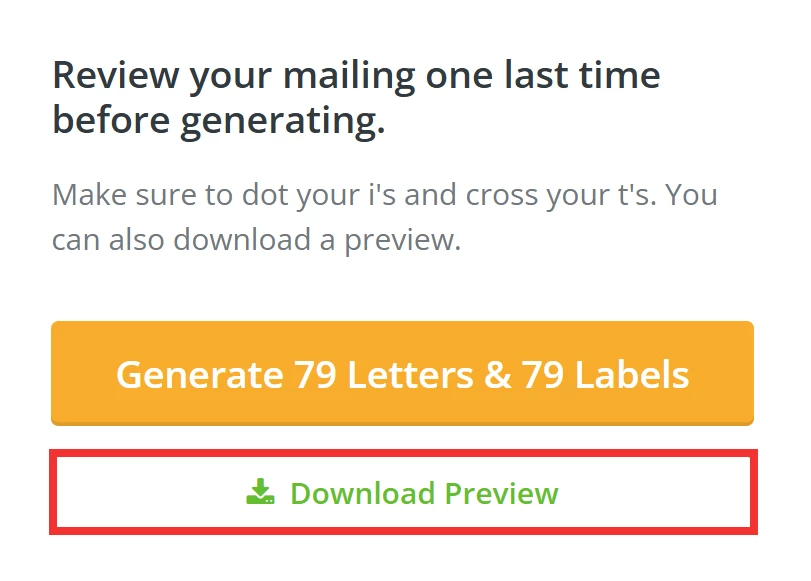
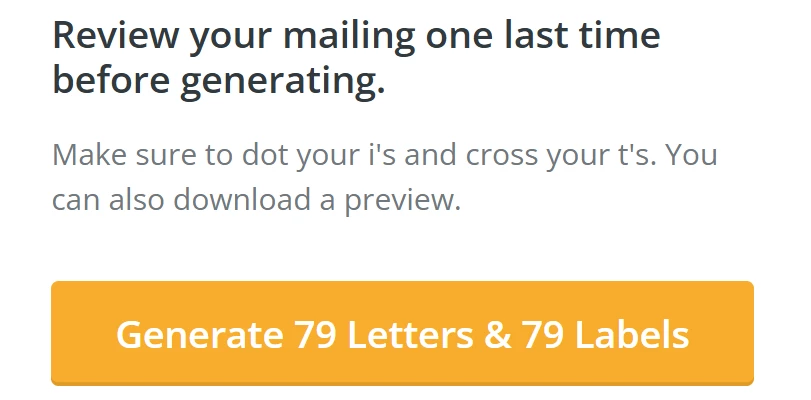
When ready, click the 'Generate Letters' or 'Generate [X] Letters & [X] Labels' button to complete this process. You will receive an e-mail confirmation once your direct mailing is complete and ready to be downloaded.
Sample Direct Mail Template
*|TODAYS_DATE|*
*|DONOR NAME|*
*|ADDRESS|* *|ADDRESS_2|*
*|CITY|*, *|STATE|* *|ZIP_CODE|*
*|FIRST_NAME|*,
As the [YOUR JOB TITLE] of [ORGANIZATION NAME], I would like to personally thank you for making our work possible. Your kindness this past year supported [X]. Your generosity [verb] us to look beyond the challenges of [X] and [verb] our full effort and heart into [OUTCOME] for [COMMUNITY/POPULATION] we serve together.
With deep gratitude,
[YOUR NAME]
[YOUR JOB TITLE]
*|DONATION_SUMMARY_LAST_YEAR|*
What else do you need help with?
How do I send year-end donation summaries using 'Email Blasts'?
How do I prepare for my year-end campaign?
Not quite what you were searching for?
Navigate back to the Donor Management Index.