

How do I manage my Apricot Connect interface preferences?
On July 2, 2026, Apricot Connect is getting an updated interface. The new design is cleaner and more accessible — and nothing about how you use Connect is changing.
The updated UI is opt-in for all user types. You won’t be switched over automatically, and the legacy interface remains available even after you opt in. This article covers how each user type can manage their interface preference.
What’s changing
The front end of Connect has been updated for improved accessibility and security. This includes the Connect Admin interface, the Participant Portal, and intake forms. No features have been added or removed. These security improvements apply to all users, regardless of which interface you use.
Connect admins
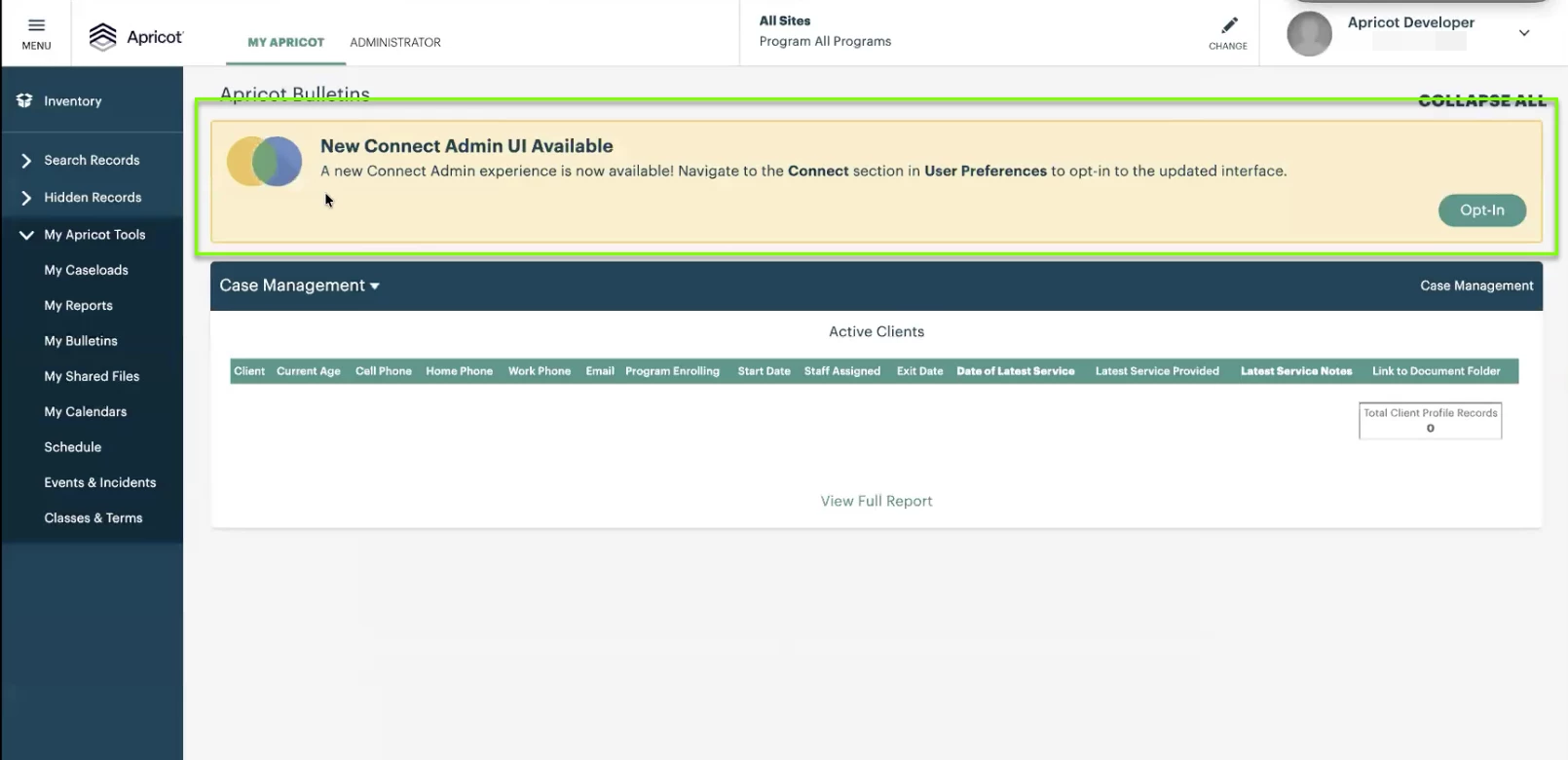
After the release, you’ll see a banner on your Apricot Bulletins page when you log in. Click Opt-In to be taken to your My Preferences page.
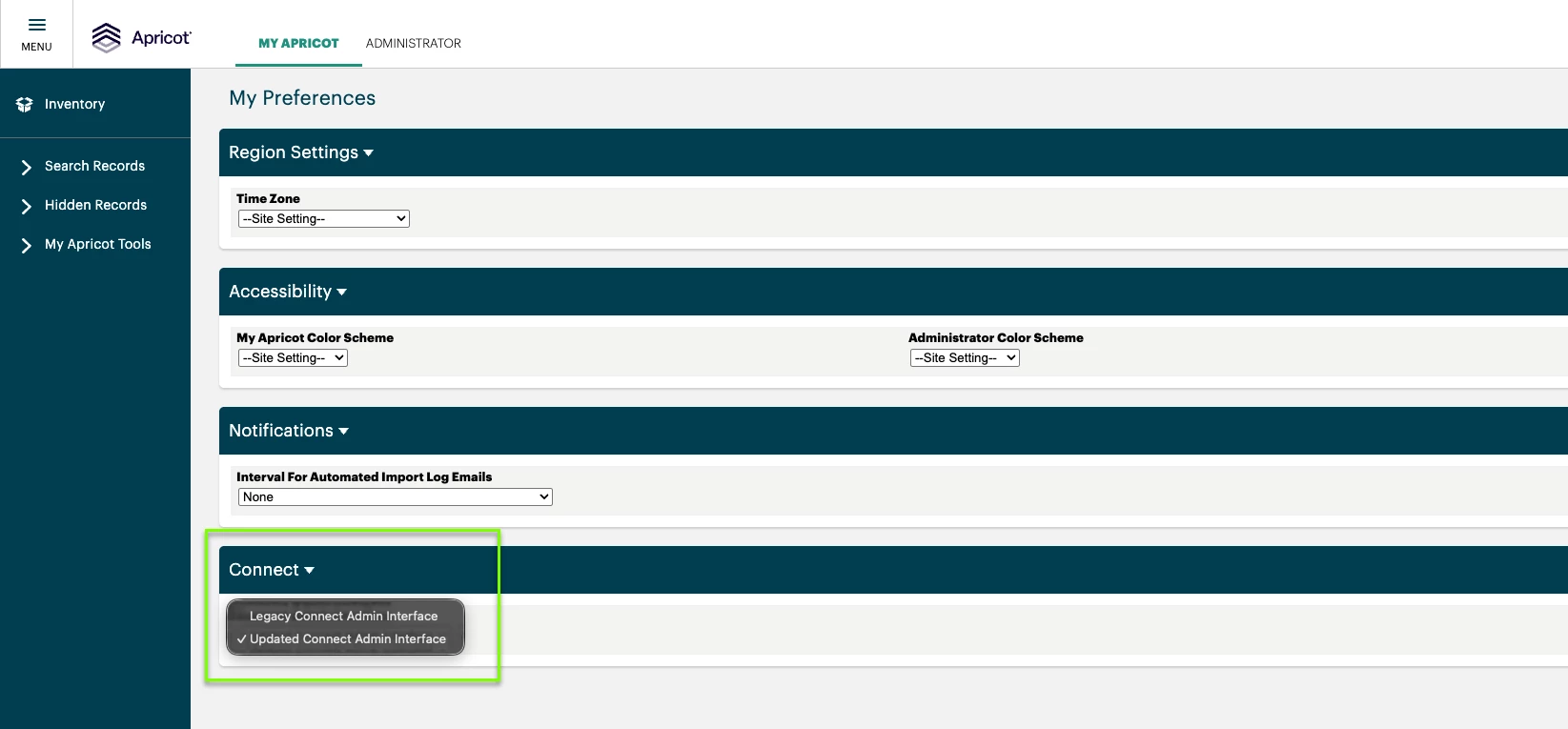
Under the Connect section, use the dropdown to choose between:
-
Updated Connect Admin Interface
-
Legacy Connect Admin Interface
You can switch between the two options at any time from My Preferences. Be sure to click Save User Preferences on this page to apply your changes.
This setting applies only to your individual account — other admins in your organization manage their own preference separately.
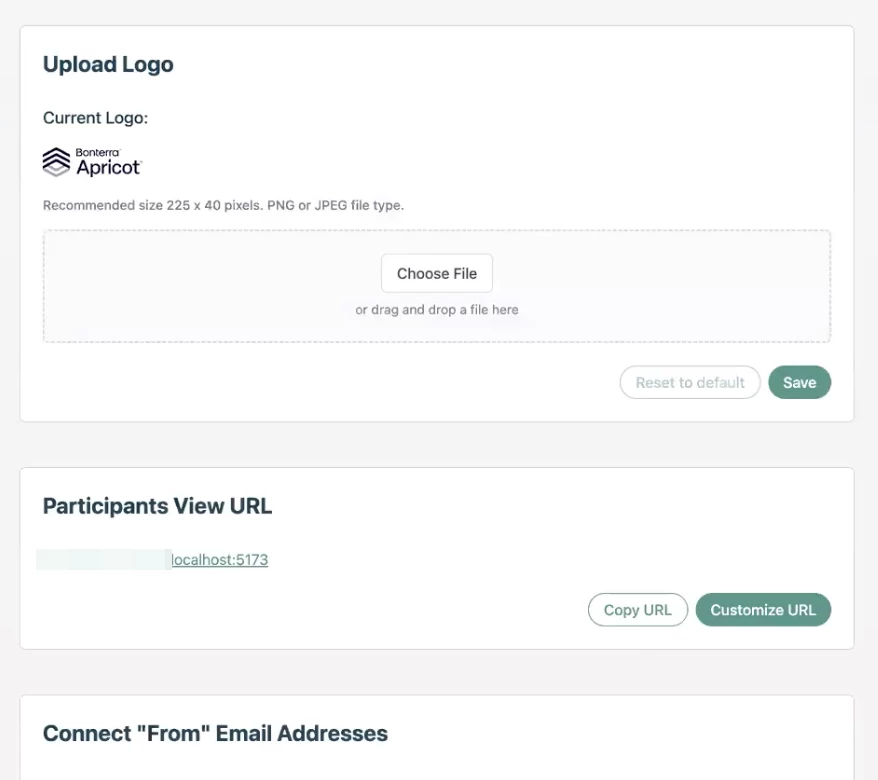
Updated Connect Admin interface
Connect users and participants
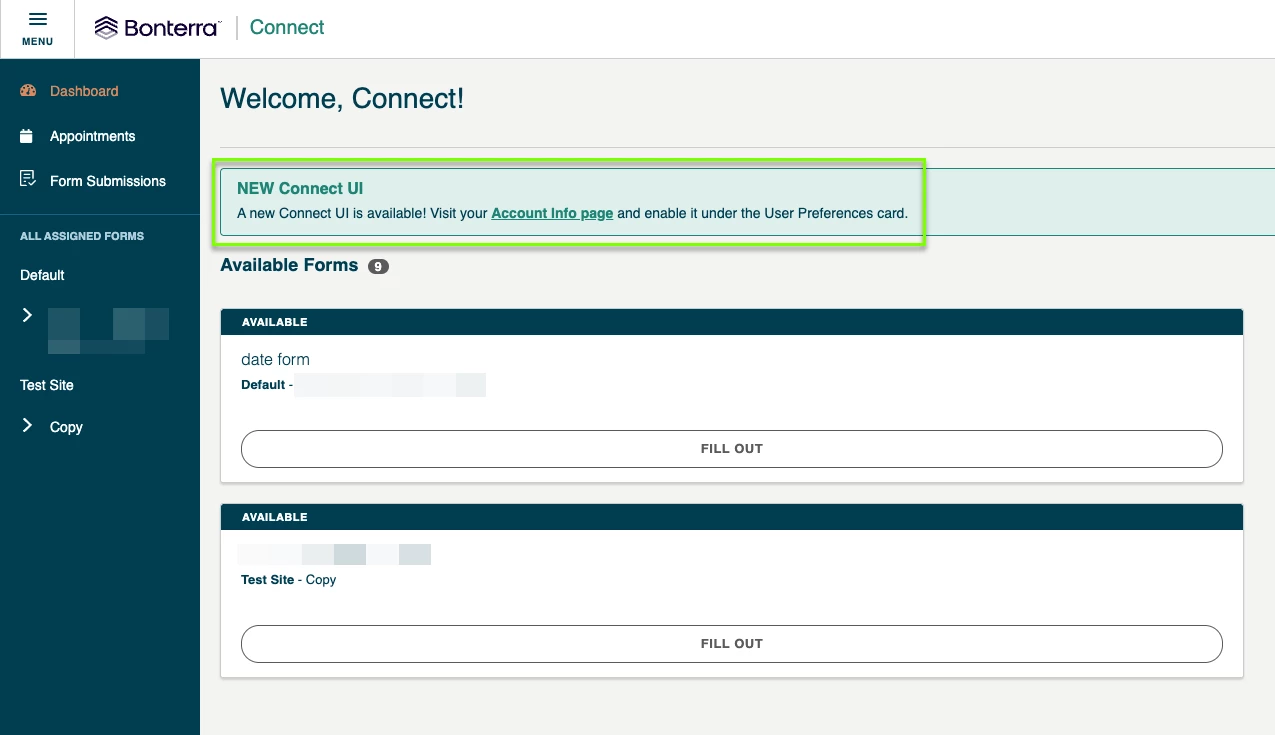
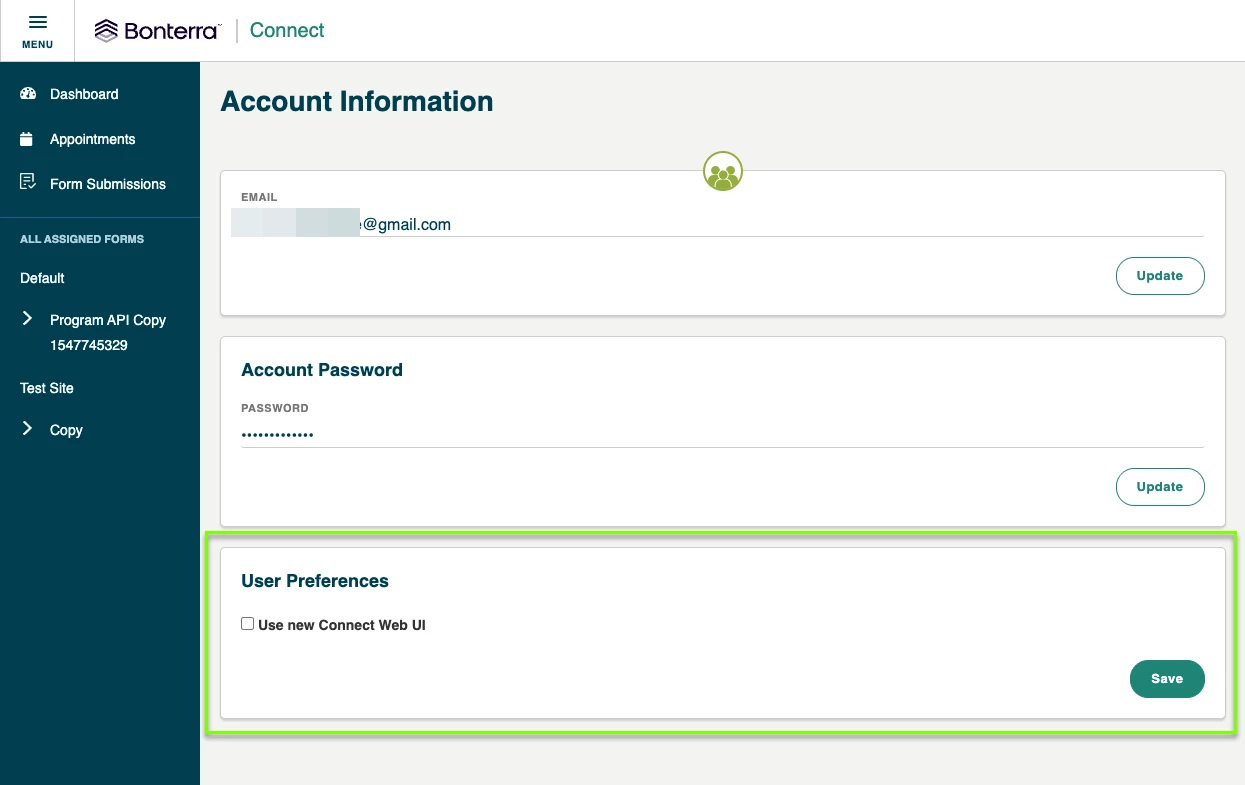
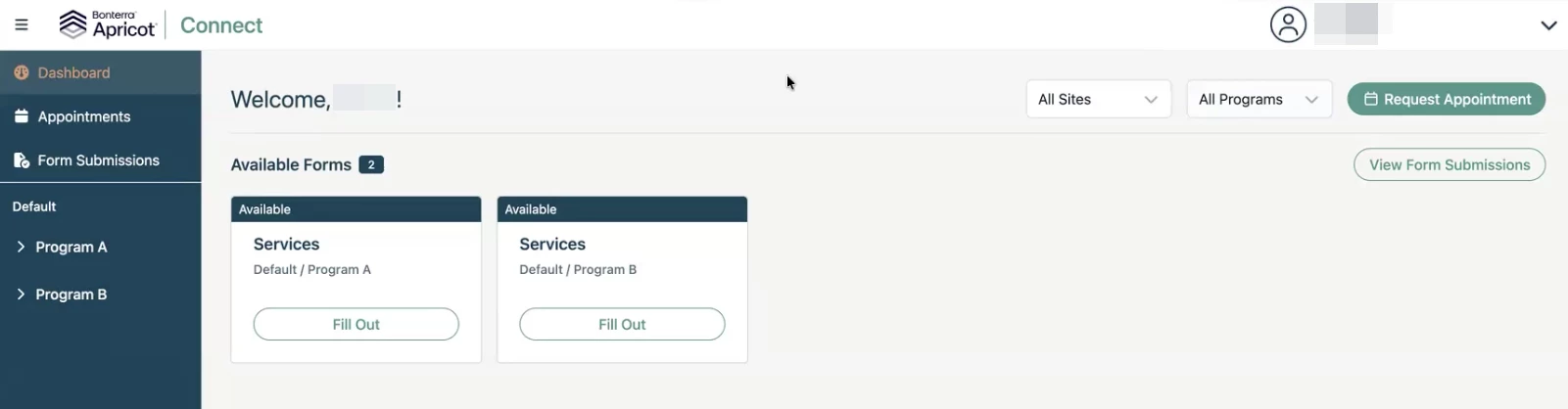
When Connect users or participants login to the Participant Portal on or after July 2, they’ll see a banner with the option to try the new Connect UI. Clicking the link will direct them to their Account Information page.
Here, they can select the “Use new Connect Web UI” checkbox and save their preference. This setting can be managed at any time from this Account Information page.
Admins cannot manage this setting on behalf of end users or participants.
Updated Participant Portal interface
Intake forms
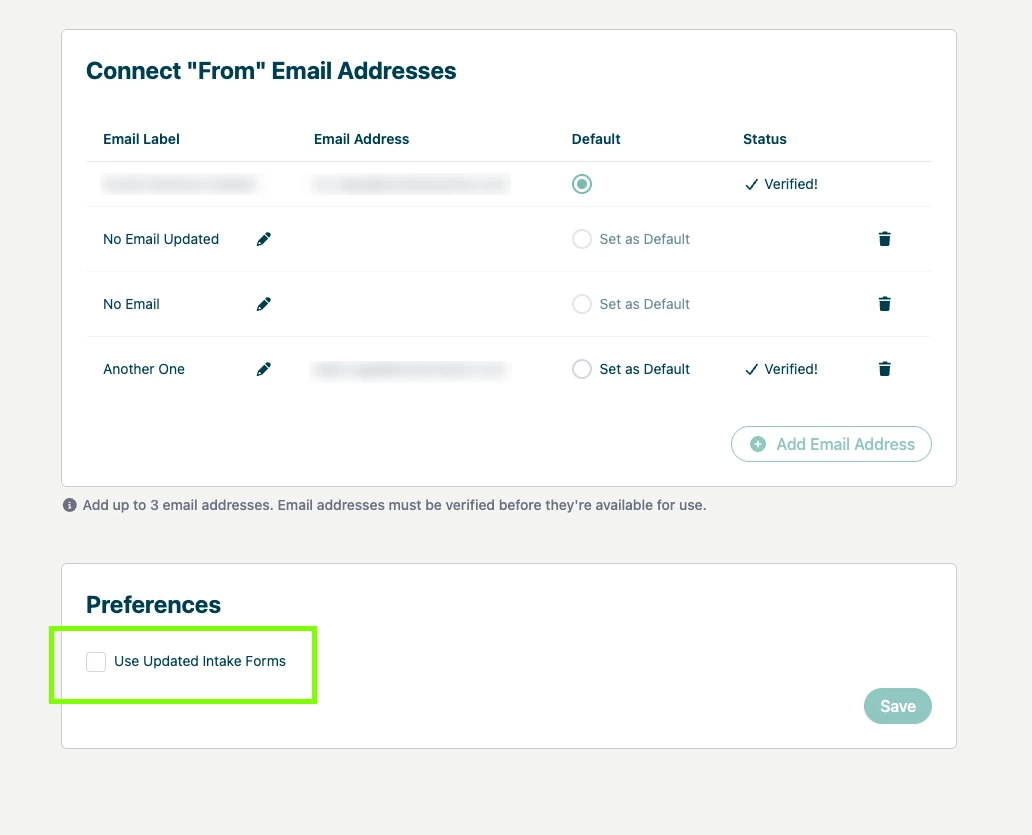
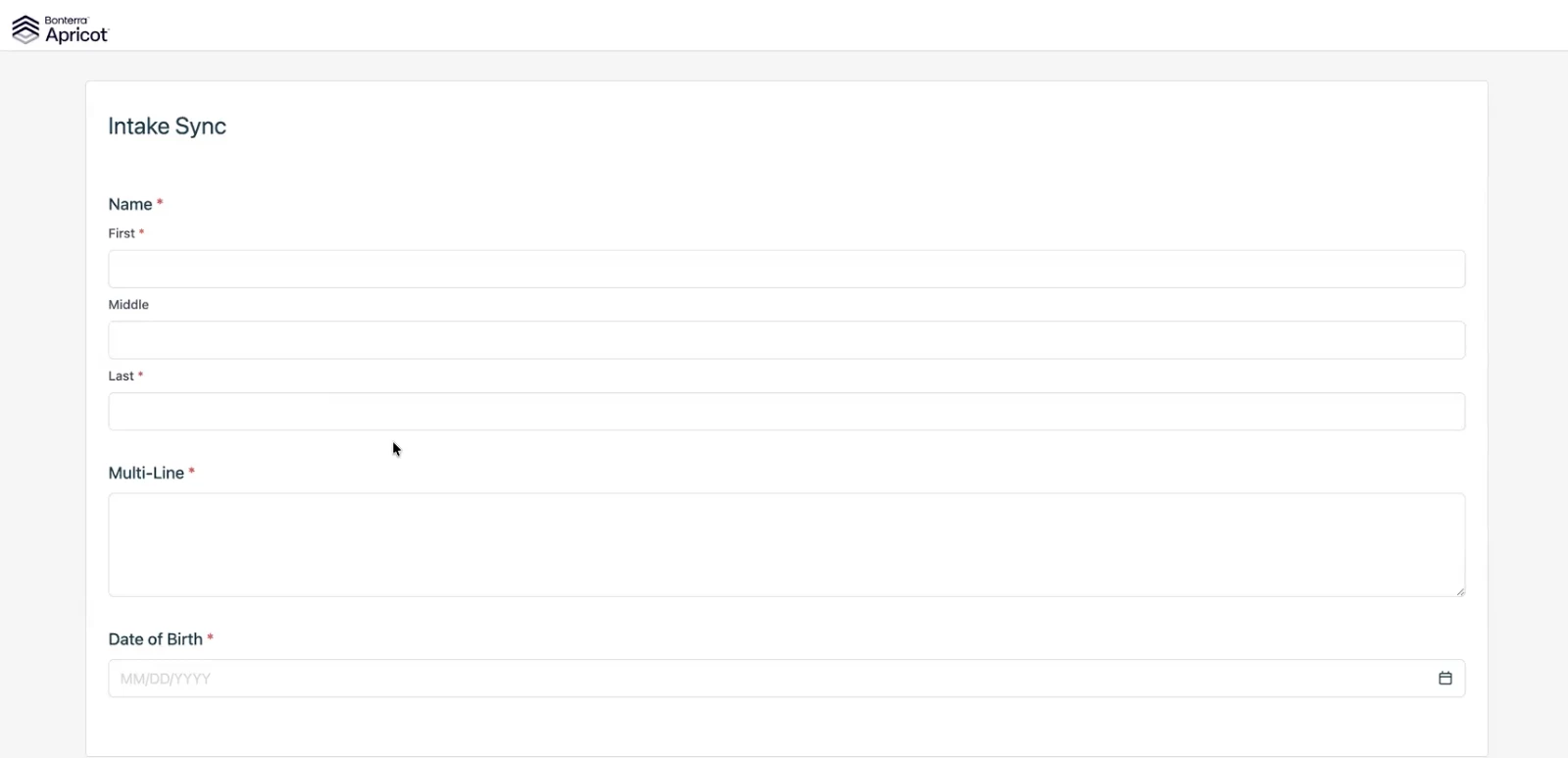
The updated intake form design is available as an optional setting for admins. To turn it on or off:
-
Go to Connect > Settings.
-
Scroll down to the Preferences section.
-
Toggle the Use Updated Intake Forms checkbox on or off.
-
Click Save.
This setting applies to all users and participants across your organization.
Improved intake form design
What else do you need help with?
How do I opt in to the new Apricot Connect interface? How do I switch back to the legacy Connect interface? Where do I find my Connect preferences in Apricot? Can admins change the Connect interface for all users? How do participants opt in to the new Connect UI? How do I enable the updated intake forms in Apricot Connect? What changed in the Apricot Connect update?