

How do I Review and Approve a Bulk Upload?
Note: We're transitioning to a new and improved bulk upload process. Click here to learn more about Better Bulk Upload.
Step 1: Locate the Bulk Upload
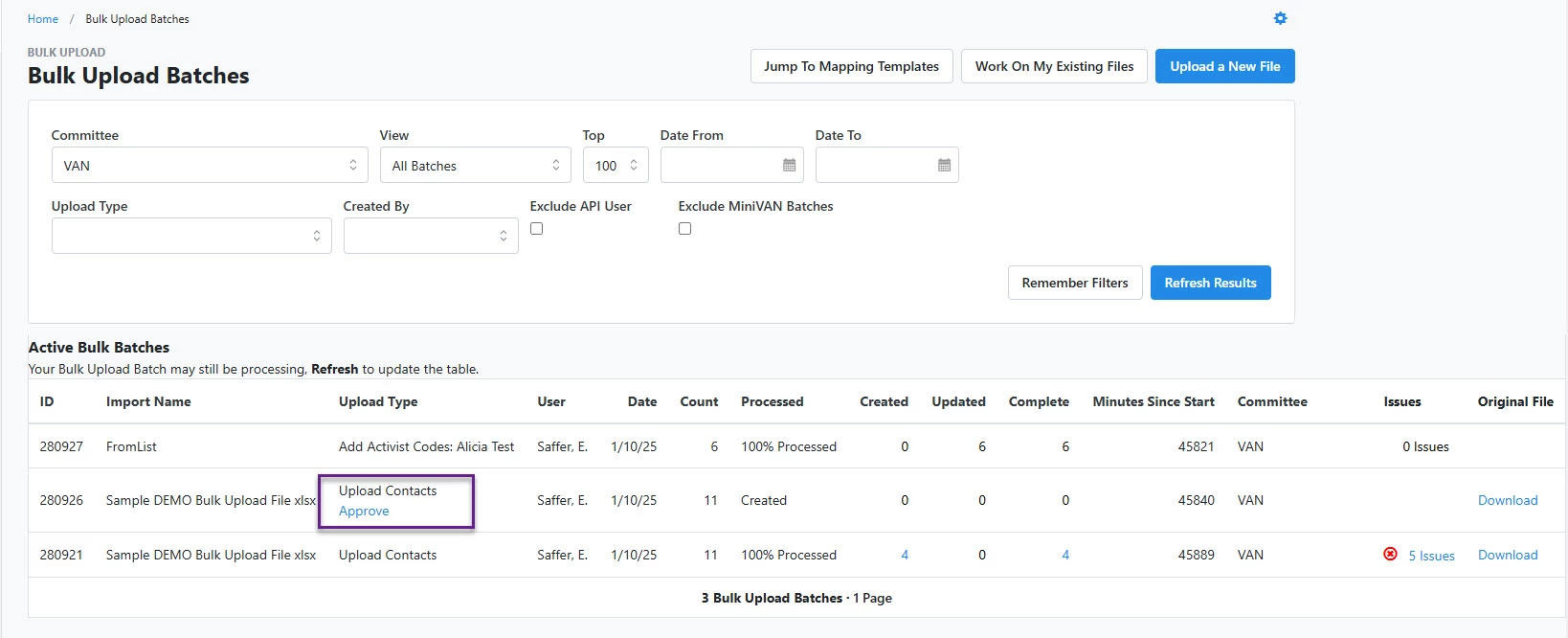
After uploading, you will be taken to the Bulk Upload Batches page where you can review your batches.
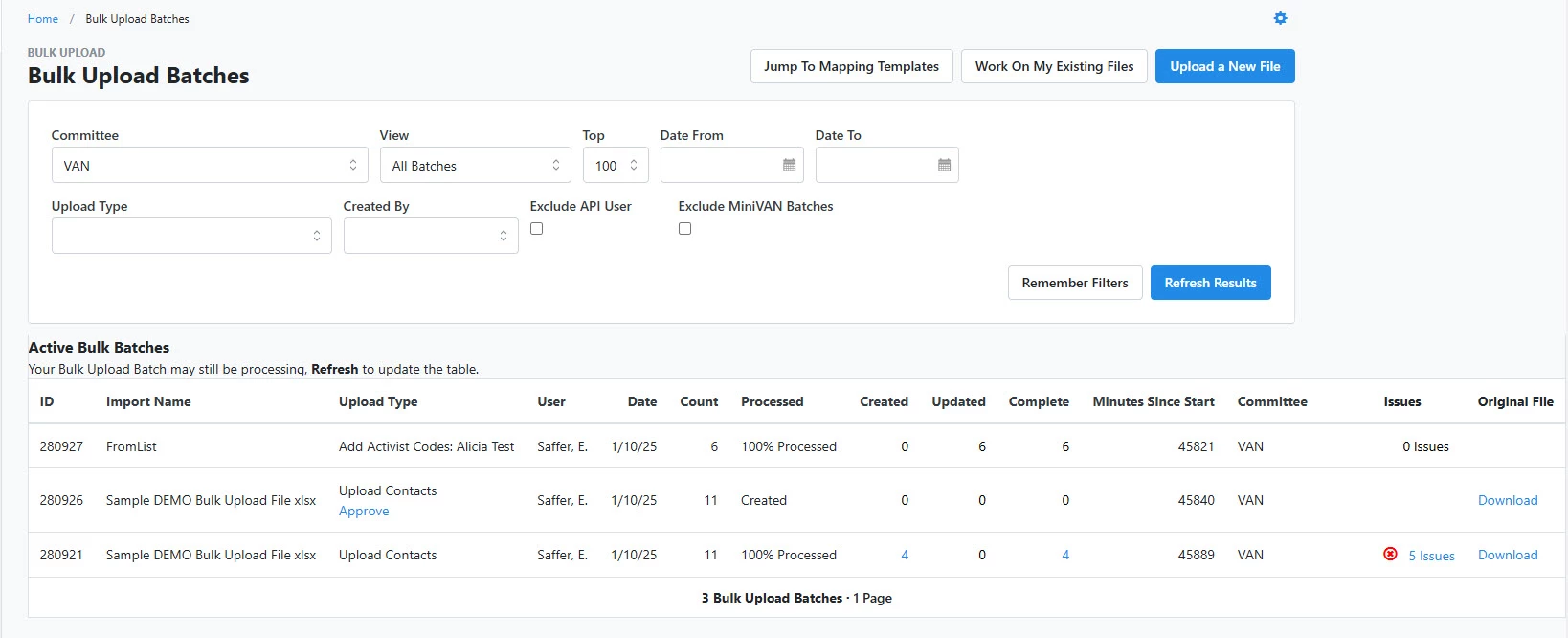
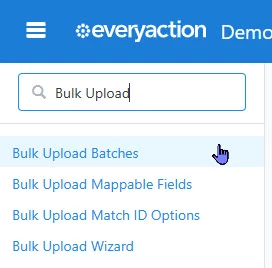
If you are not taken to that page, search for Bulk Upload Batches in the Sidebar. You may need to refresh this page to update the table showing your Bulk Uploads.
Step 2: Review the Bulk Upload
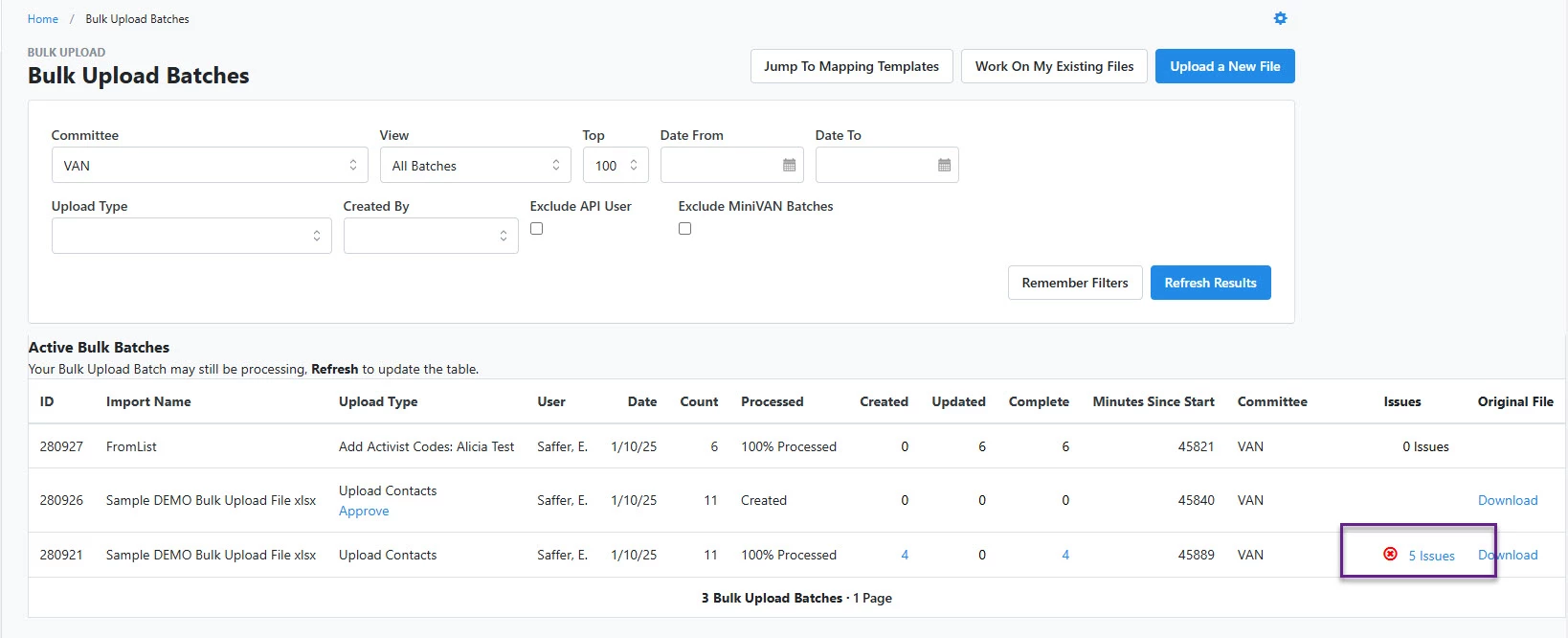
If issues arise under the review process, you will see an Issues flag.
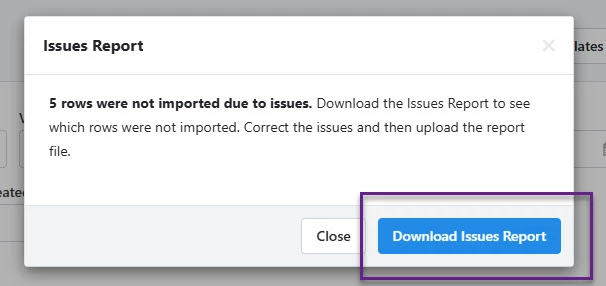
To correct this, download the Issues Report, correct your file errors, and re-upload the affected rows.
Step 3: Approve the Bulk Upload
When the upload is ready, you can Approve the batch and then follow the prompts to approve the uploaded data into your system.
Not quite what you were searching for?
- Navigate back to the Bulk Upload and Edit Resource Index.
How do I review and approve a bulk upload? | How does review and approve a bulk upload work in EveryAction? | Why can't I review and approve a bulk upload? | Where do I review and approve a bulk upload in EveryAction? | What is review and approve a bulk upload in EveryAction? | How to review and approve a bulk upload? | Can I review and approve a bulk upload in EveryAction?