


How do I map fields to a Data Standard in Apricot?
Mapping fields to a Data Standard lets you align an existing form with a shared standard without replacing your current structure. Instead of creating a new form, you connect the Data Standard’s fields to fields you already use in Apricot.
Mapping is often the best option when you want to preserve existing workflows or historical context while still reporting with standardized data.
When mapping fields is a good fit
Mapping fields works best when:
-
You already have active forms in use
-
You want to preserve existing workflows and layouts
-
You need more control over how a standard aligns with your data
-
You are transitioning gradually to standardized reporting
Before you start
-
You must be an Apricot Administrator.
-
The Data Standard must be available to your organization.
-
Mapping affects future data entry, not historical records.
-
Not all field types are currently supported for mapping.
Map fields to a Data Standard
-
In Apricot, go to Administrator.
-
Open Workflow Station, then select Networks.
-
Locate the Data Standard you want to implement.
-
Select Implement.
-
Choose Map fields when prompted.
-
For each field in the Data Standard, choose one of the following:
-
Map it to an existing field on one of your forms, or
-
Add a new field directly from the mapping screen
-
-
Review your mappings to confirm they are correct.
-
Select Implement Data Standard to complete the process.
You can use the AI Field Mapping assistant to help identify likely matches based on field names and context. Suggested matches can be reviewed and adjusted before implementation.
What happens to existing data
Mapping fields does not delete or overwrite historical data.
Important things to know:
-
Existing records keep their original values
-
Older dropdown values remain reportable, even if new standardized options are applied
-
New data entries follow the standardized field options going forward
This ensures continuity in reporting while improving consistency over time.
What you’ll see in the Form Designer after mapping
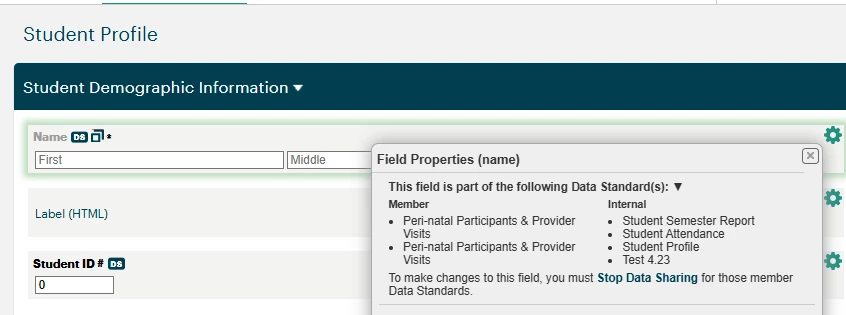
Once you’ve mapped fields to a Data Standard, those fields are marked with a DS icon in the Form Designer. This makes it easy to see at a glance which fields are part of an active Data Standard.
How the field behaves after mapping depends on the type of Data Standard:
- Network-shared Data Standard fields appear locked. Because your organization has entered into a data sharing agreement with the Network Lead, these fields must stay consistent with the shared standard. Editing or removing them would depart from that agreement. If you need to make changes, you'll be prompted in the Form Designer to navigate to the Stop Data Sharing process. Once you stop sharing, the fields can be modified freely.
- Internal or self-implemented Data Standard fields remain fully editable in the Form Designer. To reflect field-level changes in the Data Standard itself — such as adding or updating fields — create a new version of the Data Standard. This keeps your standard current without disrupting existing data.
Field options and limitations
When mapping to an existing dropdown or list field:
-
The standardized options replace your current selectable options
-
Historical values remain associated with existing records
Some complex field types are not currently supported for mapping:
| Dynamic Text | Email Trigger |
| Dynamic Number | API Trigger |
| Dynamic Dropdown | Scheduler |
| Dynamic Checkboxes | Calendars |
| Email Trigger | Grant |
| API Trigger | Grant Invitation |
| User List | Check-In |
| User Creation | Milestones/Goals |
| Link (Base) | Review Assignment |
| Link (Target) | Auto Populate |
Important things to know
-
You can review or update your implementation later if needed.
-
You are not required to map every field in a Data Standard.
-
Mapping decisions are intentional and controlled by your organization.
What else do you need help with?
How do I map fields to a Data Standard in Apricot? | Where do I find the field mapping settings for Data Standard? | Why can’t I map a field to the Data Standard? | How do I update existing field mappings to a Data Standard? | What happens if a field doesn’t match the Data Standard? | How do I save my Data Standard field mappings? | How do I remove a field from a Data Standard mapping?