

How I add a 'Donate' button to an Email Blast to track giving metrics?
You might be curious about how frequently your donors engage with your e-mail messages - are folks more likely to donate using the link in your e-mail blasts? Are they opening the e-mail immediately or around a certain time of day?
Great news! There is an easy way to track these metrics for each e-mail blast you send! The steps outlined below will help you set up your e-mail blast to include metrics you can track and how to understand those metrics after the message has been sent.
Step 1: Add a 'Donate' button in your e-mail
To track how many donations result from a particular e-mail blast, you will want to confirm your e-mail blast links your supporters to your donation page.
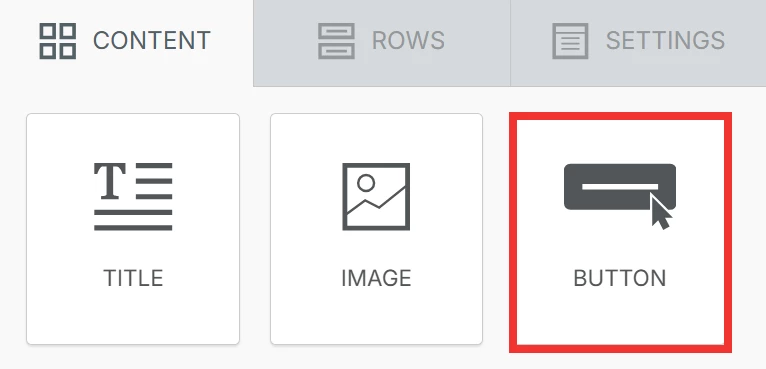
In Step 4 ('Build'), of the onboarder, add a 'Button' from the 'Content' tab by dragging it into the section of your e-mail you want it to appear in.
Step 2: Link the button to your donation page
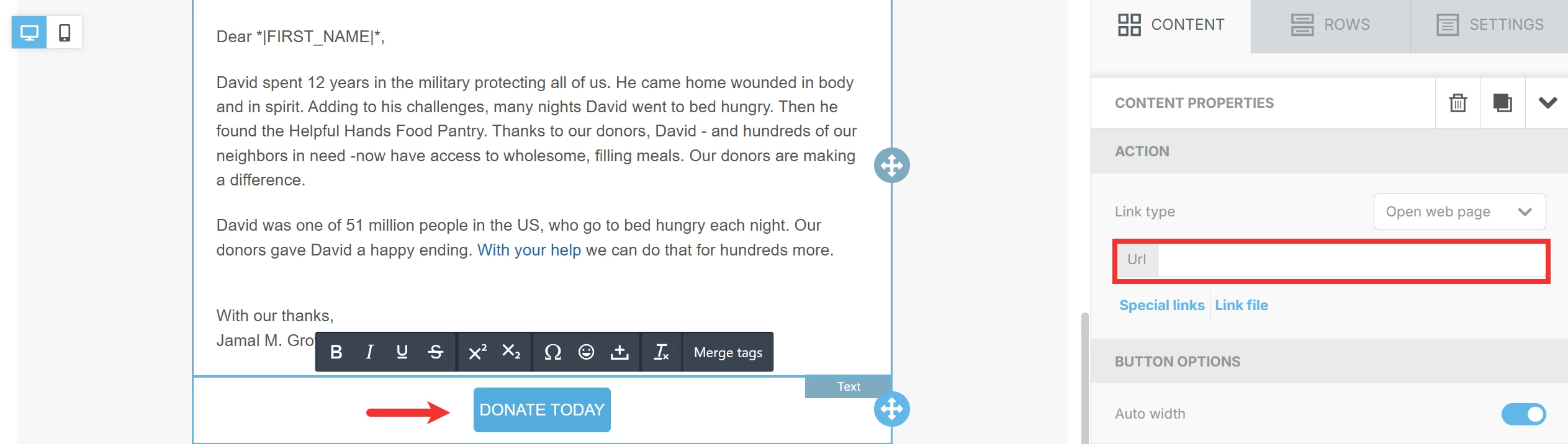
Click the button to label it however you want - for example, 'Donate Today!'. Clicking the row your button is in will automatically bring up options to further customize it. Make sure to add the link to your donation page in the 'Url' text box under the 'Action' section of the 'Content' tab.
Note: Including more than one or two links in your e-mail blast may confuse or overwhelm your donors.
Step 3: View your metrics
Once you have sent your e-mail, it should appear in the sent messages under the 'Email Blasts' tab. Each e-mail blast listed will also show you an overview of 'Open Rates' and 'Click Rates'.
Click the 'View Results' link below the e-mail blast’s 'Open Rate' to view a detailed breakdown of your statistics.

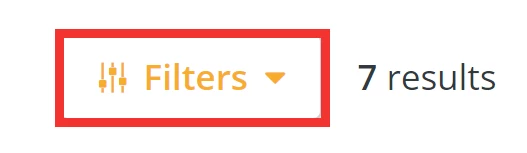
You can also sort by clicking the 'Filters' button on the 'Recipients' page to narrow down specific results of your e-mail blast – such as which e-mails were opened or which e-mails "bounced".
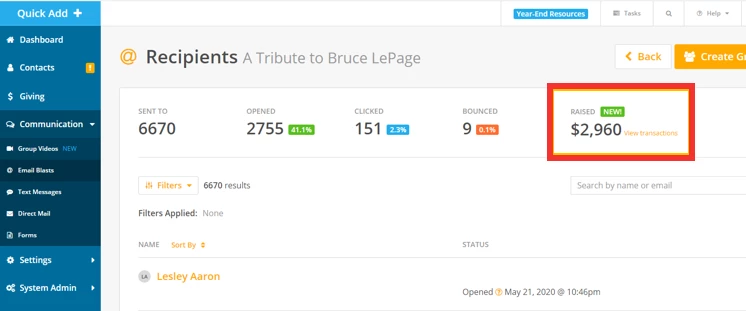
You can check the 'Raised' metric to view how many donations have been collected in response to your e-mail.
What else do you need help with?
Not quite what you were searching for?
Navigate back to the Feature Overview.
How do I track donations from an email blast in Network for Good? | How do I see click rates for my email campaign? | Where do I view email blast results in Network for Good? | How do I track who opened my email blast? | How do I filter email recipients by opens or bounces? | How do I connect my donation page to an email blast? | Why aren’t my email donations showing in the Raised metric?
How do I use donor stewardship in bonterra que? | How does use donor stewardship in bonterra que work in EveryAction? | Why can't I use donor stewardship in bonterra que? | Where do I use donor stewardship in bonterra que in EveryAction? | What is use donor stewardship in bonterra que in EveryAction? | How to use donor stewardship in bonterra que? | Can I use donor stewardship in bonterra que in EveryAction?