

Learn how admins set up review workflows, assign them to grants, and manage the reviewer experience from submission through completion.
To successfully manage the review workflow process in Deed Grants, follow these steps to configure your review stages, assign workflows to grants, and ensure reviewers can move applications forward efficiently.
Step 1: Create a Review Workflow
Before assigning a review process to a grant, you'll need to build one in your settings.
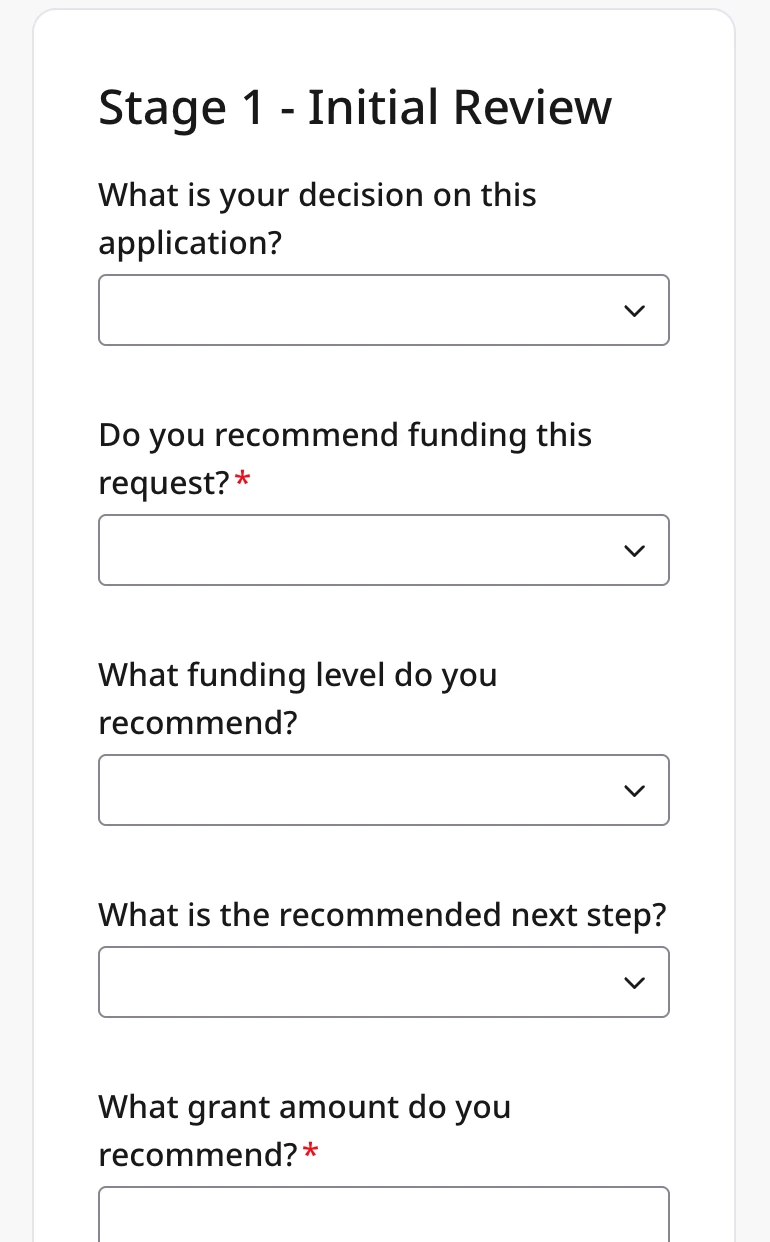
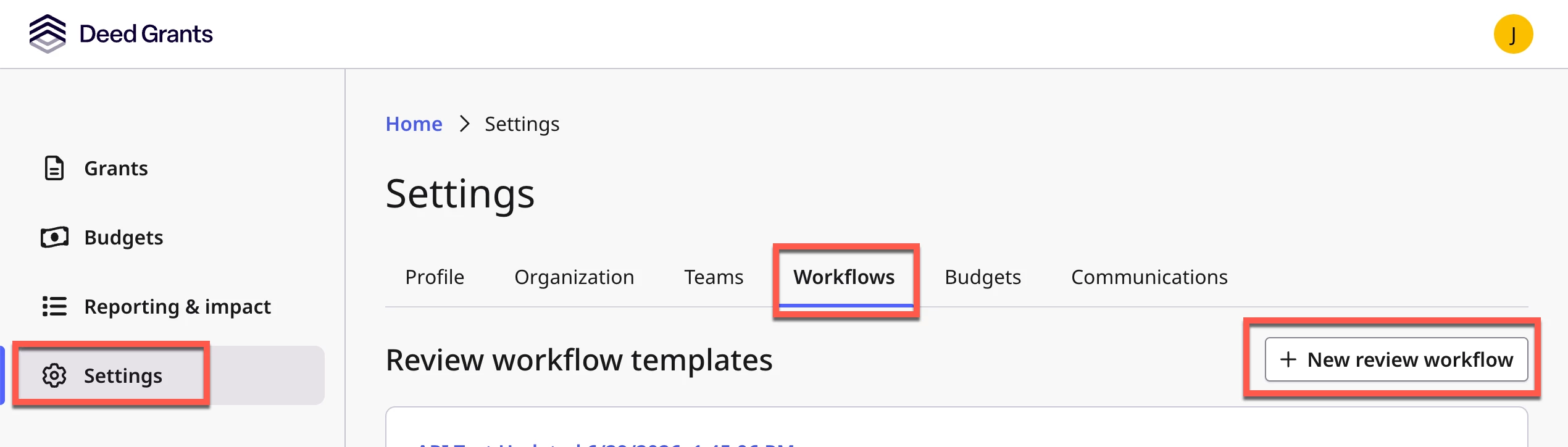
Navigate to Settings > Workflows > New Review Workflow. From here, you can define the stages of your review process, assign each stage to specific team members, and configure a form for each reviewer to fill out when it is their turn and determine the duration each review step has to be completed.
Step 2: Create a New Grant and Assign a Review Workflow
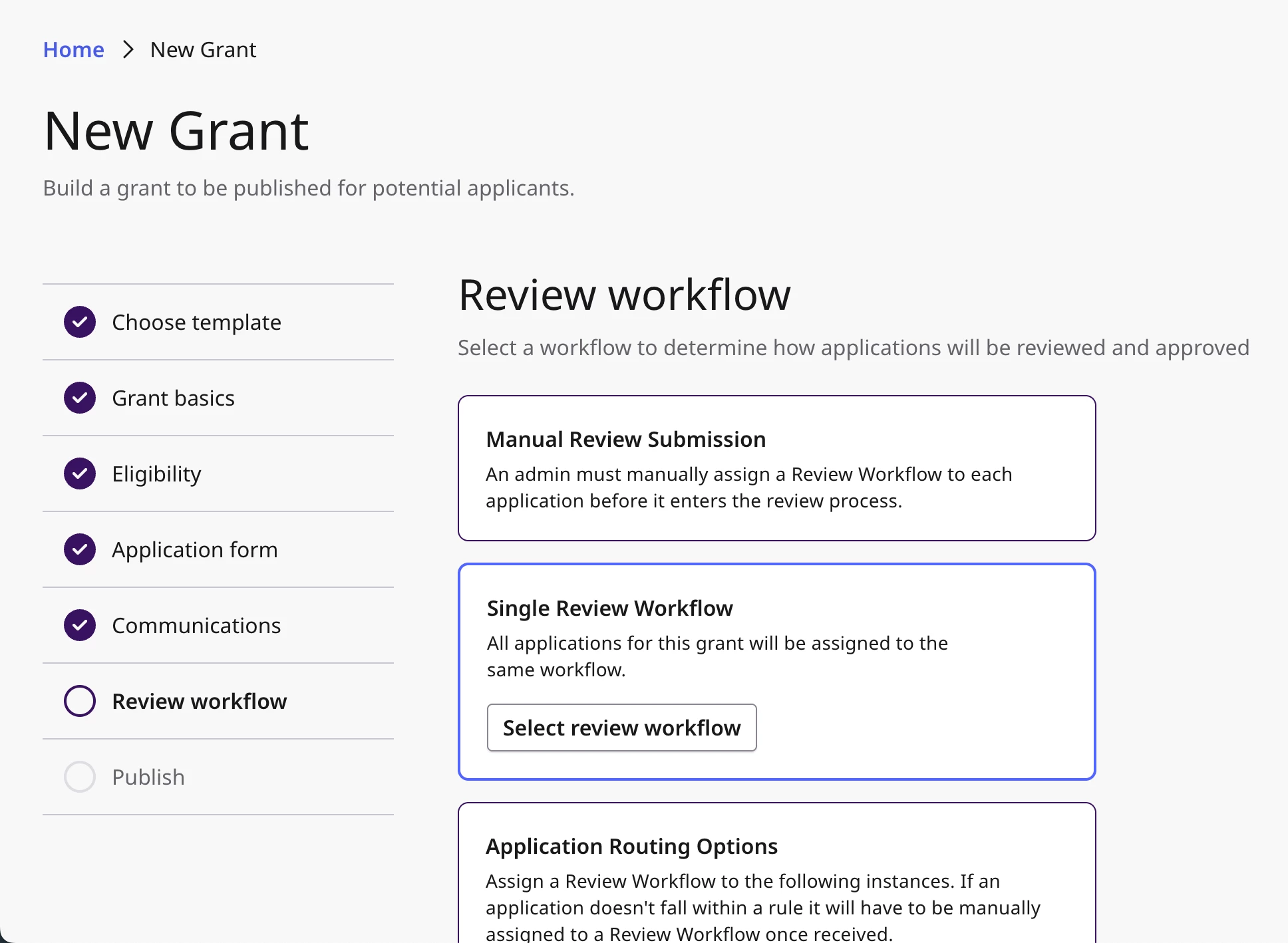
When creating a grant, one of the configuration steps is Review Workflow. At this stage, you will choose how applications are routed into the review process. There are three options:
-
Manual Review Submission: An admin must manually assign a Review Workflow to each application before it enters the review process.
-
Single Review Submission: All applications for this grant will be assigned to the same workflow. You will need to have already created a Review Workflow in Settings > Workflows and will select from your existing list.
-
Application Routing Options: Assign a Review Workflow based on defined rules. If an application does not fall within a rule, it will need to be manually assigned to a Review Workflow once received.
Step 3: Reviewers Complete Their Assigned Reviews
Once applications are ready for review, members with reviewer access can begin working through their queue.
- Admin reviewers navigate to the Reviews Queue, located in the top right corner of the Grants tab, where they can see applications for all grants. The Needs Attention section prioritizes applications that require intervention from an admin to keep it on track. Admins can also track the applications for each grant by clicking into the grant name for a grant detail page.
- When reviewing an application, admins can toggle between two views:
- Viewing the current status of an application in the review cycle and managing its movement through the workflow: an admin can choose to remove or replace a reviewer or move the application to the next stage of the review cycle if the application gets stuck.
- Submit a review: when an admin is also a reviewer in a review workflow, they can fill out and submit their review form from the same view.
- Members assigned the Reviewer role will log in and see only what has been assigned to them. They can filter their queue by status, grant, and organization.
- Admins and reviewers can monitor the status of an application in the review history tab of the application detail page. Admins will be able to see submitted review forms in this view as well.
- Once all assigned reviewers complete their review, the application will automatically move to the next step, or the review will be marked as fully completed and ready for a final decision.
- An admin will make the final decision to approve or deny funds to an applicant. After a grant has been approved, an admin can begin the payments and impact reporting processes.