


Allow-listing Email Addresses
What is an Allow-List?
To add someone to your Allow-list (sometimes called a Welcome-list) is a list of approved email senders. Emails from that sender are never moved to the spam folder. Instead, when a recipient allows an email address, they are confirming that they know and trust the sender. This tells an email server (like Gmail) to move messages to the inbox directly. It’s that simple.
Instructions for GMail
Gmail is one of the most popular email services on the market, and the Gmail client is used by both individuals and businesses. To set your email allow-list in Gmail, follow these simple steps.
First, find the email you received from the sender you want to allow-list, and start by adding the sender to your contact list. Then, create a custom Gmail filter. To do so, click on the gear icon, and select Settings.
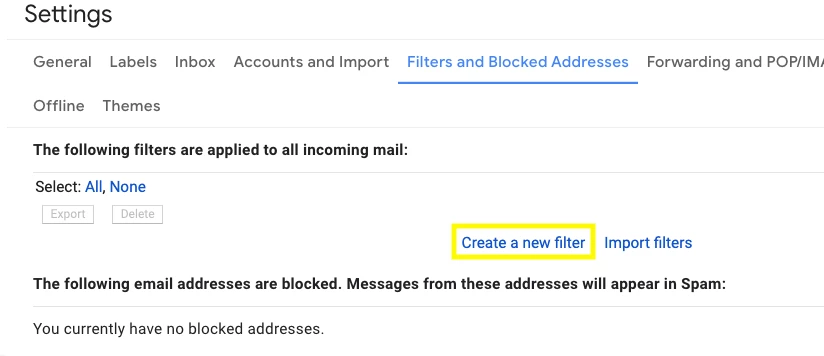
Select filters and blocked addresses from the navigation bar at the top of the page, then click on the create a new filter link.
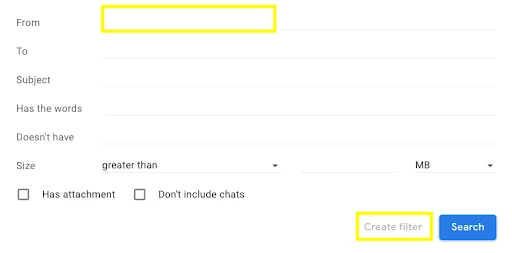
Add the email address you’d like to allow-list in the “From” field, then click Create filter.
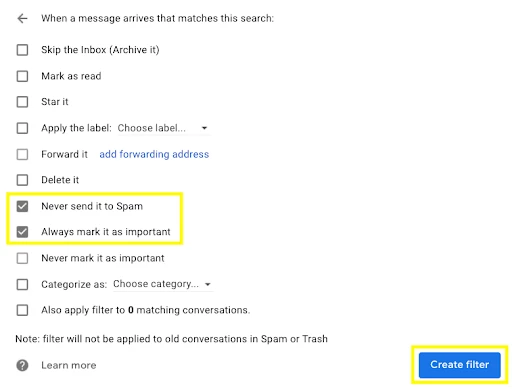
Finally, check never send it to spam, (optional: select always mark it as important), then click create filter. From there, you will be good to go.
Instructions for Microsoft
The process is fairly similar for Microsoft Outlook, though there are two ways to accomplish the task:
-
Select a message from the sender. Click through the following links to allow-list the sender: Home > Junk > Never Block Sender or Never Block Sender’s Domain
OR…
- Select a message from the sender. Right-click the selected message and choose Junk > Never Block Sender from the dropdown menu. From there, a dialog box will notify you that the selected address has been added to your safe senders list.

Instructions for MAC
Apple has always done things their own way, and allow-listing is no exception. Here are our quick steps for allow-listing a sender in Mac Mail.
-
Select Mail > Preferences
-
On the top of that window, click the Rules tab, then select Add Rule
-
Set up the rule (use the following settings as an example):
a. Description: BonterraTech
If [any] of the following conditions are met: [From] [contains] [@bonterratech.com] Perform the following actions: [Move Message] to mailbox: [Inbox]
- Next, click OK to save the rule.

What is an email allow-list | How do I allow-list a sender in Gmail | How do I add a sender to my safe list in Outlook | How do I allow-list emails on Mac Mail | Why are my Apricot emails going to spam | How do I make sure Apricot emails reach my inbox | How do I create an email filter to never send to spam