



Grants Management is a dedicated section in the Bonterra Nonprofit Hub designed to give nonprofits a single place to track grant opportunities through every stage of the grant lifecycle. Rather than maintaining a separate spreadsheet or switching between platforms, you can save, manage, and pursue grants from within the same hub you use to discover opportunities and build proposals.
Grants Management is available to all nonprofit users. No setup is required—the section appears in the left-hand navigation of the Nonprofit Hub automatically.
The Grants Management Dashboard
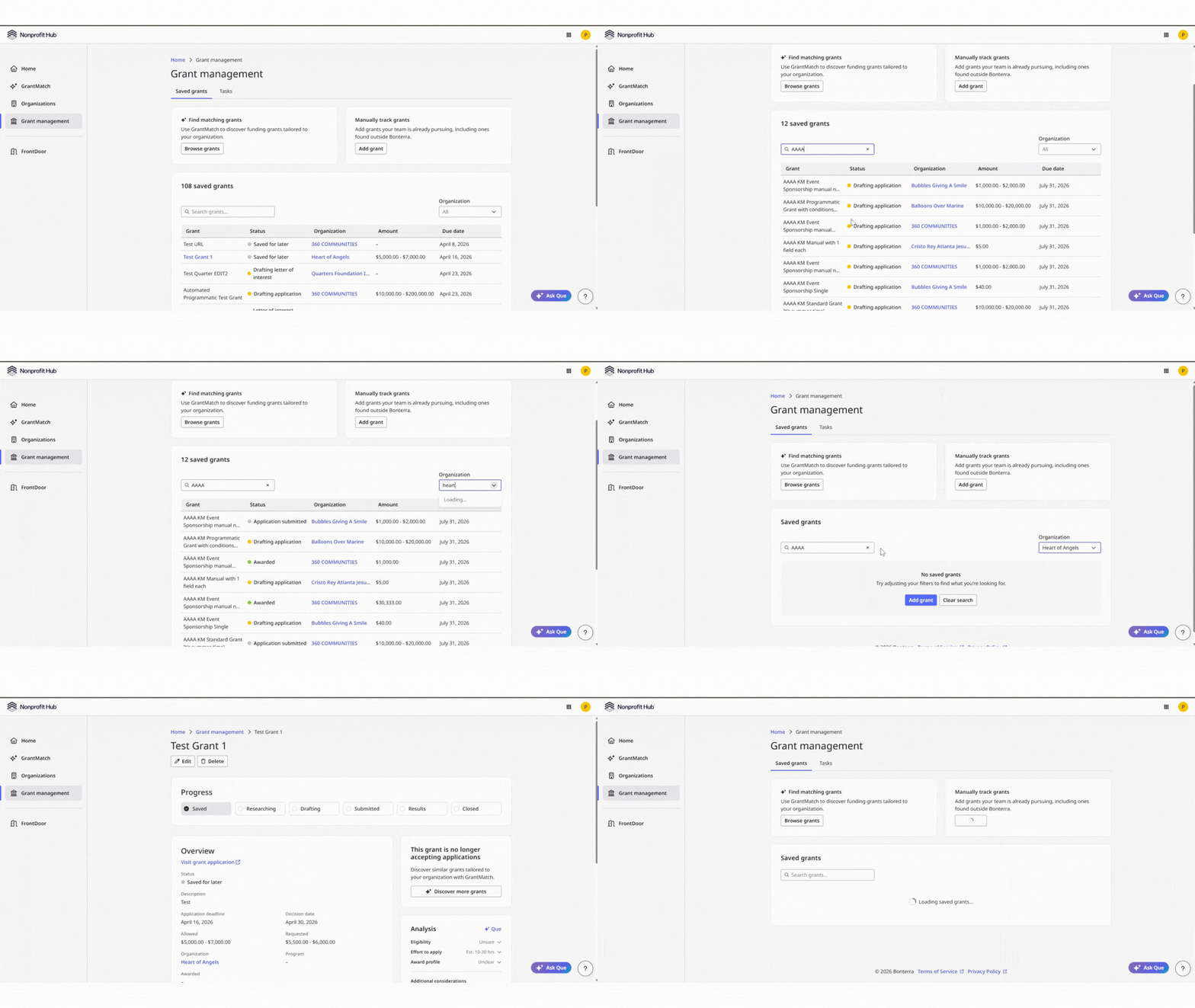
When you open Grants Management, you land on a dashboard with three sections: Find matching grants, which links to GrantMatch to discover new opportunities; Manually track grants, which opens the grant entry form to add an opportunity from any source; and the saved grants table, which displays all grants you are currently tracking.
Each row in the saved grants table represents a grant and displays key details at a glance: the grant name, funder, program, current status, requested and awarded amounts, and any linked application URL. As your pipeline grows, you can search by grant name or filter by organization to quickly find what you need.
Each grant in the table is a clickable record. Selecting a grant opens its detail view, where you can review and edit all information associated with that opportunity.
Grant Lifecycle Statuses
Every tracked grant moves through a defined set of statuses that reflect where it stands in the application process. You set and update the status manually as work progresses. The available statuses are:
| Status | Description |
|---|---|
| Researching | You are actively evaluating whether to pursue the grant. |
| Drafting application | Your team is working on the application. |
| Submitted | The application has been sent to the funder. |
| Awarded | The grant has been awarded to your organization. |
| Not funded | The application was submitted but not funded. |
The Grant Detail View
Opening a grant record gives you a full view of everything associated with that opportunity. The detail view includes:
| Component | Description |
|---|---|
| Overview fields | Grant name, funder, program, status, description, application deadline, decision date, allowed and requested amounts, organization, and any awarded amount. The Program field links to programs saved in your organization profile. Click here to learn more about setting up programs. |
| Related links | Any URLs connected to the grant record, such as the funder's website or application portal. |
| Source | Where the grant originated (GrantMatch, Bonterra Deed Grants, or manually added). |
| Apply link | For grants with a connected application URL, you can select Apply to open the application directly. For Deed Grants opportunities, select View to open and complete the application in-platform. |
| Analysis panel | For grants saved from GrantMatch, an AI-powered grant analysis (via Que) appears here, covering eligibility, effort to apply, award profile, and additional considerations. Click here to learn about Grant Analysis and Proposal Writing in the Nonprofit Hub. |
| Proposal drafting | Access proposal drafting tools directly from the grant record. |
How Grants Management Connects to GrantMatch
GrantMatch is the Nonprofit Hub's AI-powered grant discovery tool. When you find a matching opportunity in GrantMatch, you can save it to Grants Management with one click. Key grant details carry over automatically and the grant appears immediately in your tracked grants table.
The connection runs in both directions:
- Grants you've saved from GrantMatch retain their analysis results
- Proposal generation can draw on that analysis when you're ready to draft
How Grants Management Connects to Bonterra Deed Grants
Bonterra Deed Grants is the platform funders use to create and publish grant programs. When a funder publishes a grant through Deed Grants, it may appear publicly in GrantMatch or be shared directly with eligible nonprofits as an invitation link.
When you apply for a Deed Grants opportunity through the Nonprofit Hub, your application status updates automatically in Grants Management as the funder reviews your submission. You do not need to manually update the status for Deed Grants applications—the system reflects changes as they occur in the funder's review process. Once awarded, the funder's platform also supports payment tracking and post-award reporting, both of which are accessible from your grant record in the Nonprofit Hub.
Not all grants in GrantMatch are created by funders using Deed Grants. Grants from other sources can be tracked and applied to through the Apply link on the grant record, but their status will not update automatically—you'll update those manually as you move through the process.
Click here to learn more about Deed Grants in the Nonprofit Hub.
What else do you need help with?
Not what you're looking for? Navigate to Understanding Grants Management in the Nonprofit Hub