

How do I set up Snowflake data sharing?
Snowflake data sharing lets you connect your organization's Apricot data directly to your own Snowflake account for analytics, BI reporting, and data integration. Once enabled, your data is available as a read-only shared database in your Snowflake instance — no file exports, no manual transfers required.
Before you begin
Keep these things in mind before starting setup:
- Add-on subscription required. Snowflake data sharing requires a paid add-on. Contact the account management team to confirm your subscription before you begin.
- Business Critical Snowflake edition required. Your Snowflake account must be on the Business Critical edition or higher. Standard Edition isn’t supported.
- AWS US-EAST-1 only. Your Snowflake account must be hosted in AWS US-EAST-1. Data sharing is not available for accounts in other cloud regions or providers.
- Impact Hub administrator access required. Only an Impact Hub administrator with access to the Data Connections page can set up data sharing.
- Validation is required. After submitting your Snowflake account locator, you must complete a token-based validation step to confirm ownership of your Snowflake account before data access is granted.
- Allow a few minutes after submitting. The initial data share takes several minutes to configure before the validation step becomes available.
How to set up Snowflake data sharing
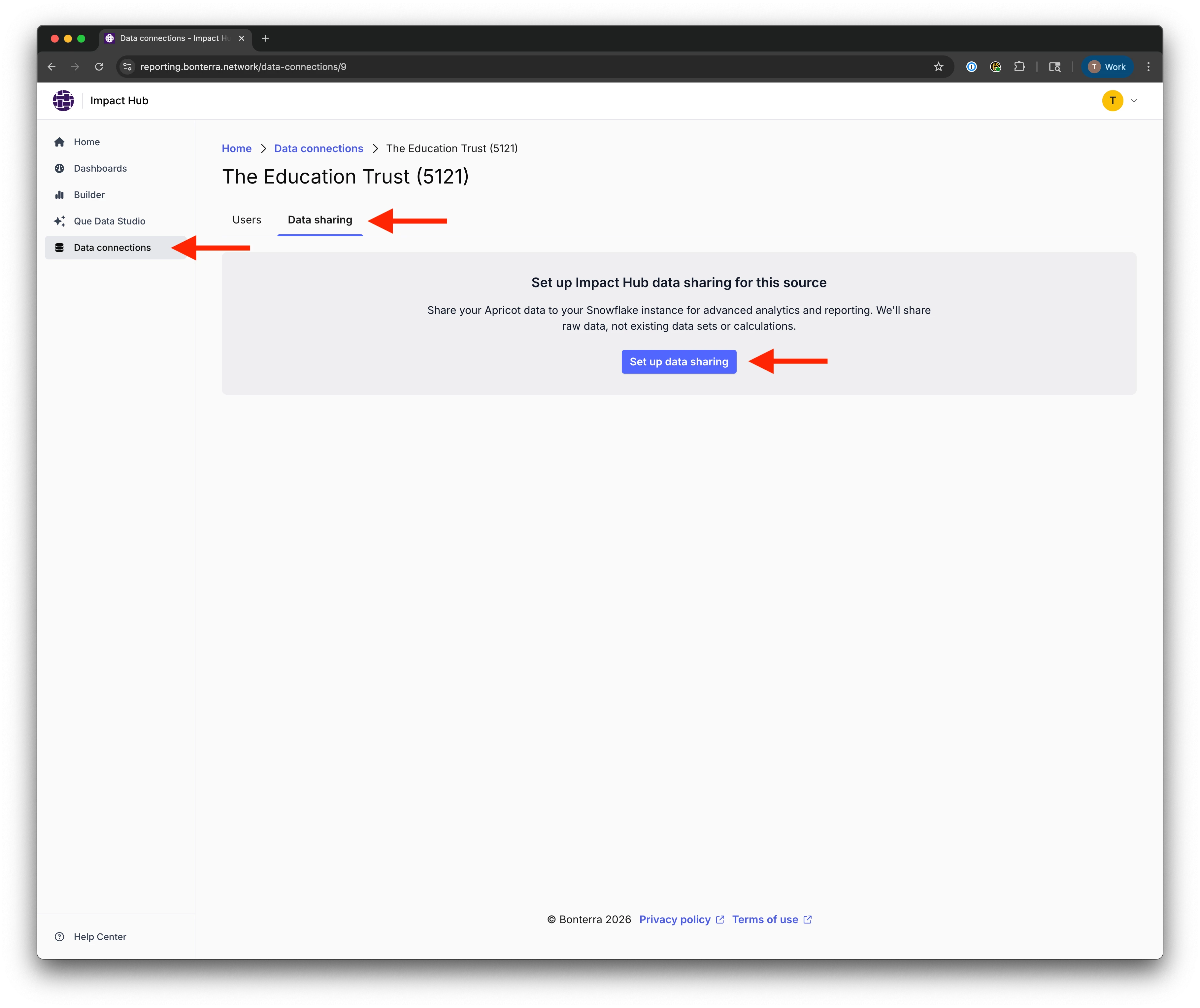
Step 1: Open the data sharing setup
- Navigate to your Data Connections page.
- Select the data connection you want to configure.
- Select Data sharing.
- Select Set up data sharing.
Step 2: Submit your Snowflake account locator
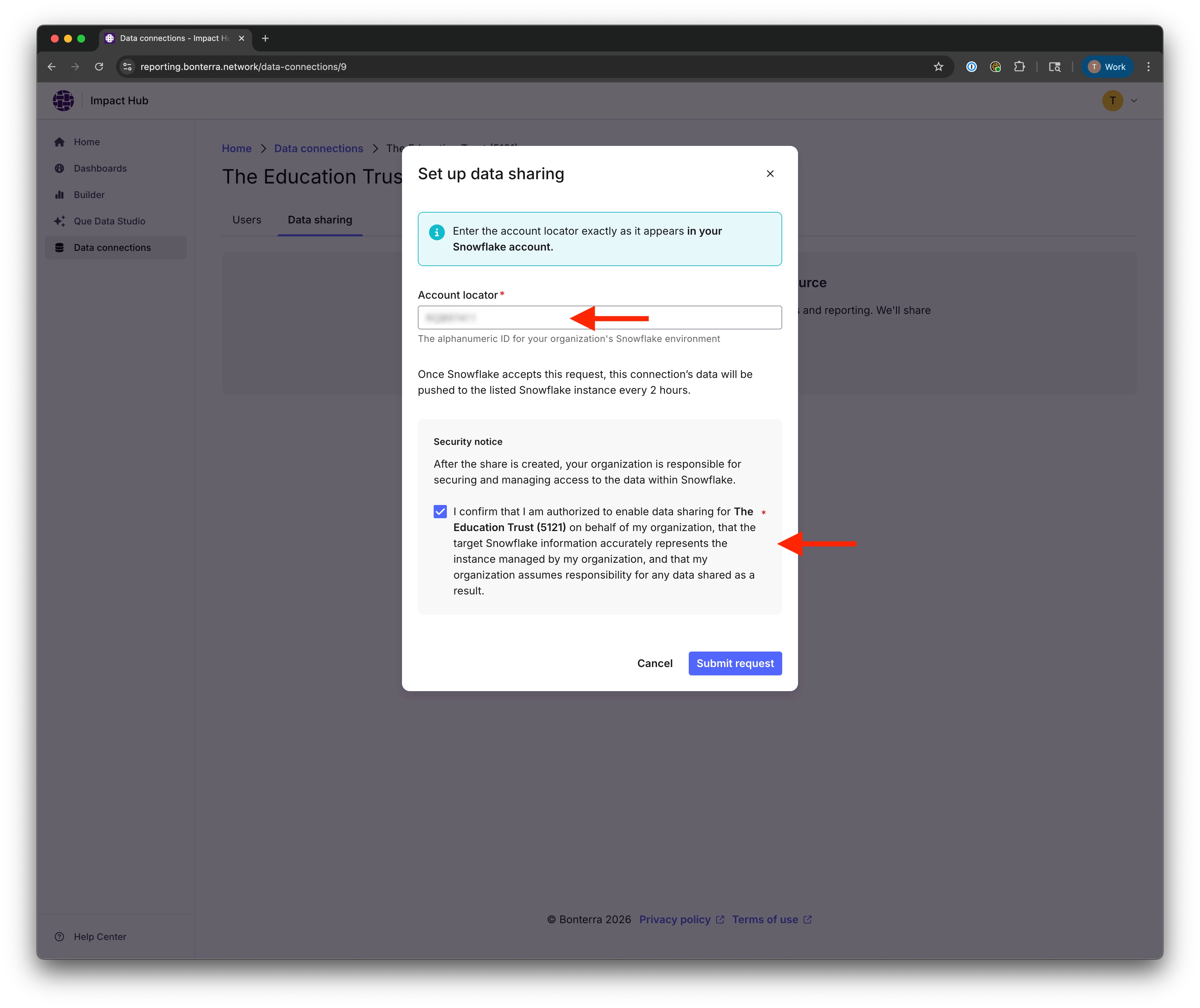
- In the Set up data sharing prompt, enter your Snowflake account locator.
- Read and acknowledge the security notice.
- Select Submit request.
Step 3: Wait for the share to be configured
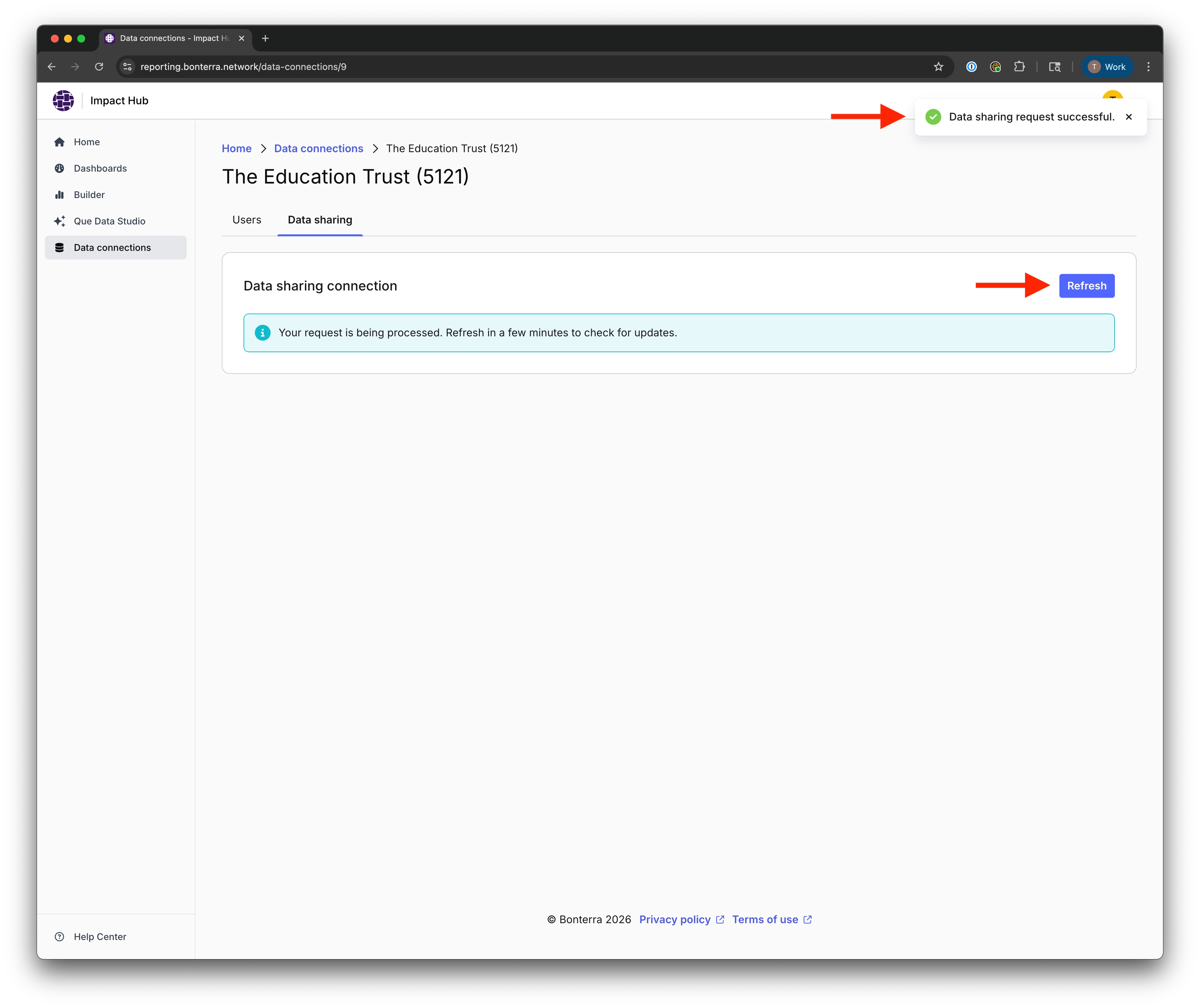
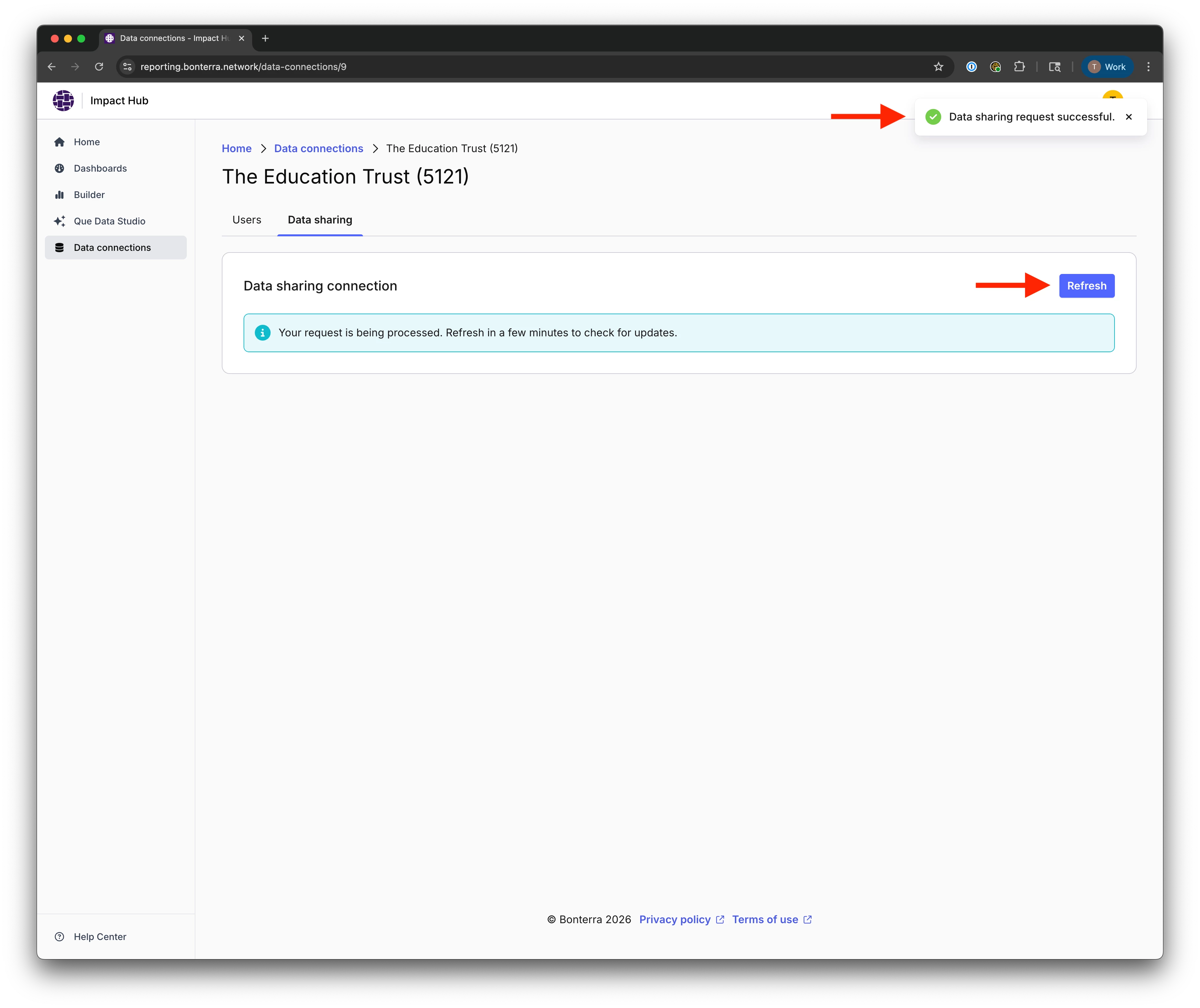
Your request is now being processed. Allow several minutes for the initial data share to be configured and made available in your Snowflake account. You can select Refresh on the Data Sharing page to check for updates.
Step 4: Retrieve the validation token from Snowflake
Once the share is ready, Impact Hub will prompt you to provide a validation token to confirm you connected the correct Snowflake account.
To find the token in Snowflake:
- Sign in to your Snowflake instance.
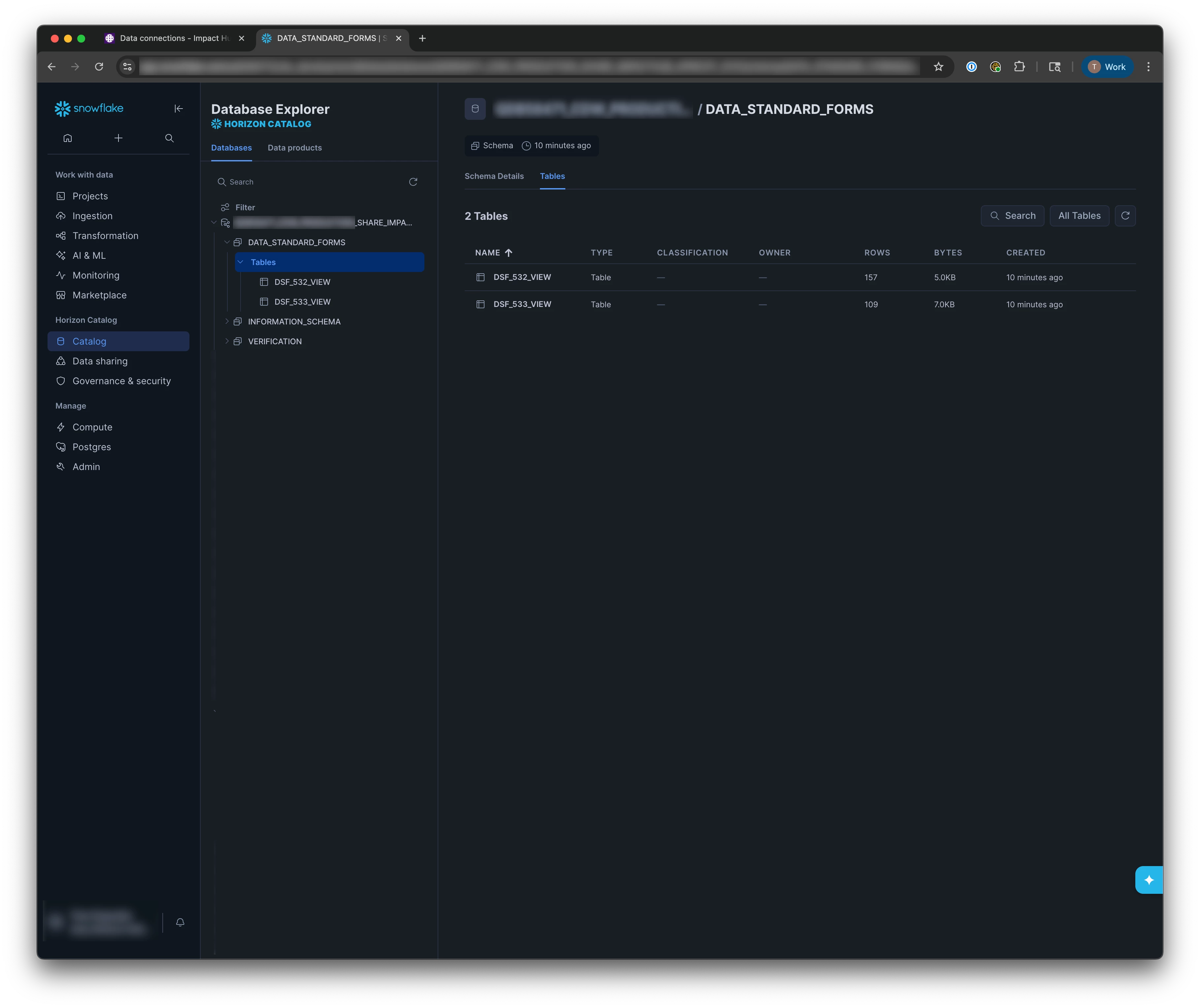
- Navigate to Data Sharing and open the Bonterra data share that was shared to your account.
- Locate the VERIFICATION table.
- Copy the VERIFICATION_TOKEN value.
For additional guidance on accessing a shared database in Snowflake, see Snowflake's data sharing documentation.
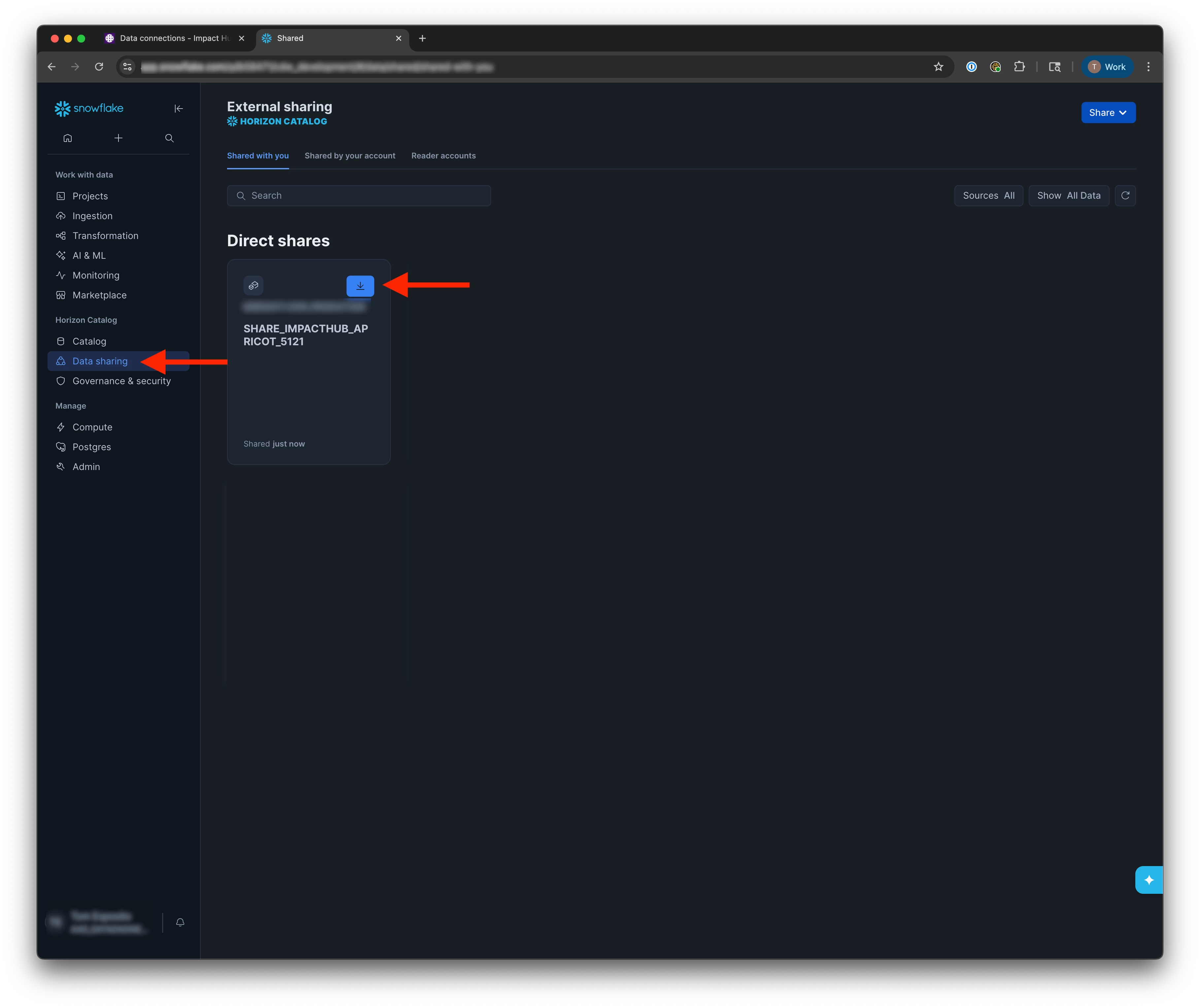
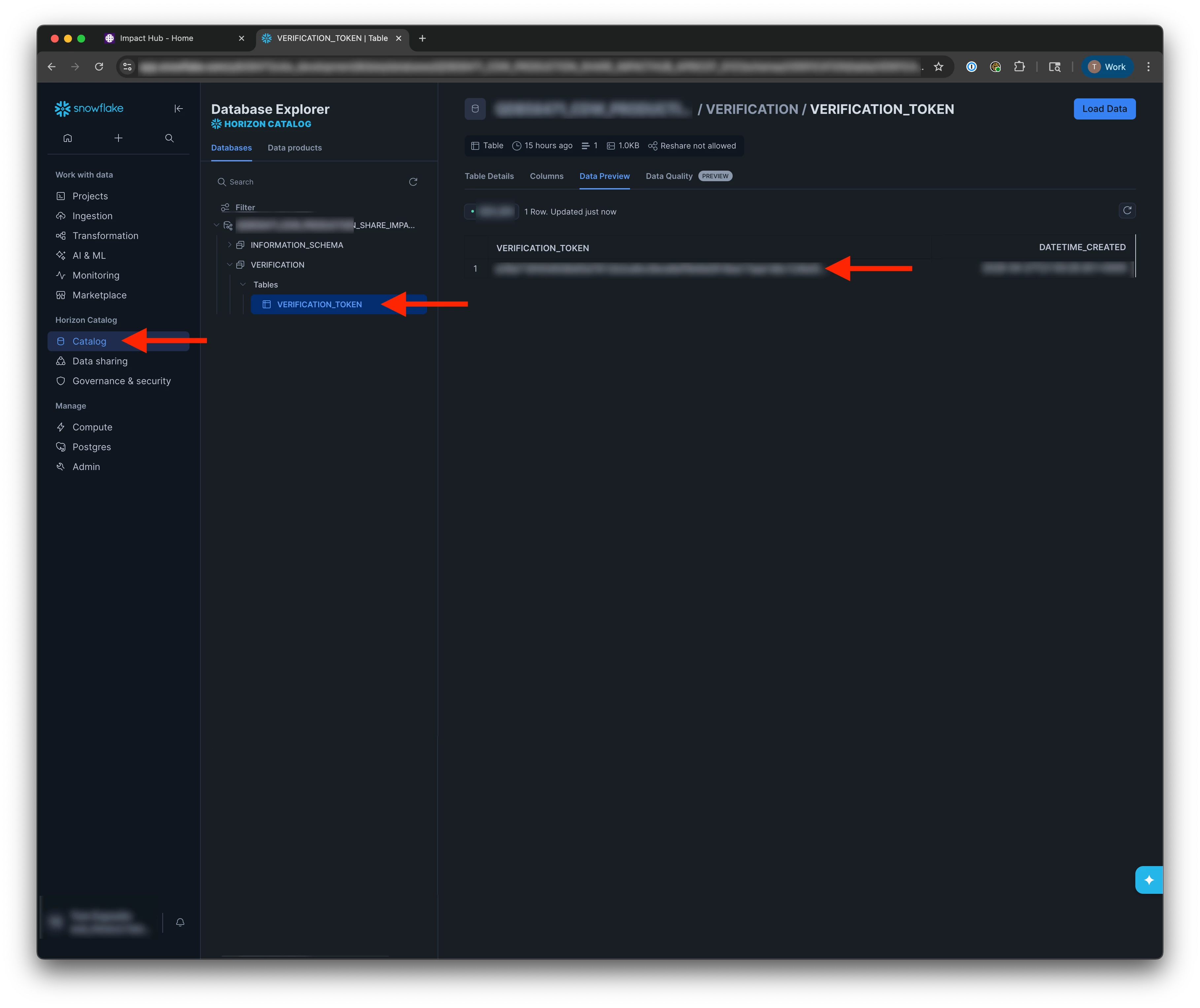
Step 5: Validate your Snowflake account in Impact Hub
- Return to Impact Hub and open the validation prompt.
- Paste the verification token into the field.
- Select Validate.
Impact Hub uses this token to confirm you've connected the correct Snowflake instance before sharing your organization's data.
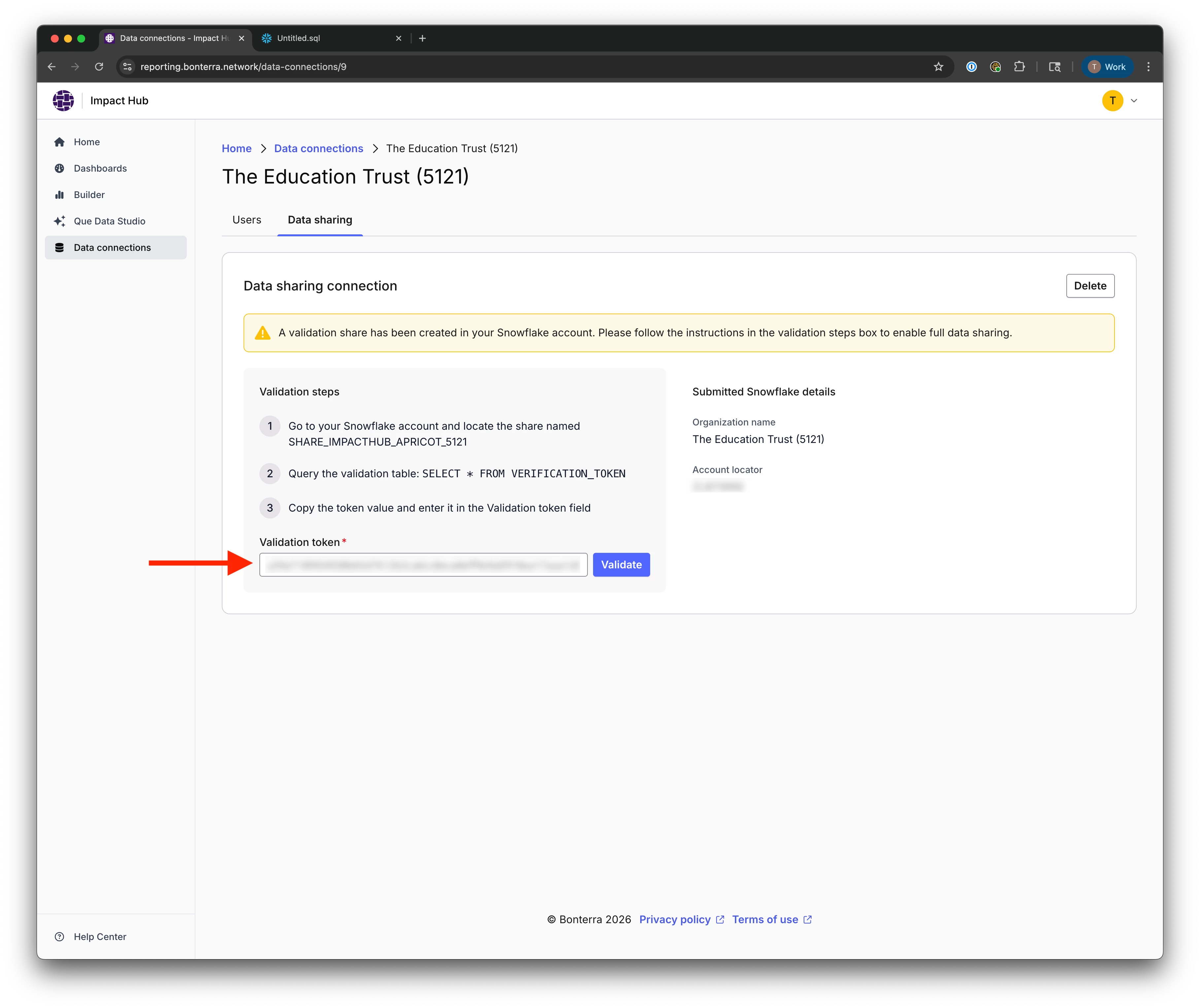
Step 6: Confirm data sharing is enabled
Once validated, the Data Sharing page shows that data sharing is enabled for your organization. Your Apricot data is now available in the Snowflake data share tables in your Snowflake account.
Note: To remove access at any time, select Delete data share from the Data Sharing page.
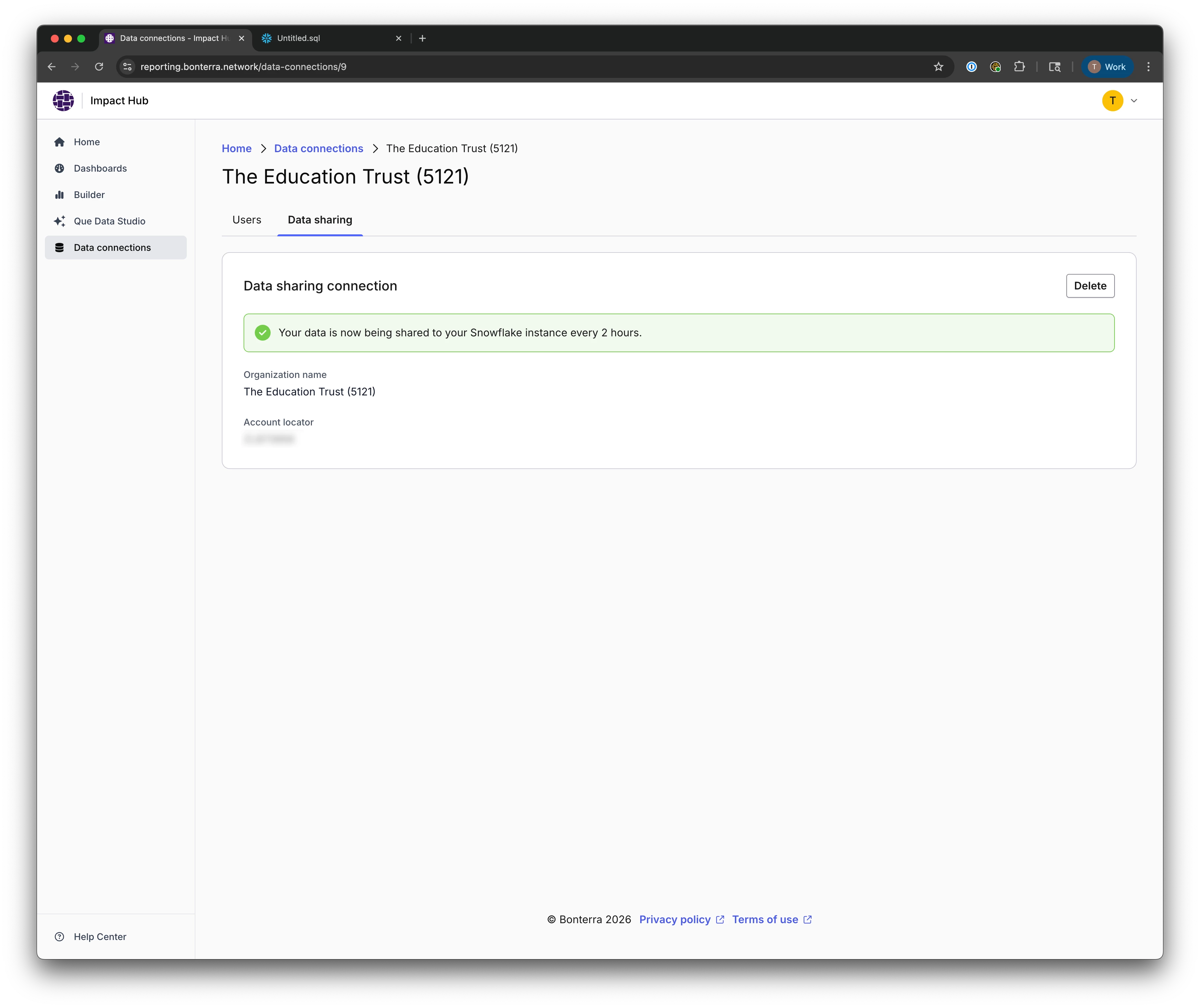
Troubleshooting
Before you submit your request, confirm the following:
- Do you have the Snowflake data sharing add-on? Contact the account management team to confirm before attempting setup.
- Is your Snowflake account on the Business Critical edition? Standard Edition accounts can’t be used for data sharing. Contact your Snowflake administrator to confirm or upgrade your edition.
- Is your Snowflake account hosted in AWS US-EAST-1? Check your Snowflake account URL or contact your Snowflake administrator to confirm. Data sharing is not available in other regions.
- Do you have your Snowflake account locator? You can find it in Snowflake under Admin > Accounts or in your Snowflake account URL (for example,
abc12345.us-east-1.aws). - Do you have access to your Snowflake instance? You'll need to log in and navigate to Data Sharing to complete the validation step.
If you've submitted your request and something isn't working:
- Does the Data Sharing page show a pending or in-progress state after submitting? If so, allow a few more minutes and select Refresh to check for updates.
- Can you locate the VERIFICATION table and VERIFICATION_TOKEN in the incoming Bonterra data share in Snowflake? If not, the share may still be processing.
- After entering the token, does selecting Validate succeed and show Enabled on the Data Sharing page? If not, confirm you copied the full token value without extra spaces.
- Can you query the shared tables from your Snowflake account? If the share is enabled but data isn't visible, confirm your Snowflake role has access to the shared database.
What else do you need help with?
How do I set up Snowflake data sharing in Impact Hub? | What is Snowflake data sharing in Apricot? | How do I find my Snowflake account locator for Impact Hub setup? | Why do I need to validate my Snowflake account in Impact Hub? | Where do I find the verification token in Snowflake for Apricot data sharing? | Does Snowflake data sharing work with any cloud region in Impact Hub? | How do I remove or delete a Snowflake data share in Impact Hub?
How do I add follow-ups from a contact record? | How does add follow-ups from a contact record work in EveryAction? | Why can't I add follow-ups from a contact record? | Where do I add follow-ups from a contact record in EveryAction? | What is add follow-ups from a contact record in EveryAction? | How to add follow-ups from a contact record? | Can I add follow-ups from a contact record in EveryAction?