


Troubleshooting Login Issues | New Login Experience
If you're having trouble signing in after Apricot's login update, this article walks you through the most common issues and how to resolve them.
For an overview of what changed and what the new login experience looks like, see Apricot's new login experience.
Your browser may not recognize the new login page
Many browsers save your passwords and automatically fill them in when you return to a site. When Apricot updated its login page, the web address changed — so your browser may not recognize it as the same site it saved your password for. This means it won't offer to fill in your credentials automatically.
Before you reset your password, check your browser's saved passwords first. Your credentials are likely already there.
Find your saved password
Follow the steps for your browser.
Google Chrome
Step 1: Open Chrome and click the three dots in the top-right corner.
Step 2: Click Settings.

Step 3: Click Autofill and passwords, then click Google Password Manager.

Step 4: In the search bar, type Apricot or your organization's site name and click it to continue.

Step 5: Click the eye icon next to your saved entry to reveal the password.

Note your username/email and password, then return to the Apricot login page and enter them manually.
Mozilla Firefox
-
Open Firefox and click the three horizontal lines in the top-right corner.
-
Click Passwords.
-
In the search bar, type Apricot or your organization's site name.
-
Click the matching entry, then click the eye icon to reveal the password.
Note your username/email and password, then return to the Apricot login page and enter them manually.
Check which email address is saved
While reviewing your saved credentials, confirm the email address or username stored in your browser. If your work email has changed recently — for example, your organization updated its email domain — your browser may have your old address saved.
If your email address has been updated in Apricot, sign in using the new address. If it hasn’t been updated in Apricot yet, ask your administrator to make the change directly in Apricot. Using the wrong email is one of the most common reasons users see a "User not found" error.
If you still need to reset your password
If you've checked your browser and can't find saved credentials, you can request a password reset from the Apricot login page.
After submitting the request, check your spam or junk folder. The reset email includes a 6-digit code and may be filtered by your email provider before it reaches your inbox. Wait a few minutes before requesting another code.
Note: The reset email will only be sent if the address you enter exactly matches what Apricot has on file. If you see a "User not found" message, the email address entered doesn't match your account. Refer to the section above for guidance on finding the correct email.
The password reset email comes from noreply@bonterra.network. If you don't see it in your inbox, check your spam or junk folder.
Allow cookies for bonterra.network
When you land on the Apricot login page, your browser may prompt you to allow cookies for bonterra.network. You must allow cookies for this domain to log in successfully. If you dismissed the prompt or your browser blocks cookies by default, follow the steps below for your browser.
Google Chrome
Step 1. Open Chrome and click the three-dot menu in the top-right corner, then select Settings.
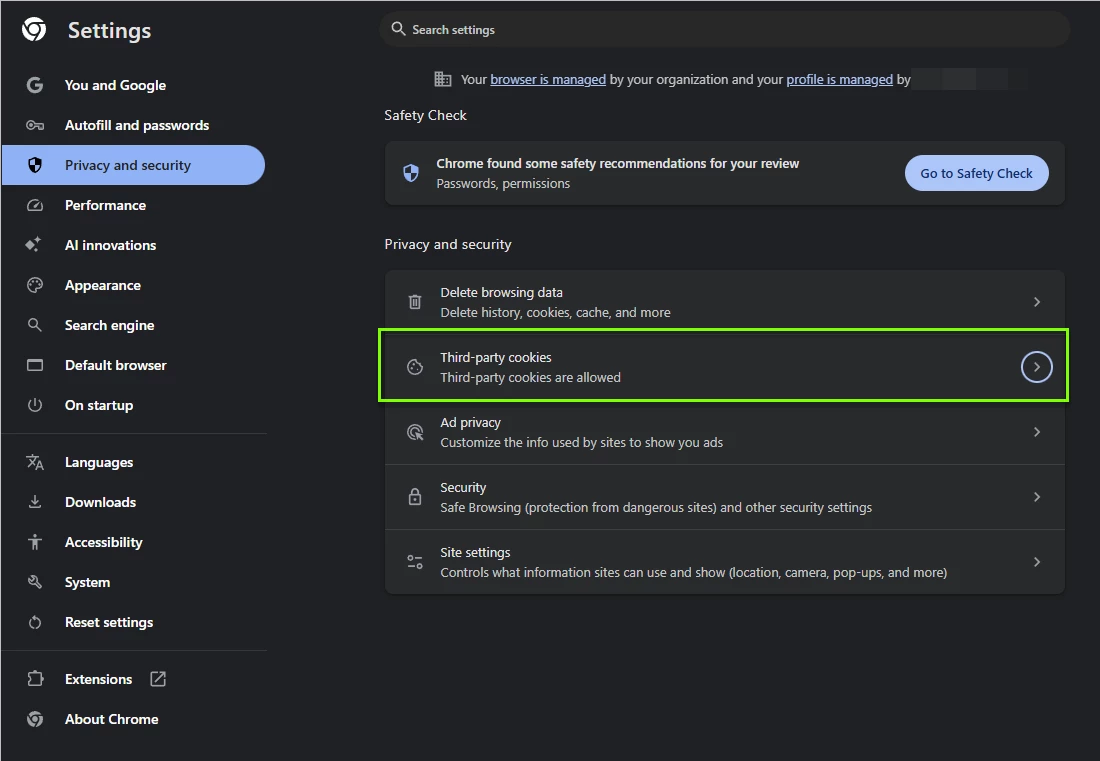
Step 2. In the left menu, click Privacy and security, then select Third-party cookies.
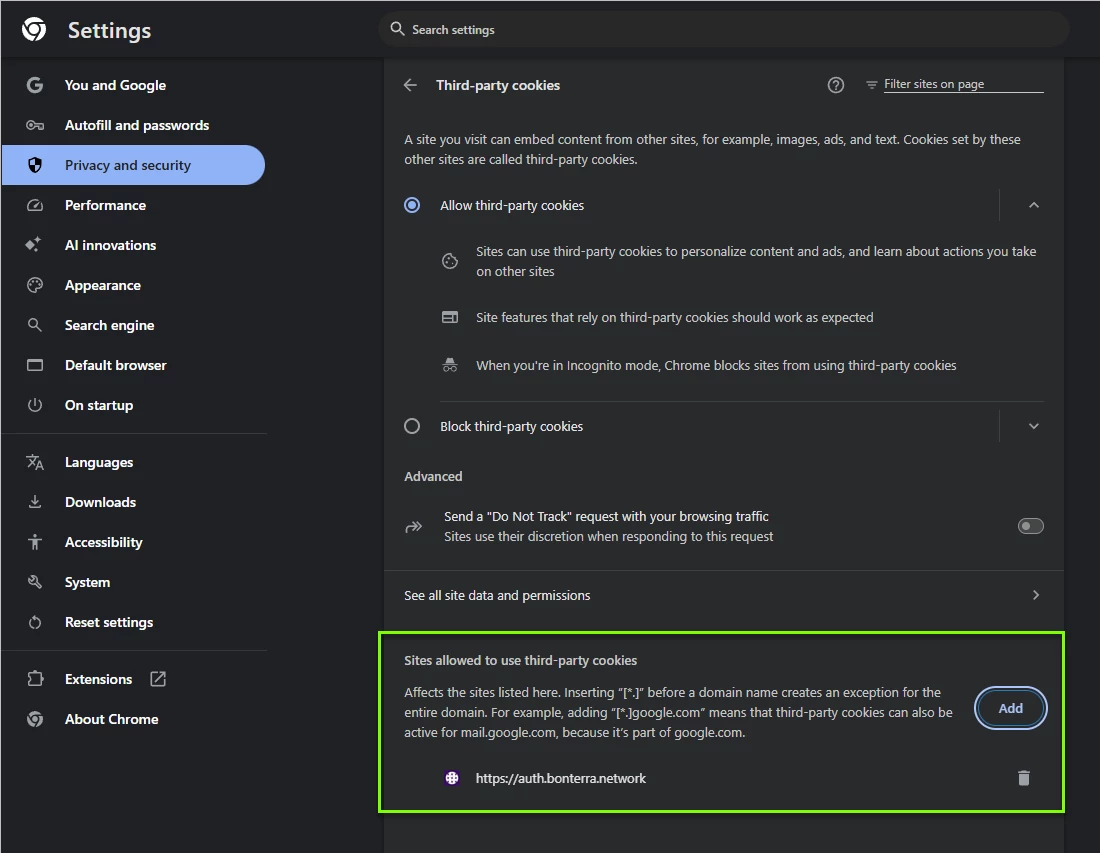
Step 3. Scroll down to Sites allowed to use third-party cookies and click Add.
Step 4. Enter https://auth.bonterra.network/ and click Add.
Step 5. Close Settings and try logging in again.
Mozilla Firefox
- Open Firefox and click the three-line menu in the top-right corner, then select Settings.
- Click Privacy & Security in the left menu.
- Under Enhanced Tracking Protection, click Manage Exceptions.
- In the Address of website field, enter https://auth.bonterra.network/ and click Allow, then Save Changes.
- Close Settings and try logging in again.
Microsoft Edge
- Open Edge and click the three-dot menu in the top-right corner, then select Settings.
- Click Cookies and site permissions, then select Manage and delete cookies and site data.
- Under Allow, click Add.
- Enter https://auth.bonterra.network/ and click Add.
- Close Settings and try logging in again.
Safari (Mac)
- In the menu bar, choose Safari > Settings (or Preferences).
- Click the Privacy tab.
- Make sure Block all cookies is not selected. If it is, deselect it and try logging in again.
Clear cookies for a single site
If you're still having trouble logging in after allowing cookies, your browser may have cached conflicting data for the Bonterra login page. Clearing cookies for just that site — without clearing your entire browser history — often resolves the issue.
Follow the steps for your browser.
Google Chrome (desktop)
- Go to Settings > Privacy and security > Third-party cookies.
- Click See all site data and permissions.
- Search for
bonterrain the search bar. - Click the Delete (trash can) icon next to the site and confirm.
Microsoft Edge
- Go to Settings > Cookies and site permissions > Manage and delete cookies and site data.
- Click See all cookies and site data.
- Search for
bonterra, click the down arrow next to the site, then select Delete.
Mozilla Firefox
- Go to Settings > Privacy & Security.
- Under Cookies and Site Data, click Manage Data.
- Search for
bonterra, select it, and click Remove Selected. - Click Save Changes and confirm.
Safari (Mac)
- In the menu bar, choose Safari > Settings (or Preferences).
- Click the Privacy tab, then click Manage Website Data.
- Search for
bonterra, select it, and click Remove.
Mobile browsers
- Chrome (Android): Open the site, tap the Page info icon (three dots or padlock) in the address bar, then select Cookies and site data > Delete.
- Safari (iPhone/iPad): Go to Settings > Safari > Advanced > Website Data. Search for
bonterra, swipe left on the entry, and tap Delete.
Always log out when you’re done
Always log out of Apricot when you finish your session, especially on shared workstations. Closing your browser tab without logging out can leave an active session running in the background. This can cause a 403 Unauthorized Access error the next time someone tries to log in on the same device.
If you’re seeing a 403 error right now:
- Clear your browser’s cache and cookies, or
- Update your browser and try again.
If neither resolves the issue, contact Support.
Still need help?
If you've tried the steps above and still can't sign in, contact Support. We'll help you get back into your account.
Why can't I log in to Apricot after the login update? | Why isn't my browser autofilling my Apricot password anymore? | How do I find my saved Apricot password in Chrome or Firefox? | What does "User not found" mean when I try to log in to Apricot? | Why didn't I receive my Apricot password reset email? | How do I reset my Apricot password with the new login experience? | What email address should I use to log in to Apricot?