


How do I use a restricted report? (Native Reporting)
Users may occasionally come across a report marked as "restricted" in the Report Center. Restricted reports are typically set up by Bonterra and are used to maintain the integrity of reports created to follow government restrictions or requirements.
Administrators cannot create or edit a restricted report or undo the restriction placed on a report. Only the Support team may edit or configure a restricted report. However, there are still some actions users can take within a restricted report to meet other reporting needs.
Note: You can also contact Support to request a report be unrestricted.
Follow the steps listed below to learn how to identify and utilize restricted reports in your organization.
Step 1: View in Run mode
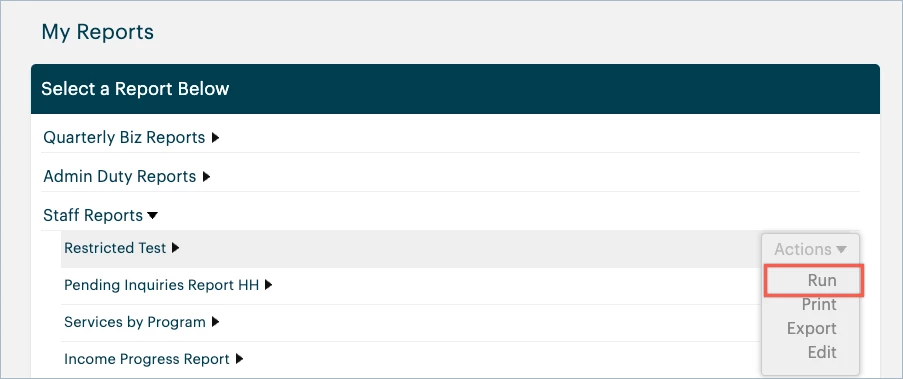
In the 'My Apricot' tab, expand the 'My Apricot Tools' category to select 'My Reports'. Open the report categories with the black arrows to find the restricted report. Then, hover over the Actions menu next to the report and select Run.
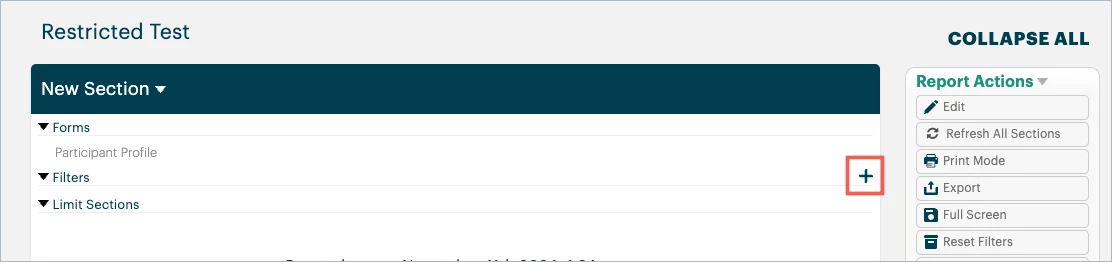
This allows you to view the restricted report's results and create new run-time filters in addition to any pre-existing filters.
The Report Actions palette also gives you the option to print or export the restricted report.
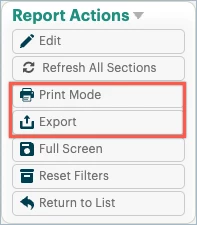
Selecting Edit in this palette will then show the report in Edit mode.
Step 2: View in Edit mode
You can also open a restricted report in a different way. In the Administrator tab of Apricot, expanding the Report Center category on the navigation bar and going to the Reports page will list all reports. Here, though, restricted reports are clearly indicated with a lock icon next to their name.
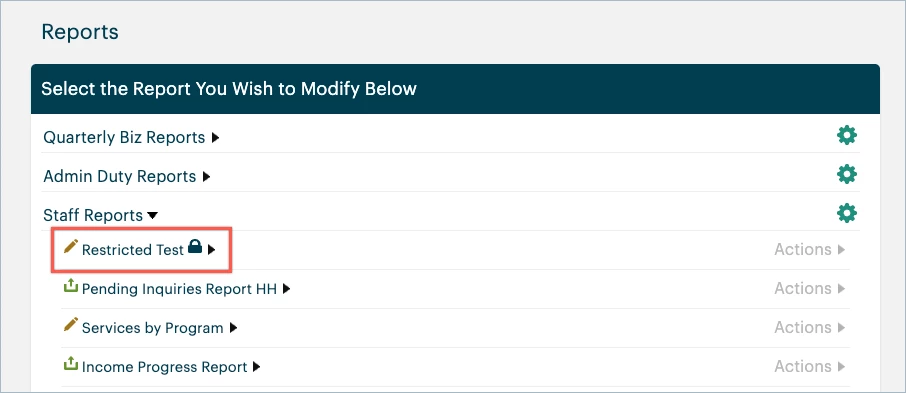
Clicking Edit from the Actions menu here will open the report in Edit mode
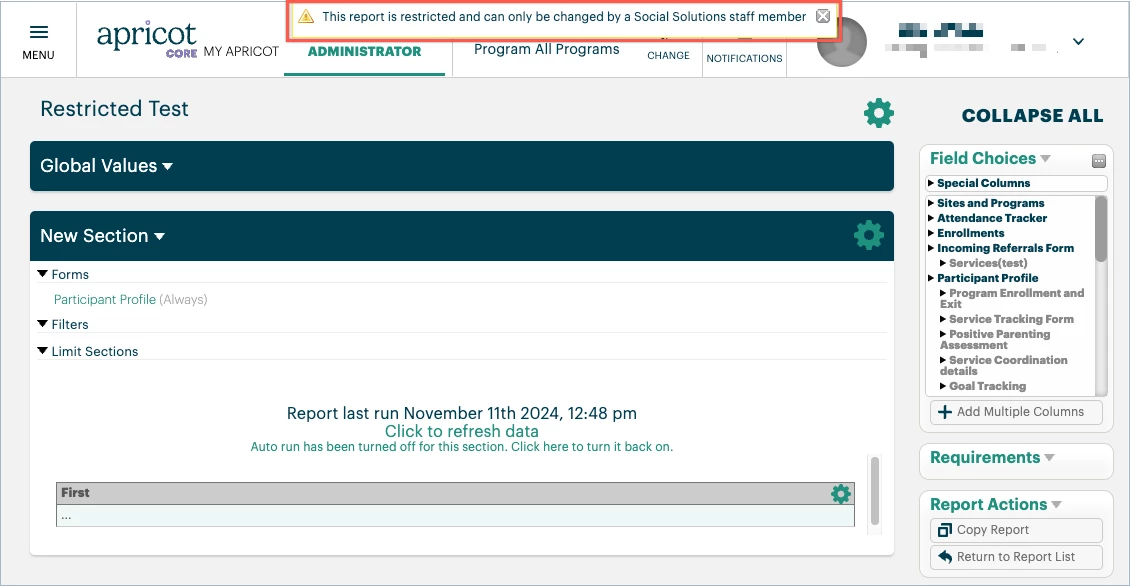
You'll see a pop-up message display: "This report is restricted and can only be changed by a staff member."
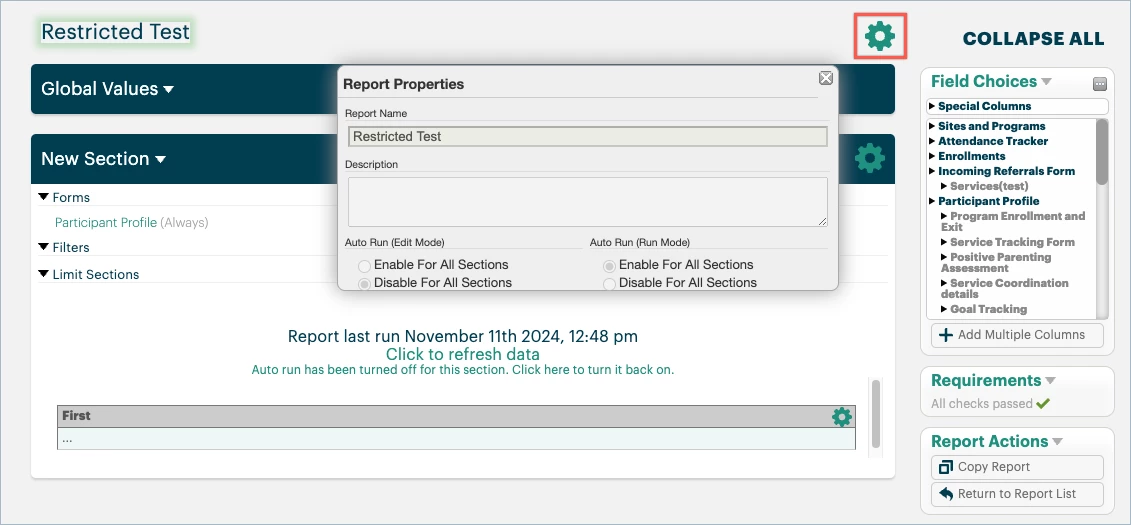
The Report and Column Properties will also be grayed out if you click the gear icons to open them.
Step 3: Copy the report
To actually make and save changes to a restricted report, you can create a copy of it while the original remains restricted. To learn how to copy a report, click here.
What else do you need help with?
-
Not what you're looking for? Navigate to overview
How do I use a restricted report in Apricot? | Why can’t I edit a restricted report? | How do I view a restricted report in Run mode? | Can I print or export a restricted report? | How do I identify restricted reports in Apricot? | How do I copy a restricted report to make changes? | Who can remove restrictions from a report?