


How do I remove inactive subscribers in 'Targeted Email'?
Step 1: Navigate to Targeted Email
Navigate to 'Targeted Email' and click 'Create a New Email'. Scroll down to 'Exclude From Audience' in the 'Select Recipients' section. Click the radio button next to 'Saved Search and Lists'. Now, you will have an option to 'Create a new Saved Search'.
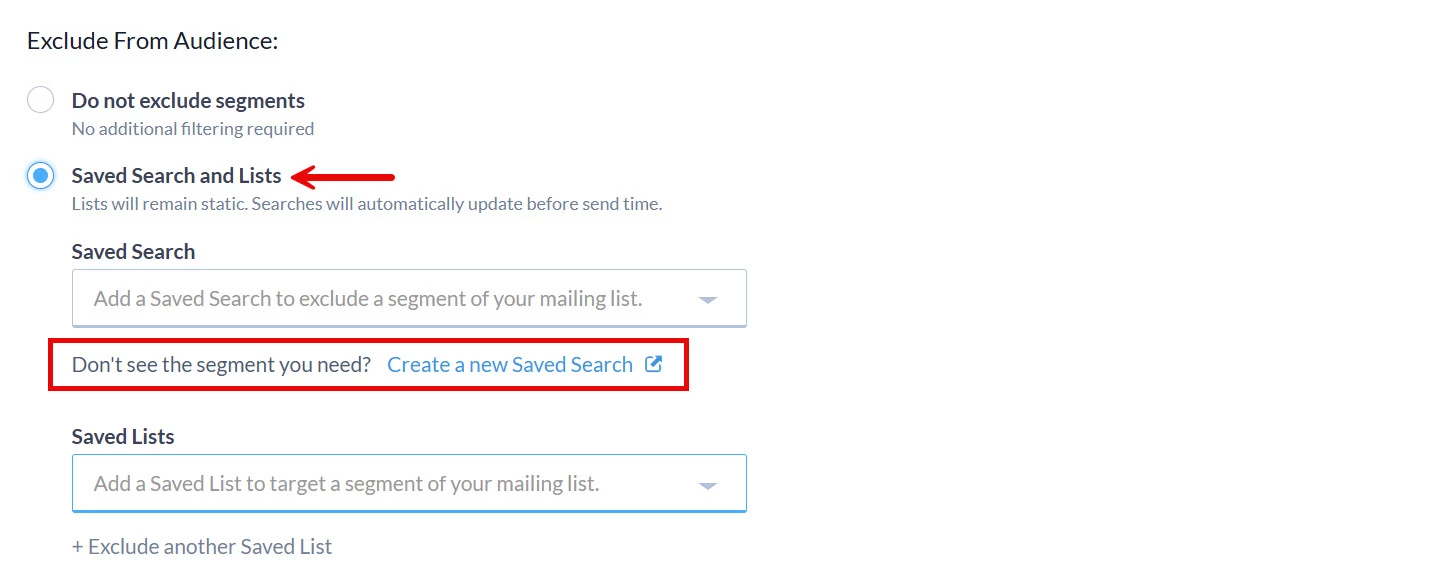
Step 2: Create a List of Disengaged Contacts
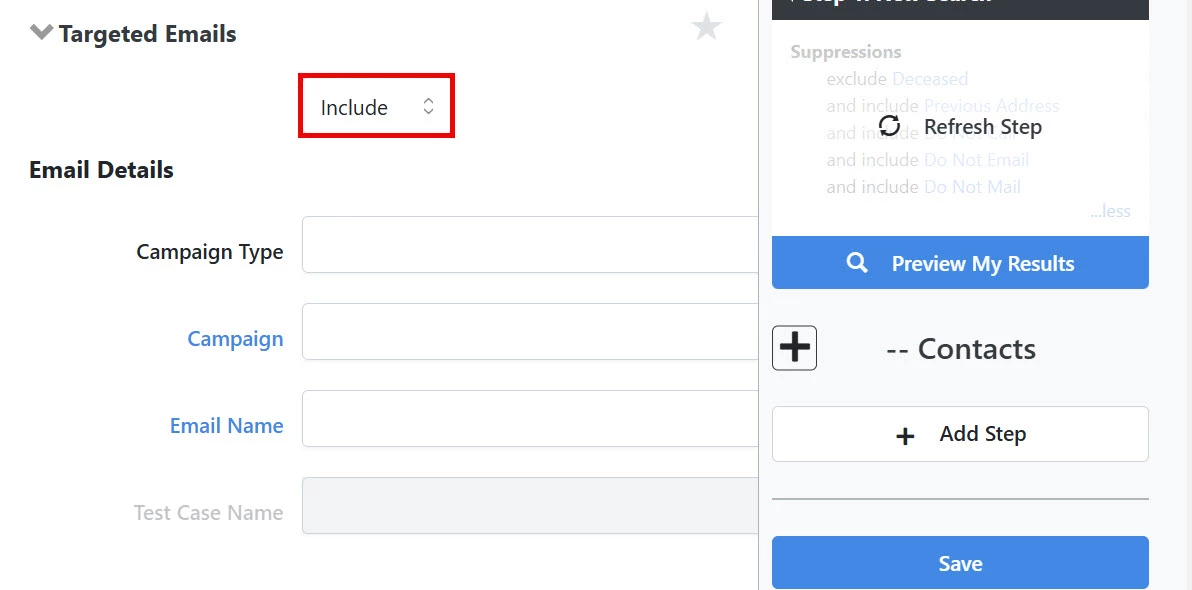
A pop-up window should appear - navigate to the 'Targeted Emails' section and click to open the drawer. Select 'Include' from the first drop-down list.
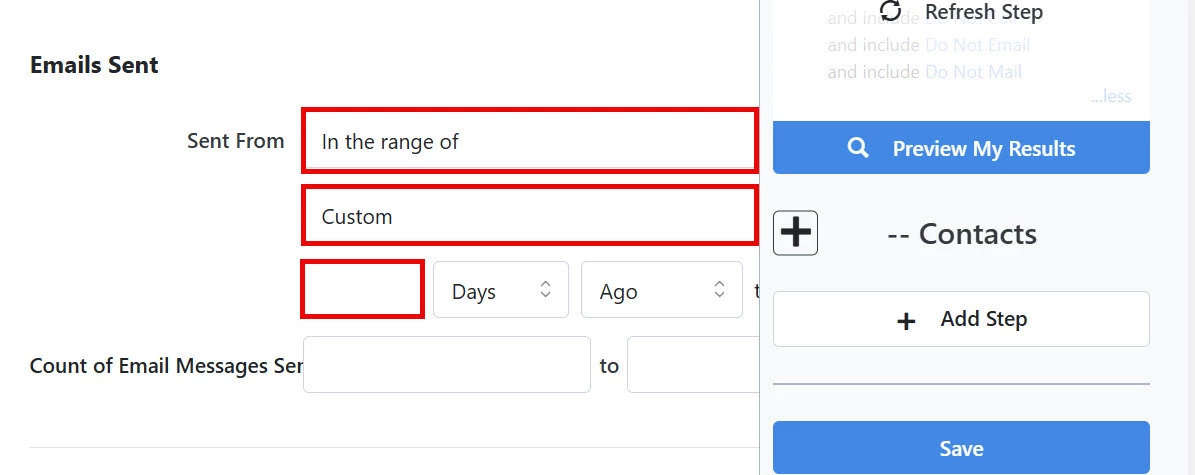
Scroll to the 'Emails Sent' section. In the 'Sent From' drop-down lists, select the following:
- 'In the range of'
- 'Custom'
- specify 1-90 days
Click 'Preview My Results' to generate a list of your disengaged contacts.
Step 3: Save the List
Once satisfied with the criteria set, click 'Save' and name your list (e.g., “Disengaged Contacts - 90 Days”).
Step 4: Apply the Exclusion in Email Campaigns
Navigate back to the 'Targeted Email' Dashboard and resume setting up your campaign. In the 'Select Recipients' step, click the radio button next to 'Saved Searches and Lists' under the 'Exclude From Audience' section and select the list you just created from the 'Saved Lists' drop-down.
Not quite what you were searching for?
- Navigate back to the Understanding Email Campaigns & Management Resource Index.
How do I remove inactive subscribers in 'targeted email'? | How does remove inactive subscribers in 'targeted email' work in EveryAction? | Why can't I remove inactive subscribers in 'targeted email'? | Where do I remove inactive subscribers in 'targeted email' in EveryAction? | What is remove inactive subscribers in 'targeted email' in EveryAction? | How to remove inactive subscribers in 'targeted email'? | Can I remove inactive subscribers in 'targeted email' in EveryAction?