


How do I create and manage users with user roles in EveryAction?
(2 min read)
If you are using app.everyaction.com, you can create a new User Account whenever someone new joins your organization and assign them a User Role that will determine the scope of what they can do with the tools and features available to your organization. The User Roles that are available depend on the feature package you purchased from EveryAction.
Read more about User Roles in EveryAction
If you are logging in another way, you may instead have access to User Profiles you can assign to your users. Check with your Account Executive if you are not sure which method you will be using.
Read more about User Profiles in EveryAction
Step 1: Creating a new user
- From the homepage, navigate to the left-hand menu. Click Administration > Users, Profiles, and Committees > Users.
- Or use the Search for a page field and type Users.
Select Add New User and enter the name and contact information for your new user. Then, select your Committee from the dropdown.
You will then need to determine what level of access they will have to your database by selecting a User Role from the dropdown.
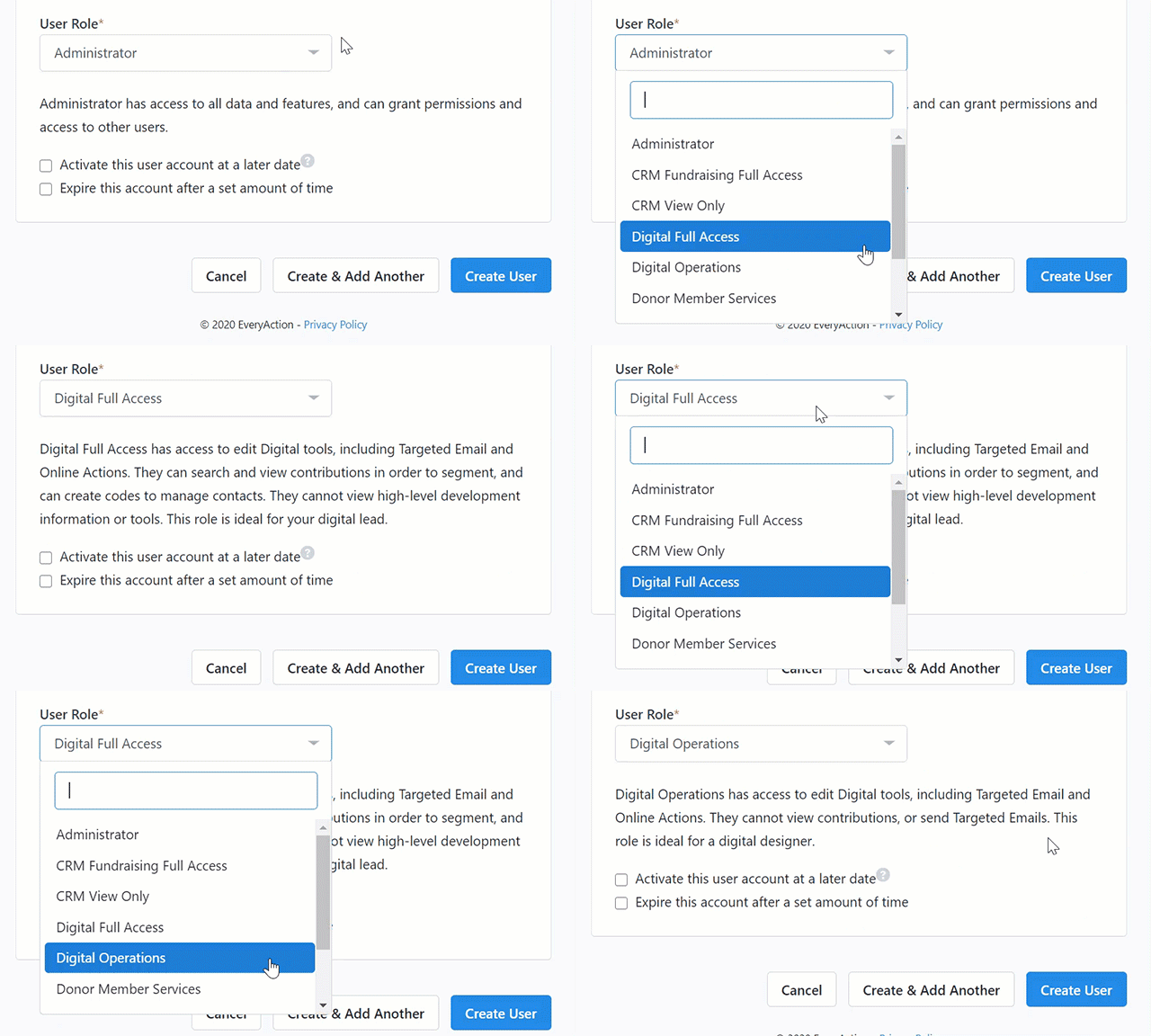
If you want your new user to have access to everything, assign them the Administrator User Role. If you want to limit the information they can view or edit, or the features they can access, select a lower level role. Please reach out to Support to create users with the Account Administrator User Role.
Step 2: Reviewing and editing user access
You will be able to see details about your users from the Users list page. (If it is not already visible, you can add the User Roles column to the list from Settings gear icon in the upper right corner of the Users list page.)
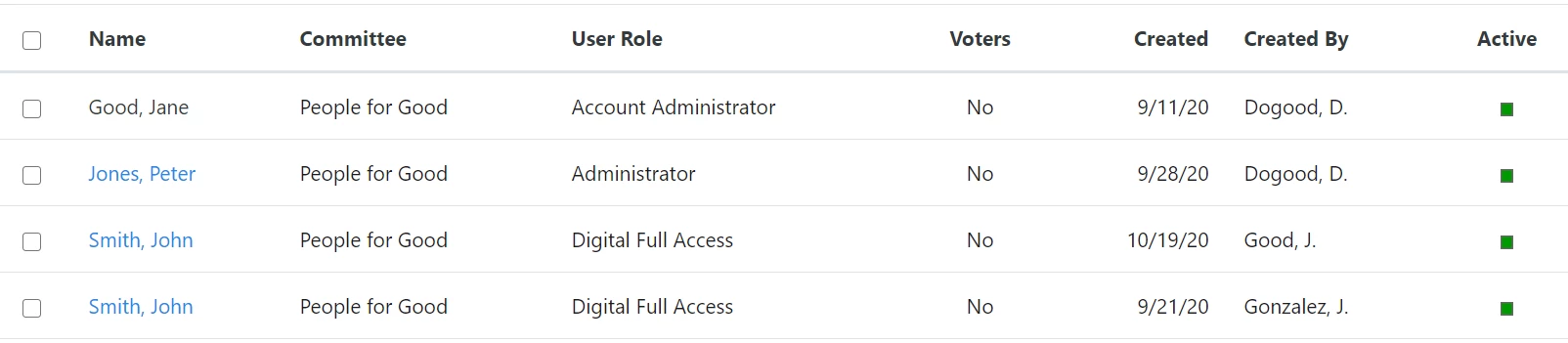
Clicking on an individual user’s name will take you to the User Details page. At the bottom of the page is the Security section which displays the User Role that has been assigned as well as all the permissions granted to that user. This can help you troubleshoot issues your user might be having with viewing or editing certain records or accessing certain features. If the permissions you are looking for don’t appear on the list, your user does not have access to it. Please note that users with the same User Role/User Profile cannot view each others user details on the users page.
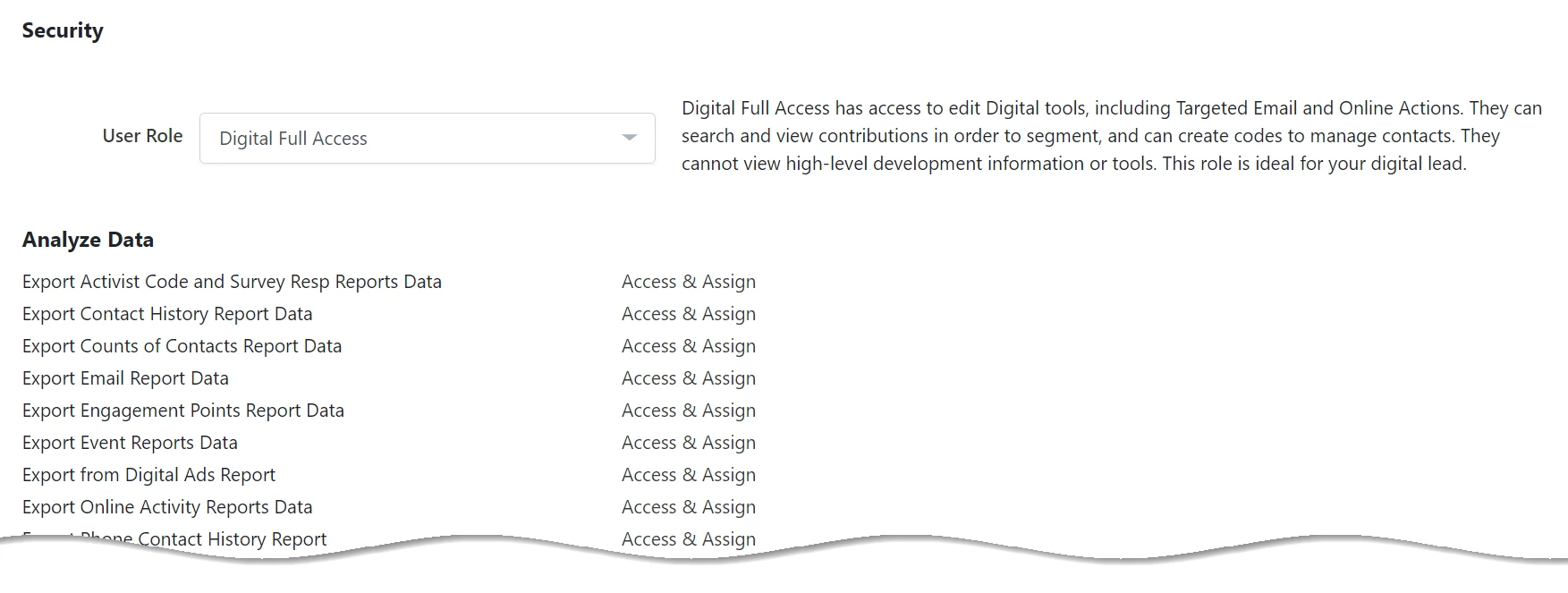
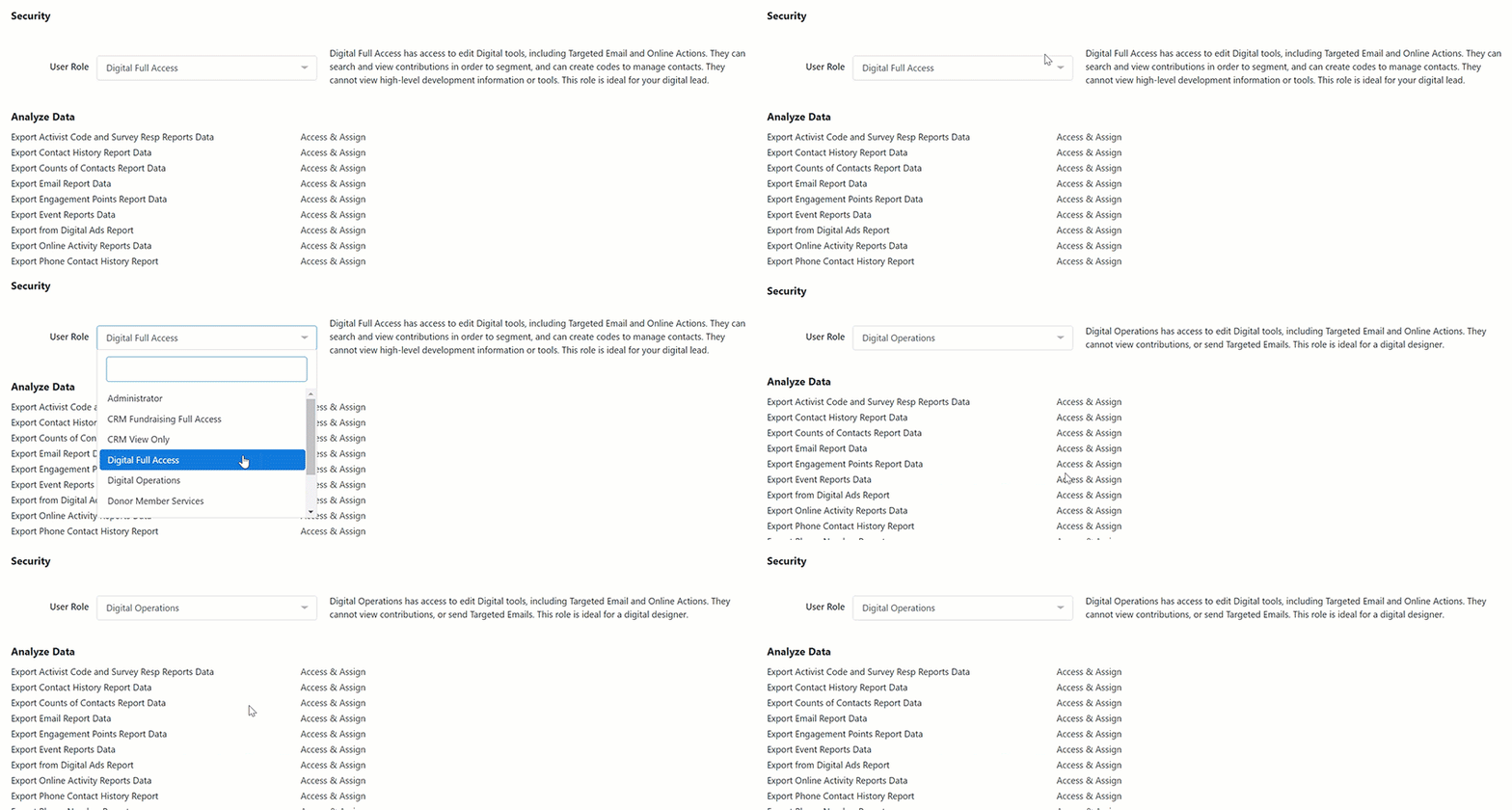
If you want to assign a different User Role, select the new role from the dropdown. A description will appear with each selected role and the permissions assigned to that role. Your user’s access levels will not change until you select Save.
How do I create and manage users with user roles in everyaction? | How does create and manage users with user roles in everyaction work in EveryAction? | Why can't I create and manage users with user roles in everyaction? | Where do I create and manage users with user roles in everyaction in EveryAction? | What is create and manage users with user roles in everyaction in EveryAction? | How to create and manage users with user roles in everyaction? | Can I create and manage users with user roles in everyaction in EveryAction?