


How do I use the sign-in/sign-out view for the Registration Grid?
The Registration Grid now includes a dedicated sign-in/sign-out view. When your Tier 2 form includes a signature field configured for sign-in or sign-out, the view activates automatically — no additional setup required.
Use this view to capture participant signatures, track attendance in real time, and build a timestamped record of every entry and exit.
What's new
-
Real-time attendance tracking. See who is signed in, signed out, or present — directly from the Registration Grid.
-
Automatic witness record. Each signature captures a timestamp and the name of the logged-in staff member serving as witness.
-
No duplicate data entry. Signatures write directly to the Registration Grid and Tier 2 form. Status updates automatically.
-
Flexible configuration. Enable sign-in only, sign-out only, or both — based on how your Tier 2 form is set up.
Common use cases
Daily program attendance
At drop-off and pickup, staff (or the parent/guardian, depending on your setup) opens the sign-in/sign-out view, selects the participant, and captures the appropriate signature. Status moves from Signed In to Signed Out across the day — visible directly on the Registration Grid.
Compliance and audit trail
Each signature is timestamped and tied to the logged-in staff member as witness. This creates a verifiable custody record without extra paperwork — useful for funder requirements, licensing standards, or internal policy.
Before you begin
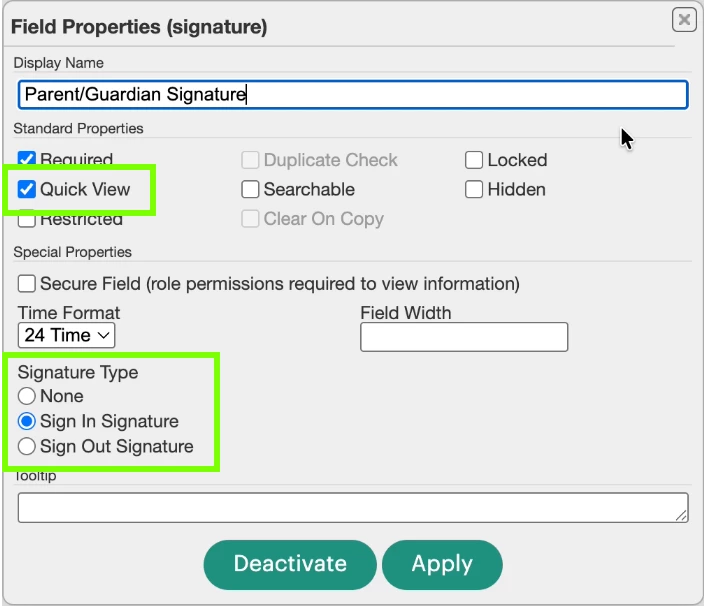
This view only appears when your Tier 2 form has at least one signature field configured as a Sign In or Sign Out Signature Type. The signature field must also have the “Quick View” Standard Property selected. If you don't see the sign-in/sign-out button, check your form configuration first.
How to use the sign-in/sign-out view
Staff workflow
-
Open the class profile and go to the Registration Grid, or select Student Attendance directly.
-
Select the class and date, either from the Registration Grid column or directly on the page.
-
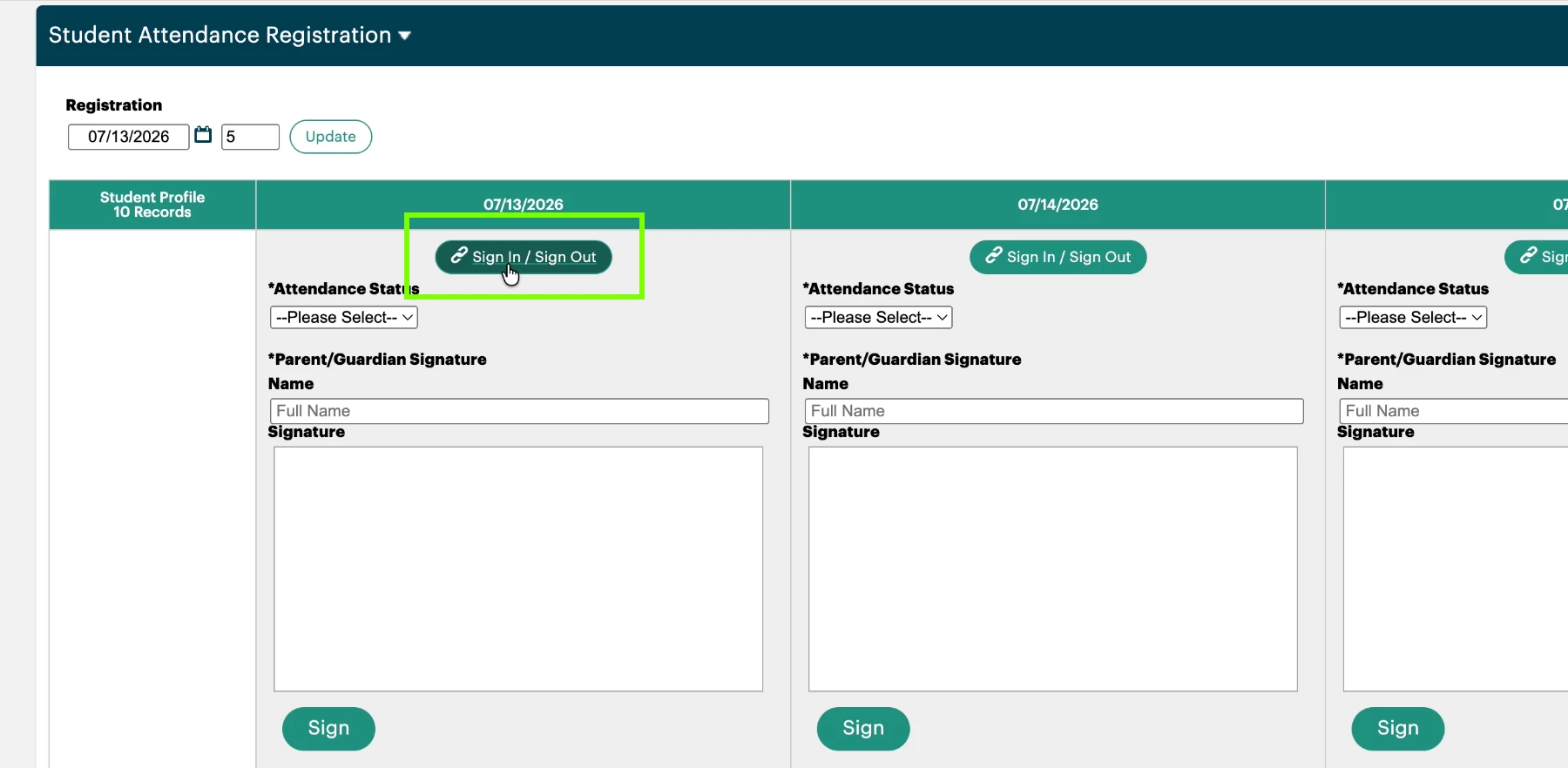
Locate and click the sign-in/sign-out button. (This button only appears when the Tier 2 form has a qualifying signature field.)
-
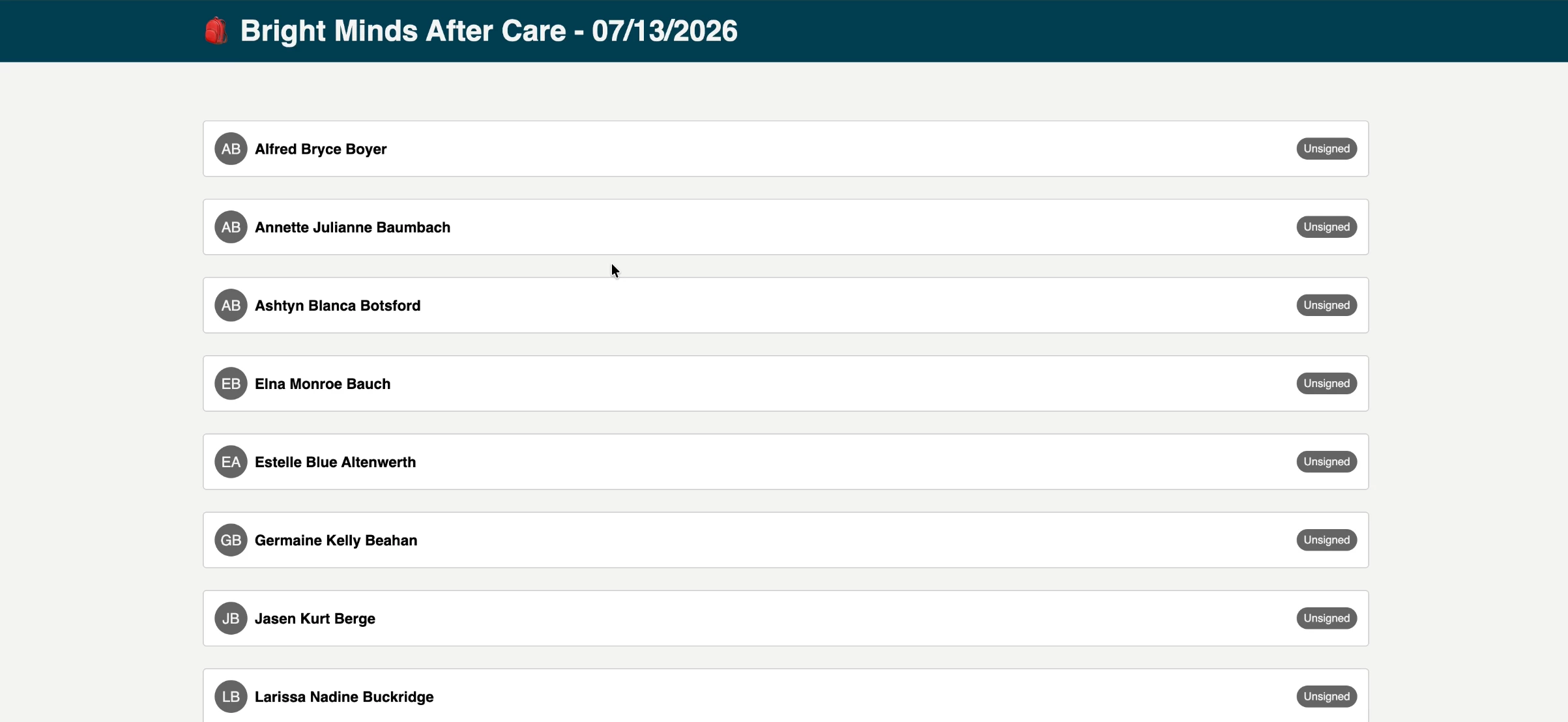
Review the roster of enrolled participants.
-
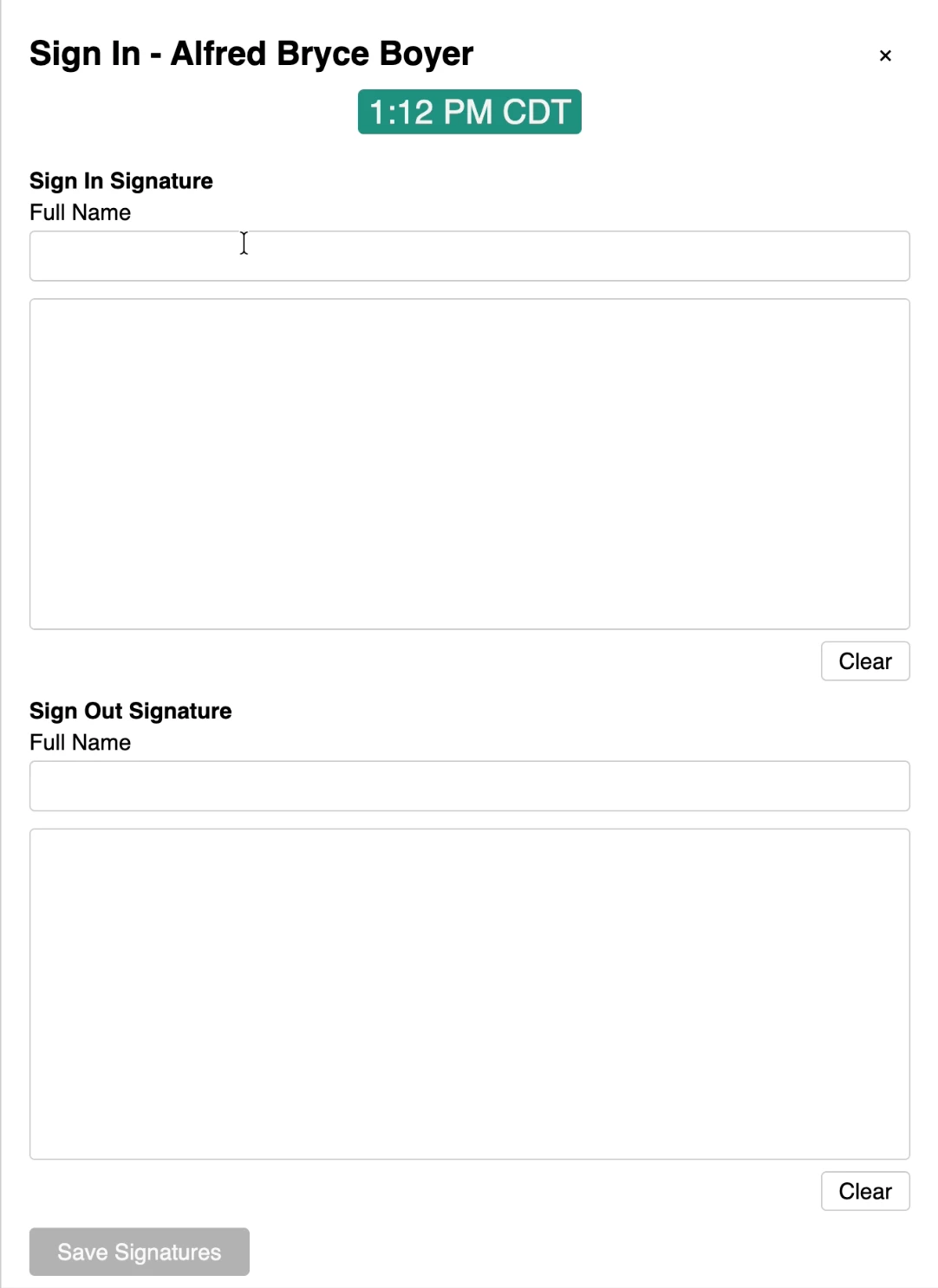
Select a participant to reveal their sign-in and sign-out signature fields.
-
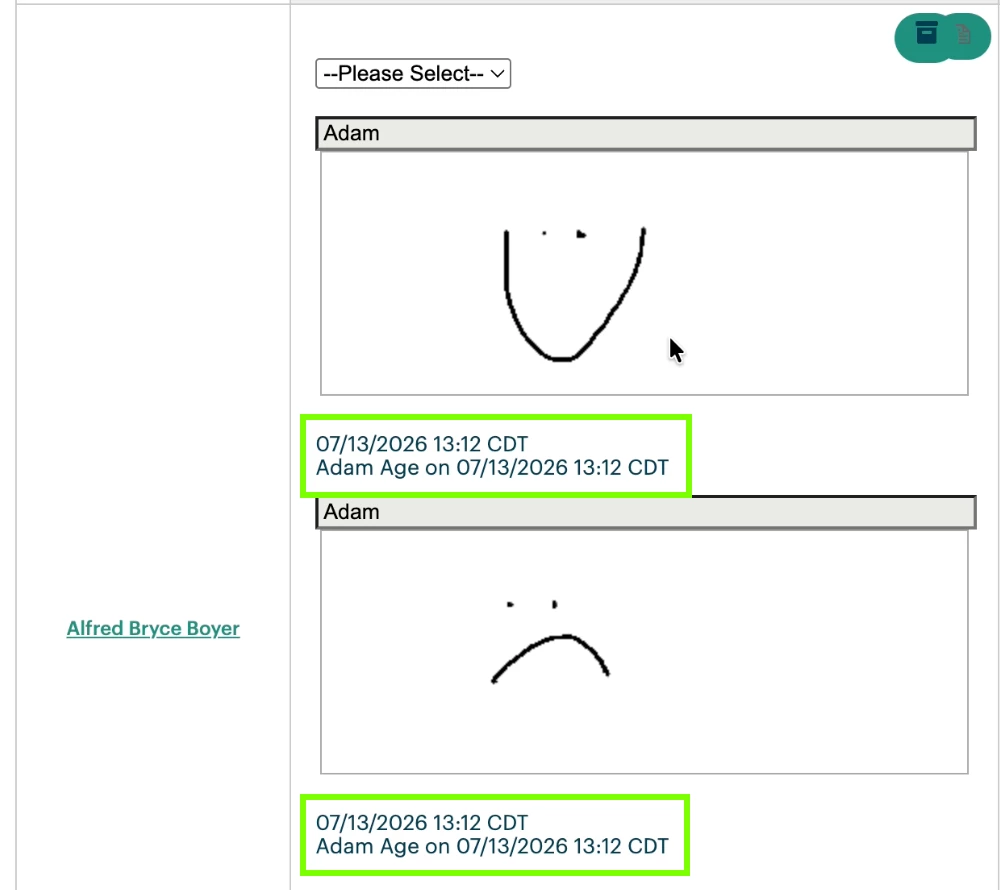
Capture the signature. Status updates automatically, and the witness defaults to the logged-in Apricot user.
Kiosk workflow (for participant or parent/guardian)
-
Staff opens Apricot on the kiosk and prepares the class session.
-
Staff opens the sign-in/sign-out link for that class.
-
The participant or parent/guardian signs in or out directly on the page. They do not need an Apricot login.