


How do I assign records to a user? (Legacy Permissions)
Users in a permission set with User Record Level Access (User RLA) enabled are unable to access any records unless they added the record to Apricot themselves or the record is assigned to them. Follow the steps listed below to learn how to assign records and test a user’s RLA.
Step 1: Select a form
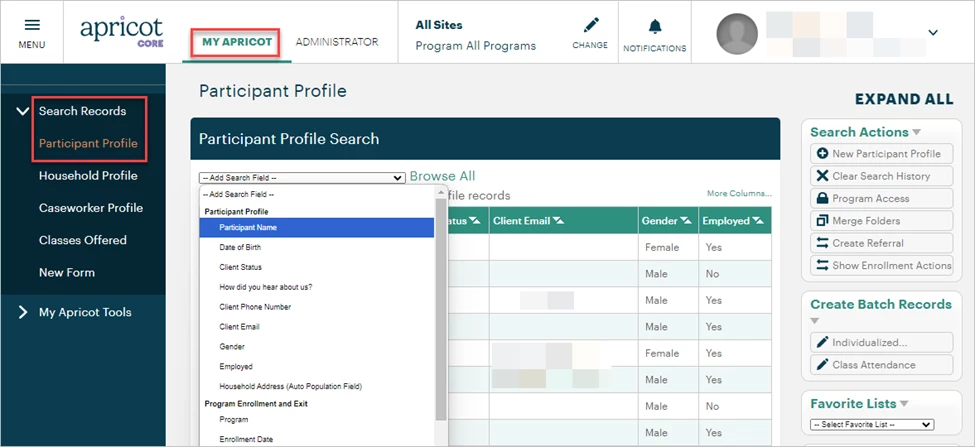
From the My Apricot view, expand the Search Records category and select the form you’d like to use to assign records to a user.
Step 2: Search for records
Click the dropdown to add a search field and filter your results. For example, you can search on an individual record basis by using record names as your search criteria.
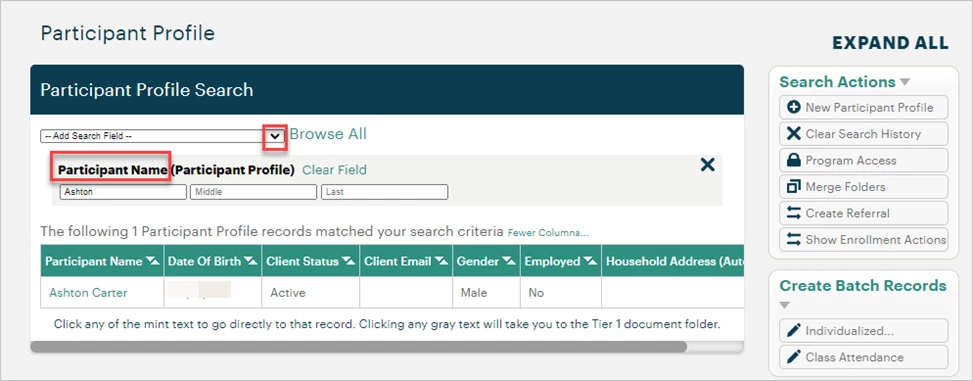
Note: Ensure that your search results only display records you want to assign to a user, as the next step will apply to all records currently shown in your search results.
Step 3: Edit Program Access
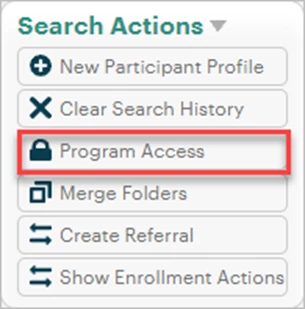
In the Search Actions palette, select Program Access.
In the pop-up window, expand the Owner dropdown field. Select the user who is assigned to the permission set with User RLA enabled and should be able to access your record selection. Note: This will change the Owner assignment for all records displayed in your search results.
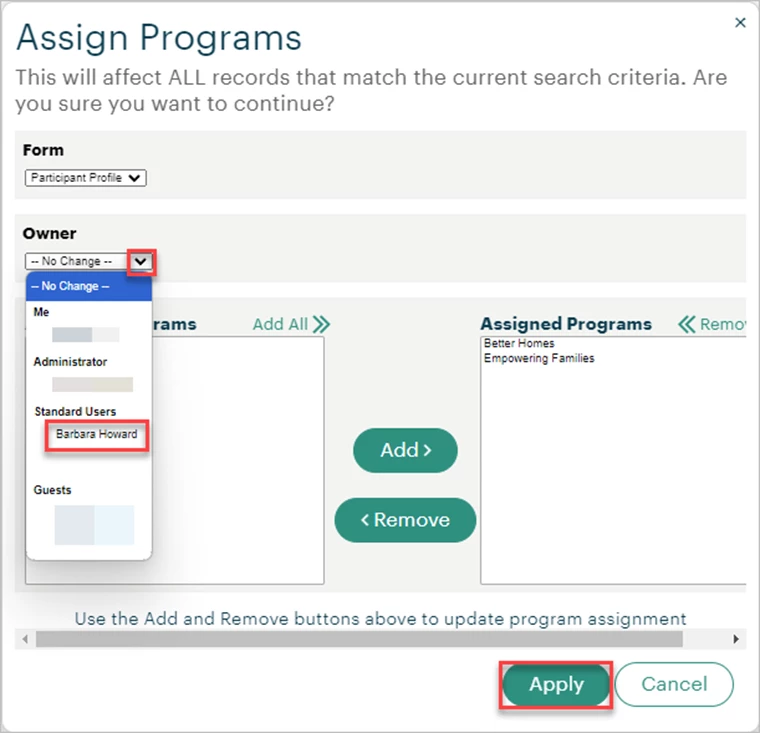
Click Apply to confirm your changes.
Step 4: Test the user’s RLA
To double-check the user’s access, you may click your name in the top-right corner of Apricot to expand the dropdown and select the user you assigned the records to.
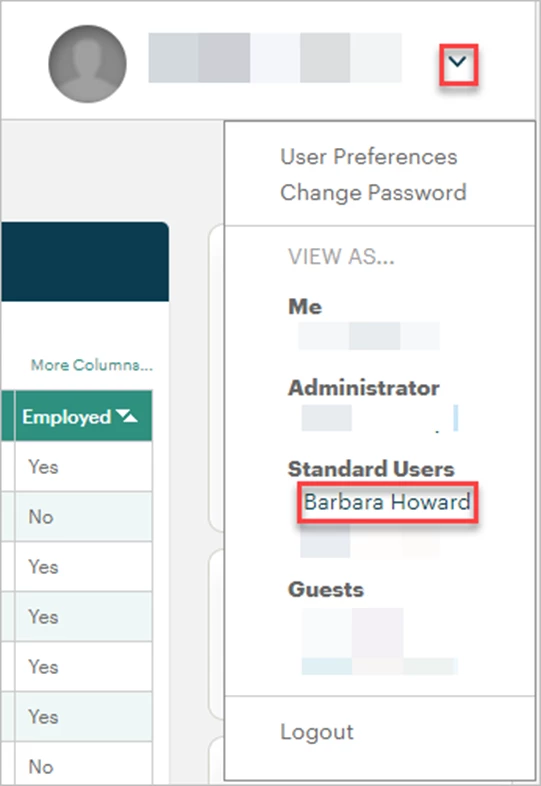
Your view will now reflect the access of the selected user. If User RLA has been applied correctly, you should only be able to search within and view the records that were just assigned to the user.
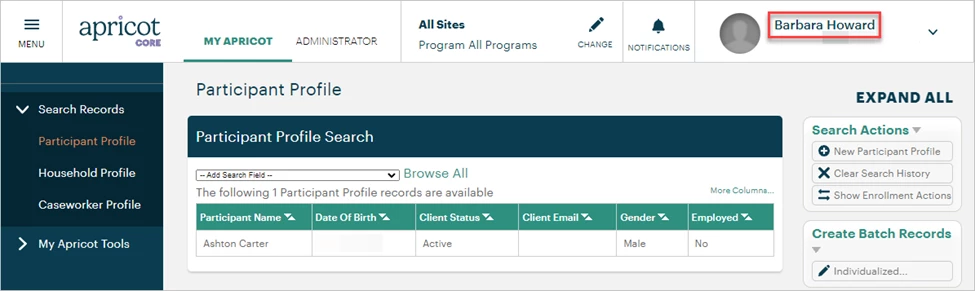
To revert to your own Apricot view, click the name in the top-right corner again and select your name.
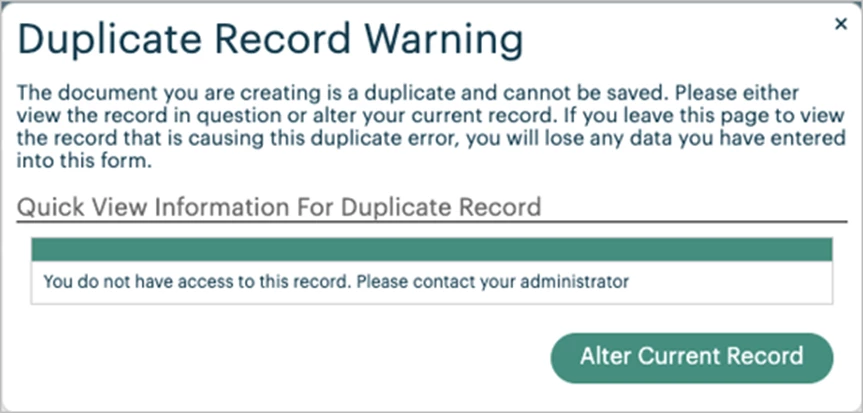
Note: Duplicate checks still work even if the user doesn't have access to the original record. They will receive the following notification if they attempt to create a record that already exists in Apricot.
What else do you need help with?
-
Not what you’re looking for? Navigate to overview
How do I assign records to a user in Apricot | How do I give a user access to a record | How do I use User RLA to assign records | How do I change record ownership for a user | How do I test a user’s record access | Why can’t a user see certain records | How do I revert to my own view after testing User RLA