


How do I generate and refine a Grant proposal?
Proposal generation is available from the detail page of any grant you're tracking in the Nonprofit Hub. The following steps walk you through generating a draft, refining it, and preparing it for use in your application.
Before you begin
Proposal generation works best when your organization's profile is complete and up to date. The more accurately your profile reflects your mission, programs, service geography, and organizational background, the more relevant the generated content will be.
If you've already run a grant evaluation for this opportunity, the proposal generation will use your eligibility, effort, and award profile findings to shape the draft. If not, the system generates from your profile and the grant requirements and still produces a useful first draft — but running the evaluation first gives you a more informed and targeted result.
Step 1: Open the grant detail page
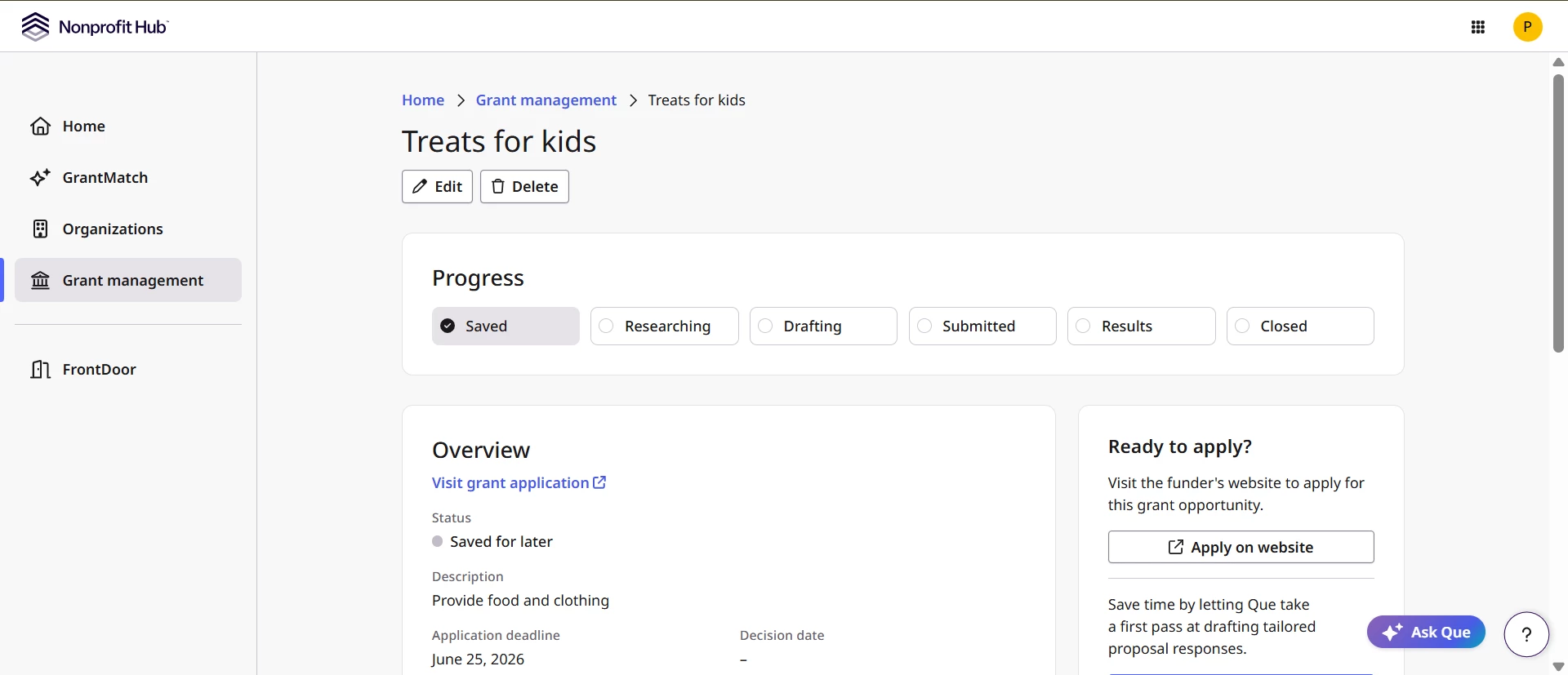
From your Grant Management list, select the grant you want to write a proposal for. The grant's detail page is the starting point for both grant evaluation and proposal generation.
Step 2: Generate the proposal
Select the option to generate a proposal. The system assembles inputs from your organization profile, program context, grant requirements, funder information, and (if available) your prior grant evaluation results, then produces a structured draft tailored to this grant's specific requirements.
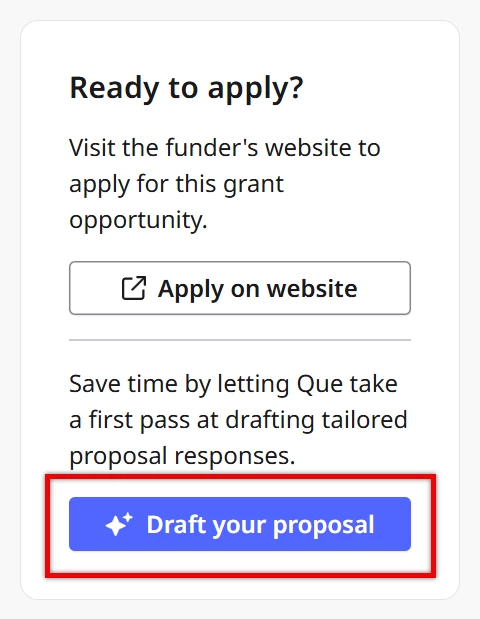
Generation streams section by section so you can see the draft take shape as it's produced. The time it takes depends on the number of sections and the complexity of the grant requirements.
Step 3: Upload additional context (optional)
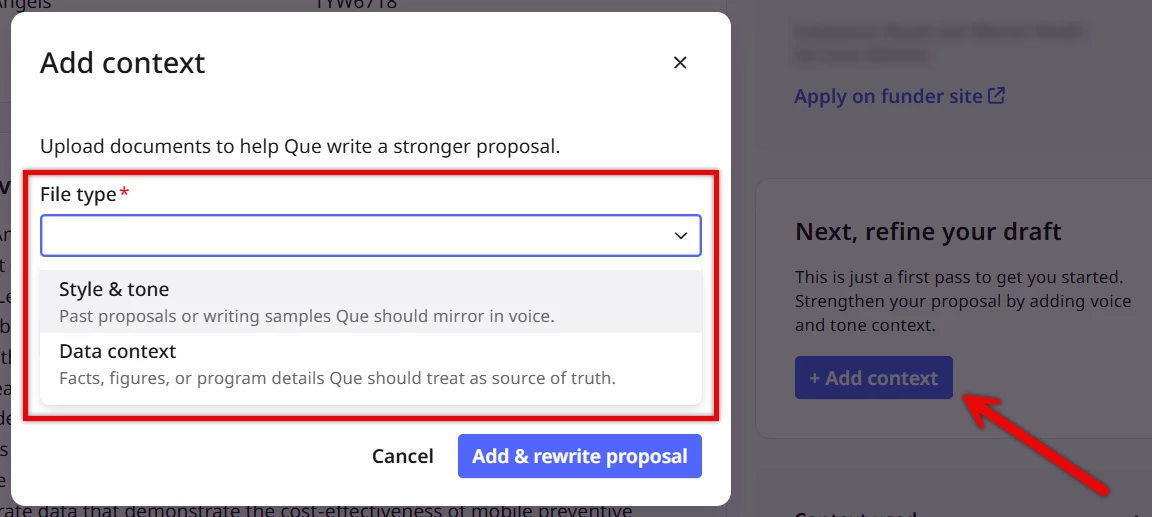
After generating, you can upload files to help the system tailor the draft to your organization. Two types of uploads are available:
- Style and tone — Past proposals or representative writing samples to help the system match your organization's voice . You can upload past successful applications, narrative samples, or other documents that reflect how your organization writes. Voice matching is optional; if you skip this, the system generates content without style guidance. You can add or remove files at any time; changes update the voice library immediately. The voice library is specific to this grant and is shared across all members of your organization.
- Data context — Supplementary program information such as impact reports, program outcomes data, annual reports, or program-level statistics. When you add files, the system extracts relevant program details to help the proposal draft address impact and outcomes questions with concrete organizational data. Data context is optional; if you skip this, the system generates content using your organization profile and grant requirements alone. You can add or remove files at any time; changes update the data library immediately. The data library is specific to this grant and is shared across all members of your organization.
Step 4: Review the draft
Once generation is complete, review each section. For each one, check the Sources indicator to see which inputs informed the content — for example, whether it drew from your organization profile, grant requirements, or funder history. When a section directly addresses a specific grant application question, the source attribution surfaces that connection, helping you verify coverage before you apply.
Pay particular attention to sections that map to specific funder requirements. These are the most critical sections, and the source attribution will tell you which grant question each one is responding to.
Step 5: Revise sections
For any section that needs adjustment, select the Revise option. Five operations are available:
- Shorten — condenses the section while preserving key points
- Expand — adds depth and detail
- Make clearer — simplifies language and improves readability
- More persuasive — strengthens the argument and impact framing
- Emphasize impact — brings outcome and mission impact language forward
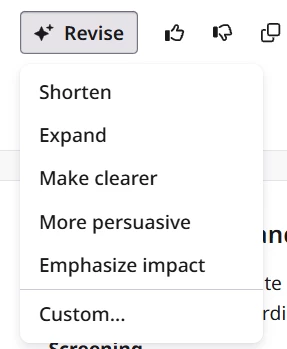
Select the operation that fits what the section needs and confirm. The system regenerates that section only, maintaining coherence with the rest of the proposal and preserving your voice matching. The revised content replaces the previous version in place — you can revise the same section multiple times, and each revision operates on the most recent version.
Step 6: Refresh if grant details have changed
If the grant's details change after you've generated a proposal — updated guidelines, new requirements, a revised deadline — the Nonprofit Hub will surface a Refresh option. Refreshing updates the draft to align with current grant data while making minimal changes, preserving your existing revisions and voice matching where possible.
Refresh rather than regenerating from scratch when you want to incorporate grant updates without losing work you've already done.
Step 7: Download the proposal
When you're satisfied with the draft, select the Download option to export the proposal content. The download provides the text of all sections for use in your full application — copying into an application portal, formatting for a PDF submission, or using as the foundation for your final document.
Note: Final formatting and submission happen directly through the funder's application portal or process, not through the Nonprofit Hub.
What else do you need help with?
- How do I explore grant opportunities with Bonterra’s GrantMatch?
- How does Grant Analysis work?
- How do I interpret my Grant Evaluation?
- How do I make a Go/No-Go Grant decision?
- What is grant proposal drafting in the Nonprofit Hub?
Not what you’re looking for? Navigate to Understanding Grant Discovery and Readiness in the Nonprofit Hub