


How do I set up multiple sites for Single Sign-On (SSO)?
User Pools connect Apricot to your Identity Provider (IDP) via SAML. Each User Pool has its own Unique Resource Name (URN). Some IDPs do not allow re-use of a URN for multiple SAML applications.
With the ability to select a User Pool in Apricot, organizations using an IDP that has this restriction are able to set up multiple Apricot instances to use the same IDP to authenticate to Apricot.
This means organizations with sandboxes can have users log in with the same IDP for Sandbox and Production. It also allows large organizations with multiple Apricot sites to authenticate with the same IDP.
Follow the steps listed below to learn how to use the same Identity Provider (IDP) for multiple Apricot sites to authenticate using Single Sign-On (SSO).
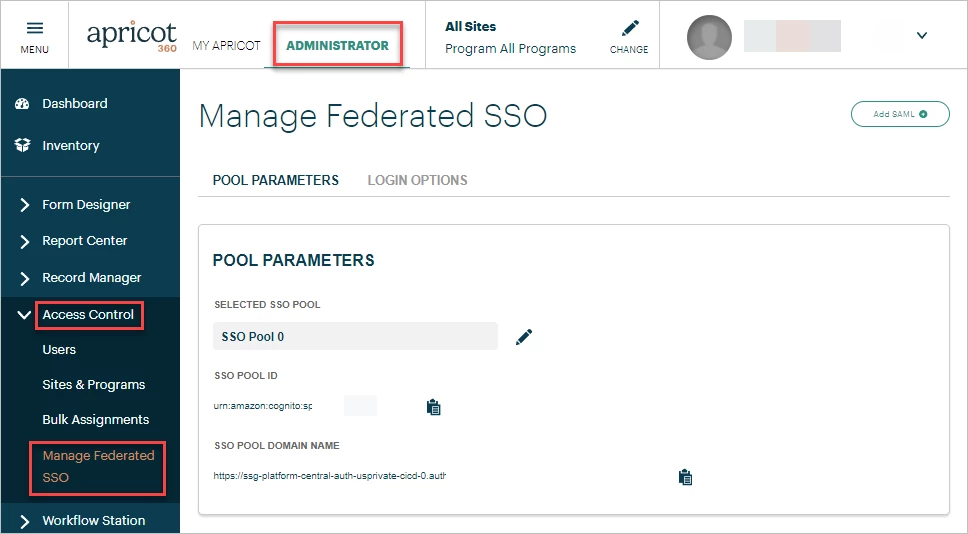
Step 1: Navigate to Manage Federated SSO
In your Production Apricot site, ensure you're in the Administrator view of Apricot and expand the Access Control category of the navigation bar.
Select 'Manage Federated SSO' to be directed to that page.
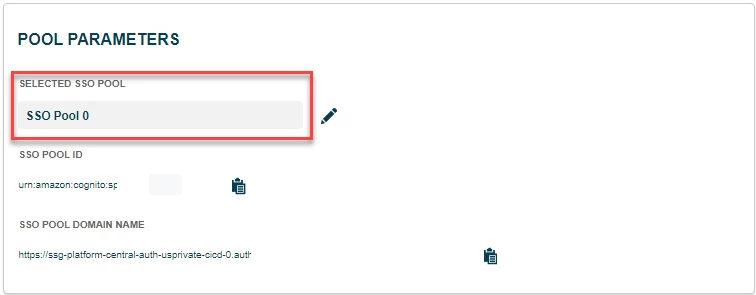
Step 2: View the selected User Pool
In the Pool Parameters section, take note of the Selected SSO Pool for this site (ex. 'SSO Pool 0').
Step 3: Navigate to another site
Next, log in as an Administrator to either your Sandbox site or your other Production site.
Go to the Manage Federated SSO page for this second site.
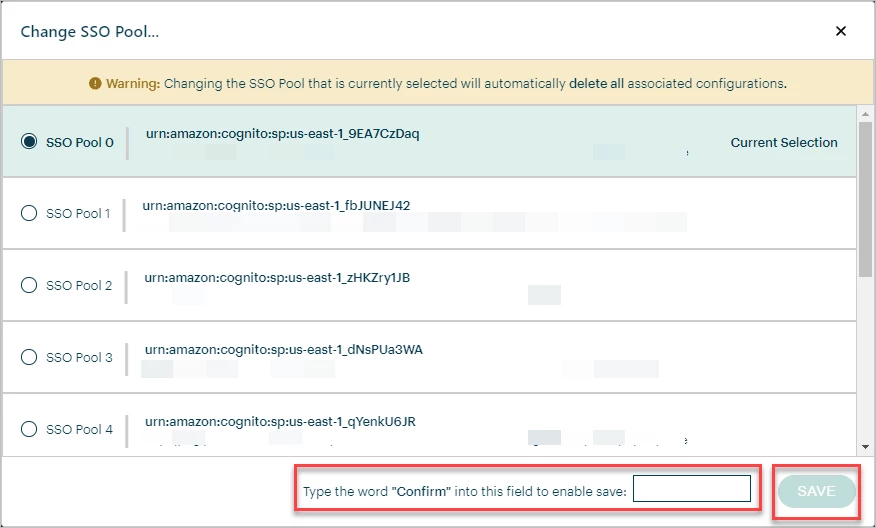
Note: Before you proceed, selecting a new User Pool will delete your SSO configuration. If you already have a configuration set up for this site, you will need to add a new configuration and distribute the new SSO login URL to your users after selecting a new User Pool.
Step 4: Select a new User Pool
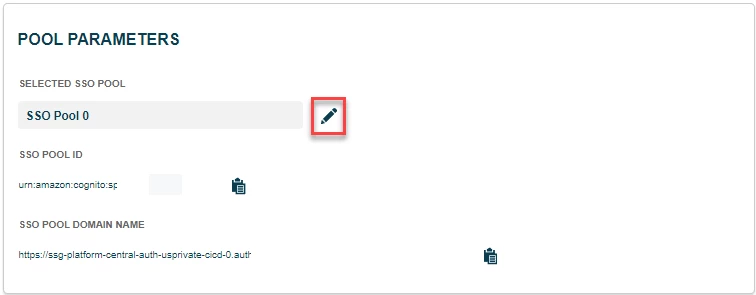
In the Pool Parameters section, click the pencil icon next to 'Selected SSO Pool'.
Then, choose a User Pool from the list. Type "Confirm" (this text is case-sensitive) and click Save.
Step 4: Add a new configuration
Set up a new configuration for this site. For a refresher on how to do this, view this article.
Step 5: Distribute the new login URL
Remind your users that they can no longer log in to this Apricot site with its previous login URL. Share the new login URL to allow users to access this site again through SSO.
Each Apricot site configured will still have its own unique SSO login URL. Both the Production and Sandbox site, or each Production site for your organization, will have a specific URL you need to distribute in order for your users to log in to those sites.
What else do you need help with?
-
Not what you're looking for? Navigate to overview
How do I use the same SSO for multiple Apricot sites? | How do I set up SSO for both Apricot sandbox and production? | How do I connect multiple Apricot databases to one identity provider? | What is a user pool in Apricot SSO? | Why do I need multiple SSO login URLs in Apricot? | How do I change the SSO user pool for an Apricot site? | Can one identity provider be used for multiple Apricot sites?